Aspecten
 Download (1.2 GB)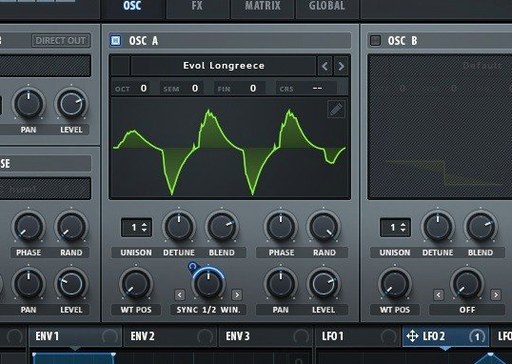
Serum 2 is a wavetable synthesizer by Xfer Records that blends multiple sound generation methods with a thorough modulation system.
Lead and bass tracks
On a synth lead or bass channel, Serum 2 does the heavy lifting with stacked oscillators of up to 16 voices. The dual filter types let you morph or switch between filter characters while keeping the signal tight in a mix.
Return bus processing
Used as a sound design source on a return track, the flangers, phasers and comb filters bring tonal movement that tracks the musical note. Sample-rate reduction applied as a filter process can add lo-fi textures behind a main part.
Modulation-driven texture layers
For pads and evolving textures tucked under a vocal or instrument, the modulation system routes movement across wavetable position, filter cutoff and effect parameters. The ability to stack voices and control filter switching keeps a single instance texturally varied without crowding the arrangement.
Immediate patch changes and fast wavetable browsing
Serum 2 loads quickly on both Intel and Apple Silicon Macs, and patch changes feel immediate. Browsing a larger wavetable folder does not stall the interface, though previews can take a moment when a table is first read from disk. In a session with several instances running, the CPU meter in your host gives the clearest picture. With unison active, voices multiply quickly, which is standard for a wavetable synth of this kind.
Stability has been uneventful in daily use across the current version. Automation of wavetable position, filter cutoff and effect parameters runs without clicks or timing drift in the hosts I have used. When a patch uses the note-tracking comb filters heavily, the processor load climbs but does not become unpredictable.
Memory use stays modest for a single instance. A patch with all effects active and a full unison stack sits comfortably within what a modern Mac handles, but keep an eye on older Intel machines with slower clock speeds. Closing the GUI does not stop the audio engine in most hosts, which is worth remembering if you leave a busy patch running in the background.
One point that comes up often: the demo timer. Xfer Records limits a demo session to 15 minutes before audio stops. This is not instability, but it can feel abrupt in the middle of sound design. If you are evaluating Serum 2 for daily work, plan short sessions or save your ideas as you go.
Frequent macOS answers before you install
A few questions repeat whenever someone considers Serum 2 on macOS. The answers below reflect how the plugin behaves in ordinary use.
ARM and Intel support with a note on older Macs
Serum 2 supports macOS 10.13 and later, on both ARM and 64-bit Intel machines. If your host runs on either architecture, the plugin can load. Older Macs still work, but the heavier patches with many unison voices will ask more of the processor. The installer covers both architectures, so there is no separate build to choose.
Does it replace Serum 1?
Serum 2 builds on the original design but adds filter types from LFOTool, note-tracking flangers and phasers, dual filter routing and the expanded unison controls. Patches from Serum 1 are not the point of this update; Serum 2 is the current instrument. If you already have a workflow built around the first version, expect to rebuild or rework your patches rather than importing them unchanged.
15-minute demo versus the unrestricted plugin
There is a demo, limited to 15 minutes per session. The full plugin runs without that restriction. People sometimes look for terms like serum plugin free download mac or serum 2 download free mac when testing whether the synth suits them. The demo gives you the same sound engine, so it is a practical way to judge the instrument before committing to it.
What format does it install in?
The macOS installer places the plugin in the formats your host expects. Check the included installation and activation instructions file for the paths relevant to your setup. The build label shown is Xfer Records Serum 2.0.24 (Team V.R, Update only), and the VR.nfo file contains the practical details.
Built-in output works fine if your buffer is set right
Yes. Serum 2 works with the built-in output on any Mac. Latency depends on your host and its buffer settings more than on the plugin itself. For recording or live playing, a lower buffer keeps response tight; for mixing with many instances, a higher buffer gives the processor more room.
Learning from factory patches with unison and dual filters
Start with the factory content before reaching for your own wavetables. The included set covers enough ground to show how the oscillators, filters and modulation behave together. Pick a patch that already uses unison and the dual filter routing, then reduce the effects one by one. That teaches you what each layer contributes faster than reading parameter names in isolation.
Make a small test project with three instances: one for a bass line, one for a lead, one for a pad. Use the same MIDI clip on all three. Change the wavetable position on each instance over eight bars. This shows how the same source note behaves across registers and gives you a baseline for CPU load on your machine.
Get comfortable with the unison controls early. Set one oscillator to a stack of four voices, then try Unison WT Pos with a slow LFO. The way a single pressed note spreads across different waveforms is not something every wavetable synth offers. Once you hear it, you will use it deliberately rather than by accident.
Check the included VR.nfo file on day one, before you forget. The installation and activation steps are short, and reading them once prevents confusion later. Then open your host and confirm the plugin appears in the instrument list. If it does not, close the host and reopen it; most hosts rescan on launch.
Finally, save a few of your own patches in the first week. Serum 2 rewards repeated use, and your own starting points will matter more than the factory set after a while. Name them clearly and keep them in one folder.
Simple fixes for most early problems
Most issues are simple to fix once you know where to look.
Plugin does not appear in the host
After installation, the host may not show Serum 2 until it rescans. Close the host, open it again, and check the instrument list. If it is still missing, confirm the plugin was placed in the folder your host reads. The included installation instructions list the standard locations for macOS. Some hosts need a manual rescan from their plugin manager.
Audio cuts out after 15 minutes
This is the demo limit, not a fault. The included patch and activation instructions cover the full version. If you are still testing, save your patch before the timer runs out, because audio stops without a warning.
High CPU with many voices
Unison multiplies the load quickly. A 16-voice stack with effects on a busy channel can strain a slower Mac. Reduce the unison count, or bounce the part to audio once the sound is set. The effect section also contributes; the comb filters with note tracking are among the more demanding modules. Disable effects you are not actively shaping.
Clicking or popping during patch changes
This usually comes from abrupt parameter changes in the host automation or from switching wavetables mid-note. Draw smooth automation ramps where possible, and change wavetables when the oscillator is silent. Some hosts handle patch changes better than others, but the plugin itself does not need special settings for this.
Confusion about the included files
The download includes the plugin and an instruction file. The VR.nfo file is plain information about installation and activation. Open it with any text editor. If the text looks like formatting code, that is normal for NFO files; the content is still readable as text.
Hear wavetable movement clearly with lower unison voices
A few adjustments make the first sessions more comfortable.
Unison voice count. Start with two or three voices rather than the maximum. The fuller stack is useful, but a lower count helps you hear the wavetable movement more clearly while you learn. Increase it later when the patch needs width.
Filter routing. The dual filter types let you choose between controlling both filters together or switching between them. If you are new to Serum 2, set a slow envelope on the switch so you can hear the transition. Later you can use MIDI velocity or note position to switch types per note.
WT Pos assignment. In the unison section, assign Unison WT Pos deliberately. With a slow LFO, this is where stacked voices start to sound like individual players rather than copies. With a fast LFO, it becomes a texture control. Decide which role you want before turning it up.
Host buffer size. This is a host setting, not a plugin setting, but it shapes your first impression. For playing parts in, use a lower buffer. For playback with many instances, raise it. The plugin itself has no compensation setting to adjust for this.
Sample-rate reduction. Treat it as a colour control, not a problem to avoid. A small amount on a return bus adds grit without making the part unintelligible. Place it before or after the flanger to change how the aliasing interacts with the modulation. This is one of the more distinctive parts of Serum 2's filter section.
There are searches like Serum 2 VST torrent or Serum 1 Mac crack that lead people to builds with different version characteristics. The current version 2.1.5 includes the full update from Xfer Records with the activation approach handled by the included files. Stick with the included package and the instructions it contains, and the install will behave as described.