Aspecten
 Download (6.4 GB)
What changed for the 2026 edition
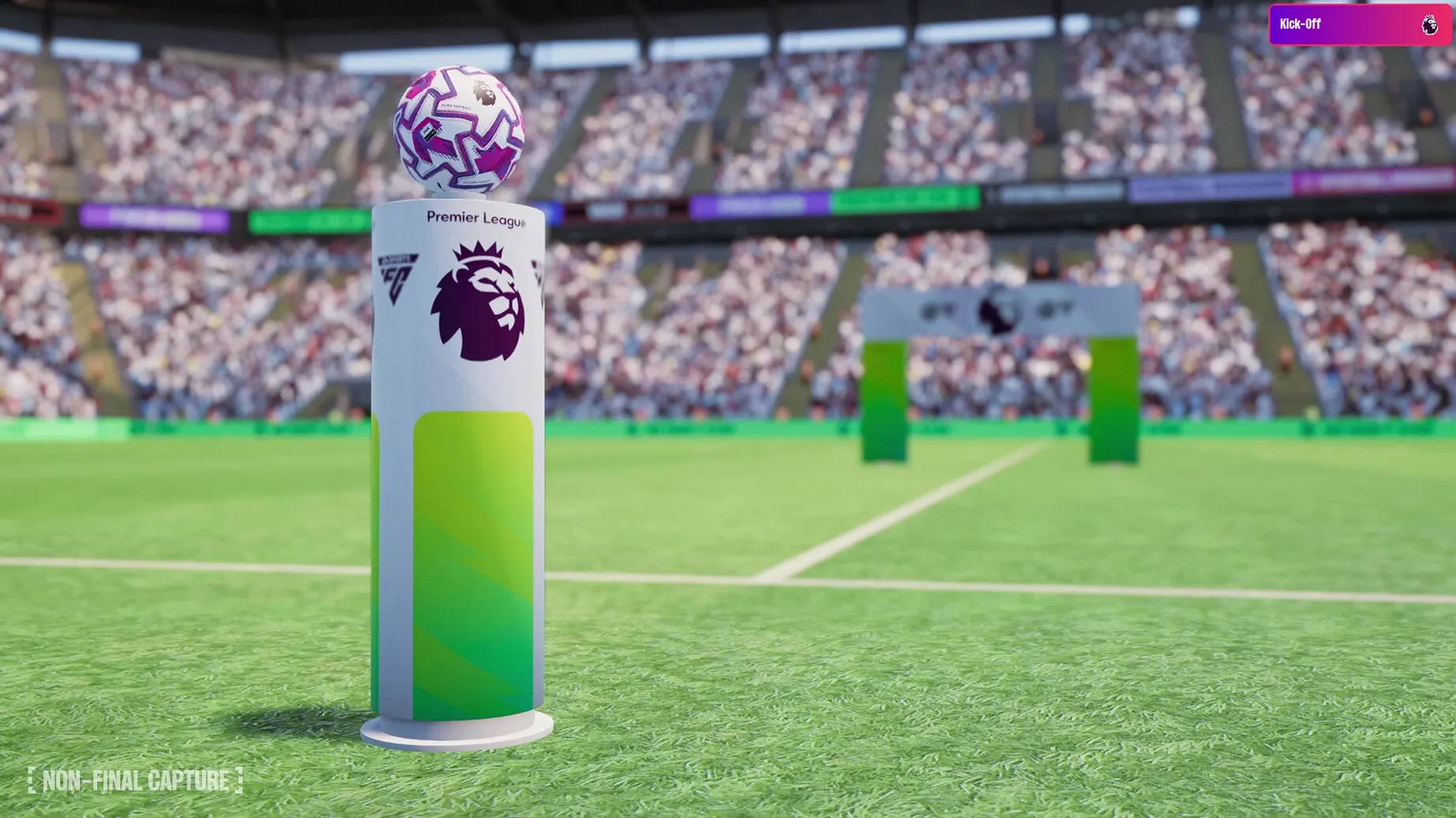
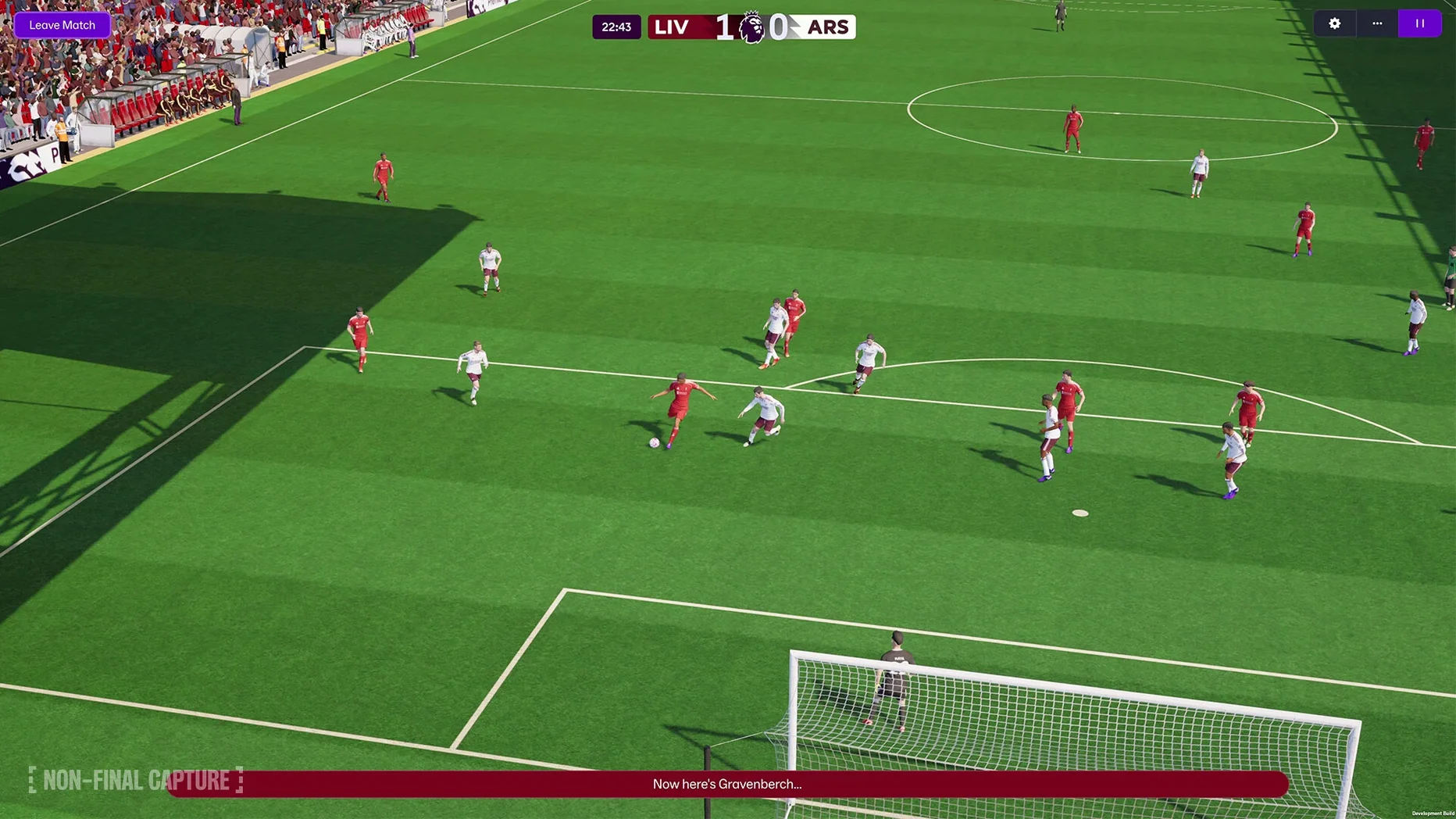
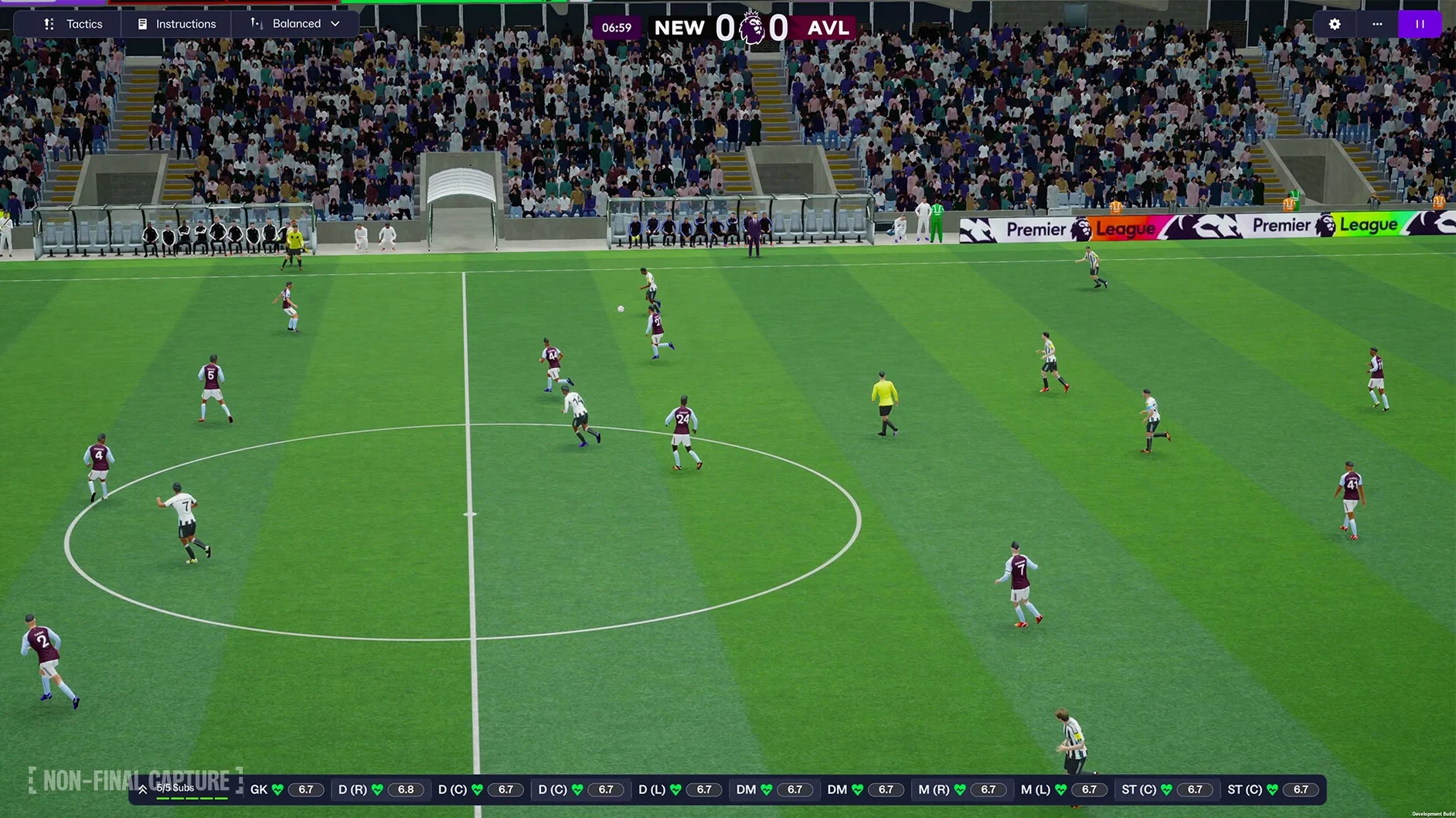
The move to Unity underpins several visible shifts. A reworked interface introduces a portal system that groups news, squad updates and next-match details on one screen. Women’s football arrives as a fully integrated pyramid, with its own leagues, player database and scouting networks. Premier League licensing brings club badges, kits and official player photos into the match-day presentation.
Setting up a new career
- Launch the game and open the improved character editor. The manager creation process now offers more face-shaping controls and wardrobe options before you pick a starting reputation and coaching badges.
- Choose a club or nation. The new FMPedia glossary sits in the sidebar, offering definitions of tactical terms and league rules as you browse.
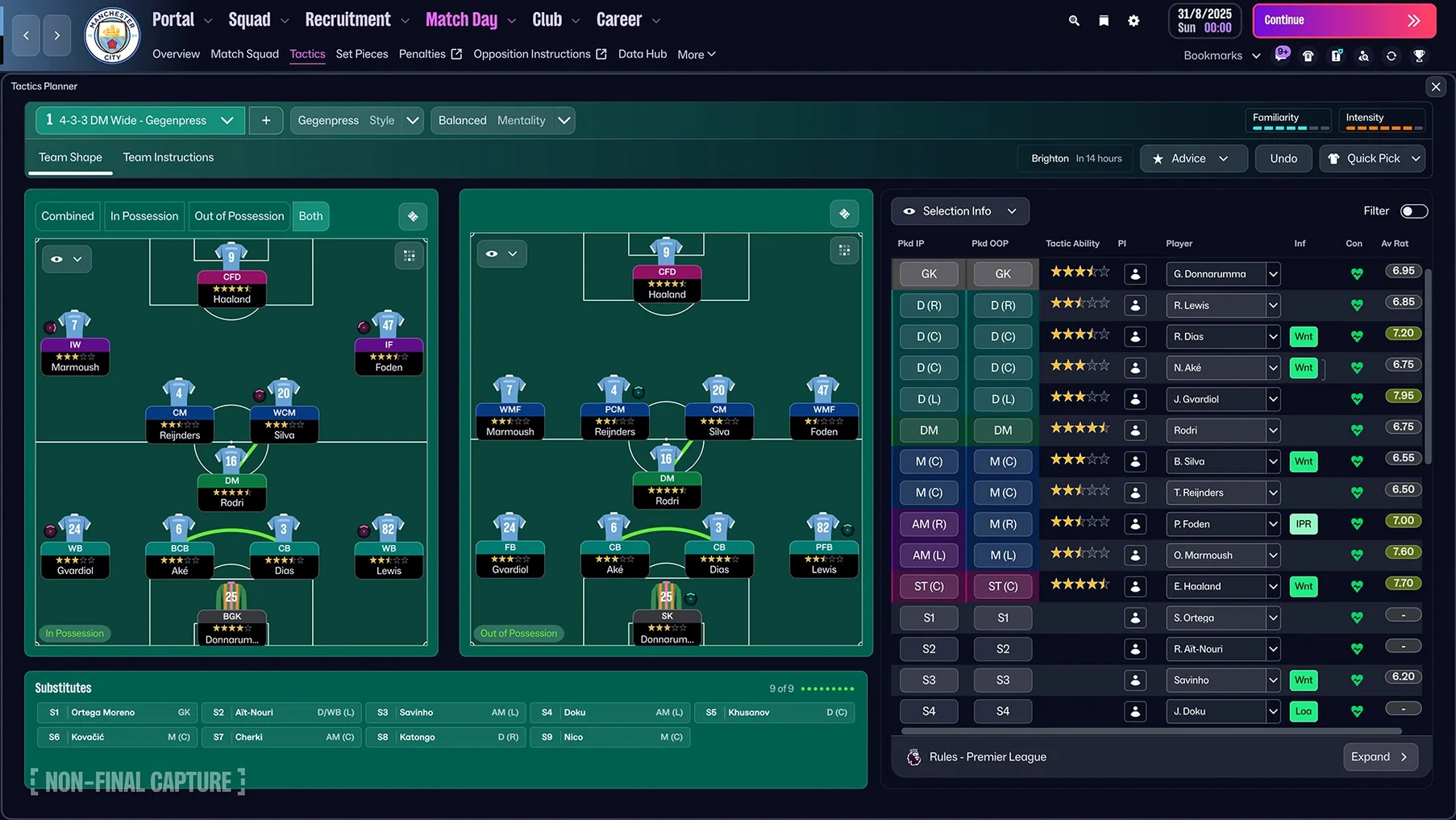
- Define your tactical identity. Separate attacking and defensive tactics let you set a pressing shape without tying it to your build-up structure. Updated player roles refine how a midfielder or wide forward behaves in each phase.
- Head into the transfer market. TransferRoom-based recruitment tools surface realistic shortlists by matching club budgets and player availability, similar to the real-world platform.
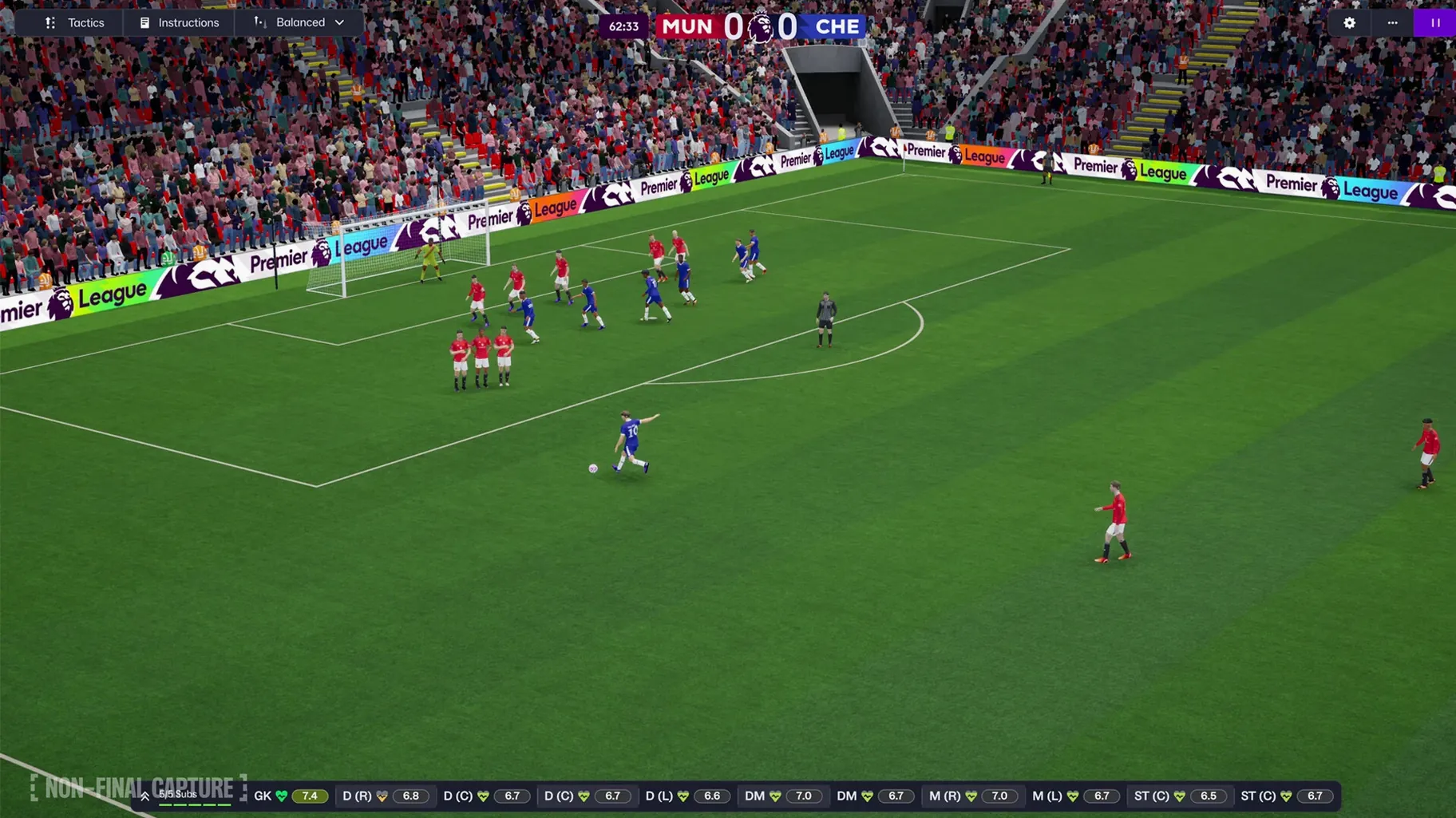
- Play a match. Enhanced match presentation shows the new engine’s lighting and animation work, while quick bookmarks let you jump between highlights, tactical tweaks and squad condition.
The Apple Arcade version, Football Manager 26 Touch, covers the core loop on Mac with a streamlined interface and the same database underpinning the full simulation.
Enjoying the shift to Unity-engine tactics and separate phases
The Mac version suits three kinds of player particularly well. Long-time series followers who skipped the previous edition will notice the engine shift immediately: the Unity-based match presentation and the separate tactical phases reward those who enjoy dismantling a 4-4-2 low block with patient positional rotations. The game leans into detail rather than simplification, so someone who already knows what an inverted wing-back does will feel at home quicker than a newcomer.
Tactical tinkerers benefit from the split between attacking and defensive shapes. Setting a 3-2-5 in possession and a 4-4-2 out of it is now a straightforward toggle rather than a workaround of player instructions. That group tends to spend half their session in the tactics screen, adjusting pressing triggers and rest defence positioning, and this edition gives them more levers.
A third group is players who follow women’s football alongside the men’s game. The women’s pyramid is not a cosmetic overlay; it carries its own scouting economics, wage structures and player development curves. Managing Arsenal Women feels distinct from managing the men’s side, and switching between the two within one save file creates a broader career arc than the series has offered before.
Casual players who only want a Saturday-afternoon session may find the full simulation too dense. Football Manager 26 Touch on Apple Arcade trims scouting depth, media interaction and training granularity, making it a better fit for that rhythm. On a Mac, Touch runs alongside the full version and shares the same database, so moving a save from one to the other is not possible but the feel of the match engine is consistent.
Mid-November Brighton save on the new portal screen
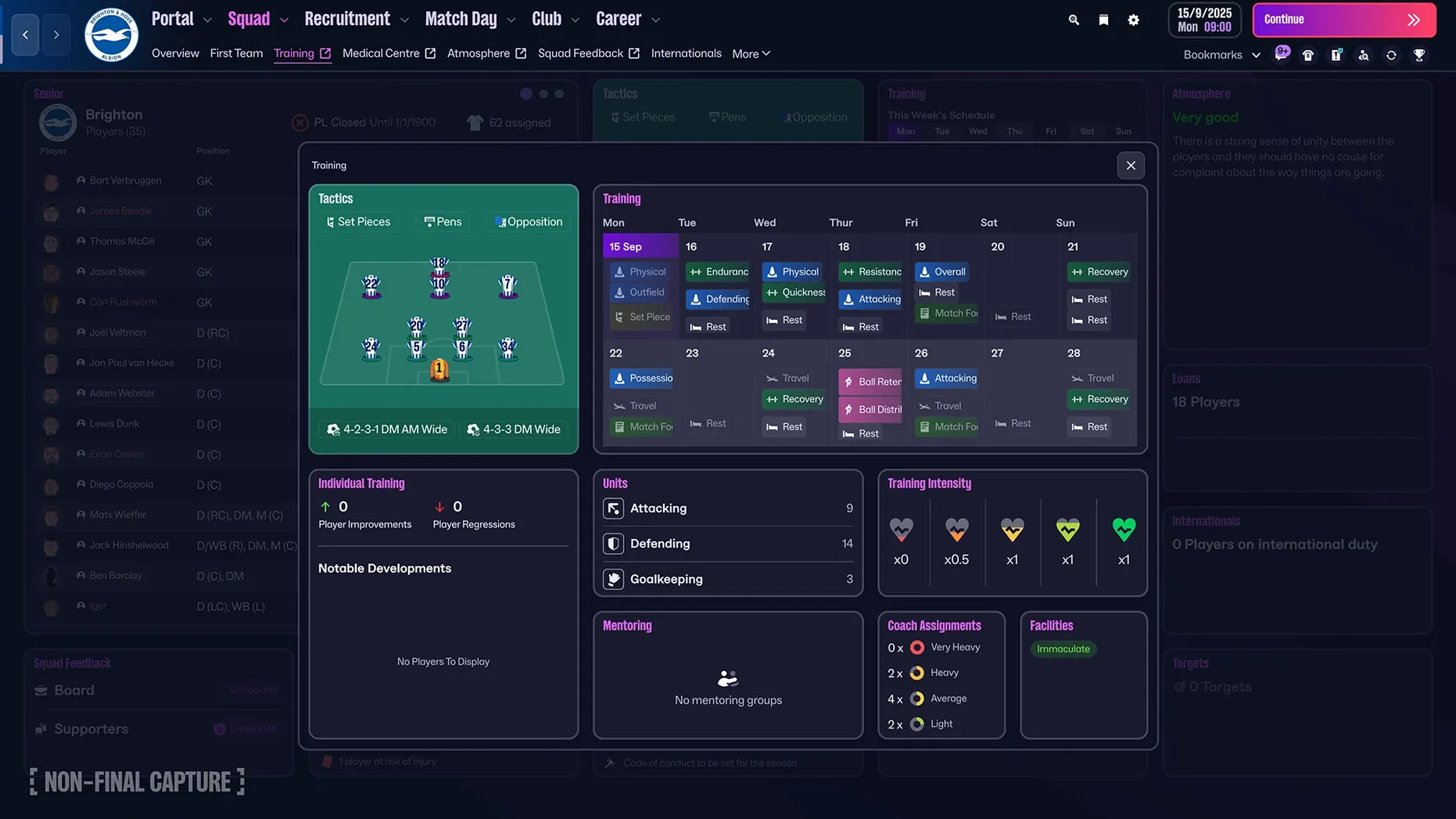
You load a save as Brighton’s manager, mid-November, sitting seventh in the table. The portal screen greets you first: a left panel with the squad list, a central area showing three unread scouting reports and a fixture strip across the top with Saturday’s match against Wolves highlighted. The quick-bookmark bar at the bottom holds shortcuts you set earlier — training calendar, shortlist, the women’s under-21 squad.
Before the match, you open the defensive tactics panel and set a mid-block 4-4-2 out of possession, with the two wide midfielders dropping into a compact line. The attacking shape is a 3-2-4-1, with the left-back pushing into midfield. You drag the updated deep-lying playmaker role onto your new signing and check his player traits in FMPedia to confirm he has the "switches play" preference.
Match day arrives. The new presentation engine renders evening light across the Amex, with licensed Premier League kits and badges visible during the line-up overlay. You watch on comprehensive highlights. When Wolves equalise from a set piece, you bookmark the minute immediately using a single click, then switch to the tactics screen and adjust the defensive width. After the match — a 2-1 win — you bookmark the post-match analysis screen and move to the transfer hub. TransferRoom shows a centre-back from the Belgian league within your remaining budget; you add him to a shortlist and request a scout report, then save and close.
The session took forty minutes. The portal meant less clicking between menus than in earlier editions, and the bookmarks let you return to the key moments without hunting through the inbox.
A scenario: building a women’s team from the lower tiers
A player who enjoys long-term squad building picks London City Lionesses in the Women’s Championship. The club has a modest wage budget and limited scouting range. Day one involves setting up a recruitment focus through the TransferRoom tool: under-23 midfielders with high work rate, contract expiring within twelve months, playing in the Scandinavian leagues. The tool surfaces four realistic names within seconds, each with a compatibility score based on the club’s financials.
The tactical identity is built around a 3-5-2 attacking shape with aggressive wing-back pushes, and a defensive 5-3-2 that tucks those wing-backs into a low block. Separate tactics mean the attacking width no longer compromises the defensive shape — a limitation in older editions that required complex individual instructions to approximate. The updated player roles include a "wide centre-back" option that suits the left-sided defender in a back three, and you assign it after checking the player’s comfort level in FMPedia.
By season two, promotion to the Women’s Super League unlocks a larger scouting network. The board expects mid-table security. You use the improved search to filter for free agents with WSL experience and find a veteran goalkeeper who stabilises a young back line. The portal surfaces a news item about her arrival, and the pre-match presentation now shows her in the licensed kit. The scenario works because the women’s game is a full simulation, not a stripped-down mode, so the same long-term planning that drives a men’s lower-league save applies without adjustment.
Keeping Notes open on a second desktop for transfer logs
During a session, the game works alongside standard Mac tools without friction. Many players keep Notes open on a second desktop to log tactical ideas or track transfer targets across multiple saves. The portal’s layout reduces the urge to alt-tab for squad information, but for writing down season plans or recording youth player development, a plain text note or a Numbers spreadsheet remains a common companion.
The game respects macOS Spaces well. Swiping between a full-screen match and a desktop with a browser open to a football statistics site is smooth on Apple Silicon hardware. Some managers run a second display with a scouting spreadsheet or a live league table, and the windowed mode handles the arrangement without resolution quirks. The Unity engine seems to have fixed the occasional multi-monitor redraw glitches present in the previous engine.
Spotlight integration is absent — you cannot search for a player from the macOS menu bar — but the improved in-game search largely removes the need. The search field now parses partial names and nicknames, and the results screen groups players, staff, clubs and competitions in separate tabs, which cuts down on the old habit of web-searching a player name to find their in-game ID.
For those playing across devices, Football Manager 26 Touch on Apple Arcade syncs save data through iCloud. A session started on a Mac mini can continue on an iPad later in the evening. The full simulation does not offer cross-device saves, so players who want that flexibility often keep one Touch save and one full-fat save running in parallel. The database knowledge carries over between them, even if the feature set differs.
A workflow: scouting and signing a first-team midfielder
This workflow takes a Premier League club through the process of identifying, scouting and signing a central midfielder during the summer window, using the new recruitment tools.
Step 1 — Define the need. The squad planner shows two senior midfielders and one youth prospect who is not ready for regular minutes. The board expects a top-half finish, so the profile is a box-to-box player aged 22 to 26, with stamina above 15 and passing above 14 in the scouting range. You set these parameters in the recruitment focus screen.
Step 2 — Generate a shortlist via TransferRoom. The TransferRoom tool cross-references your budget, the player’s estimated value and the selling club’s willingness to negotiate. It returns eight names from six leagues. Two play in Ligue 1, three in the Bundesliga, one in Serie A, one in the Eredivisie and one in the Portuguese top flight. You bookmark the shortlist for quick access later.
Step 3 — Assign scouts. You send your chief scout to France and a second scout to the Netherlands, prioritising the two most affordable options. The improved search lets you filter by the scout’s knowledge of the region, so the assignment screen now highlights which scout has the highest adaptability rating for each country.
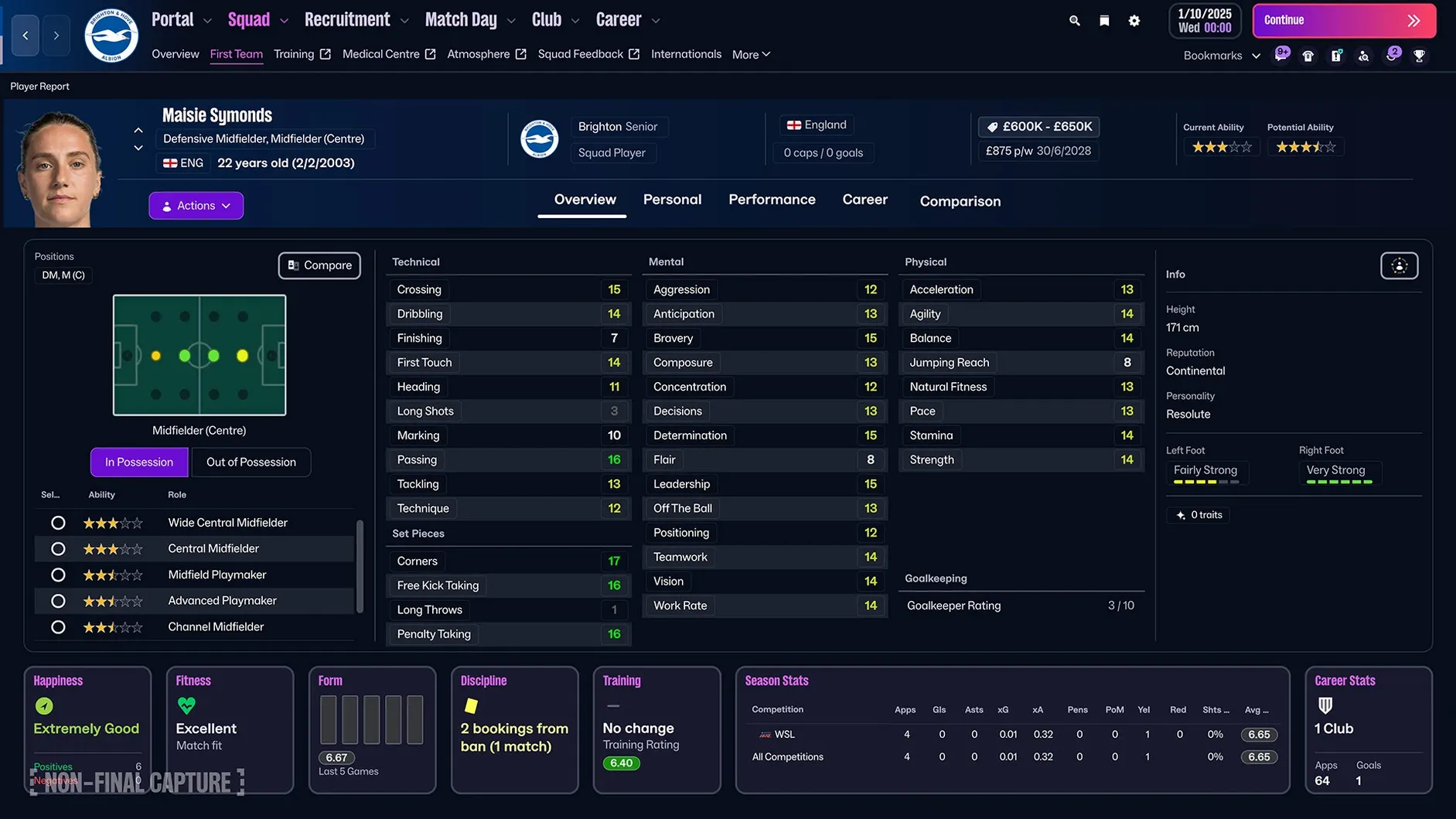
Step 4 — Review reports. After ten in-game days, the portal surfaces a notification: both reports are ready. The Ligue 1 midfielder has concerns about consistency in big matches. The Eredivisie player scores highly on all key attributes and has a release clause within budget. You open his FMPedia entry to check his injury history and personality type, then move to the next step.
Step 5 — Negotiate and sign. You activate the release clause. The contract offer screen now groups wage, bonuses and playing-time promises into a single view, with the player’s agent feedback updating as you adjust figures. The player signs within three in-game days. The portal announces the transfer, and the news item includes a side-by-side comparison of his attributes against the squad average — a small touch that helps justify the outlay.
Step 6 — Integrate into the tactic. You open the tactics screen and assign him the updated box-to-box midfielder role. The attacking shape now shows his forward runs connecting with the advanced playmaker, while the defensive shape keeps him compact alongside the holding midfielder. A pre-season friendly against a Championship side serves as a test; the enhanced match presentation shows his movement patterns clearly, and you bookmark a passage of play where he wins possession and starts a counter, confirming the signing was sound.
The whole process, from defining the need to watching the first match, took about ninety minutes of real time. The TransferRoom integration and the bookmarks kept the workflow linear and reduced the menu-hopping that older editions required for the same task. Some players still prefer to scout manually without the tool, and that path remains available, but for a focused session the new pipeline feels efficient without being automated.