Aspecten
 Download (18 MB)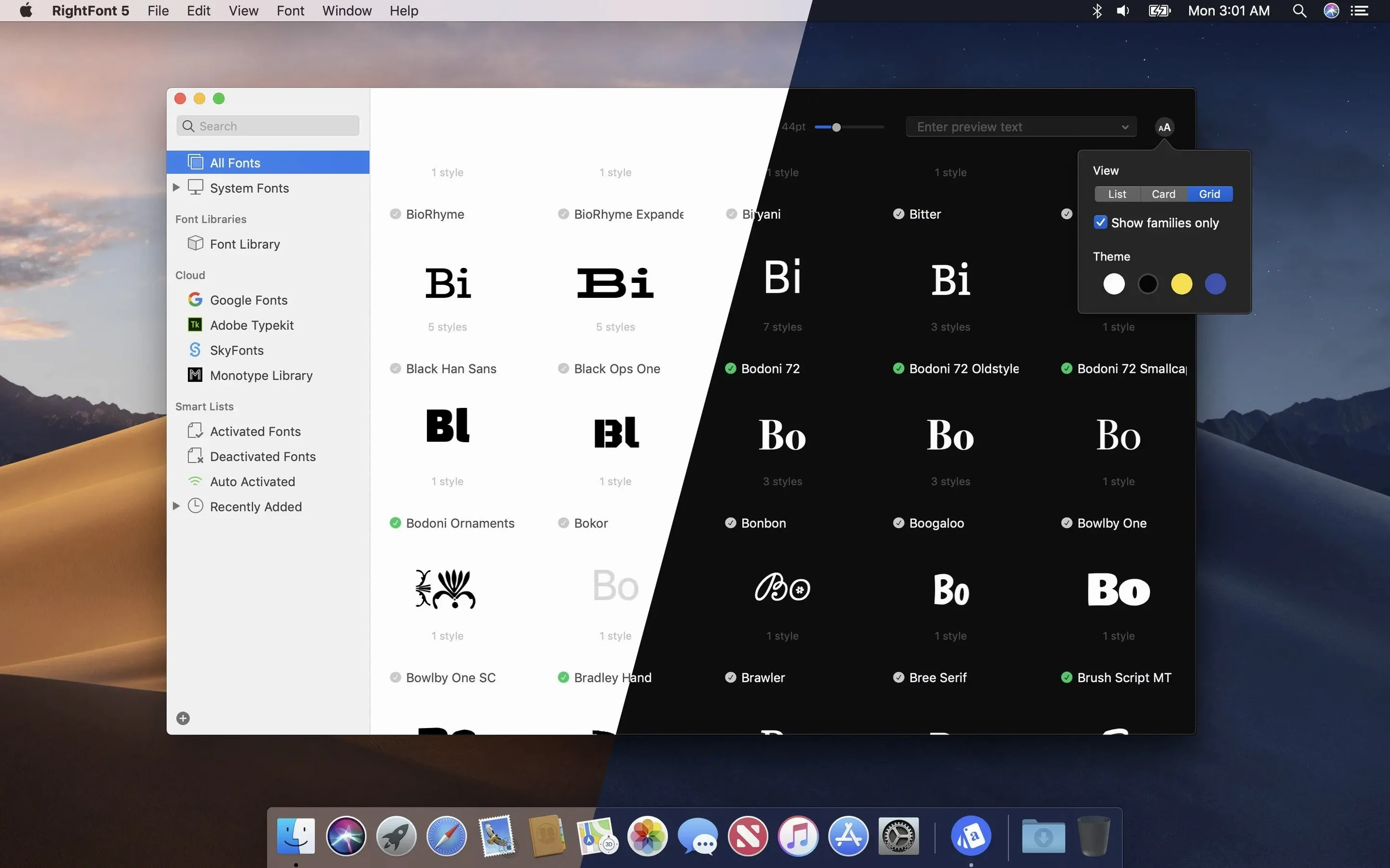
Keeping a large collection of typefaces in order becomes difficult the moment installed fonts outnumber the few system defaults. Scrolling through endless drop-down menus in a design application is slow, and activating fonts only when needed is not something macOS handles on its own. RightFont approaches this by making font organisation and activation a separate, focused task.
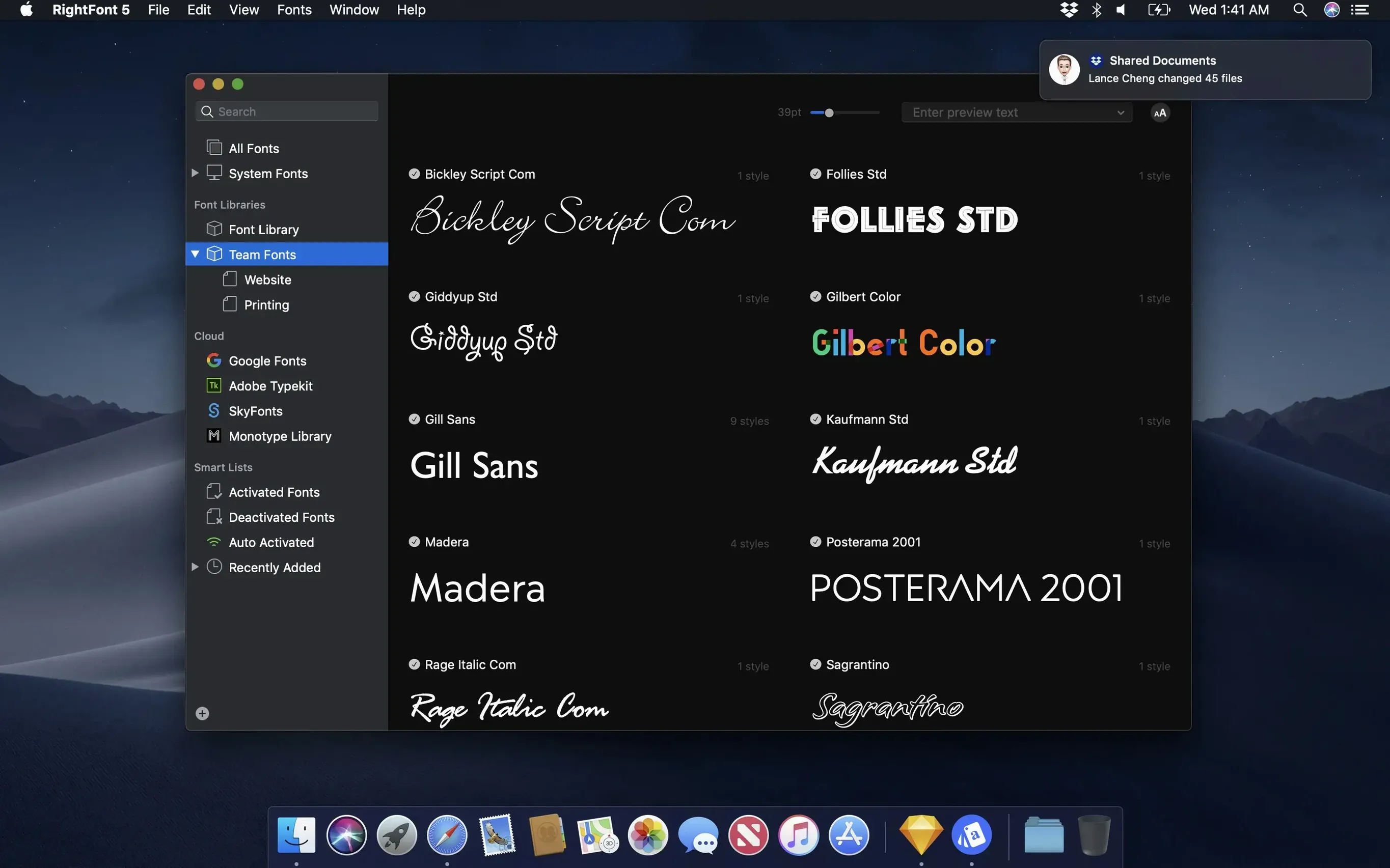
Imagine preparing a branding project that uses a specific set of weights from a single family alongside a monospace typeface for code snippets. Opening RightFont, you would first create a new font list for that project. The search field narrows results as you type, so finding the family by name takes a moment. Dragging the relevant weights into the list builds a tidy, project-specific set. From there, right-clicking the list gives an option to activate those fonts, and the typefaces become available in Adobe Illustrator or Sketch without needing to install everything system-wide.
The menu bar helper keeps that list within reach. Clicking the icon shows the active project fonts, allowing quick toggling on or off. Direct access to fonts stored in Creative Cloud libraries means you do not need to manage duplicate copies. When the project wraps up, deactivating the list returns the system to its previous state, avoiding font conflicts down the line.
Project-based font lists that activate as a group
- Grouping typefaces into project-based lists and activating them together
- Accessing Adobe Creative Cloud and Sketch fonts directly without manual duplication
- Quick font activation and deactivation from the menu bar
- Lightweight organisation that stays out of the way during design work
Needs macOS 11 or newer to run
- Requires macOS 11 or newer
- Version 10.2.1 includes fixes for Illustrator, QuarkXPress, and macOS 27 compatibility
Restart Illustrator after activating a font
Fonts not showing up in Adobe Illustrator after activation is the most frequent hitch. This usually happens because Illustrator checks its font list at launch. Restarting the application after activating a font list in RightFont almost always resolves it. If restarting does not help, opening RightFont’s preferences and toggling the Illustrator plug-in off and on forces a fresh connection. Version 10.2.1 specifically addressed Illustrator compatibility, so keeping the app updated avoids a recurrence of older sync issues.
Another recurring situation involves fonts that appear greyed out in the RightFont library. This points to a broken file path. The font file may have been moved, renamed, or deleted from its original location since RightFont last indexed it. Right-clicking the greyed entry and selecting the option to locate the file lets you point the app to the correct spot. For fonts stored on external drives that are occasionally disconnected, storing a copy inside the RightFont library folder prevents the problem altogether.
Tag management can trip people up after importing a large batch. The import process in version 10.2.1 shows a finalisation stage and a count of unsupported files, so any .ttc or .woff files that were accidentally included become visible immediately. Dragging subtags back to the main Tags section — a feature also refined in this version — lets you reorganise a messy tag hierarchy without deleting and recreating entries. If auto-tagging produces odd classifications, checking the font metadata with a tool like Apple’s Font Book can reveal mislabelled width or weight fields that RightFont reads literally.
Swapping complete typographic palettes between clients
Designers juggling several client projects with distinct typographic palettes benefit the most. Each project can have its own font list that activates a precise set of typefaces and nothing else. Swapping between projects mid-day becomes a matter of deactivating one list and activating another from the menu bar, which takes seconds. The direct integration with Sketch and Adobe Creative Cloud makes this particularly useful for UI and brand designers who move between those applications constantly.
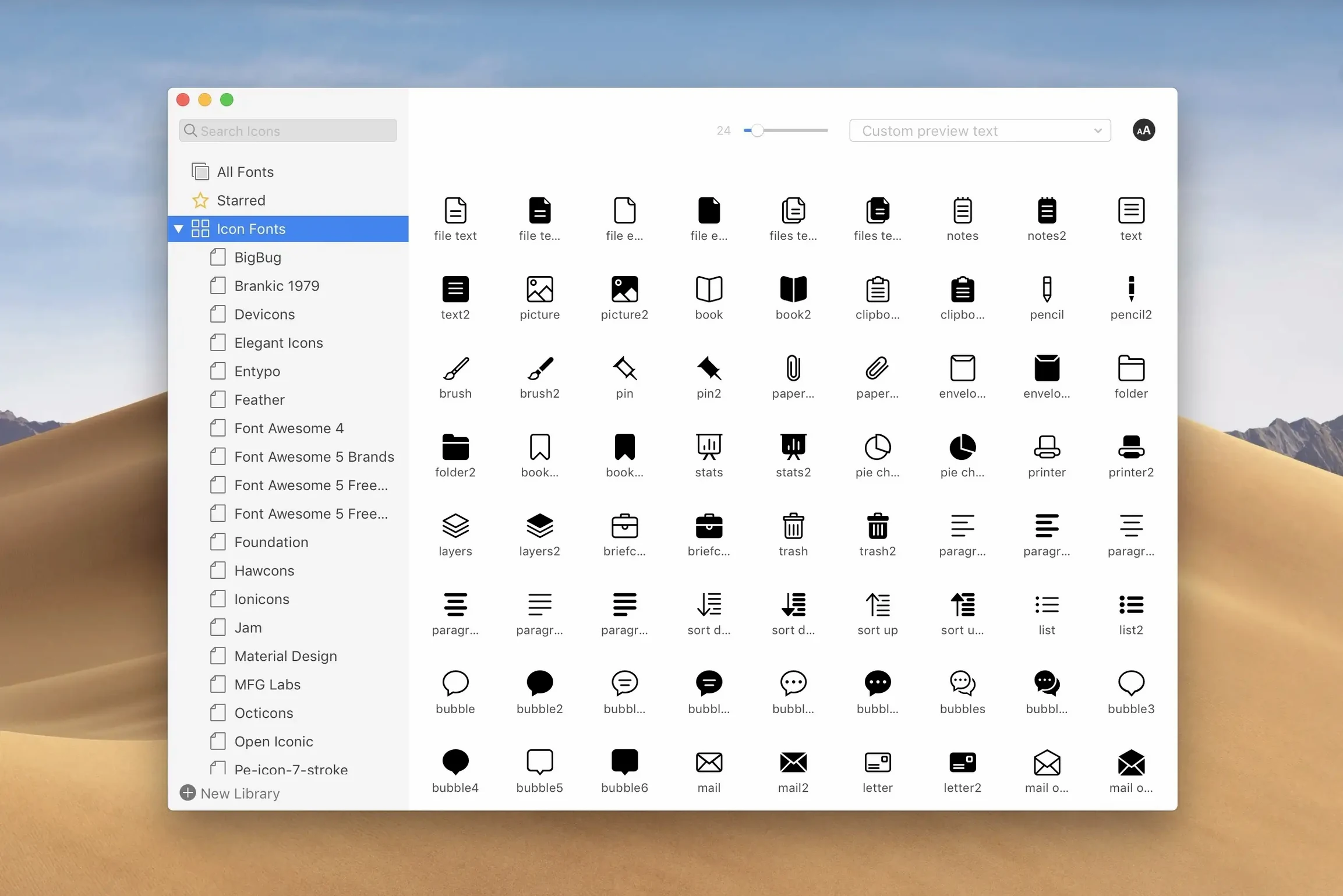
Typeface enthusiasts who collect and compare families also find a natural fit. The ability to filter by classification, width, and weight turns a sprawling library into something browsable. Someone comparing a dozen sans-serif families for a signage project can isolate only the bold weights across all candidates and preview them side by side. The search-as-you-type behaviour means narrowing a library of several thousand fonts down to a specific family happens in real time, without waiting for a full index scan.
Small teams sharing a font server or a cloud-synced library folder get value from the portability of font lists. Exporting a list and sharing it with a colleague gives them the exact set of typefaces for a shared project, assuming both have access to the same font files. Moving fonts for backup or transferring them between machines becomes a matter of dragging them out of RightFont rather than hunting through system folders.
Font Book sees your activated fonts without conflict
RightFont does not replace Font Book, but it does not conflict with it either. Fonts activated through RightFont appear in Font Book’s user collection, and deactivating them removes them cleanly. macOS system fonts remain untouched unless explicitly handled. This coexistence means you can use Font Book for occasional system-level font validation while letting RightFont handle project-based activation.
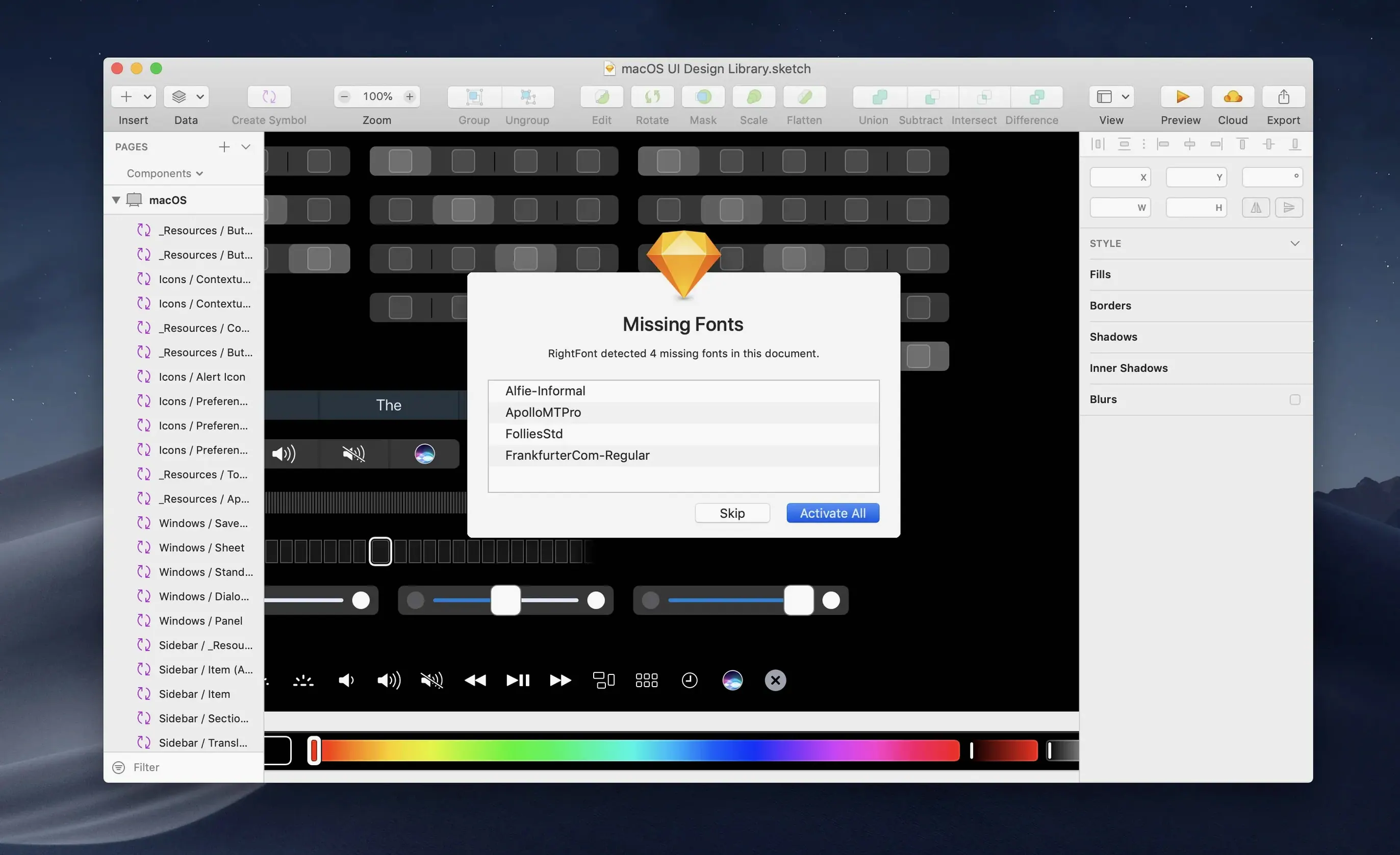
The Creative Cloud integration works by reading fonts stored in your CC libraries directly, without importing duplicate copies. Changing a text layer’s font in Illustrator by double-clicking a typeface in RightFont keeps the workflow inside the design application. Sketch support follows the same pattern. For applications outside the Adobe and Sketch ecosystems — Figma in a browser, for example — activating a font list makes the typefaces available system-wide, so any app that reads from the standard macOS font directories picks them up.
Auto-activation plug-ins for individual design applications are not needed because RightFont handles that at the system level. This reduces the number of background processes running during a work session and avoids plug-in conflicts when Adobe updates Creative Cloud. The menu bar helper stays lightweight and does not add noticeable memory pressure even with a large library loaded.
Activating thousands of fonts at once slows down menus
Installing every font from a large collection right after importing is the most common misstep. RightFont makes activation simple, and the temptation to turn on everything at once is real. But having several thousand active fonts slows down font menus across every application and increases the chance of conflicts between families with similar internal names. A better approach is to keep most fonts deactivated and only switch on the lists needed for current work.
Another early mistake is ignoring the font cache. When a previously activated font is deactivated and then reactivated later, some applications hold onto an old cached version. If a typeface looks wrong — missing glyphs, incorrect kerning — clearing the system font cache and restarting the affected application usually fixes it. RightFont itself relies on macOS font services, so it is subject to the same caching behaviour as any other font tool.
Beginners also tend to overlook the tag hierarchy. Dragging a subtag into the main Tags section instead of nesting it under a parent tag creates a flat structure that becomes unwieldy as the library grows. Taking a few minutes to plan a basic taxonomy — by foundry, by project, by style — early on saves a lot of reorganising later. The improved tag management in version 10.2.1 makes restructuring easier, but a thoughtful setup from the start is still the cleaner path.