Aspecten
 Download (40 MB)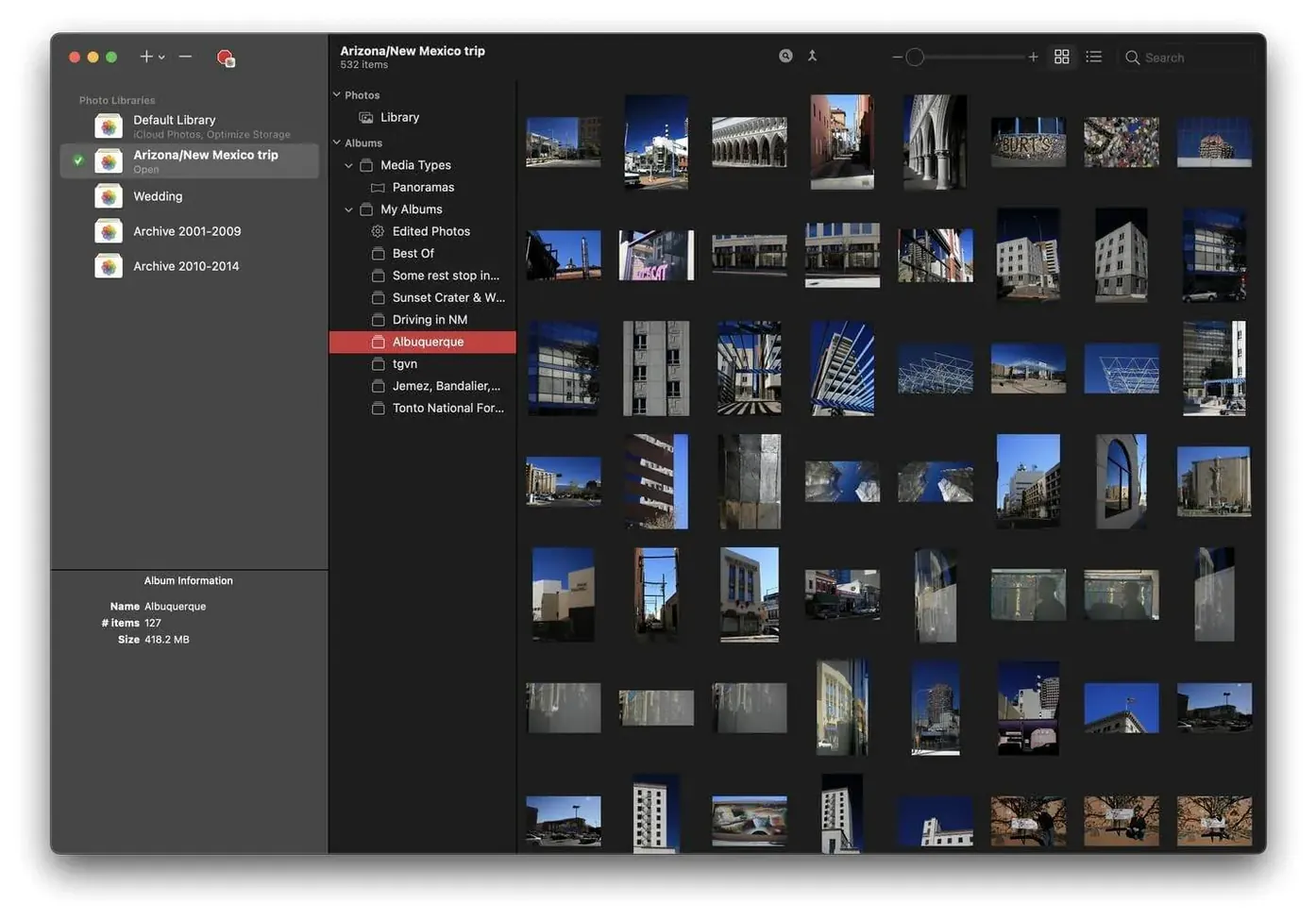
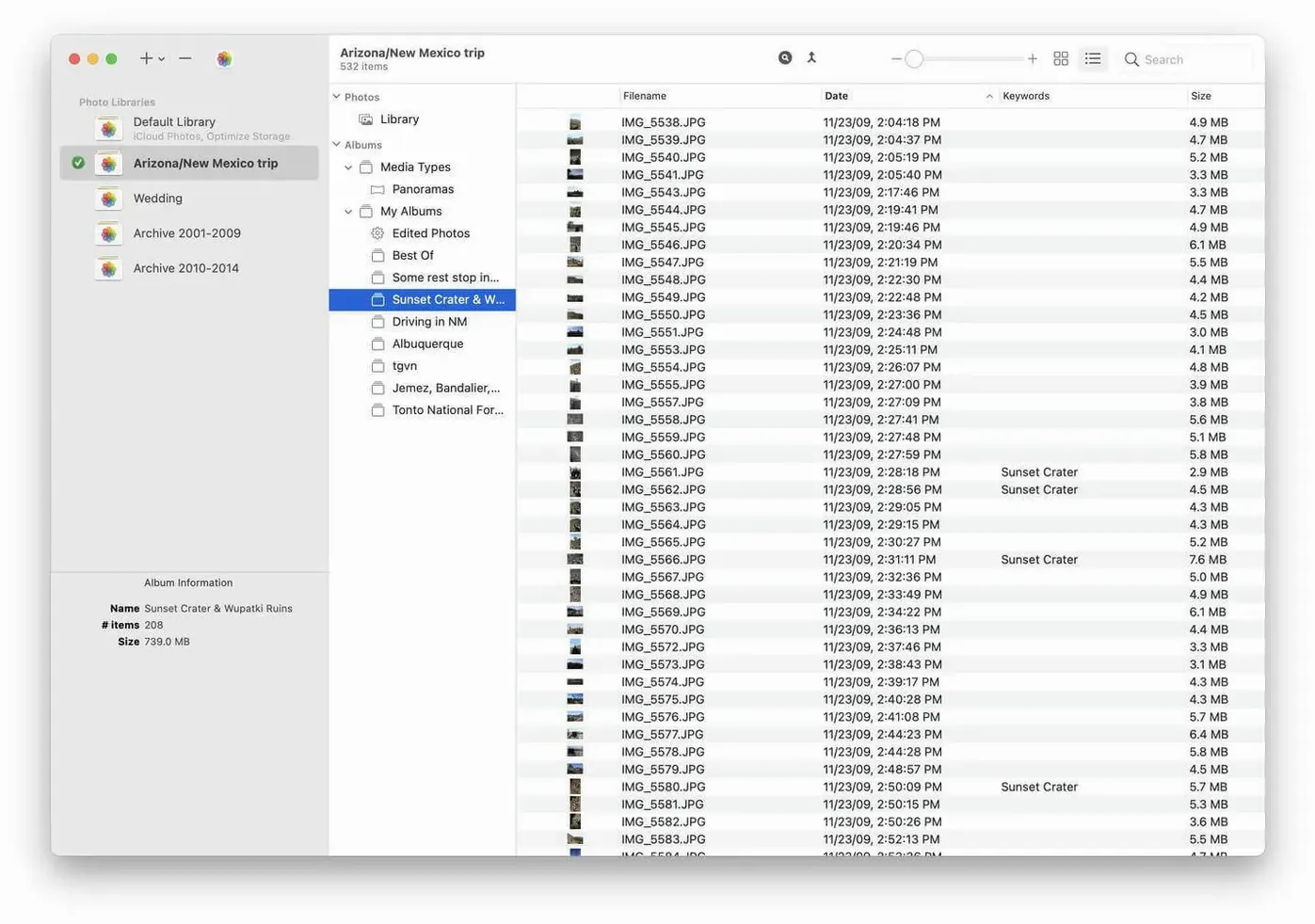
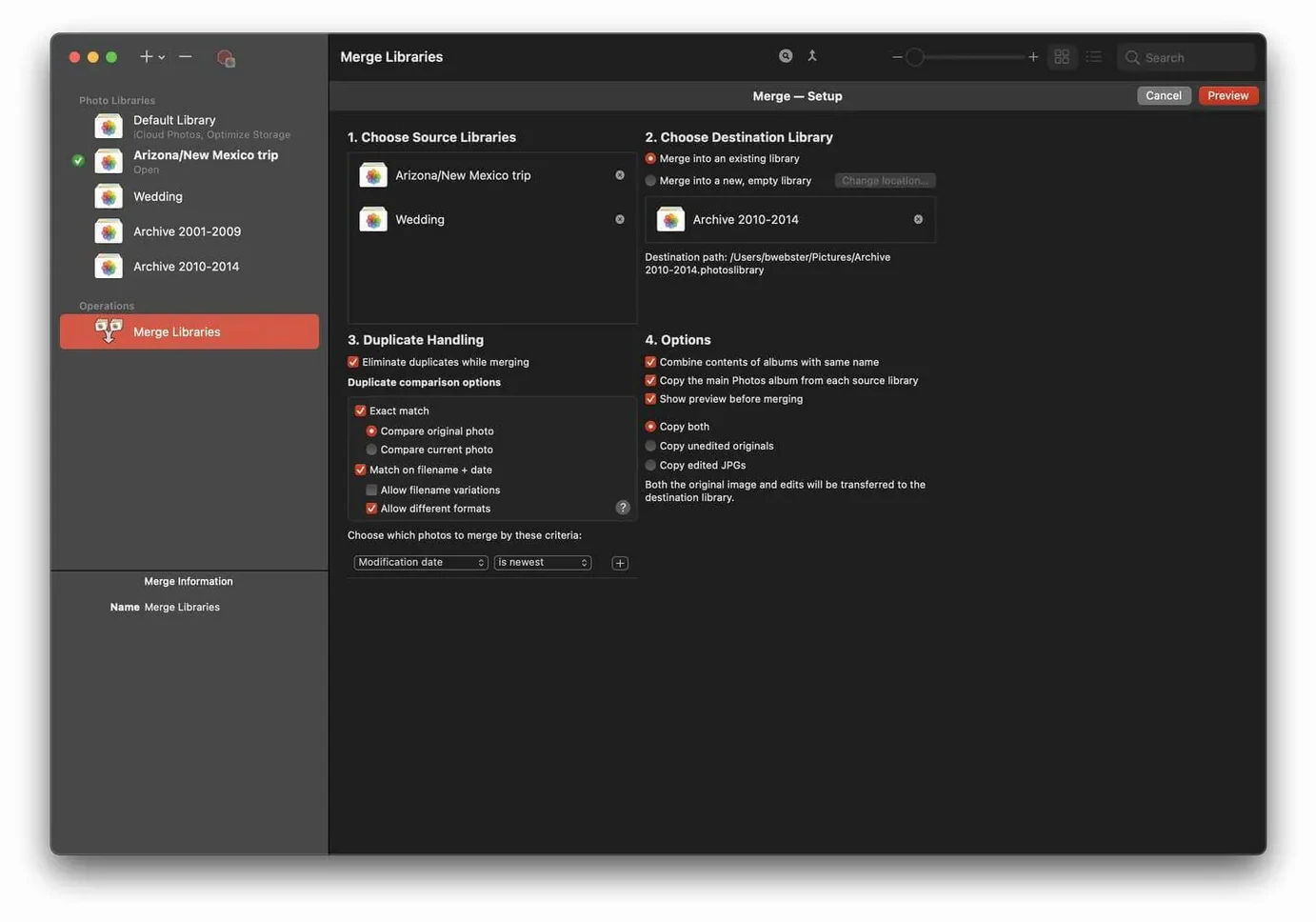
An experienced Mac user with a sprawling Photos collection often runs into a familiar wall: one library becomes too large to navigate or back up easily. PowerPhotos addresses this by treating libraries as manageable units rather than a single monolith.
Switching between topic libraries without Finder wrangling
- Creating topic-based libraries (work, personal, archives) and switching between them without manual Finder wrangling.
- Running a search across every library at once, which the built-in Photos app cannot do.
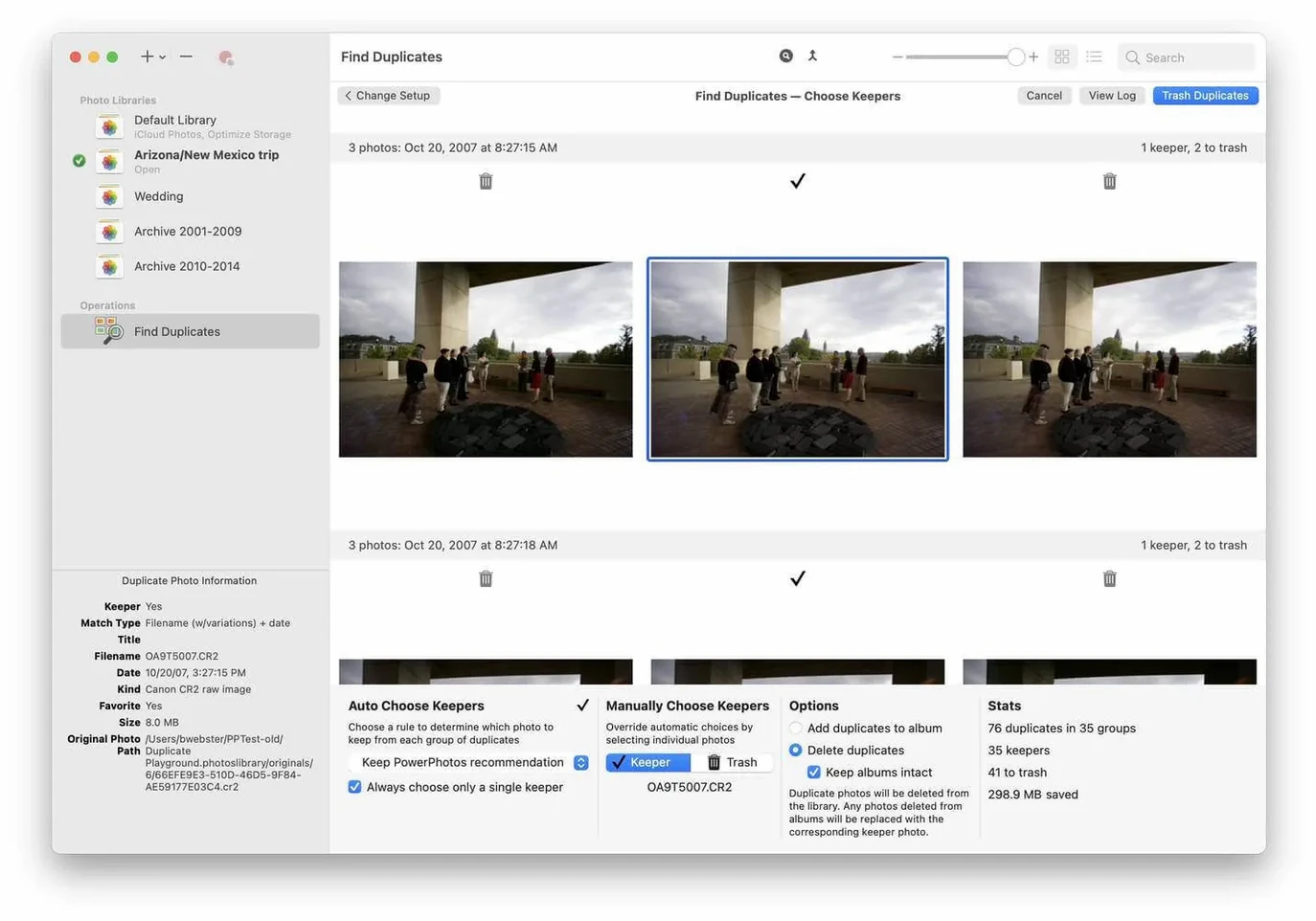
- Viewing identified duplicate photos side by side and removing the unneeded copies.
Duplicate deletion demands manual review, not one-click cleanup
- The duplicate browser relies on careful manual review for deletions; it does not auto-select which copy to keep.
- Splitting a large library into smaller ones takes time and disk space during the copy phase.
Separate-library workflows get the biggest payoff
PowerPhotos is not a blanket recommendation for every Mac user with a handful of holiday snaps. Its design rewards a few specific groups. The most obvious are people who maintain separate libraries already — perhaps a personal library and a client archive — and who switch between them more than once a week. For these users, the library manager removes the slow dance of quitting Photos, holding Option, and navigating to a different .photoslibrary file each time.
Photographers who use a referenced-library workflow also gain a lot. Keeping recent work in a fast internal library while archiving older shoots to an external drive becomes a matter of dragging albums across libraries rather than exporting and re-importing. The merge and copy tools preserve metadata and album structure during the move, which manual exporting often strips. Users with a single library that has swollen past 200 GB get the most from the splitting feature — below that size, the overhead of maintaining multiple libraries may outweigh the organisational benefit.
Another group worth mentioning is households sharing one Mac. Each person can have a separate library, and PowerPhotos makes switching between them quick enough that nobody gets impatient. The app also suits anyone paying for iCloud storage primarily because their photo library is too large: separating infrequently viewed photos into a local-only library can shrink the iCloud library enough to drop down a storage tier, though you lose remote access to those separated images.
PowerPhotos sits alongside the Photos app, it doesn't replace it
A few concerns come up repeatedly, and the answers are often more straightforward than people expect.
Will this duplicate what Photos already does? Not exactly. PowerPhotos works alongside the Photos app; it does not replace it. You still need Photos installed and you still use Photos for editing, sharing, and iCloud sync. PowerPhotos handles library-level operations — splitting, merging, browsing across libraries — that Photos itself has never offered. Think of it as a control panel that sits one level above your libraries.
Can it damage an existing library? The app takes a safety-first approach to destructive operations. When you split a library or remove duplicates, PowerPhotos works on a copy of the library by default, leaving the original untouched until you confirm the result. The duplicate removal tool moves deleted photos to the Recently Deleted album inside Photos rather than erasing them immediately, giving a 30-day window to recover anything removed by mistake. That said, it is still sensible to have a Time Machine backup or a separate clone before a large merge.
Does it handle iCloud libraries differently? A library that syncs with iCloud behaves like any other library inside PowerPhotos, but there is one constraint: you cannot split an iCloud library directly. You need to create a copy first, then split the copy. The reason is that Photos ties an iCloud library tightly to the sync engine, and splitting it mid-sync would cause conflicts. Once the split is complete, you can decide which resulting library becomes the new iCloud-synced one.
Will it run on an older Mac? Current versions require macOS 14 or later and run natively on both Apple Silicon and Intel Macs. Users on earlier macOS releases need an older version of PowerPhotos, though the developer does not advertise those builds prominently.
Large library splits can stall the progress bar for hours
The most frequent hitch happens during a large library split. A library with tens of thousands of items can take several hours to copy, and the progress bar sometimes sits at a single percentage point for a long time. That is normal for the copy phase — the app is duplicating the entire library structure before it begins removing the unwanted portion. Quitting mid-way leaves an incomplete library behind, so patience and a free evening are the right tools here. Running the operation on an SSD rather than a spinning hard drive cuts the time considerably.
Duplicate detection occasionally flags photos that look identical but are not genuine duplicates — two burst shots taken a fraction of a second apart, for example. The side-by-side browser is the right place to catch these. Zooming in on a detail like an eye or a leaf edge usually reveals the difference. Users who lean heavily on the auto-select options without manual review tend to lose images they wanted to keep, so a slow, deliberate pass is more reliable than a quick click-through.
Another snag: after moving photos between libraries, some users notice that albums appear empty in the destination library. This usually happens when the source library uses referenced files stored outside the library package. PowerPhotos copies the library structure and the references but cannot locate files that sit in non-standard locations on a different volume. Switching to a managed-library setup — where original files live inside the library package — avoids this entirely, though it increases the library's on-disk size.
Finder tags on library files show up in the library list
PowerPhotos is unobtrusive about system integration, but a few connections are useful to know. Finder tags applied to .photoslibrary files carry through to PowerPhotos' library list, so a colour-coded tagging scheme (green for active projects, grey for archives) makes the library chooser easier to scan. Spotlight does not index the contents of Photos libraries, so the app's cross-library search fills a genuine gap — but Spotlight will find the library files themselves if you name them clearly.
For backup workflows, PowerPhotos works cleanly with Time Machine and with cloning tools like Carbon Copy Cloner. Because each library is a self-contained package, backing up the folder that holds them catches everything. Users who rely on cloud backup services such as Backblaze should note that a multi-terabyte library folder can take weeks to seed, which is another argument for splitting archives off to a local-only drive and keeping the active library small enough for cloud backup to stay current.
The app also plays well with Apple's media-sharing features. A shared album created in Photos remains accessible regardless of which library is active, as shared albums live in iCloud rather than inside a specific library. Family Sharing users sometimes keep a dedicated library for shared family photos and switch to it only when adding new images; PowerPhotos makes that switch trivial compared to the manual method.
Splitting one 680 GB library that grew unchecked since 2012
Consider someone who has used the same Photos library since 2012. The library holds roughly 85,000 images and 3,200 videos, weighs in at 680 GB, and syncs slowly to iCloud on a 2 TB plan. The owner has avoided splitting it because the process felt risky, but the library now takes several minutes to open and iCloud sync has become unreliable.
After installing PowerPhotos, they create a new empty library called Archive 2012–2020 on an external SSD. Using the copy-and-split tool, they select the albums covering those years and let PowerPhotos duplicate the main library, then strip away everything outside the selected date range. The operation runs for just under four hours on a MacBook Pro with an M1 Pro chip. The result is a 310 GB archive library and a slimmed-down 370 GB active library containing only 2021 onward.
They then designate the smaller library as the System Photo Library — the one Photos treats as the default for iCloud sync — and keep the archive on the external drive, mounting it only when they need an old photo. iCloud sync finishes in under a day instead of stalling for a week. Switching between the two libraries takes roughly eight seconds from the PowerPhotos menu bar icon, and cross-library search means they can find a specific 2016 photo without mounting the archive drive first: PowerPhotos shows which library holds the result, and they mount the drive only when they need the full-resolution original. The duplicate browser, run on both libraries, surfaces a few hundred old duplicates that had accumulated from Aperture imports years ago, reclaiming about 12 GB with a careful evening of review.