Aspecten
 Download (452 MB)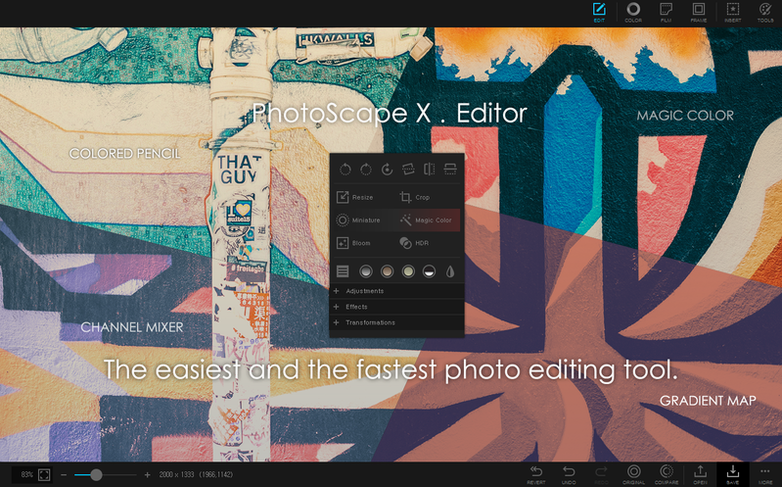
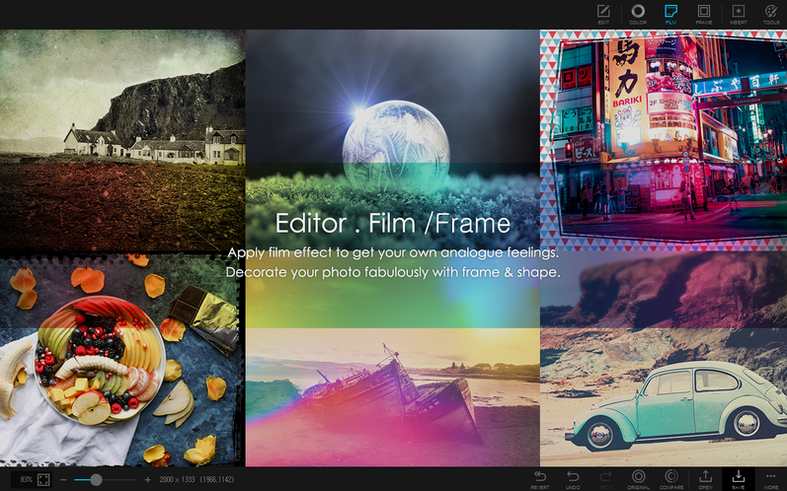
Finder and Preview handle quick looks, but neither offers a loupe view with star ratings and lossless rotation. PhotoScape X Pro adds a proper browser that reads photo, video and audio folders with flags and fullscreen mode, working as a media bench alongside the operating system rather than replacing it.
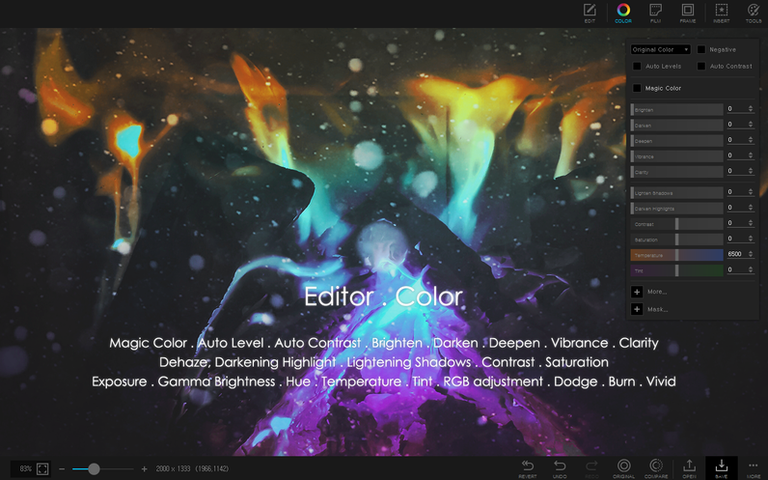
The editor module steps in where Preview stops. It carries over a thousand filters and effects, backed by a clone stamp, healing brush, liquify and red-eye correction. Layering is not the point here — it is more about direct adjustments, supported by a colour picker and tools like focus stacking and HDR merging for shots that need alignment or exposure blending.
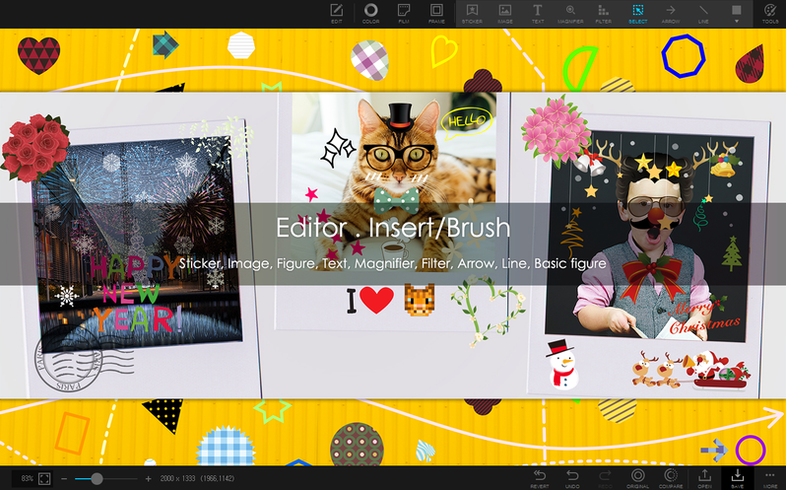
For output, the app handles tasks that might otherwise pull you into several utilities. A combine tool stitches photos vertically or horizontally. The collage, GIF and print sections sit ready for quick results, and the batch module can convert, resize and rename groups of files in one pass. Over a thousand stickers and two hundred plus figures give the workspace a lighter side without turning it into a toy.
What makes it fit is the breadth: it does not specialise in one task but spreads across browsing, editing, batch work and output. A Mac user who already has a dedicated raw processor or layer-based editor might keep PhotoScape X Pro on hand for the jobs those tools handle slowly or not at all.
Workflow: building a clean product collage for a marketplace listing
Say you have six product shots on a cluttered desk and you need a tidy horizontal composition with a white background and consistent spacing. PhotoScape X Pro can take that from raw folder to finished image without switching apps.
Start in the browser. Navigate to the folder, flag the six keepers with a tap of the forward slash key, then apply lossless rotation to any that need straightening. Switch to the editor module with one flagged image. Use the magic eraser tool to drop the background — brush over the desk area, let the algorithm snap to the edges of the product, and clean up stray pixels with the lasso set to subtract mode. Repeat for all six, saving each as a PNG with transparency.
Once the cutouts are ready, open the collage module. Choose a horizontal grid with six cells. Drag the PNGs into place. Set the background to pure white, adjust cell spacing to a uniform 12 pixels, and round the outer corners slightly via the frame settings. The collage preview updates live, so you can nudge alignment until the row breathes evenly.
A final pass in the editor adds a subtle drop shadow via the object effects panel and a sharpen brush stroke on any detail that softened during background removal. Export as a high-quality JPEG, and the listing asset is done — browsed, cut, arranged and finished inside one application.
Launches in three seconds and handles 200 RAW+JPEG pairs without beachballing
On Apple Silicon the app launches in under three seconds and the browser populates a folder of two hundred RAW+JPEG pairs without beachballing. Switching between modules — browser to editor to batch — stays snappy, though the first time you open the sticker or frame libraries there is a brief pause while the catalogue populates.
Memory use sits around 600–800 MB during typical editing of 24-megapixel files, climbing toward 1.2 GB when focus stacking a burst of a dozen shots. That is modest next to layer-heavy alternatives. The batch module is the real efficiency gain: converting a folder of eighty TIFFs to JPEG at 80% quality runs across all performance cores and finishes in roughly the time it takes to make a cup of tea, with the fans staying quiet.
Stability during a fortnight of mixed use threw up no crashes. The one soft spot is the GIF preview — scrubbing through a timeline of sixty frames can stutter if other heavy apps are open, though the exported file renders cleanly regardless.
Magic eraser leaves jagged edges on fine hair or translucent subjects
The magic eraser leaves a jagged edge. This happens most often with subjects that have fine hair or translucent edges. Switch to the brush eraser at a smaller radius, zoom in past 200%, and work in short strokes. For stubborn fringes, the clone stamp set to a low opacity can blend the boundary into a neutral background before you export.
Batch rename numbering starts from the wrong digit. The renaming panel defaults to zero-padded numbering, but if you have already renamed some files manually the sequence can skip. Clear the file list, re-add the folder, and set the starting number in the prefix field before hitting run.
Collage export looks softer than the editor preview. The collage module respects the output resolution setting buried in its own preferences, separate from the editor’s export dialogue. Check that it is set to “original” or a specific pixel dimension rather than a low preset.
The app asks for permission to access photos on every launch. This crops up on some Ventura installs. Grant full disk access to PhotoScape X Pro in System Settings under Privacy & Security, then restart the app once — the prompt should not return.
One-click AI fixes versus a broader toolkit of manual and guided edits
PhotoScape X Pro versus Movavi Photo Editor. Movavi leans harder into one-click AI fixes — background removal, object deletion, automatic colour correction — and its interface feels more like a streamlined phone app ported to the desktop. PhotoScape X Pro counters with a broader toolkit: Movavi lacks a built-in media browser with flags and ratings, has no GIF creator, and cannot batch-process beyond basic resizing. If your workflow ends at retouching a single portrait, Movavi is quicker. If you need to organise, cull, combine and batch-export, PhotoScape X Pro covers more ground.
PhotoScape X Pro versus Acorn. Acorn is a layer-based image editor with a strong focus on compositing, vector shapes and non-destructive filters. It appeals to someone who thinks in Photoshop terms but wants a lighter Mac-native app. PhotoScape X Pro does not attempt that layered workflow. Where it pulls ahead is in the fringe tasks: Acorn has no dedicated collage grid, no GIF timeline, no batch module and no built-in media browser. The two apps sit in different corners — Acorn for pixel-level compositing, PhotoScape X Pro for the wider orbit of tasks around a photo library.
PhotoScape X Pro versus Luminar Neo. Luminar Neo is an AI-driven raw processor and creative editor with advanced sky replacement, relighting and portrait tools. It handles raw development with far more depth than PhotoScape X Pro, which is better suited to JPEG and TIFF workflows. But Luminar Neo has no browser with star ratings or lossless rotation, no collage or combine tools, and batch capabilities that feel bolted on. Photographers who chase single-image perfection may prefer Luminar Neo. Those who juggle large volumes of images, need quick output formats, or want a utility belt rather than a scalpel will find PhotoScape X Pro the more practical daily companion.