Aspecten
 Download (73 MB)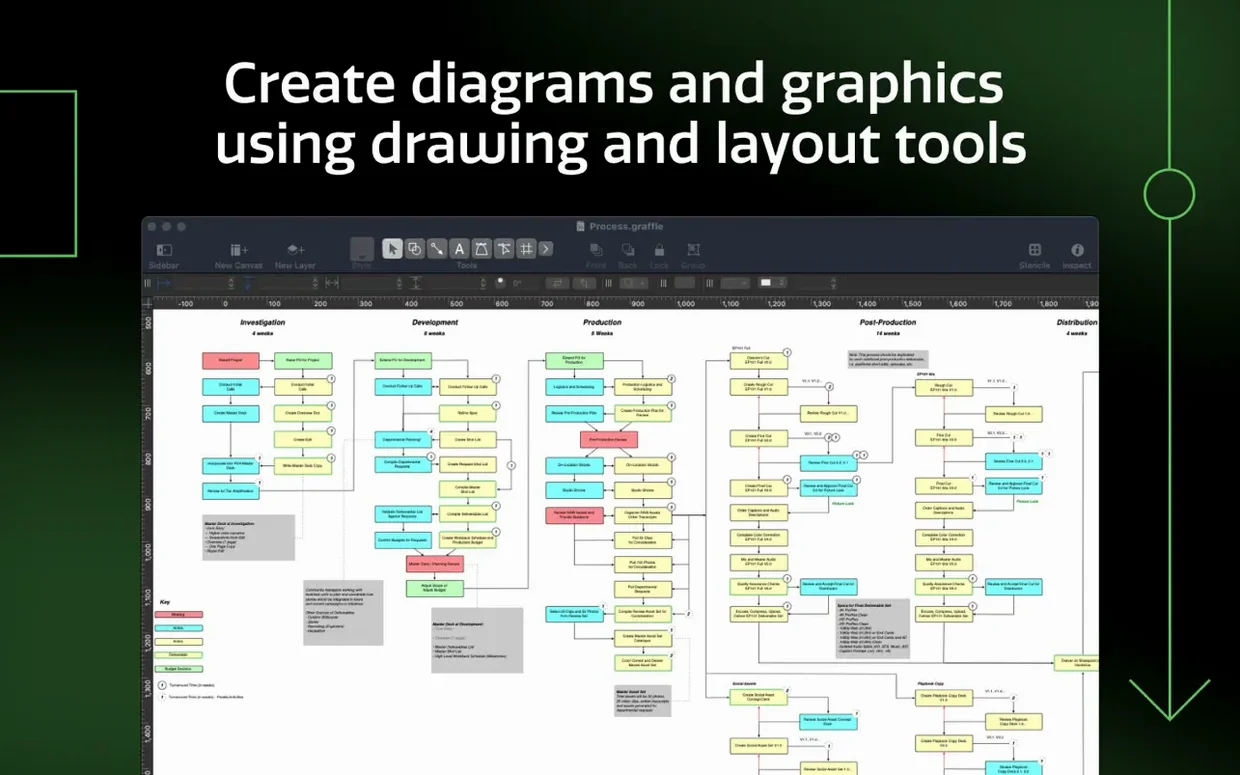
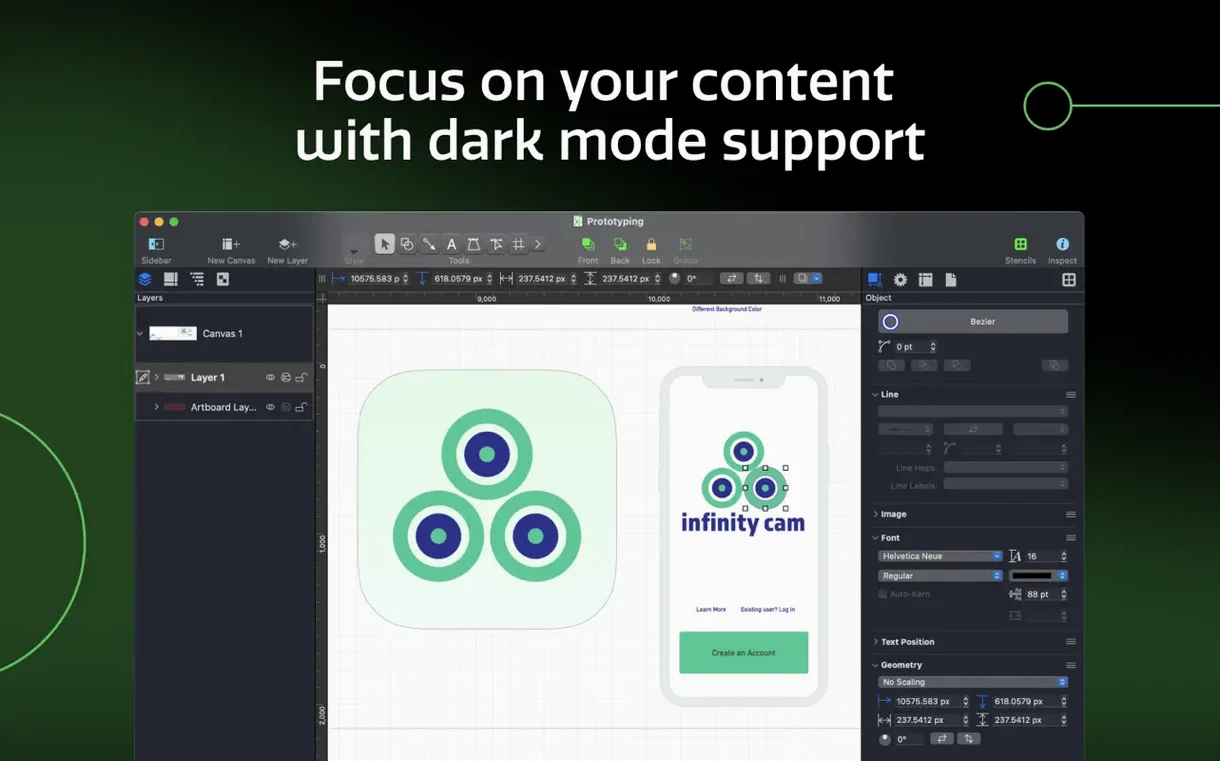
Version 7.26 brings compatibility with macOS Golden Gate 27 and now requires macOS 14, keeping the toolset functional on current Macs.
Artboards — Canvases placed inside a main document, each with its own coordinate space. Useful for packaging multi-page wireframes or varied exports within a single file without managing separate documents.
Shape conversion — Lines and text can be turned into editable Bezier paths. A sketched connection line becomes a filled shape for further manipulation; a block of display text becomes a modifiable graphic element, useful for custom logotypes or icon-like treatments.
Table groups — Shapes can be grouped into a table structure with rows and columns. Adding or removing cells later keeps the layout intact, which helps when building structured sitemaps or process grids that shift during revision.
Visio handling — The software imports VSS stencils and VST templates directly, and exports to VDX format. Stencil libraries from a Windows workflow transfer over with their shape properties largely preserved.
Layer export — OmniGraffle layers can be written to Photoshop layers during export. Each drawing layer becomes a separate PSD layer, keeping groupings, notes and visual depth organised for further pixel work.
Sketch targets interfaces; OmniGraffle diagrams with precision
OmniGraffle occupies a particular niche — it is neither a general-purpose vector illustration app nor a mind-mapping tool, but a precise diagramming environment. Compared with Sketch, the differences become clear quickly. Sketch targets interface design with symbols, resizing constraints and a prototyping workflow built in. OmniGraffle lacks those dedicated screen-design features, yet its automatic layout engines, Visio compatibility and artboard handling make it more natural for flowcharts, org charts and technical schematics. Sketch feels built for pixel-level UI work; OmniGraffle feels built for explaining how systems connect.
Lucidchart operates in a browser, with real-time collaboration as its main draw. Two people can edit a diagram simultaneously without sending files back and forth. OmniGraffle runs locally, keeps data off someone else's server, and handles large documents with far less latency — scrolling through a 50-page wiring diagram is immediate where a web app stutters. Lucidchart's template gallery outpaces OmniGraffle's starter options, but OmniGraffle's stencil creation tools and Bezier editing run deeper once you move past the basics.
Against draw.io, the contrast sharpens around power and polish. draw.io is free and cross-platform, with decent import of Visio files and a straightforward interface. It works well for quick diagrams. OmniGraffle Pro adds shared layers, Photoshop layer export, Xcode project diagrams, and a drawing engine that handles hundreds of objects without slowing. Someone who draws occasionally may never miss what draw.io lacks. Someone who builds diagrams daily will notice the missing inspectors, the coarser typography controls, and the absence of artboard-based multi-page management within a single document.
Visio file import supports VSD, VDX, stencils and templates
A common concern is whether OmniGraffle Pro handles Visio files cleanly. The import supports VSD and VDX formats, plus VSS stencils and VST templates. Shapes come through with their text blocks, connection points and basic styling intact. Complex grouped structures sometimes need minor adjustments — a connector label may shift a few points, or a gradient fill may flatten — but the fidelity is high enough that teams exchanging files with Windows colleagues rarely hit a dead end. Exporting back to VDX preserves the diagram structure for round-tripping, though Visio-specific features like data-linked graphics will not carry over.
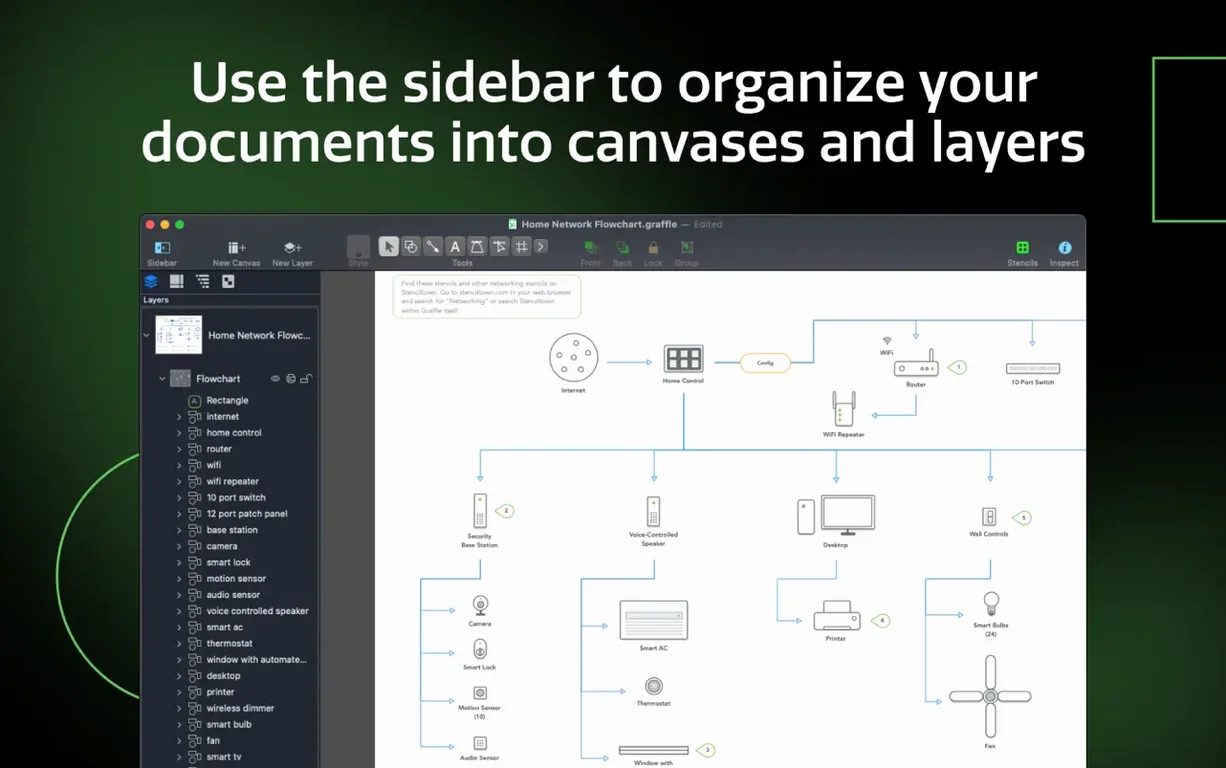
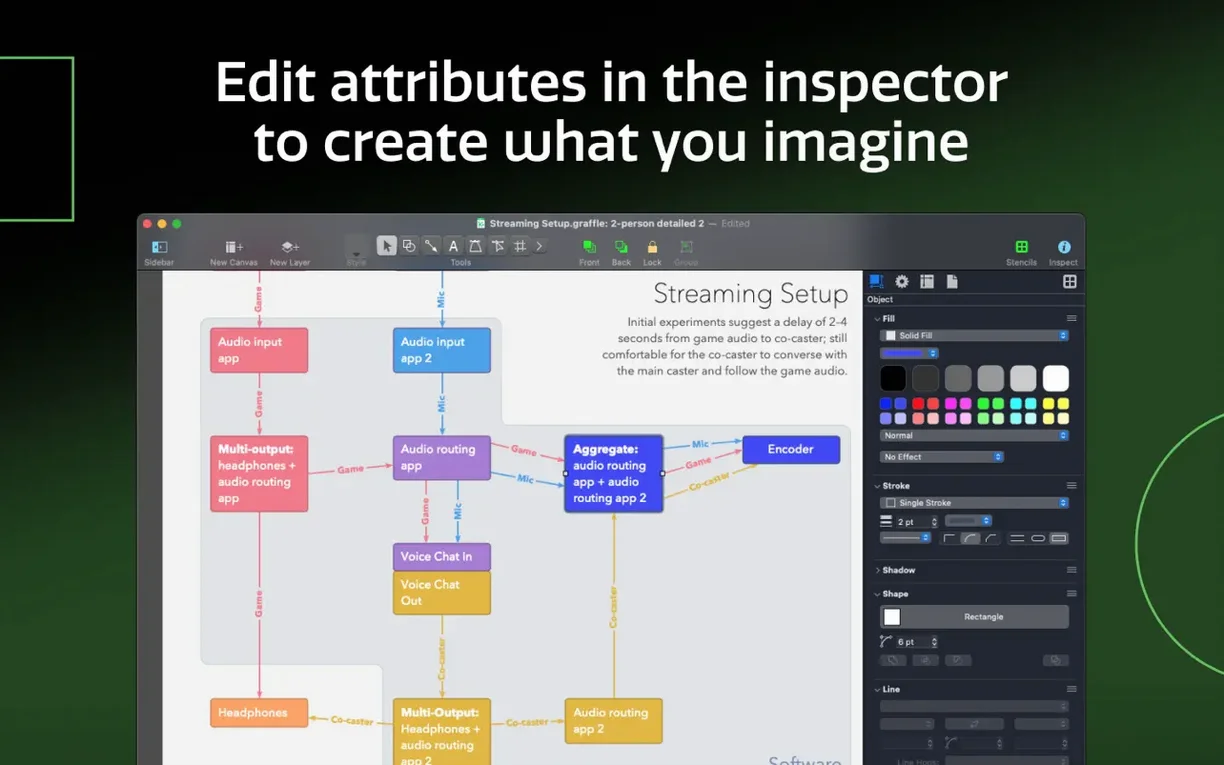
Another question circles around the learning curve. Someone coming from a simpler tool may find the sidebar and inspector layout unfamiliar at first. The canvas sidebar manages multiple artboards, the object inspector exposes stroke, fill, geometry and alignment settings, and the stencil library slides in from the left. Spending twenty minutes with the built-in sample documents usually clarifies the arrangement. The keyboard shortcut sets can also be shared across machines, which helps teams keep a consistent setup.
People also ask whether the Pro edition matters for casual use. The standard edition covers basic diagrams, but Pro adds shared layers across canvases, Visio and Photoshop export, shape conversion from text and lines, table grouping, and Xcode project diagramming. Anyone working with layered documentation, cross-format exchange or structured grids will encounter those features within the first few projects.
Mapping a checkout flow across three mobile artboards
Picture a UX designer mapping a checkout flow for a mobile app. She opens OmniGraffle to a blank document and adds three artboards via the canvas sidebar: one for the cart screen, one for payment, one for confirmation. Each artboard gets a short descriptive name. She switches to a wireframing stencil set, drags a phone frame onto the first artboard, and snaps placeholder buttons, text fields and a progress indicator into place.
She draws connection lines between the payment-option buttons and the next screen, using OmniGraffle's automatic line-routing to keep the paths tidy. One connector line needs a branch — she converts the line into a shape, adjusts the Bezier points, and adds a text label explaining the split logic. Midway through, the product manager asks for a table-based sitemap of the whole flow. She selects the screen shapes, groups them into a table, and adds a column for edge cases. The table structure holds as she inserts two more rows for error states.
With the wireframes settled, she exports the artboards. Two go out as PNGs for a slide deck. The layered PSD export sends the full set to a visual designer, with each artboard's elements separated into Photoshop layers — background, text blocks, interactive elements — ready for styling. The Visio export creates a VDX file for a stakeholder who works on Windows. Before closing, she saves her keyboard shortcut set to a shared folder so a colleague can load it on another Mac the next morning.
Set grid spacing to match your diagram type immediately
Out of the box, a few adjustments make the workspace feel more immediate. Open the Canvas inspector and set the grid spacing to match your most common diagram type — 8 px for wireframes, 20 px for flowcharts — and enable snap to grid with a tolerance of 6 px. This prevents the slight misalignments that accumulate when objects are placed by eye.
In the Drawing Tools preferences, switch the default line type from straight to orthogonal for flowchart work. OmniGraffle's orthogonal routing engine handles 90-degree bends well, and changing the default saves repeated trips to the stroke inspector. Consider also enabling "Automatically adjust layout when adding shapes" for tree diagrams and org charts — the automatic layout engine repositions connected objects as you build, which turns a manual rearrangement task into something near-instant.
The Document inspector holds a setting for shared layers. Enable it early if you plan to use headers, footers or background grids across multiple canvases. A single shared layer containing a title block updates across every artboard in the document, and late adoption means retrofitting objects that were already placed. For anyone who expects to need a omnigraffle download across several team machines, exporting a keyboard shortcut set from the preferences pane saves the nuisance of redefining shortcuts on each installation. Finally, under Export defaults, set the PSD export resolution to 144 dpi if the output heads to a designer — the default 72 dpi produces undersized raster elements when scaled for print or high-density screens.