Aspecten
 Download (8 MB)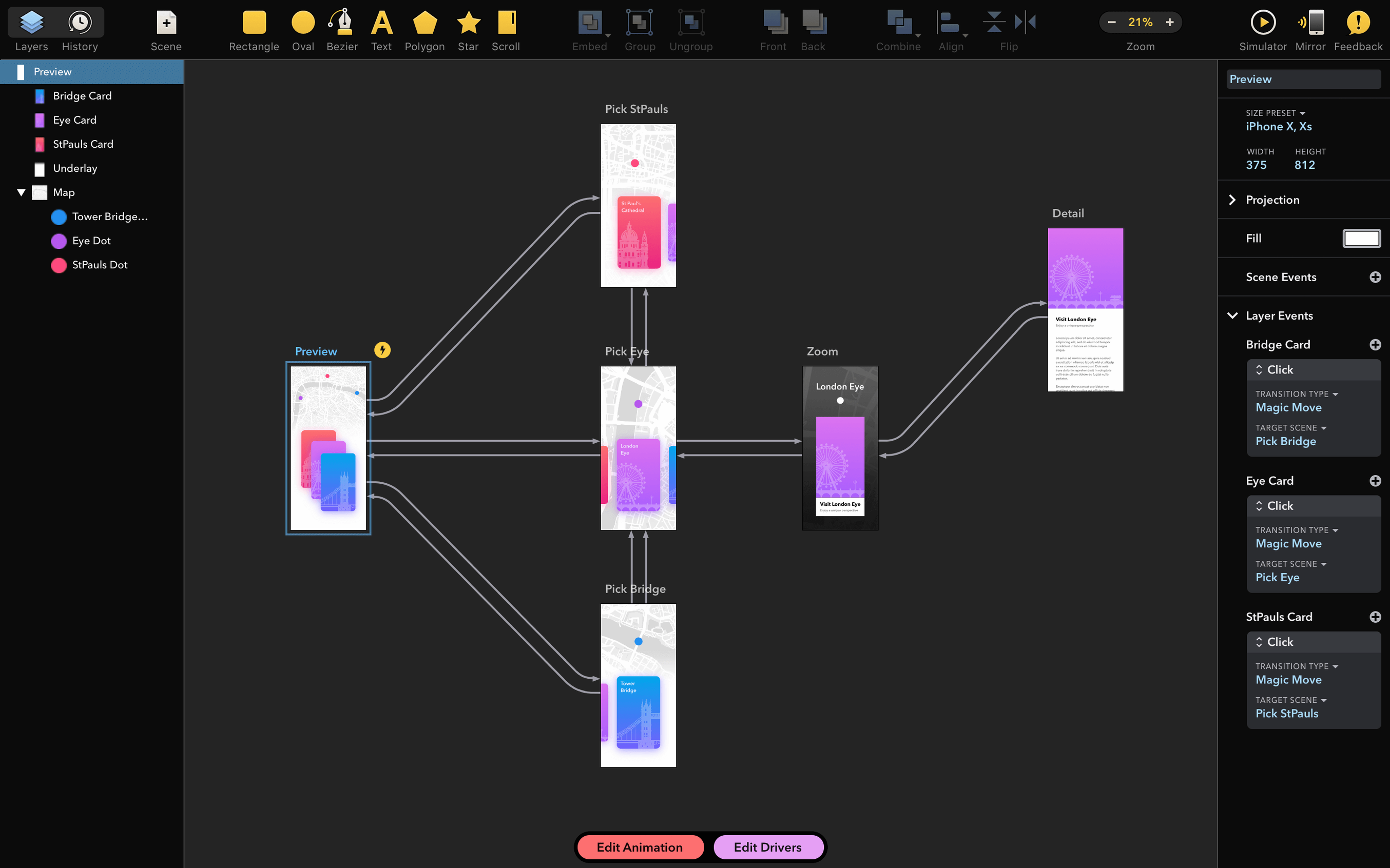
A designer opens a blank canvas and sketches a rough app screen, a button, a transition. Half an hour later that sketch is a tappable prototype playing back on a phone. That is the kind of work Drama is built for — animation and prototyping without switching between three different tools. For someone just starting out, a few deliberate first moves make the app feel less like a blank slate and more like a workshop.
- Draw a simple shape and give it a name. Every object on the canvas gets an automatic entry in the layer list on the left. Renaming a rectangle to “Menu bar” or “Card front” early keeps a prototype legible once it grows past a dozen elements.
- Duplicate a screen and change one thing. Select a frame in the left panel, press Command-D, then move a button or swap a label. Switching between the two frames in the timeline shows a hard cut. That cut is the foundation of a click-through prototype.
- Add an auto-transition between two frames. With two frames side by side, drag from one to the other in the timeline. Drama interpolates position, opacity and size changes. The result is a smooth morph that would take manual keyframes in other software.
- Open the preview window on a connected device. Drama can mirror the canvas to an iPhone or iPad over USB. A tap on the device triggers the transitions you have set up, turning a static layout into something that behaves like a real app.
- Try the spring animation curve on a move. Select a layer, set a position change between frames, and pick the spring preset from the animation curve popover. A subtle bounce at the end of the motion feels more natural than a linear ease.
These five actions cover the loop that Drama is designed for: draw, arrange, link, preview, refine. The timeline handles the heavy lifting for interpolation, leaving you to decide what changes and when.
Option-drag duplicates layers instantly
A few shortcuts sit just below the surface and make the day-to-day rhythm faster. Holding Option while dragging a layer duplicates it on the spot — no trip to the menu. The arrow keys nudge a selected layer by one point; hold Shift and they jump by ten. When aligning elements across a screen, Command-G groups them into a folder that can be animated as a single unit. The folder itself appears in the timeline with its own track, so a set of buttons or a card stack moves together without selecting each piece.
The layer list supports drag-and-drop reordering with a subtle indent for nesting. Dropping one layer onto another makes the first a child of the second, which matters once you start animating parent groups. A child layer inherits the parent's position changes and can still move independently — useful for a scrolling list inside a fixed container.
In the canvas, Command-click selects a layer buried under others. Cycling through stacked elements this way is quicker than hunting through the layer list, especially on a dense prototype screen with overlapping cards and modals.
First days: building a workflow that sticks
A new tool feels frictionless only after a few deliberate habits settle in. One that pays off quickly with Drama is keeping the timeline visible by default. The app opens with a clean canvas, but dragging the timeline pane up from the bottom edge sets it as a persistent panel. Seeing keyframes laid out horizontally while you draw removes the mental switch between designing and animating.
Another habit: work left-to-right in the timeline even for non-linear prototypes. Placing a home screen frame at the far left, then adding flows to the right — onboarding, settings, an empty state — mirrors a storyboard. Drama does not enforce a linear sequence, but adopting one makes it easier to explain a prototype to a developer or a client later.
On the topic of sharing, the preview mirror over USB works without installing extra software on the receiving device. Connect an iPhone or iPad, open the preview window from the menu, and the prototype fills the device screen. Taps and swipes on the device trigger the transitions you have set up. During the first few days, it is worth testing the prototype on a real phone early — what feels like a generous tap target on a 27-inch display can be cramped on a 6.1-inch screen.
Font handling deserves a quiet note. The 2.1.4 update fixed a crash tied to specific installed fonts, so after installation it is sensible to open a test document and cycle through a few typefaces. If a font causes a hang, removing it from Font Book resolves the issue without reinstalling Drama.
Canvas tools cover UI mockups, not detailed illustrations
Drama does not try to replace a full vector editor, and that is a deliberate choice. The canvas tools cover rectangles, ovals, text, boolean operations and basic path editing — enough to build interface mockups — but detailed illustration work still belongs in something like Sketch or Illustrator. A common pattern: draw UI chrome and wireframes directly in Drama, bring in polished icons as PNG or SVG. Drag a file from Finder onto the canvas and it lands as an importable layer, ready to be animated.
Integration with macOS is straightforward. Drama responds to standard Mission Control and Split View arrangements, so keeping a design spec or a reference image open in Preview alongside the canvas is easy on a single display. The app also respects macOS colour profiles, which means a prototype viewed on a wide-gamut display looks consistent when mirrored to an iPhone.
For handing off work, Drama exports a standalone HTML preview that runs in any browser. A designer can send a single file to a remote colleague who does not own the app; the recipient clicks through the prototype as they would on a phone. No cloud upload, no account needed. The HTML bundle includes the transitions and timing defined in the timeline, though interactive elements like text fields are visual only — they do not accept input in the export.
The sibling app PaintCode, also from PixelCut, generates drawing code for iOS and macOS. A designer who sketches a custom control in Drama can recreate it in PaintCode and export the Core Graphics code directly into an Xcode project. The two apps do not share a file format, but the visual language carries over naturally between them. For a team that already relies on PaintCode for production assets, Drama slots in at the earlier stage — the prototype that proves the interaction before the code is written.
Smooth timeline scrubbing with multiple spring animations
On an Intel Mac meeting the macOS 11.5 baseline, Drama launches in under four seconds and a typical prototype file with twenty screens and transitions stays responsive. The timeline redraws smoothly when scrubbing, even with multiple spring-driven animations playing simultaneously. The interpolation engine runs on the CPU rather than the GPU, which keeps fan noise low on laptops during extended sessions but means a document with hundreds of individually animated layers will show a drop in frame rate during preview.
Memory use is modest for the category. A blank document sits at roughly 120 MB of RAM; a dense prototype with imported images and sixty frames climbs toward 400 MB. That leaves comfortable headroom on machines with 8 GB of memory, though keeping a large Sketch file and a browser with a dozen tabs open alongside Drama will push an 8 GB system toward swap. Closing unused documents in Drama reclaims memory quickly — the app does not hold onto closed-file caches.
Stability after the 2.1.4 font fix has been uneventful. The app has gone through a full workday without a crash in testing that involved rapid switching between the canvas, timeline and device preview. The one recurring soft spot is undo after a complex boolean operation — occasionally the canvas view does not refresh immediately after Command-Z, requiring a quick zoom in and out to force a redraw. The file itself is not affected.
Autosave uses the standard macOS document model, so unsaved changes survive a force quit. The recovery panel that appears on relaunch lists the documents with timestamps, and choosing one restores the prototype exactly as it was at the last automatic save point.
A few shortcuts for the daily rhythm
- Space-drag to pan the canvas without switching tools — the hand tool activates while the space bar is held.
- Command-1 through Command-4 switch between the four main tool modes: select, shape, text, and pen.
- Control-R toggles rulers along the canvas edge. Pixel measurements appear in the ruler tooltip as you drag guides out.
- Option-scroll zooms the canvas centred on the cursor, not the centre of the screen. It sounds minor, but after a week it becomes the only way you zoom.
- Double-click a keyframe in the timeline to open the animation curve popover directly, skipping the inspector panel.
These shortcuts are not hidden, but the app does not surface them with onboarding tooltips. A printed cheat sheet or a sticky note on the desk for the first week bridges the gap until muscle memory takes over.