Aspecten
 Download (20 MB)
Runs natively on Intel and Apple Silicon with full disk access
Mole runs on Macs with macOS 14 or later and supports both Intel and Apple Silicon processors natively. Full disk access is supported for deeper scans.
Five modules handle cleaning, removal, optimisation, analysis, and status
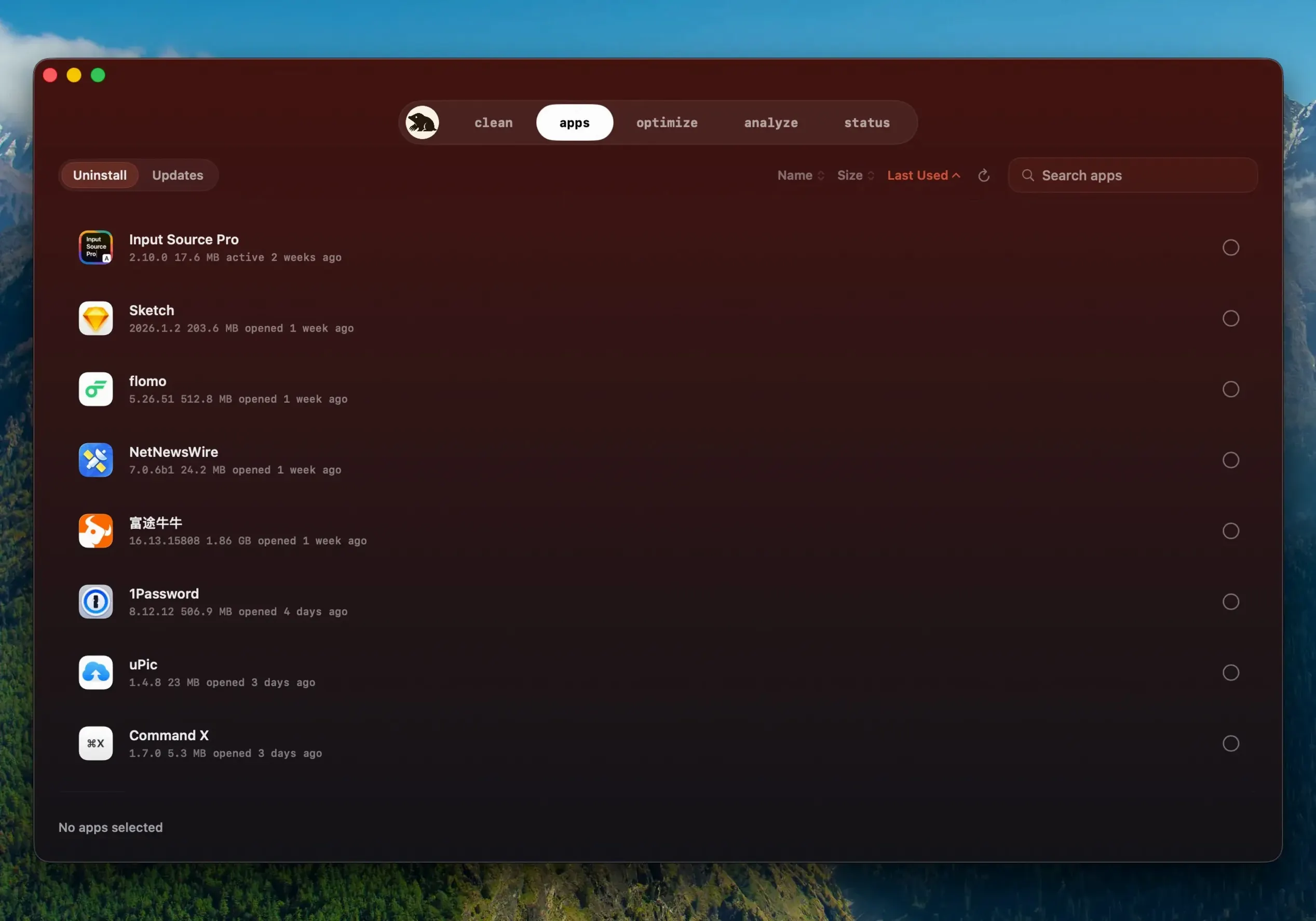
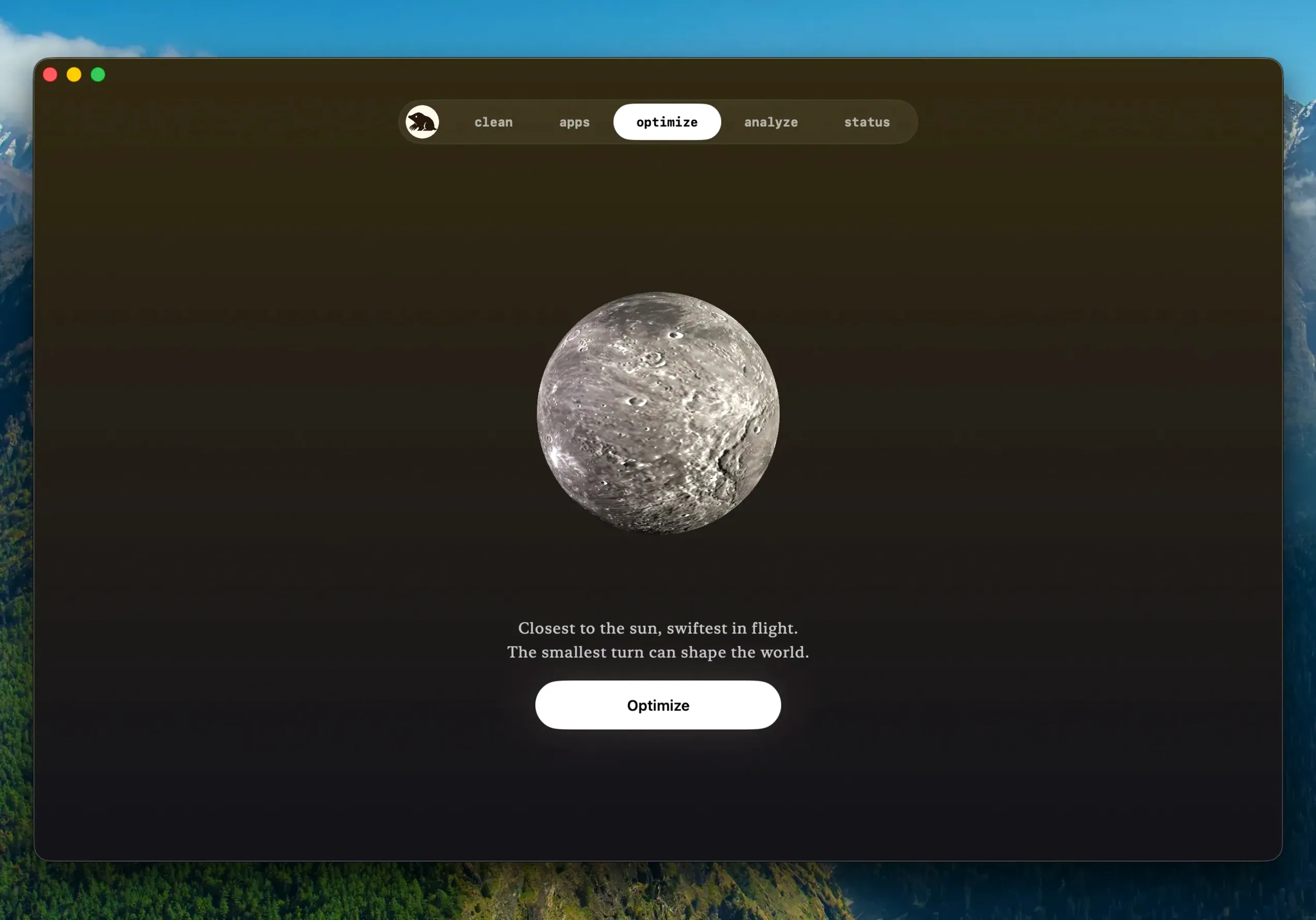
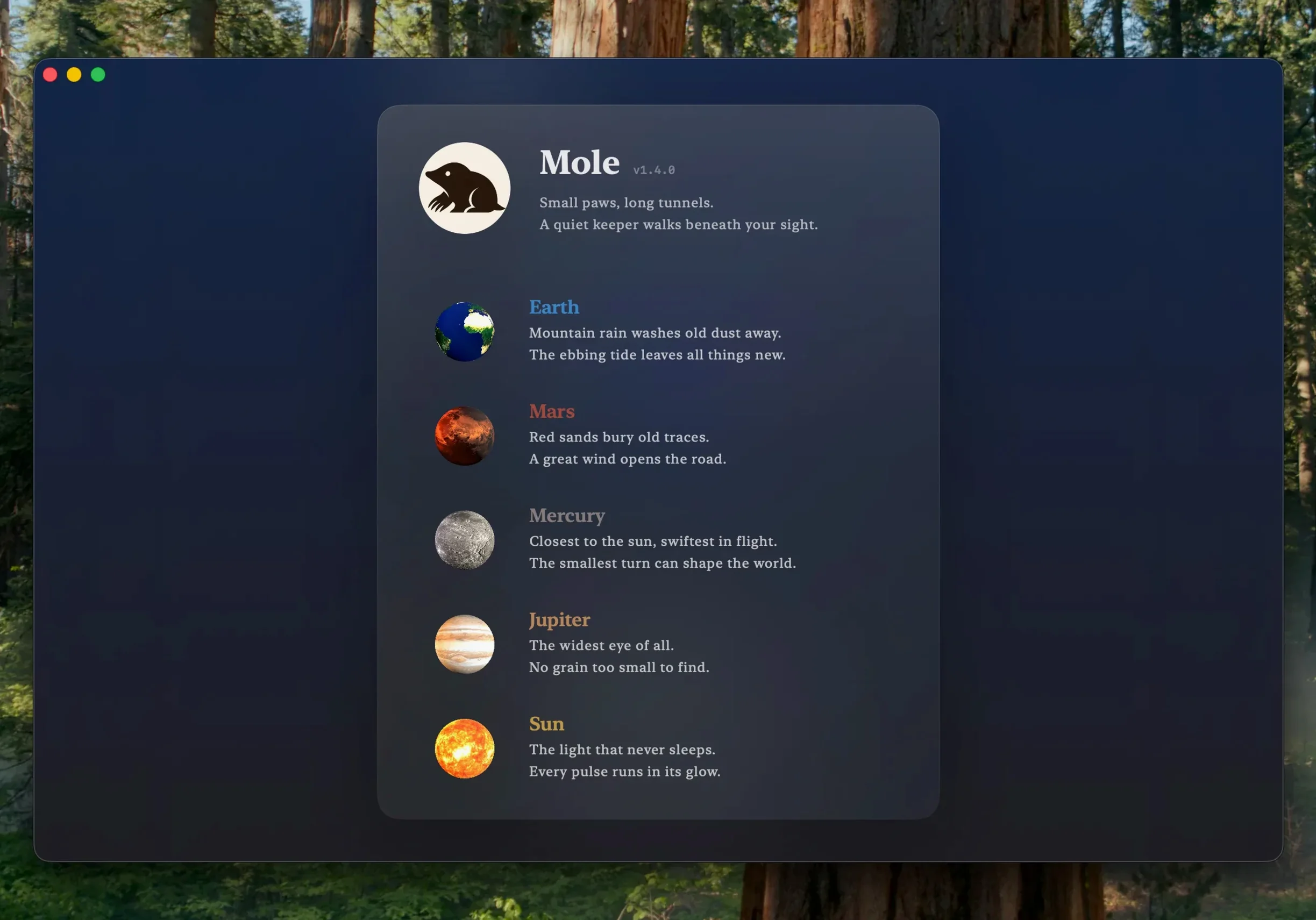
- Launch Mole and give it the permissions it requests. The main window presents a set of modules: Clean, Remove, Optimise, Analyse, and Status.
- Open the Clean module to scan for caches, logs and leftovers. The scan stays local by default. Suspicious items are skipped automatically.
- Review the results. Mole shows what it found but does nothing until you confirm. Tick the items you want removed and click the clean button.
- Switch to the Remove module to uninstall applications and their leftovers. You can also remove startup items that sit in the Dock.
- Use the Optimise module for one-click system maintenance tasks.
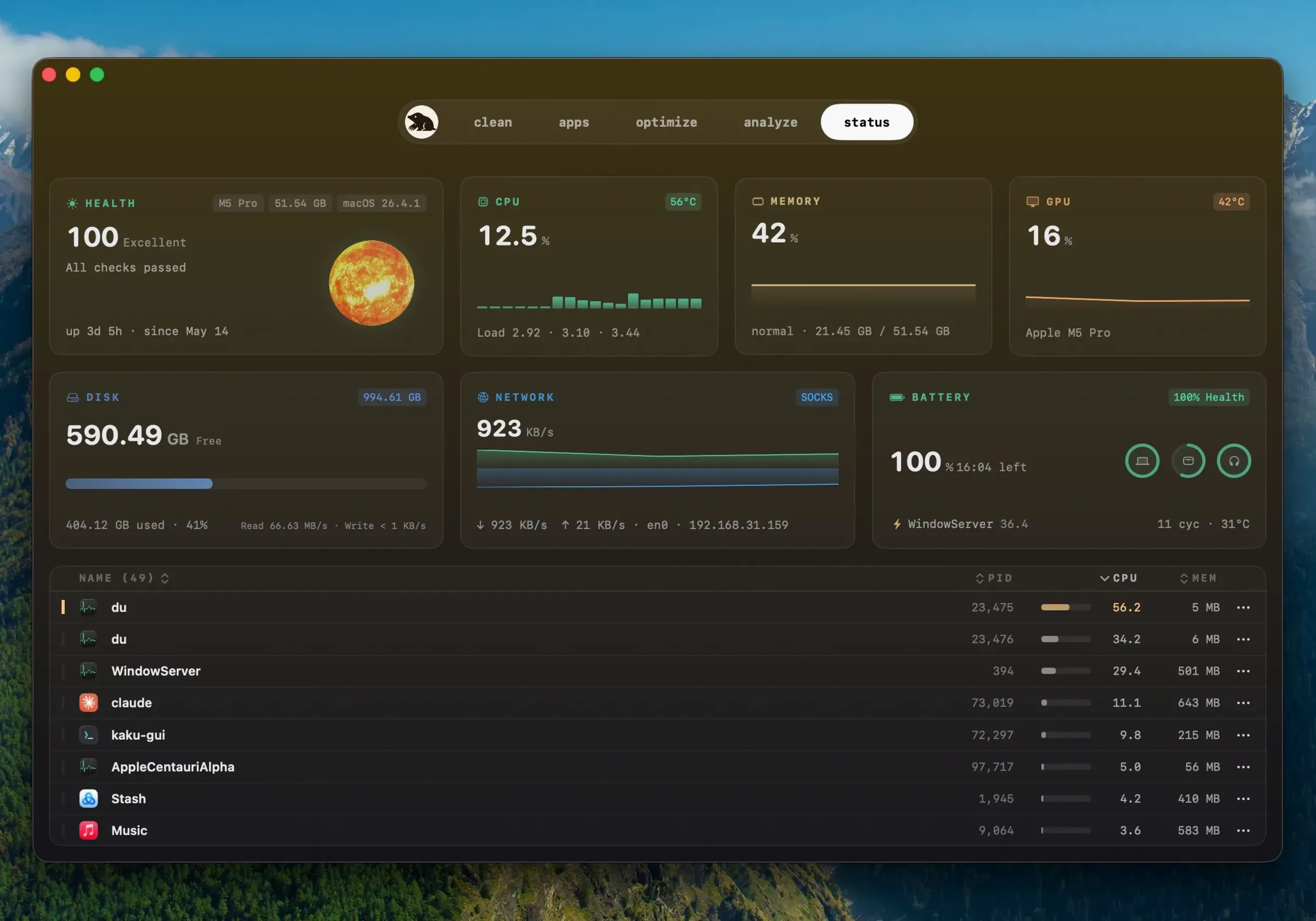
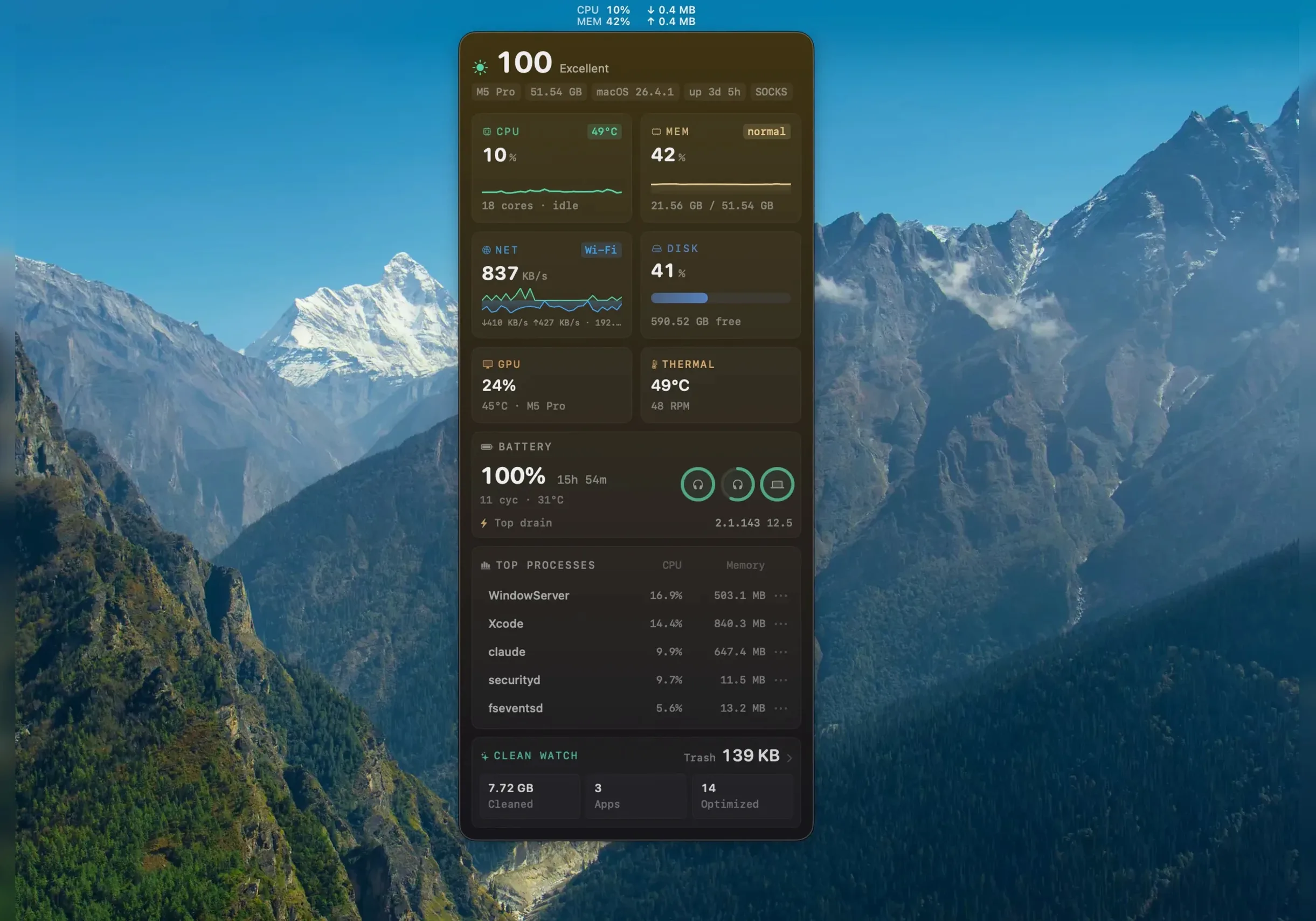
- Check the Status panel for real-time CPU, memory, GPU, disk, network, battery charge and temperature readouts.
Version 1.14.0 refines the updating path. Apps originally downloaded outside the App Store can now update from inside Mole. Before replacing a running app, Mole asks permission, quits it, installs the new build, and reopens the app afterwards. It also detects when a newer build of the same version is available, so you do not miss a fix.
Selecting everything on your first scan can delete wanted temp files
A first scan can feel like a treasure hunt for free gigabytes. The impulse is to select everything Mole lists and hit clean. That rarely causes harm — the app skips items it considers suspicious — but it can delete caches you would rather keep. Browsers store session data and offline assets in caches that speed up sites you visit daily. Removing those means pages rebuild their cache from scratch, which costs time and bandwidth on the first revisit. Tick selectively on your first pass.
Another misstep is granting full disk access without understanding what it enables. The permission lets Mole scan directories that are normally off-limits, including system caches and sandboxed app containers. Beginners sometimes grant it, run one deep scan, and then revoke the permission thinking the job is done. Deep scans are most useful when repeated occasionally, because system caches grow back. Leave the permission in place if you want the scanning depth to remain consistent.
Some people treat the Remove module as a substitute for dragging an app to the Trash. It is not. Mole finds support files left behind after an app is deleted the normal way. Deleting the app through Mole itself is possible, but the real value is in the leftover scan that follows. Run the leftover scan a day or two after uninstalling something, not immediately.
Use the Analyse treemap before cleaning to avoid misreading large blocks
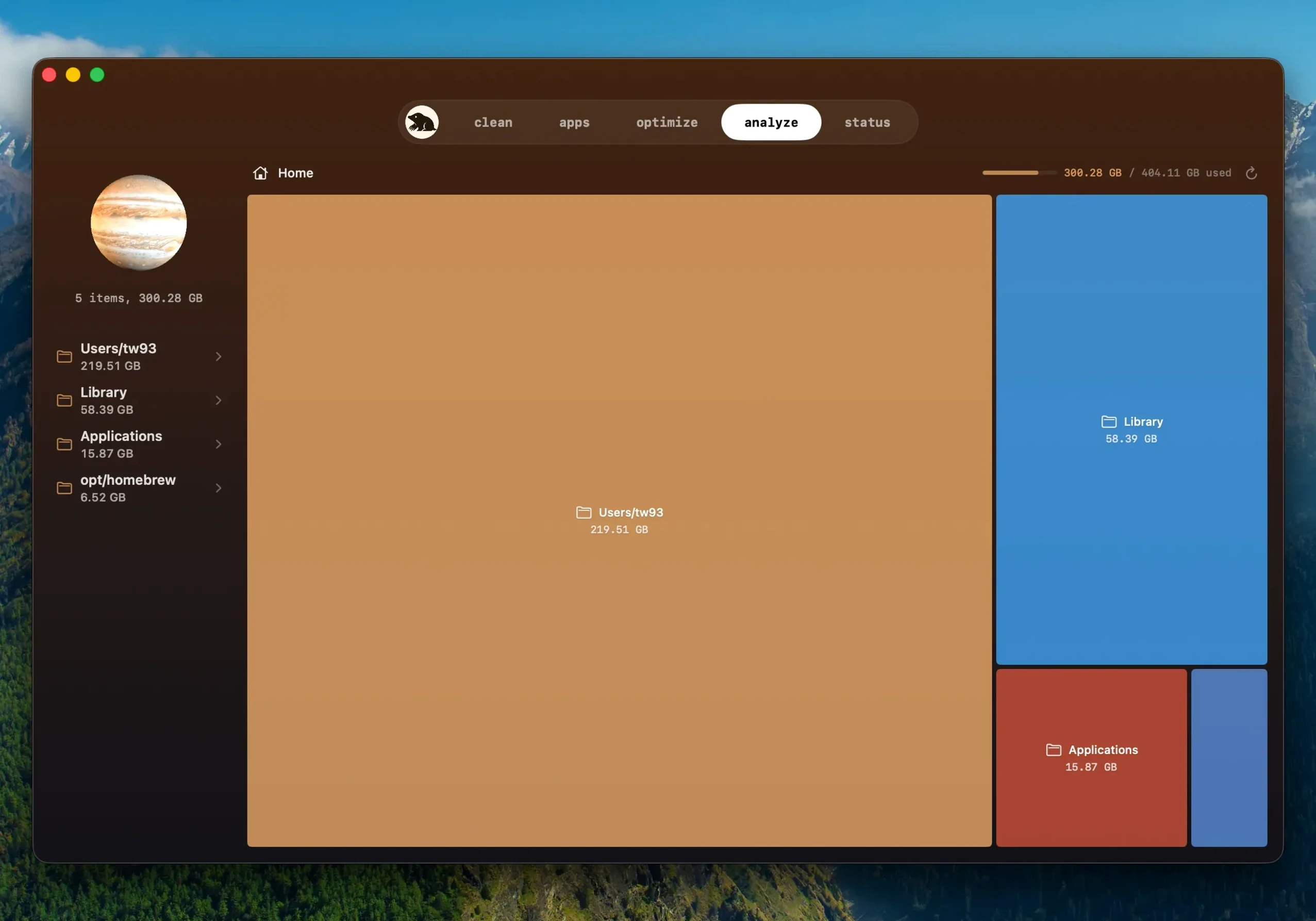
Start with the Analyse module before you clean anything. The treemap view gives you a visual breakdown of disk usage that is easy to misinterpret if you jump straight to deletion. Large blocks are not always junk — a single Logic Pro sound library or a Photos library can dominate the map while being entirely intentional. Spend five minutes clicking through the blocks to understand what actually occupies your drive.
Run the Clean module with the default selections on day one, but do not repeat it daily. macOS rebuilds certain caches almost immediately after they are removed, so cleaning every twenty-four hours is a cycle of delete-and-rebuild that wastes CPU cycles for no lasting gain. A weekly rhythm is more practical. The exception is browser caches after a heavy session of testing web apps or filling forms; a targeted clean then makes sense.
During the first week, leave the Status panel open in the background for an hour while you work normally. Watch how memory pressure and temperature respond to your usual apps. That baseline helps you spot anomalies later — a process leaking memory or a fan spinning up at idle becomes obvious once you know your machine's normal resting state.
Add VM and Docker folders to the scan exclusion list early
Mole keeps its preferences minimal, but two adjustments are worth making early. The scan exclusion list, tucked in the preferences, lets you mark folders that should be skipped during cleanup. Add any directory where you keep virtual machine images, Docker data, or large project caches that you manage yourself. Mole otherwise treats them as candidates for removal, and confirming a bulk clean without exclusions can undo work you intended to preserve.
If you use an external drive for Time Machine or media storage, confirm it appears in the Analyse module's disk selector. Mole defaults to the startup volume, but external drives need occasional inspection too. Switching the target disk in Analyse takes one click, yet many users never notice the selector sits at the top of the treemap view.
Click any Status metric to expand its detailed history graph
The Status panel shows more than the headline numbers. Click any metric — CPU, memory, or network — and the graph expands to a detailed history. A second click collapses it. That is the quickest way to check whether a spike was momentary or sustained, without opening Activity Monitor.
In the Clean results list, you can press the spacebar on any highlighted file to invoke Quick Look. This works on logs and caches just as it does in the Finder, giving you a preview before you decide to delete. It is especially handy when a cache file has an opaque name and you want to see its contents first.
Mole's menu bar icon provides a compact status overview without opening the full window. A single click shows current CPU load and memory pressure; holding the Option key while clicking reveals the temperature readout directly. That shortcut is easy to miss because it is not labelled anywhere in the interface.
When an app update is available through Mole's built-in updater and the download fails partway, version 1.14.0 reuses the partial download on the next attempt instead of starting over. If you are on a slow connection, pausing and resuming later costs you nothing — the app picks up where it left off.