Aspecten
 Download (11 MB)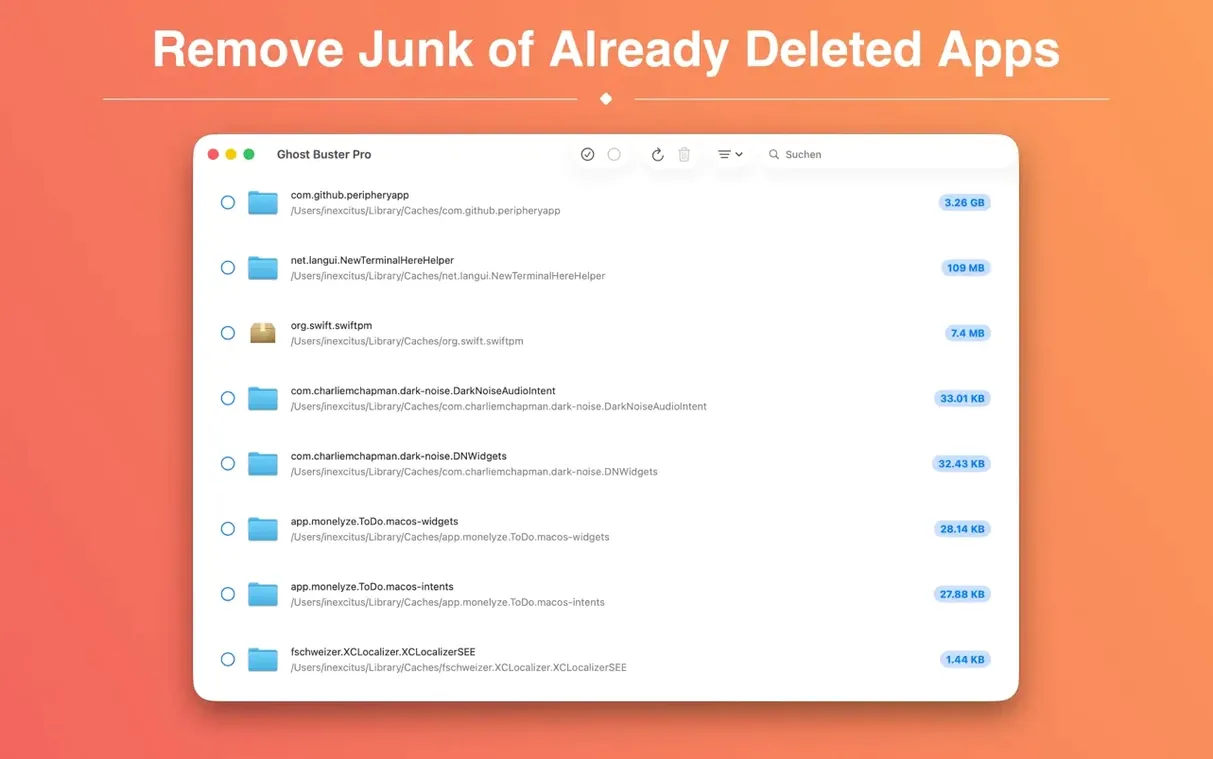
Ghost Buster Pro runs on any Mac with macOS 15.6 or later, covering both Apple Silicon and Intel machines. The current version 6.2.0 supports ARM and x86-64 architectures natively, so there is no Rosetta translation lag on newer hardware.
New app icon and macOS 15 SDK under the hood
- A new app icon, drawn to match the macOS 27 visual style. The rest of the interface is unchanged.
- Under the hood, the build targets the macOS 15 SDK without dropping Intel compatibility.
- App Store distribution only; the version tag carries the [MAS] marker as before.
Instant scan on launch hunts leftovers from uninstalled apps
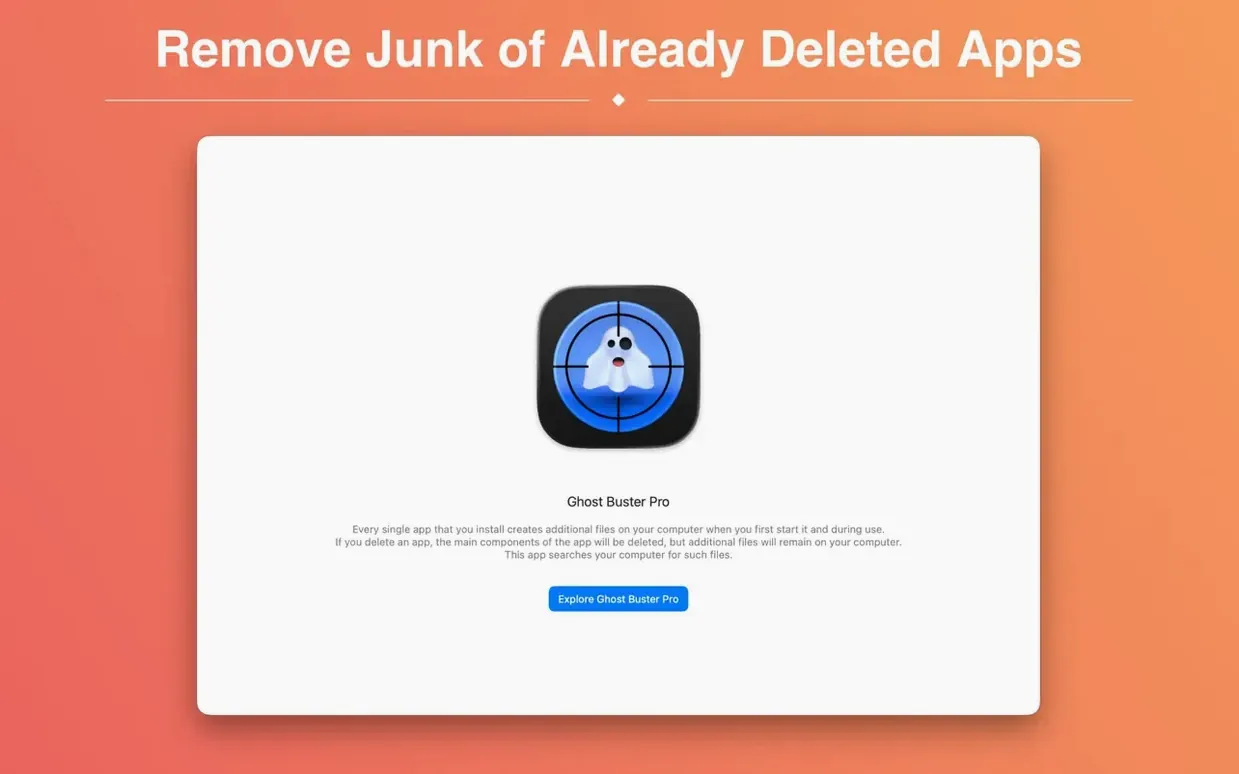
The core behaviour is untouched. Ghost Buster Pro starts scanning immediately after launch, hunting for support files, preferences and caches that uninstalled applications often leave behind. Found items are listed plainly, and a single click deletes them directly — no quarantine folder, no staged review unless you choose to inspect first. The interface languages remain Russian, English, German, Spanish, Italian, Simplified Chinese, Korean, Polish and French. It is still a single-purpose cleanup utility, not a system maintenance suite, and it still avoids touching user documents or unrelated system folders.
Enable the delete confirmation dialog in preferences
Ghost Buster Pro ships with sensible defaults, but a couple of adjustments make its behaviour more predictable.
The most important toggle sits in the preferences window, reachable via Ghost Buster Pro > Settings or ⌘,. Look for the Confirm before deleting checkbox. By default it is off, which means one click on the Delete All button removes everything in the list without a second prompt. Turning it on adds a confirmation dialogue before any deletion proceeds. If you tend to scan during a busy workday, this is the safety net you want.
The second setting controls whether the app hides system-level caches from the results. Some caches regenerate automatically and deleting them offers no real benefit, yet they clutter the list. Under the Scan tab, enabling Ignore system caches keeps the output focused on per-application leftovers — preference plists, saved states, container folders — and skips transient files that macOS rebuilds on the next restart.
A third detail is not a setting in the app itself, but a Finder-side habit. Ghost Buster Pro respects the standard security prompts on macOS 15.6 and newer. When you first launch it, the system may require you to grant Full Disk Access in System Settings. Without it, scans return incomplete results. The app does not check for this permission at startup, so a quick visit to System Settings > Privacy & Security > Full Disk Access after installation prevents confusion later.
Tracking down a leftover preference pane from last month
The session starts when you realise an application you removed last month still has fingerprints on the drive. Perhaps its preference pane kept appearing in a settings search, or a leftover cache folder occupied a few hundred megabytes you were not expecting.
You launch Ghost Buster Pro. There is no splash screen, no welcome tour — the main window opens in less than a second and the scan begins immediately. A progress bar fills from left to right as the app walks through standard locations: ~/Library/Preferences, ~/Library/Caches, ~/Library/Application Support, ~/Library/Containers, and a handful of shared directories. On an SSD, a full scan takes roughly eight to twelve seconds.
The results appear in a single-column list. Each entry shows the file or folder name, its path partially truncated to fit the window width, and a small icon indicating whether it is a plist, a cache directory, or a plain file. Items are grouped by the application that originally created them, even though that application is no longer installed — Ghost Buster Pro identifies ownership from bundle identifiers embedded in the filenames or parent folder names.
You scroll through the list. One entry catches your eye: a folder named com.oldteam.collabtool inside Application Support, weighing 340 MB. That is worth recovering. You leave the checkbox beside it ticked. A smaller plist from a trial app you used once — you leave that checked as well. Everything else looks like standard detritus you do not recognise, so you leave the defaults alone.
You click Delete Selected. A puff of progress feedback: the items vanish from the list and the reclaimed space registers silently in the Finder. The scan does not restart automatically — the list stays as it was, minus the deleted rows, giving you a moment to verify nothing important disappeared. When you are satisfied, you close the window. The whole session lasted under a minute.
Three vector editors, two utilities and a font manager trial
Consider a freelance designer who evaluates graphic tools constantly. In a single month she might install and remove three vector editors, two colour-palette utilities and a font manager trial. Each one drops plists into Preferences, saves registration tokens into Application Support, and occasionally leaves a licensing daemon in LaunchAgents. Over time these leftovers accumulate, and the designer notices macOS prompting her to “reopen” applications she no longer has whenever she logs in.
She runs Ghost Buster Pro once every two weeks. After a fresh scan, the app lists forty-two items across eleven uninstalled applications. She recognises the names of tools she tested and deleted. She clicks Delete All, then immediately opens System Settings to confirm the orphaned login items are gone. They are. The next restart is clean — no ghost prompts, no missing-app warnings. The designer does not need a ghost buster pro mac utility with extra features; she needs one that does exactly this and nothing else, and that is what she keeps in her Applications folder.
Scanner excludes files from apps still installed on your system
Does Ghost Buster Pro remove files from applications that are still installed? No. The scanner checks each found item against a list of currently installed applications. If the parent application is present on the system, its files are excluded from the results. The tool only surfaces leftovers where the originating app is absent. This logic is not configurable — it is the core design constraint — and it prevents accidental damage to working software.
What kind of files does it actually find? The scan targets preference files, cache directories, saved application states, container folders, and occasional log files. It does not search for user documents, media files, or anything inside ~/Documents, ~/Desktop, or ~/Downloads. The scope is deliberately narrow. Someone looking for a useful ghost torrent approach to bulk cleanup might be disappointed; this is a precision tool, not a broad-spectrum cleaner.
Can I undo a deletion? No. Deleted files are not moved to the Trash — they are removed immediately. The confirmation dialogue mentioned earlier is the only safety net. If you think you might want to review items later, uncheck them before clicking delete. The app does not maintain a deletion log either, so you cannot reconstruct what was removed after the window closes.
Is Ghost Buster Pro safe to run alongside other cleanup utilities? Generally, yes. It does not modify system files, alter launch services, or touch kernel extensions. The worst outcome from running multiple cleanup tools is that one tool deletes something the other already reported, causing a stale entry. There is no known conflict with macOS built-in protections, and the app does not require disabling SIP or lowering security settings beyond the standard Full Disk Access permission. Ghost buster pro earned its quiet reputation by staying in its lane — it hunts one category of digital debris and leaves the rest of the system alone.