Aspecten
 Download (7 MB)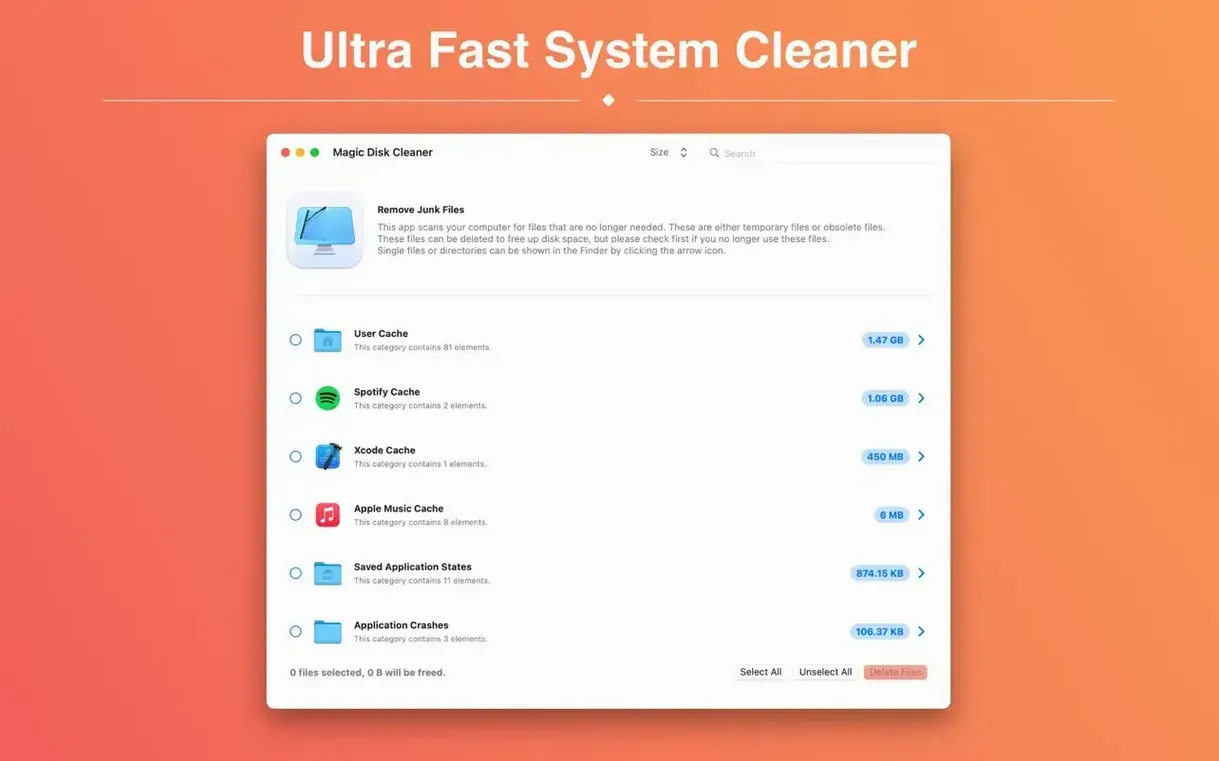
You connect an external drive to clear space for a video render, or simply notice your startup volume dipping below 20 GB again. Magic Disk Cleaner is already scanning. It lists temporary files the moment its window opens — caches, logs, partial downloads, Xcode junk — and waits for you to approve what goes.
| Detail | Note |
|---|---|
| Developer | Sascha Simon |
| Current version | 5.4.0 |
| Architecture | Intel and Apple Silicon |
The utility does one thing without branching into system tuning or malware scanning. It never deletes anything unprompted: you review the list, optionally deselect items, then click once to clear them. That makes it suitable for people who want a predictable clean-up step between projects, or who find broader system cleaners too opaque. The trade-off is narrowness — it won’t touch duplicates, large-file hunting or app uninstalling — but within its brief it stays direct.
When a scan finds almost nothing
Magic Disk Cleaner’s straight-line design means problems tend to be environmental rather than bugs in the app itself. Knowing the usual culprits saves a trip to the support page.
Scan finds almost nothing. This usually means Full Disk Access hasn’t been granted. Without it, the app can see its own sandbox but little else. Open System Settings → Privacy & Security → Full Disk Access, toggle Magic Disk Cleaner on, then quit and relaunch. The next scan should pull in temporary files from ~/Library/Caches, system logs and application support folders that were invisible before.
Permission alert appears on every launch. Some users report the app asking for folder access repeatedly, even after granting it. The fix is to drag the app to /Applications if it’s currently running from a different location — macOS sometimes ties permissions to the binary’s path, and a mounted disk image or a nested folder breaks the mapping.
Deletion seems sluggish or stalls. Large caches from video editors or simulators can contain tens of thousands of small files. macOS enumerates each one before removing it, so a single 15 GB Xcode cache may take a minute or two with no progress bar movement. Leaving it alone usually resolves things; force-quitting mid-deletion risks leaving partially emptied directories that confuse future scans.
Space doesn’t change after cleaning. APFS snapshots are the likely explanation. Time Machine local snapshots hold deleted data for up to 24 hours. Check with tmutil listlocalsnapshots / in Terminal — if snapshots exist, they’ll release the space automatically within a day, or you can delete them manually with tmutil deletelocalsnapshots /. The disk space figure in Finder updates once the snapshots thin out.
Native Apple Silicon support reaches more system directories
Version 5.4.0 runs natively on Apple Silicon and Intel Macs without Rosetta, and it raises the floor to macOS 15.6. The practical effect is that the scan engine can reach into newer system directories that previous versions skipped — particularly the relocated ~/Library folders Apple introduced in Sequoia — so you’re less likely to find orphaned caches sitting around that the app can’t see.
A second change worth noting is the Gatekeeper-friendly packaging. In earlier builds, launching from a downloaded disk image meant a trip to System Settings to approve an unidentified developer. The current distribution still needs a brief Terminal step on some configurations — xattr -cr on the app bundle, or running Open Gatekeeper friendly from the disk image — but once that’s done, macOS no longer quarantines it after updates.
The localisation spread is broader now, with ten interface languages shipping in the single binary. For a monolingual English user this is invisible, but anyone sharing a machine across household accounts will see the app follow the system language preference without a separate download or a language pack. The Simplified Chinese and Japanese localisations, in particular, cover interface labels and the deletion confirmation dialog, not just the menu bar.
Keyboard shortcuts hidden in the minimal interface
Magic Disk Cleaner is deliberately light on interface chrome, which means a few time-savers sit just below the surface.
Keyboard navigation without the mouse. After a scan completes, Tab moves focus between the result list and the delete button. Space toggles the currently highlighted item’s checkbox, and Return triggers the delete action when the button has focus. It’s a small thing, but useful when you’re working through a long list and don’t want to click each row individually.
Sorting by size at a glance. The result list doesn’t have clickable column headers, but it does sort largest-to-smallest by default. The biggest temporary folders — often Xcode DerivedData, browser caches, or Steam downloads — sit at the top. If you’re in a hurry and only want to clear one or two heavy hitters, you rarely need to scroll past the first three entries.
Unselecting everything in one go. If you only want to delete a single category, you can click the master checkbox at the top of the list twice: once to deselect all, then once on the row you actually want. There’s no explicit “deselect all” button, but the master toggle works as a quick reset.
The scan restarts on window focus. If you switch away to Finder or another app, then come back, Magic Disk Cleaner re-scans automatically. This means the file list always reflects the current state of the disk — useful if you deleted something manually in between, or if a background process wrote new temporary files while the window was in the background.
Slotting it into a pre-backup workflow
Magic Disk Cleaner doesn’t aim to be a hub — it has no plug-in architecture, no scripting dictionary and no command-line interface — but it slots into a workflow with other tools in predictable ways.
Before a full backup with Time Machine or Carbon Copy Cloner. Running a quick scan and clearing caches before a scheduled backup can trim several gigabytes of noise from the snapshot. Temporary files that would be recreated on next launch anyway don’t need to live in your backup history. A five-second check before bedtime backups becomes routine for some users.
Alongside a larger disk mapper like DaisyDisk or GrandPerspective. Those apps show you what’s taking space across the whole volume, including user documents and media libraries. Magic Disk Cleaner handles the narrow slice they often flag as grey “system” or “other” — the caches and logs they can map but not always clear without manual Finder work. Using them together gives you both the map and a fast mop.
With Finder tags and Smart Folders. The app doesn’t use tags itself, but the temporary folders it exposes are ordinary directories. If you notice a particular cache — say a browser profile in ~/Library/Caches — that you prefer to review manually before deletion, you can drag it to the Finder sidebar or create a Smart Folder that collects items from that path. Magic Disk Cleaner keeps scanning it, but you keep direct access for inspection.
Spotlight compatibility. Deleted files go through the normal Trash mechanism — ~/.Trash — which means Spotlight stops indexing them as soon as the Trash is emptied. If you’ve ever had a disk cleaner that left Spotlight confused with phantom results pointing to files that no longer exist, the behaviour here is standard and predictable. The app itself also registers with Spotlight-free zones; its own support files stay out of search results.
For anyone searching for a straightforward magic disk cleaner that doesn’t bundle extra utilities, the role this app fills is narrow but clear: it finds temp files, shows them, and removes them on your say-so. In a Mac environment where System Settings now includes its own storage recommendations, Magic Disk Cleaner 4.1.3 and the current 5.4.0 line offer a faster, more transparent path for users who prefer to see the list themselves before anything disappears.