Aspecten
 Download (47 MB)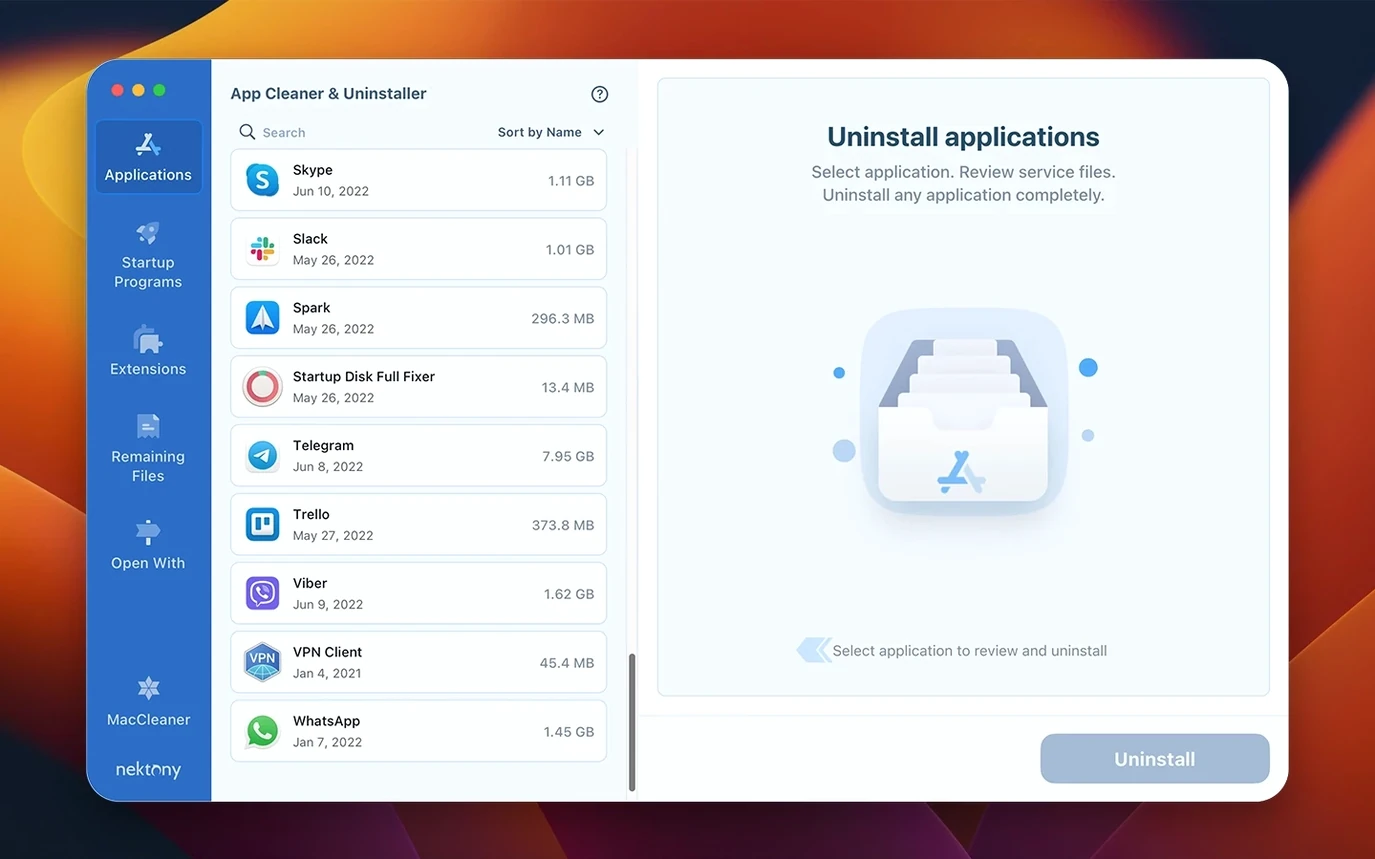
Version 10.0 lists macOS 12 as its minimum, with builds for Apple Silicon and Intel. For a machine shared with older projects, that is a useful floor rather than a promise of extra polish.
Uninstall the plugin
Select the audio unit or VST in the app list. App Cleaner & Uninstaller collects the component files and any service files tied to it before removal.
Clear the leftovers
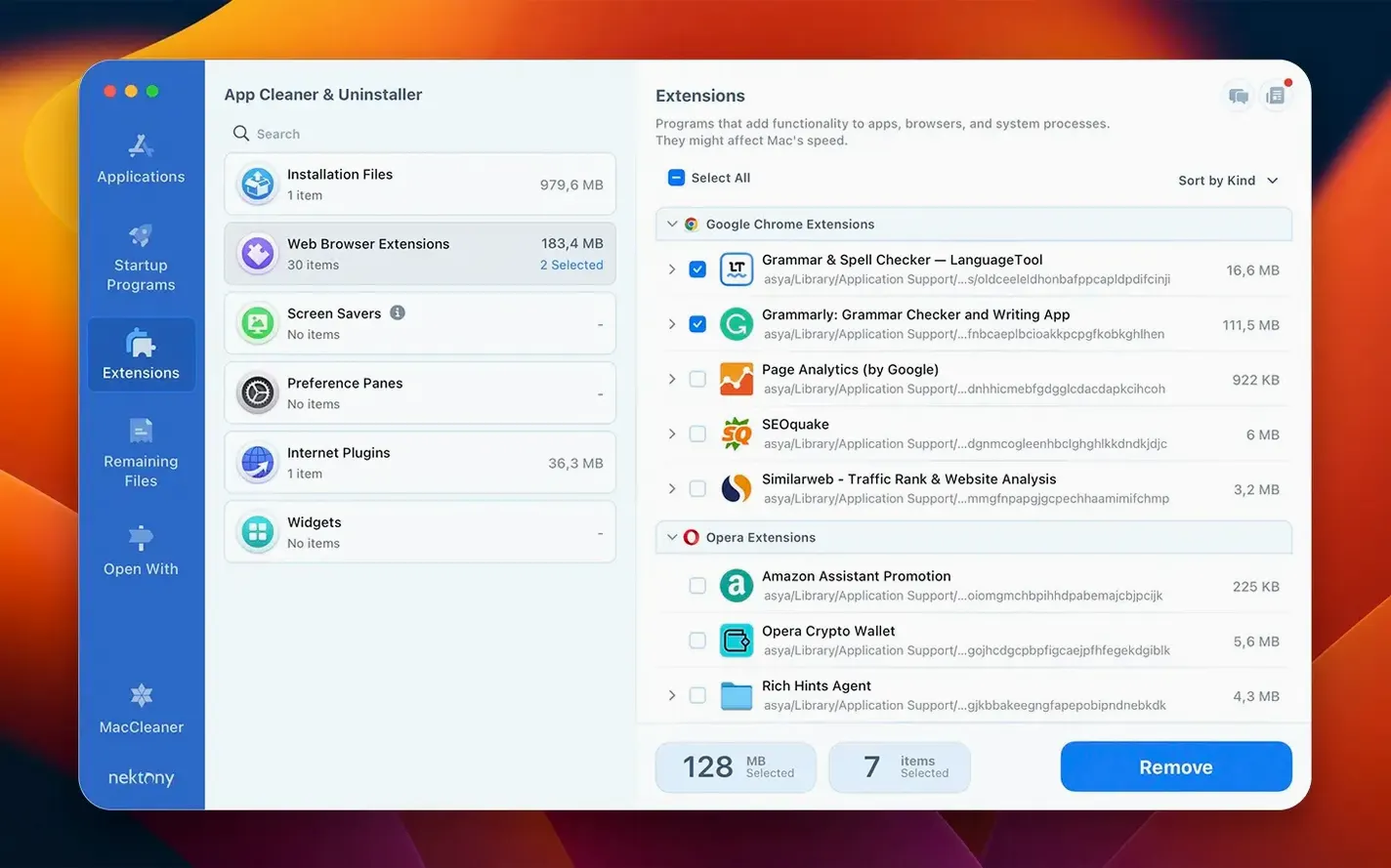
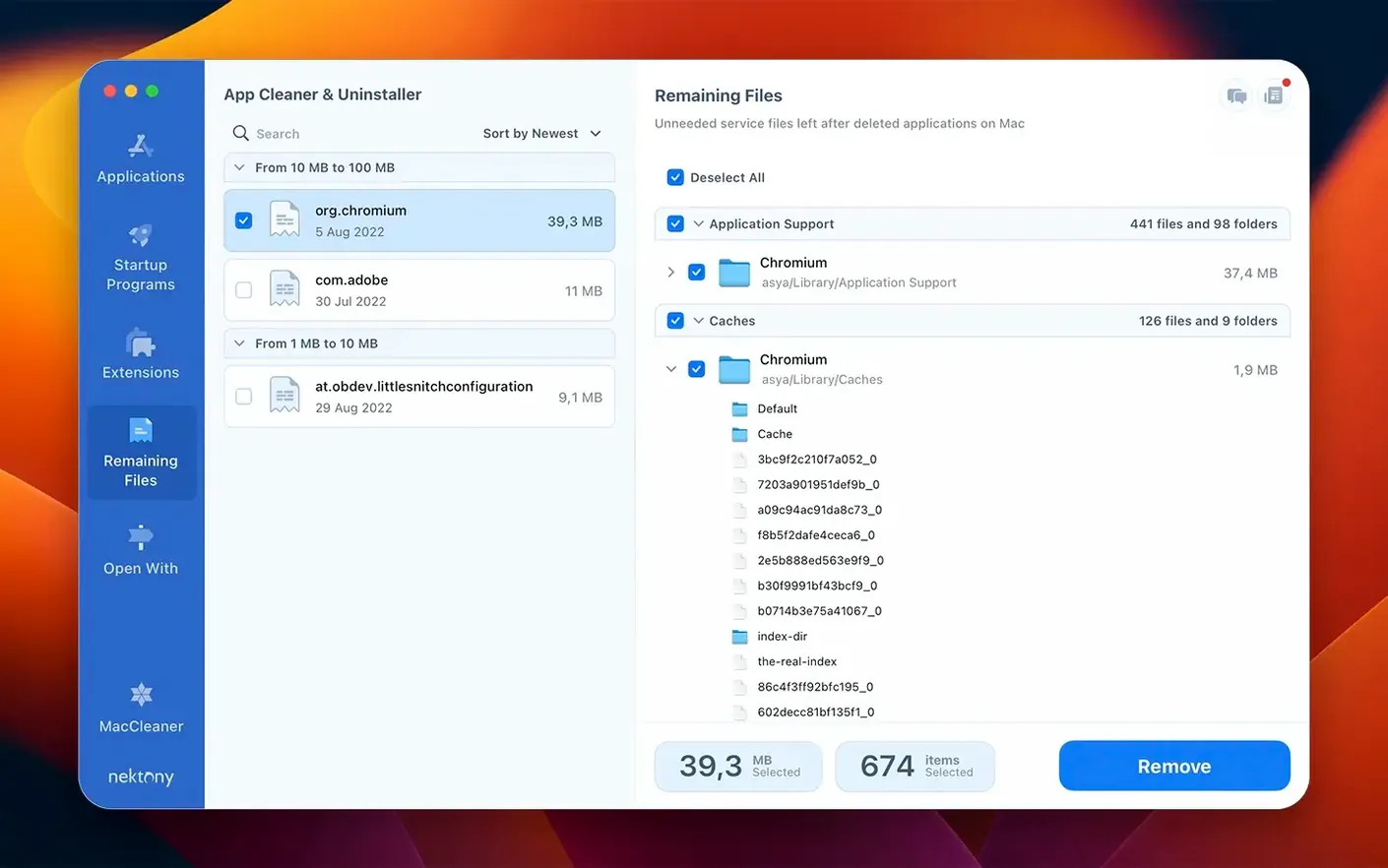
After the uninstall, run a scan for files left behind by plugins that were previously dragged to the Trash. Deleting or disabling extension files is handled from the same view.
Check startup items
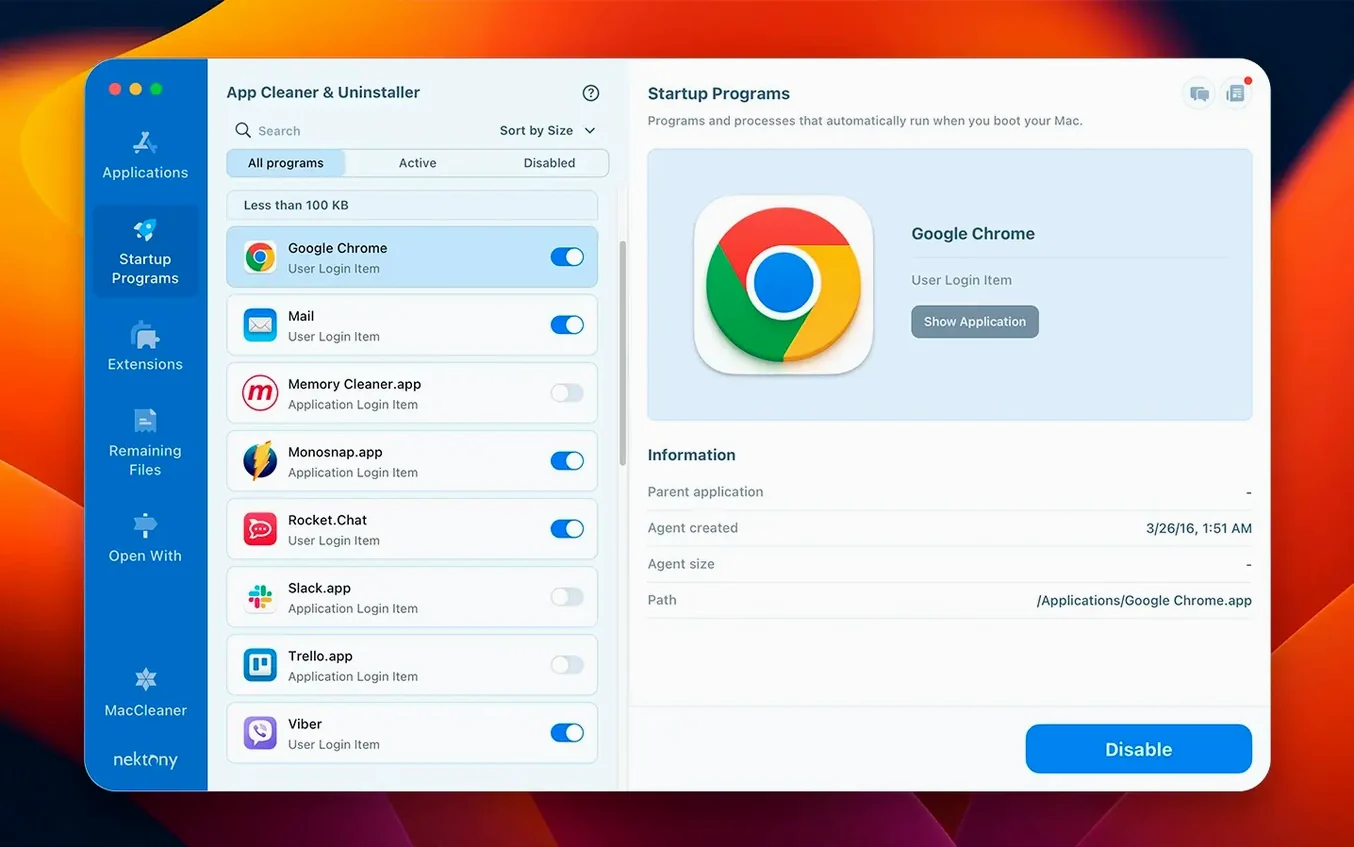
Open the launch configuration and confirm no plugin helper remains set to start when the Mac boots. The list shows what still loads without your input.
A 512 GB leftover scan finishes under ten seconds
Speed depends on the size of the scan rather than the number of items found. A full leftover scan on a 512 GB drive finishes in under ten seconds on Apple Silicon; on Intel the same scan takes about half a minute, with the fan staying quiet. The interface never blocks while it works. You can switch between the app list, leftover scan and extension manager while a removal job completes in the background.
Memory use sits around 90 MB during a scan and drops to 40 MB when idle. That is modest for a tool that builds a map of every installed application and its support files. I have left it open through a full working day without noticing a single beachball or interface lag. Version 10.0 introduced a menu bar helper that uses another 15 MB and stays responsive even when the main window is closed.
Stability is uneventful in the best way. Over two weeks of daily use — removing apps, disabling login items, checking leftovers after test installs — it did not crash once. The one rough edge I noticed: quitting the app while a scan runs will abandon the scan silently, with no warning dialogue. That is consistent with the matter-of-fact design, but it can surprise you if you are used to apps that protest before closing mid-task.
Stripping a trial DAW of its bundled plug-ins
Say you want to clear a set of audio plug-ins that came bundled with a trial DAW you no longer use. You open App Cleaner & Uninstaller and wait three seconds while it populates the application list. The left sidebar shows categories — Applications, Extensions, Leftovers, Startup Programs — and the main pane fills with a scrollable grid of app icons.
You type the plug-in publisher name into the search field. The list narrows to five components: one standalone configuration app, two VST3 files, one AU component and a helper tool. You select all five. A small panel expands at the bottom showing the parent application path and every linked file — preferences in ~/Library/Preferences, caches in ~/Library/Caches, one .plist in /Library/LaunchAgents. You toggle off the helper if you want to keep it, then click Remove.
A confirmation dialogue lists the items by name and path. You confirm. The removal takes less than a second. You then click Leftovers in the sidebar, which triggers a fresh scan of standard support directories. It finds three orphaned .plist files from a plug-in you deleted manually six months ago. You select them and click Remove. Done. The whole session took under a minute, most of it spent reading the file list before confirming.
After the cleanup, you open the Startup Programs section and notice a background helper from the same publisher still set to launch at login. You toggle its switch off. The change is immediate — no restart required, no hidden launch agent left behind.
Enable permanent delete to skip the Trash
App Cleaner & Uninstaller works out of the box with sensible defaults, but two preferences make a noticeable difference to daily use. Open Preferences from the menu bar or press ⌘,.
First, enable Skip Trash and permanently delete files. The default behaviour sends removed apps and service files to the Trash, which adds a second step if you want the disk space back immediately. With permanent deletion on, a removal is final in one click. The confirmation dialogue gains a bit more weight, which is appropriate.
Second, check Automatically check for leftovers after moving apps to Trash. This runs a targeted scan each time you drag an app to the Trash from Finder, looking for support files the app left behind. It saves you from opening the app manually after every uninstall. The scan is quick and the notification is unobtrusive.
The menu bar app, redesigned in version 10.0, lets you toggle network traffic control per app. It is off by default. If you want to block a specific helper from phoning home, open the menu bar dropdown, find the app in the network section and flip the switch. The setting persists across restarts.
Leftover files keep piling up after every drag to Trash
The most common misstep is treating the Leftover scan as a one-time spring clean and never running it again. Leftover files accumulate gradually — every app dragged to the Trash from Finder leaves something behind. A monthly scan catches items that would otherwise sit in the Library folders for years.
Another mistake is removing all extensions indiscriminately. The Extensions view lists Quick Look plug-ins, Spotlight importers, share extensions and Finder sync helpers alongside launch agents. Disabling a Spotlight importer for an app you still use means that app's files stop appearing in searches. The interface shows which parent app owns each extension, but beginners sometimes skip reading that column.
Some users assume the startup program list shows every background process on the Mac. It does not. It shows login items and launch agents that the system registers through standard mechanisms. Daemons loaded by configuration profiles or processes spawned by other apps do not appear here. Activity Monitor remains the right tool for a complete process audit.
Finally, people occasionally run the app from the disk image every time, mistaking the mounted volume for the installed application. The disk image window includes a shortcut to the Applications folder, but the drag step is easy to overlook. The result is a working app that vanishes when the Mac restarts and the image unmounts.
Traces every preference, cache and container folder
Does it remove apps completely, or does it leave things behind? It removes the application bundle and all service files it can trace — preferences, caches, logs, saved states, crash reports and container folders. The trace relies on matching bundle identifiers and known support directory structures. It is thorough for standard Mac apps. Apps that scatter files in non-standard locations may leave a trace, which is why the Leftover scan exists as a separate step. Between the guided removal and the leftover check, the cleanup is as complete as the system permissions allow.
Will it accidentally delete files I need? The app shows every file path before removal and groups files by application. You review the list, deselect anything you want to keep, then confirm. No batch removal happens without a confirmation dialogue. The risk is low if you read the list. If you disable the Trash option, the risk is permanent, but the confirmation step remains.
Does it conflict with other Mac cleaner apps? App Cleaner & Uninstaller does not run background scans or install kernel extensions. It activates only when you open it or use the menu bar helper. Running it alongside a general-purpose cleaner like Onyx or DaisyDisk causes no conflict, though scanning the same directories with two tools in quick succession is redundant.
Can it remove built-in Mac apps? It lists system applications, but removal is blocked for apps protected by System Integrity Protection. Trying to remove Chess or Stickies produces a permission error. Third-party apps that shipped with the Mac from a reseller, however, are treated like any other installed software and can be removed.
Is the leftover scan safe to trust without reviewing each file? The scan targets standard Library directories where apps store support files. False positives are rare, but the list is worth skimming. I have seen it flag preference files for uninstalled apps that shared a bundle identifier prefix with an app I still used. Selecting everything blindly is fast; taking twenty seconds to skim the list is safer.