Aspecten
 Download (4 MB)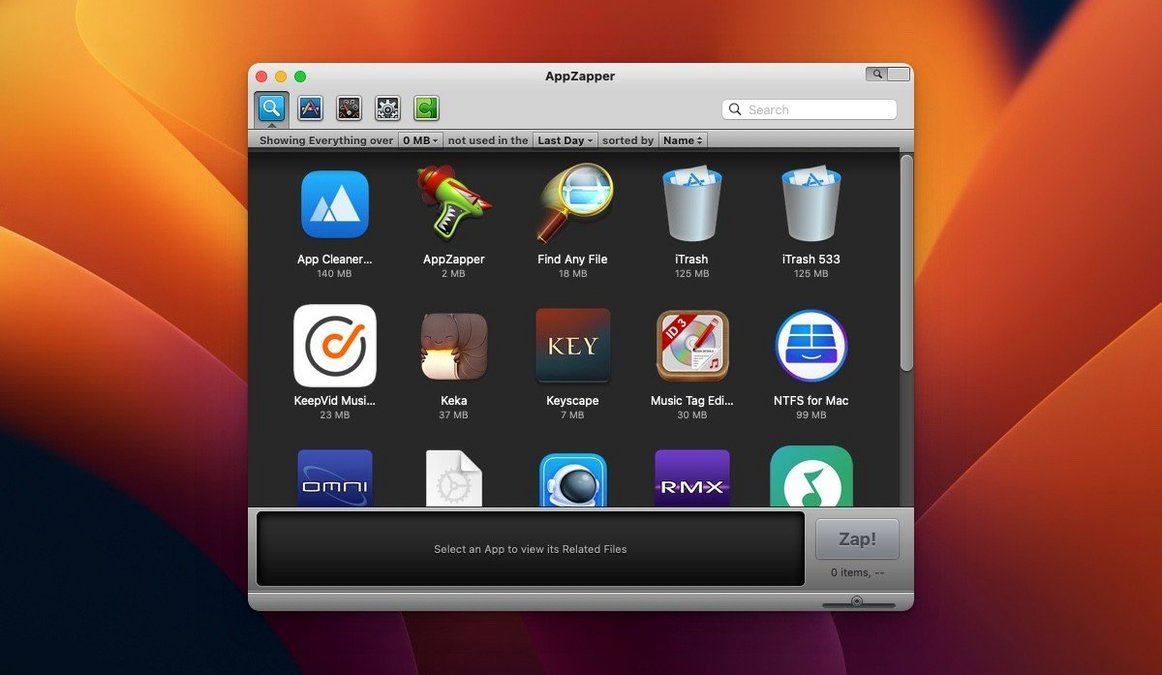
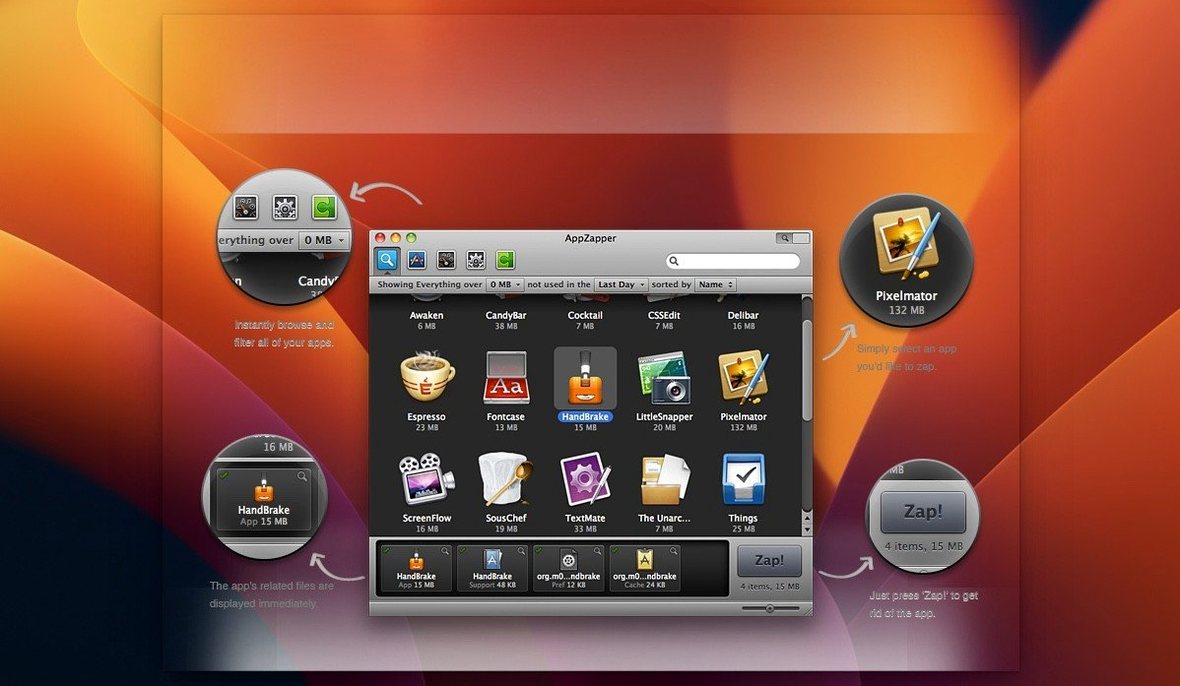
Dragging an app to the Trash removes the app, but leaves its support files scattered across the Library. AppZapper addresses that gap by locating those related files and presenting them for review before anything is deleted.
Checkbox list of every support file found
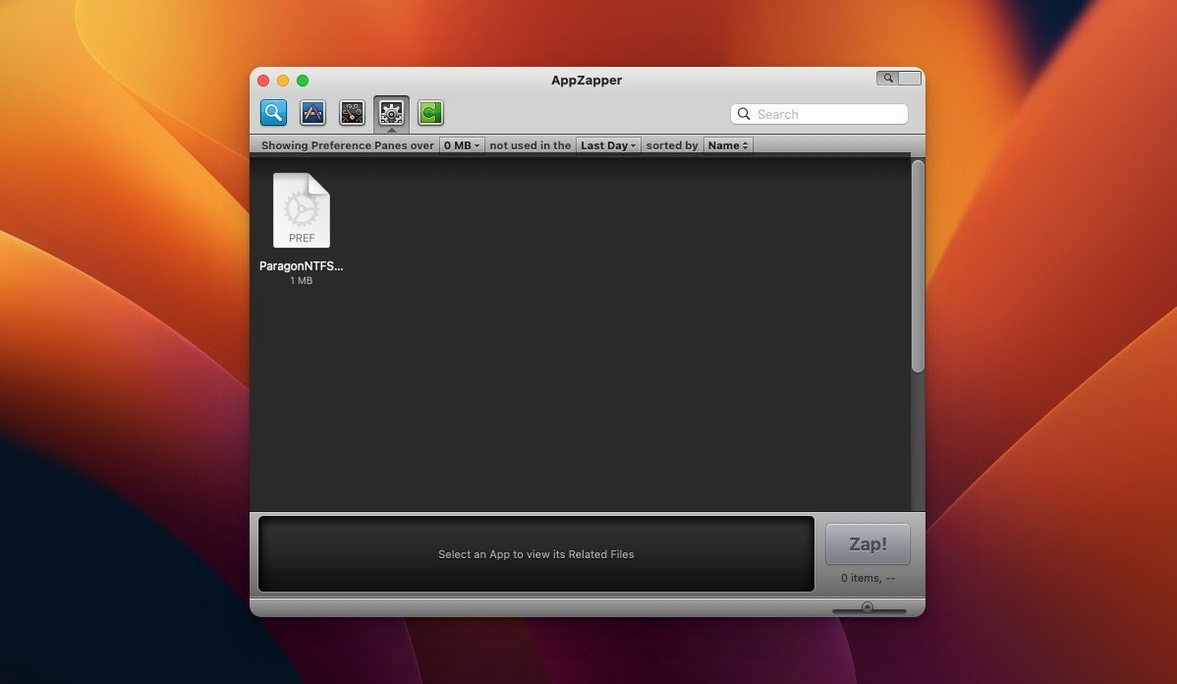
The main window lists installed applications. Selecting one populates a side panel with every associated file AppZapper can find — preferences, caches, logs, and other support items. Each file shows its name and location. A checkbox sits beside every entry, so you can exclude items you mean to keep. A button switches the app list to a grid view with large icons, an addition from the second version that suits quick visual scanning. Deleted files move to the Trash, where they remain recoverable until the Trash is emptied.
Linear zap-or-keep, now with export
The uninstall process is linear. Pick an app, review the proposed deletions, uncheck anything you want to preserve, then zap. Version 1.7.0 added the ability to export an app together with its related files, which is useful when moving a setup to another Mac. An authentication prompt, introduced in version 1.8.0, appears when the current account lacks administrator privileges, preventing silent failures on restricted systems. The interface is English-only and runs on Intel Macs from OS X 10.9 onward.
Bundle ID matching avoids shared files
One common hesitation is whether AppZapper removes files that belong to other applications. It does not. The app builds its file list by matching bundle identifiers and common naming patterns to the application you select. Items from shared frameworks or system components are not included, so uninstalling one text editor, for example, will not strip a spelling dictionary used by another. The checkbox beside each found file is there exactly for this reason — you can inspect the list and exclude anything you are unsure about.
Another question concerns what happens when something goes wrong. Because AppZapper moves deleted files to the Trash rather than erasing them outright, restoration is a matter of opening the Trash and putting the item back. The app itself does not keep an internal undo history, but the macOS Trash acts as a safety net until you empty it manually. There is no background daemon or scheduled cleanup running on its own; the app only acts when you open it and press Zap.
People also ask whether the app can handle large batch removals. You can select applications one by one from the list or grid view, but there is no multi-select zap-everything button. That deliberate constraint keeps the review step in place for each removal. For a machine with dozens of forgotten downloads to clear, the export feature from version 1.7.0 provides an alternative: bundle an app and its files, archive them externally, then zap the original.
Drag to Trash still works; zap when you want more
AppZapper sits alongside the Finder rather than replacing any part of it. Dragging an app from the Applications folder to the Trash still works as it always did; AppZapper simply offers a more thorough path when you want one. It does not register as a default handler for any file type, so your existing app-launching habits remain unchanged.
The app cooperates with Spotlight metadata. Because it reads standard application bundle structures and common preference paths, the files it finds overlap with what a Spotlight search for the app name would surface in the Library folders. That means you can cross-check its suggestions with a manual search if a particular file looks unfamiliar. Time Machine backups are unaffected — files moved to the Trash by AppZapper are just regular Trash contents and follow the same backup and deletion rules as anything else you throw away.
For users of the app zapper mac workflow who also run tools like Hazel or CleanMyMac, there is no direct integration, but no conflict either. AppZapper operates on demand, not through automatic triggers, so it will not surprise you by removing files that another utility expects to find. The authentication prompt added in version 1.8.0 also means it respects the same macOS permission boundaries as any other admin-level operation, asking for credentials only when the current account cannot write to the relevant directories.
AppCleaner watches the Trash; AppZapper does not
AppCleaner from FreeMacSoft takes a similar approach: drop an app onto its window, and it finds related files. The main difference is that AppCleaner runs a background helper that watches for apps moved to the Trash and offers to find their leftovers automatically. AppZapper keeps everything in a single window and never watches the Trash; you open it when you mean to use it. AppCleaner’s interface is sparser, while AppZapper’s grid view and export feature give it a slight edge in browsing and archiving scenarios.
CleanMyMac X casts a much wider net. It handles malware scanning, system junk, maintenance scripts, and large-file hunting alongside app uninstallation. Its uninstaller module shows leftover lists similar to AppZapper’s, but the interface is one panel inside a larger suite. Where AppZapper remains a single-purpose tool, CleanMyMac X suits users who want one dashboard for many cleanup tasks. The trade-off is that AppZapper’s narrower scope makes its workflow feel lighter and more direct for the one thing it does.
TrashMe 3 sits somewhere between the two. It uninstalls apps with leftover detection, but also manages launch agents, system extensions, and a few other maintenance chores. Its interface uses a sidebar for navigation, unlike AppZapper’s flat window. If you occasionally need to disable a login item or clear caches, TrashMe 3 folds that into the same tool. AppZapper stays deliberately simpler, with no extra modules to browse through.
Grid view clears a month of trial leftovers
Imagine a designer who has been trying out half a dozen illustration apps over a month. Each trial left behind preference files, cached thumbnails, and autosave folders in ~/Library/Containers. The designer opens AppZapper and switches to the grid view to scan the large icons quickly. Spotting an app they uninstalled weeks ago, they select it and see twelve related files listed. One is a custom brush preset they want to keep, so they uncheck it before pressing Zap. They repeat this for three more trial apps, then quit AppZapper. The brush preset stays, the cruft is gone, and the Trash holds a recoverable copy of everything removed, should a missing setting be noticed a day later.