 Aspecten

 Download (20 MB)
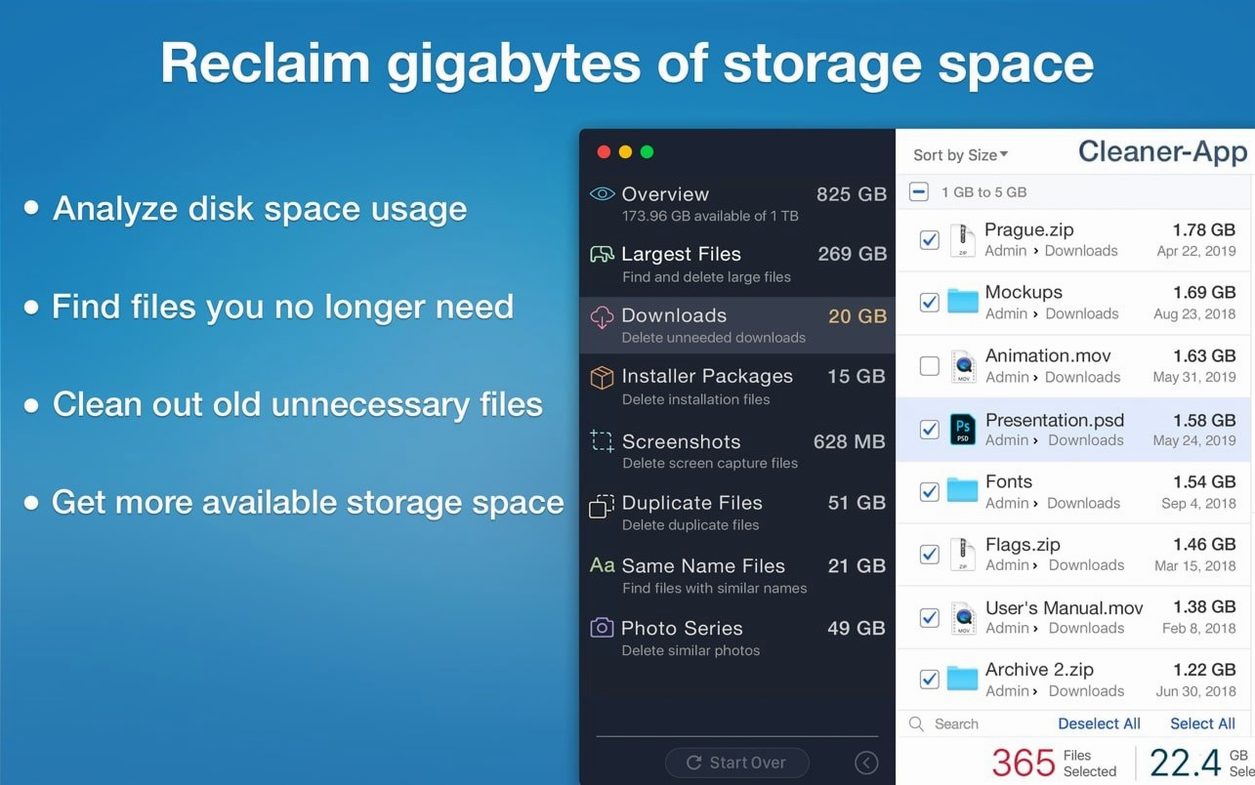
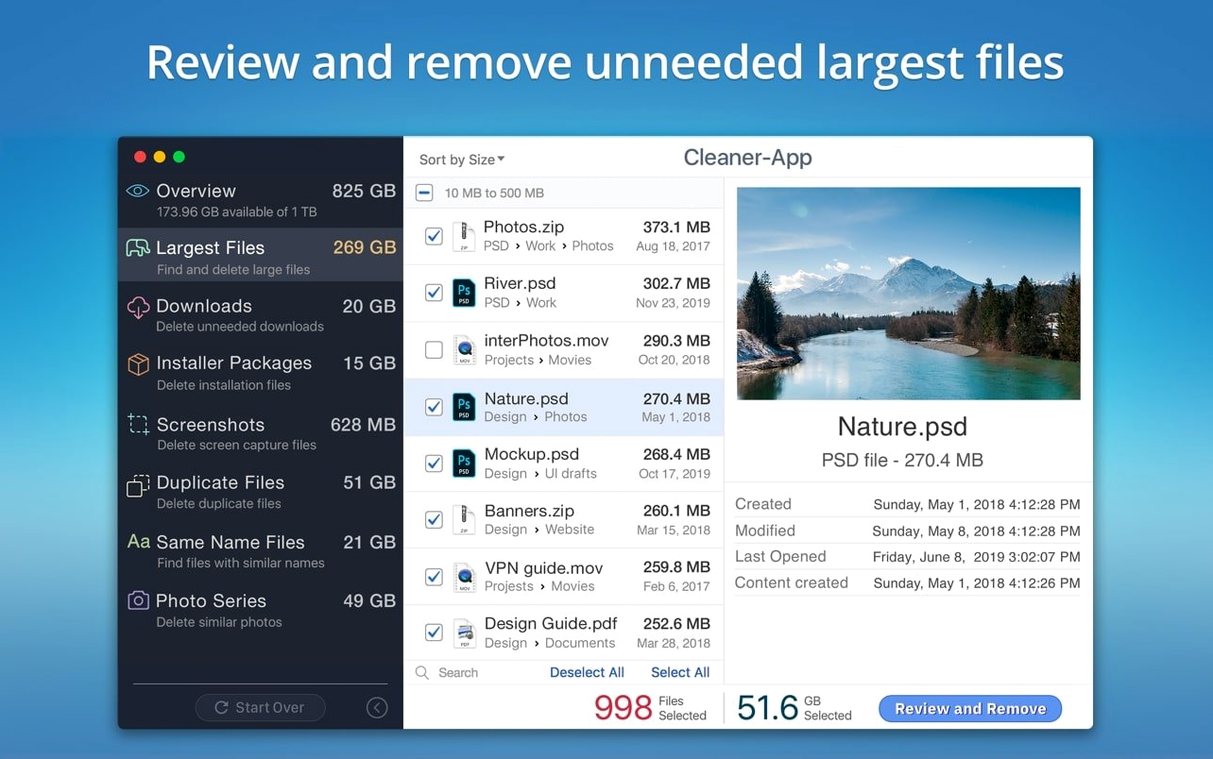
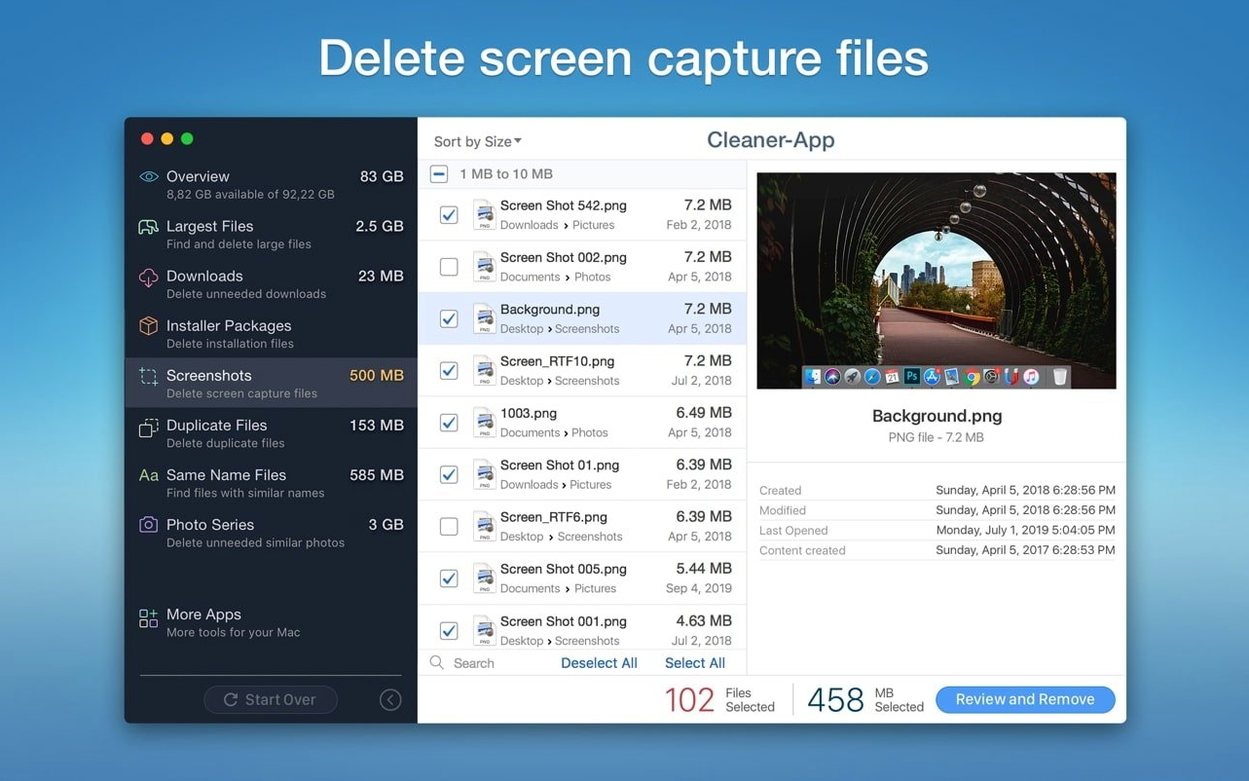
Scanning for large files
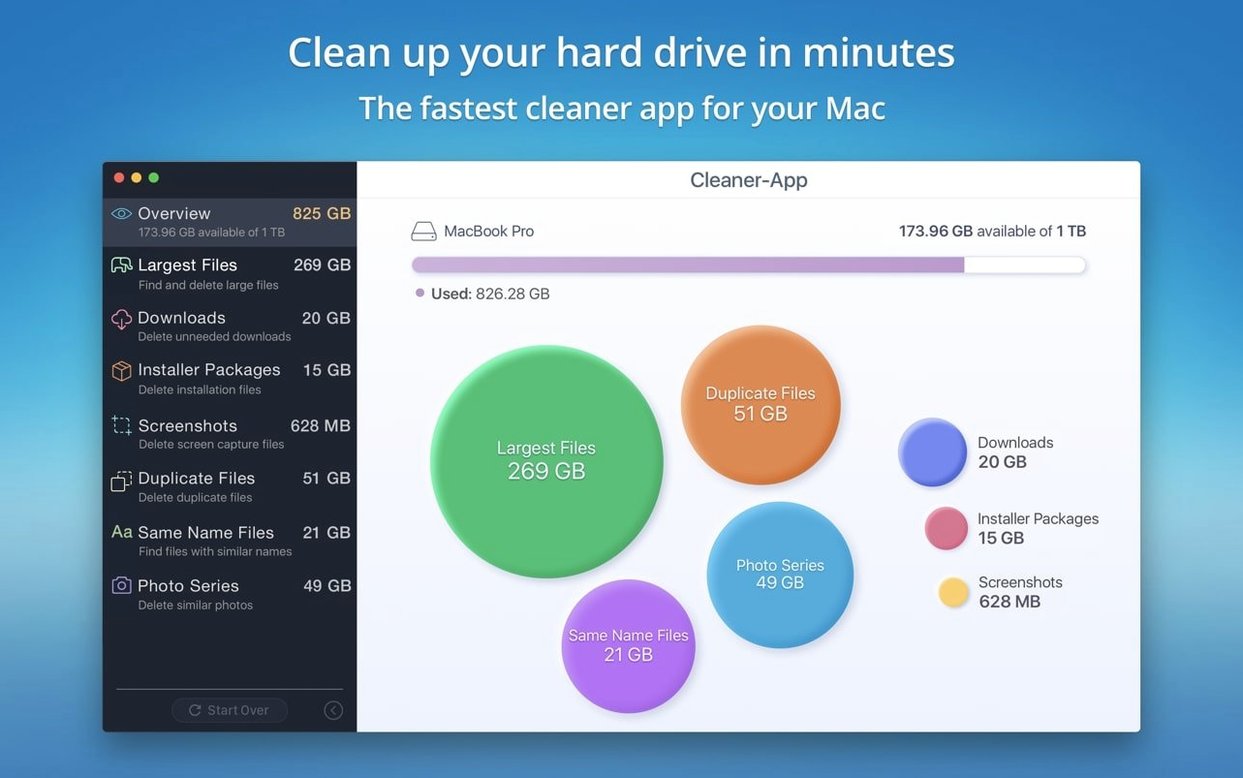
Cleaner-App Pro can show what is using storage space on the Mac, listing files and folders by size. This works much like the built-in Storage Management panel but presents the data in a single, scrollable view without drilling into categories.
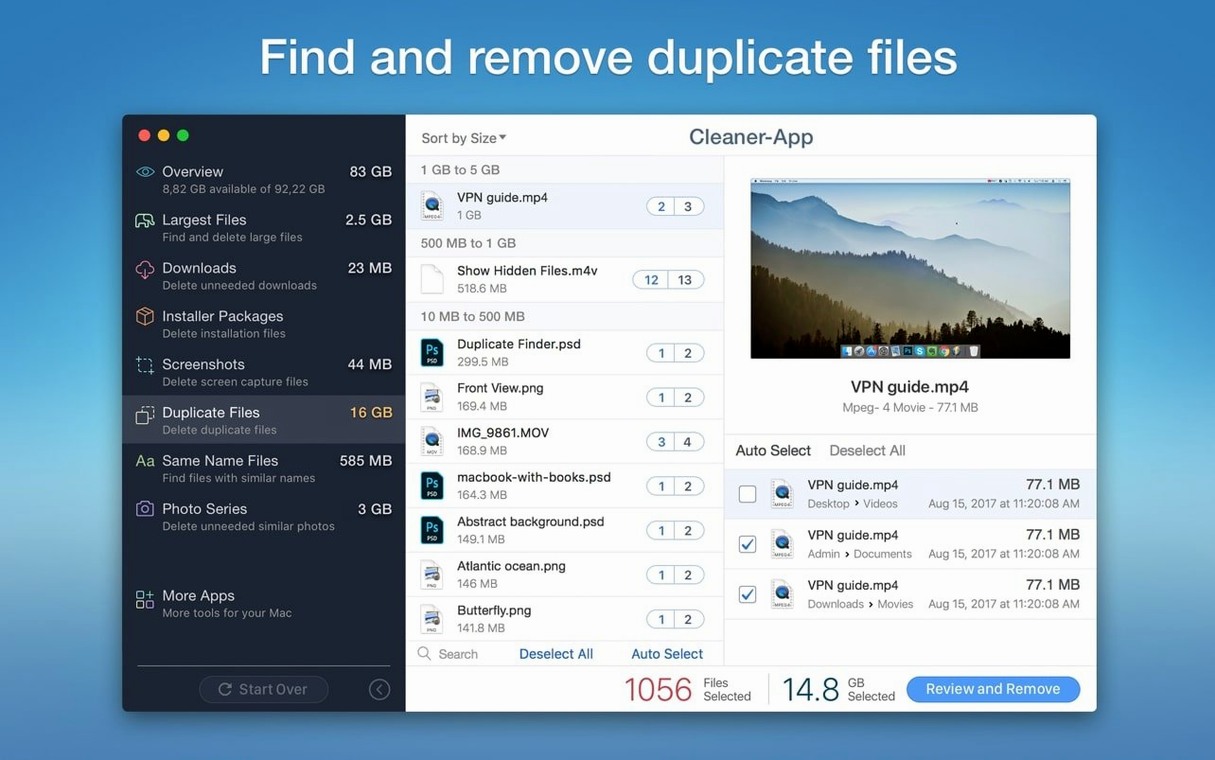
Finding duplicate files
The app scans selected folders for identical files — documents, images, archives — and groups them for review. You choose which copies to keep and which to remove, which is a task the Finder does not handle on its own.
Uninstalling applications
Nektony also makes a dedicated uninstaller, but Cleaner-App Pro includes a basic removal function. It finds the main app bundle and related files so you can delete them together, rather than hunting for leftover support files manually.
The zero results scan and fixing disk access
A few operations in Cleaner-App Pro can trip people up the first time. The most frequent is the scan that appears to complete but returns zero results. This usually happens when the app does not have full disk access. macOS 11.0 and later tighten file-system permissions, so if you have not granted the app access to certain folders — notably the system drive — it simply skips them. The fix is to go to System Settings > Privacy & Security > File Permissions and add Cleaner-App Pro to the allowed list.
Another snag: the duplicate finder sometimes flags files that are not actually identical, only similarly named. The app looks at file content by default, but the “identical name” mode can be turned on separately. If you see a list of files with matching names but different sizes, you have likely enabled the name-only filter by accident. Switch back to “content” or “content and name” in the scan settings.
A third annoyance is a stalled deletion. If you select a batch of duplicate files and click Remove, the progress bar may hang or the app may appear to freeze. This is not a crash — the app is waiting for the system to confirm each deletion. Large batches on spinning-disk drives can take several seconds. Let it finish; force-quitting can leave partial deletions.
Quick-preview pane for file details
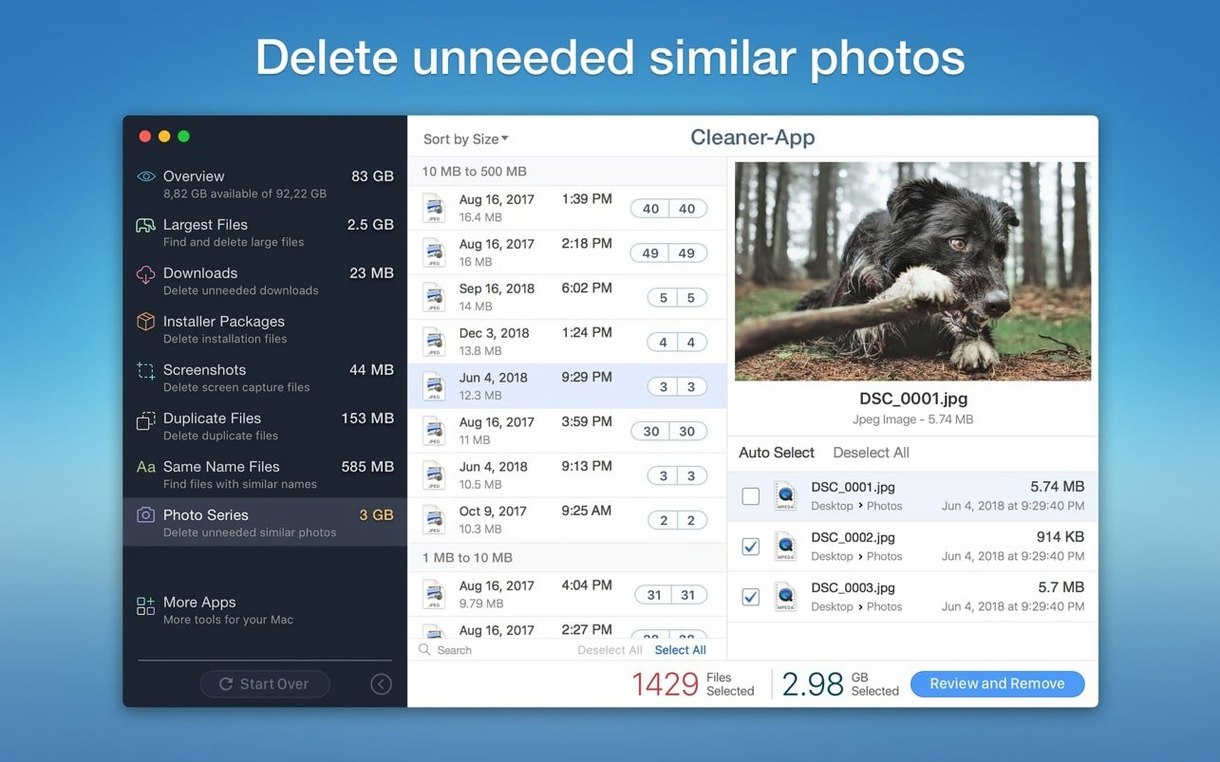
Cleaner-App Pro includes a few touches that are not obvious from the main interface. The quick‑preview pane is one. When you click a file in any scan result, a small panel appears on the right showing a thumbnail, file size, and last-modified date. For image duplicates, you see the actual photo, not just a generic icon. This saves opening each file in a separate app to decide which copy to keep.
The folder‑drag shortcut is another. Instead of navigating through the folder picker, you can drag a folder from the Finder directly into the scan window. The app accepts it and starts a scan on that location only. This is faster when you want to check one specific directory.
The pause button lives in the bottom-right corner of the progress bar during a scan. It is small and unlabelled, but clicking it stops the scan mid-way without discarding the results already collected. Useful if you realise you selected too large a scope halfway through.
Finally, the right‑click context menu inside results lists includes “Reveal in Finder” and “Copy path”. The copy-path option is handy when you want to paste a file’s location into a support ticket or a script without typing it out.
Adjusting scan scope before the first full scan
Before running your first full system scan, it helps to adjust two or three defaults.
Scan scope. The app scans the entire home folder by default. On a machine with a large media library, this can run for a while. Narrow it to just the Documents and Downloads folders for a shorter initial run. You can widen it later.
Duplicate comparison method. The default is “content”. This is thorough but slower on large collections. If you are cleaning up downloaded installer packages, switching to “file name” catches the majority of duplicates instantly. Use “content” only for photo or document deduplication where name matching is unreliable.
Preview before delete. The app enables this by default, which is sensible. But if you find the preview panel distracting, you can disable it in Preferences > General. The file list will still show size and type, just without the thumbnail.
Exclusion list. Add your system drive and backup folders to the exclusion list before scanning. The app does not touch them otherwise, but it saves scanning time by skipping them outright.
Recovering 30 GB on a 256 GB MacBook Air
The goal was to recover space without removing anything important.
First, I clicked Large Files in the main toolbar. The scan took about forty seconds across the user home folder. It presented a list sorted by size: a handful of video files, an old VirtualBox disk image, and several installer packages. I selected the VirtualBox image and the installers — I knew I no longer needed them — and tapped Move to Trash. I confirmed, and the files were gone within a few seconds.
Next, I ran the Duplicate Finder on the same home folder, this time limiting the scan to Documents and Downloads only. The scan took about two minutes. It found a few sets of duplicate PDFs and some duplicate photos from a shoot last year. The preview pane let me compare the photos side by side — I kept the one with the higher resolution in each pair and removed the rest.
The app listed the main bundle plus a preferences file and a small cache. I removed all three together. Total recovered in the session: roughly 14 GB. The session took about ten minutes, most of which was scan time.
Zero memory footprint outside of a scan session
Cleaner-App Pro is not a background service. It opens on demand, scans when you tell it to, and closes when you are done. This keeps its memory footprint near zero outside of a session.
The app remains responsive: you can browse the results list or preview files while the scan continues in the background.
Stability has been good in my use. The scan progress bar updates in real time, so you can gauge how far along it is without guessing.
The only performance note worth mentioning is that the first scan of a large folder is noticeably slower than subsequent runs. The app caches file hashes for duplicates, so a second scan on the same folder completes in half the time. If you plan to run Cleaner-App Pro regularly, that initial wait is a one‑time cost.