Aspecten
 Download (76 MB)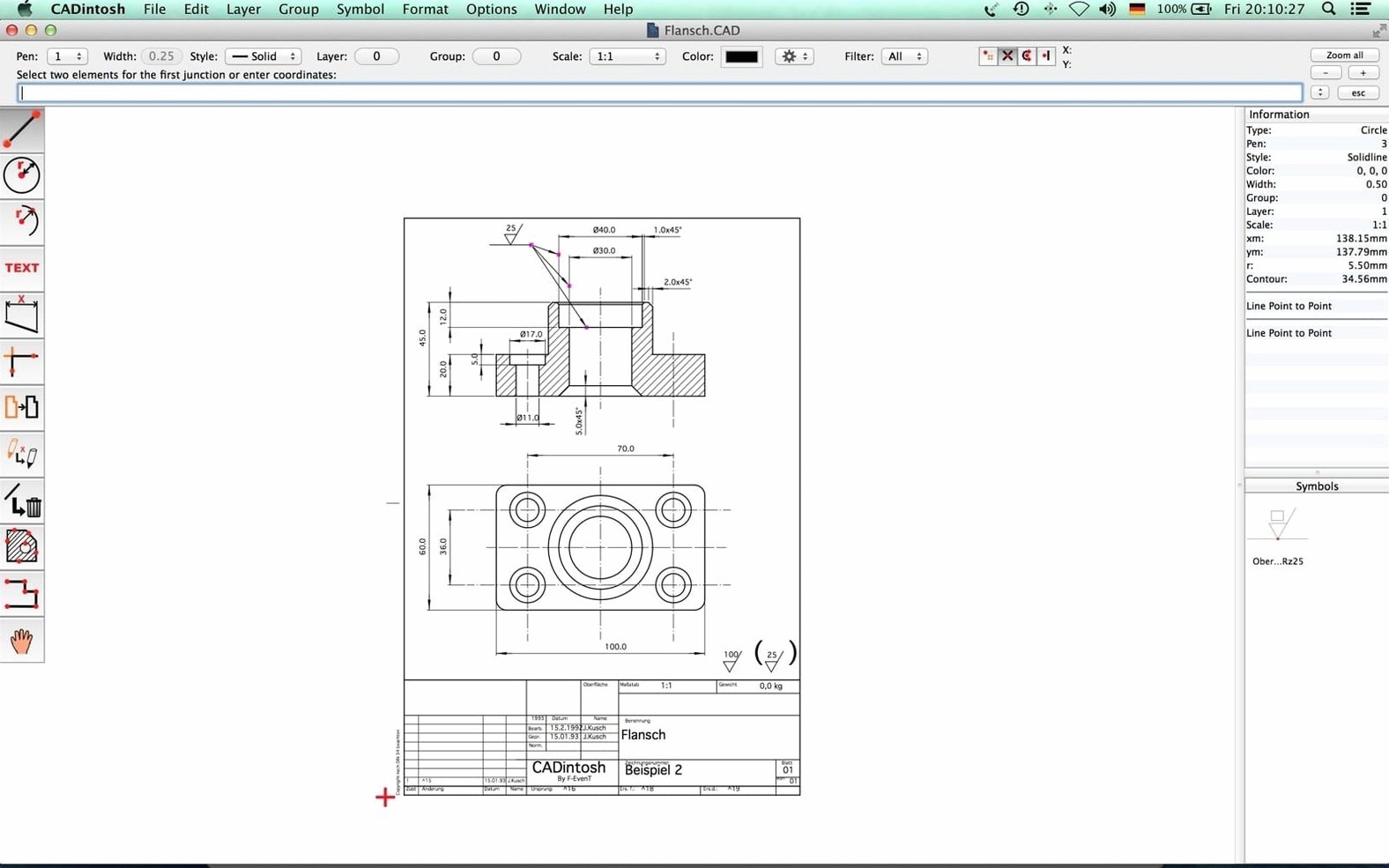
An architect opens Cadintosh X to sketch a bracket detail she will later export as a DXF. She has not used this particular CAD tool before, so she works through a few fundamental moves to get oriented before the drawing gets complicated.
First steps in a new drawing
- Set the drawing units. Open a fresh document and decide whether to work in millimetres or inches. The choice determines how dimensions read later, so it is worth fixing before the first line is drawn.
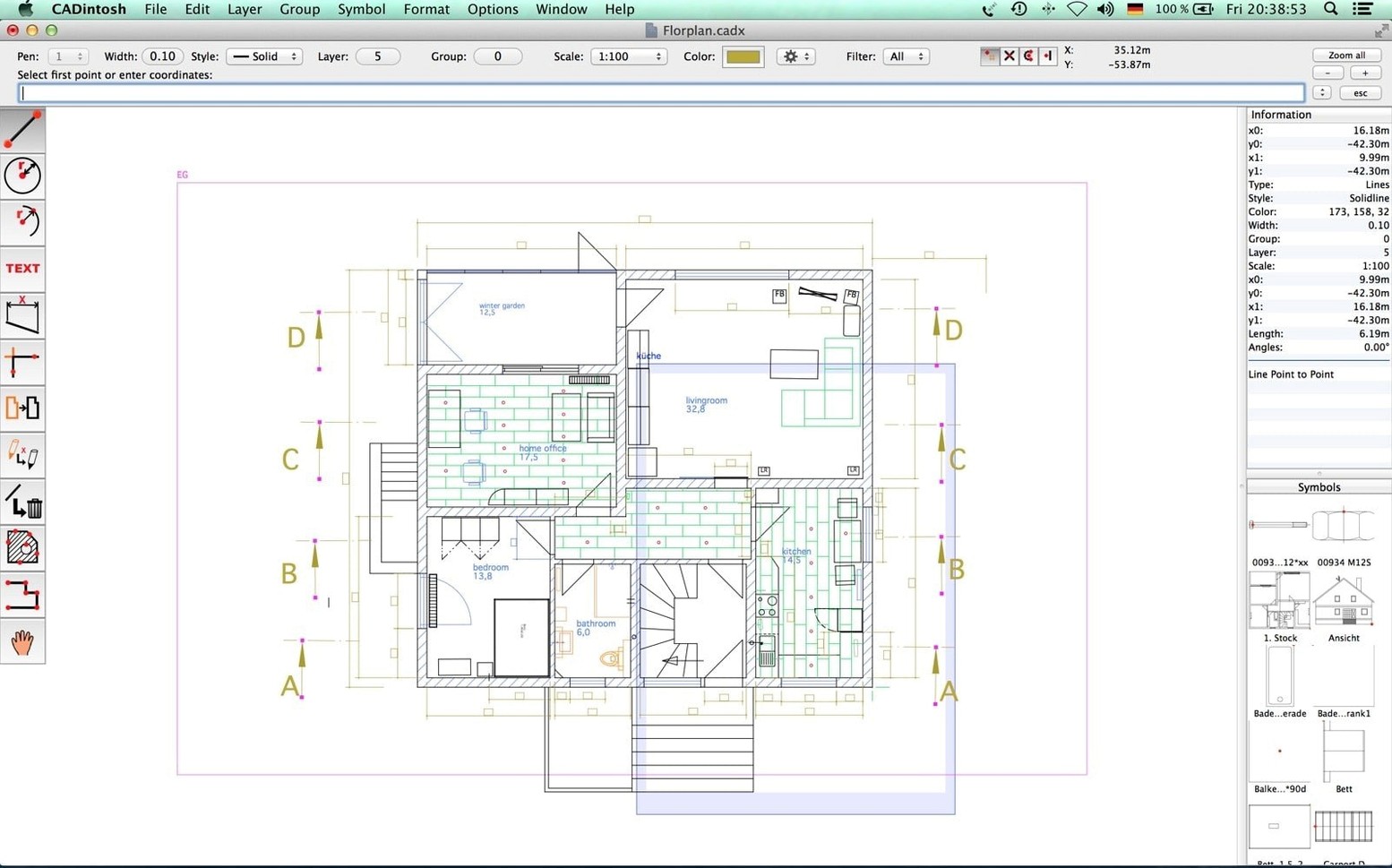
- Create two or three layers. Cadintosh X supports up to 1,024 layers. For a simple part, a layer for construction geometry, one for the main outline and one for dimensions keeps the workspace manageable. Layers also matter when exporting to formats that preserve layer structure.
- Draw a few basic elements. Place a line, a circle and a rectangle using the tool set. Switch the active line type between solid, dashed and chain to see how the six available styles render on screen. While drawing, adjust the line width in custom mode — anything from 0.0 to 99.99 mm is allowed — to get a feel for pen weights.
- Add dimensions. Apply linear and radial dimensions to the geometry. This is a good moment to check how dimension text scales with the drawing units chosen earlier.
- Group related elements and apply a hatch fill. Select the outline and assign it to a group (up to 32,000 groups are possible). Fill a closed shape with a hatch pattern to see how the app handles filled regions before the drawing moves towards annotation.
- Export the sheet. Go to File > Export and pick DXF or PDF. Both are common interchange routes. HPGL and IGES are also available if the drawing is heading to older equipment or a different CAD system.
By the end of this short sequence, a newcomer has touched units, layers, line types, dimensions, grouping and export — enough to judge whether the app suits a regular technical drawing workflow.
Beginners accustomed to vector illustration software often treat Cadintosh X as if it were a free-form drawing board. They click onto the canvas and start sketching without first pinning down the drawing scale, then wonder why a line meant to be 1200 mm measures as a few pixels on export. The remedy is mechanical: open the Drawing Settings dialogue before the first element is placed, state the sheet size and scale, and only then begin. Another early stumble is ignoring the coordinate readout at the bottom of the window. The app tracks absolute and relative cursor positions, but newcomers who rely solely on visual snapping drift off-grid without noticing until dimensions read oddly. A habit of glancing at that readout every few clicks pays off quickly.
A subtler mistake involves the eight handles. Each handle carries its own line width and colour, and a fresh installation starts with Handle 1 active at a default width. A user who switches line colours by changing the handle’s own colour, rather than switching to a different handle, will recolour every element that shares Handle 1 later in the session. Keeping a deliberate scheme — say, Handle 1 for thin outlines, Handle 2 for heavy cut edges, Handle 3 for centre lines — prevents a sheet full of unintended uniform line work.
Exchanging DXF with CAM and other Mac apps
Cadintosh X does not try to be a drafting suite that replaces everything else on the machine. Its role sharpens in combination with other apps. A common path sees a DXF file leave Cadintosh X and land in a CAM tool for toolpath generation, or in a laser-cutting layout program that reads the layer names and assigns kerf offsets automatically. The IGES export route, though less requested now than it was a decade ago, still links cleanly to a handful of older solid modellers and analysis packages that prefer IGES wireframe geometry over DXF.
On the macOS side, the app cooperates with the system clipboard for copying and pasting vector data between its own windows, but it does not participate in universal clipboard handoff with iOS devices. That limitation matters less in practice than it sounds, because technical drawings rarely start on a phone. More useful is the Retina-aware rendering: dimension text stays crisp on high-DPI screens, and the single-window layout behaves sensibly when the user tiles Cadintosh X next to a PDF reference sheet in Preview. Because the app is a universal binary, launching it on Apple Silicon feels immediate, and large hatched regions redraw without the lag that older Rosetta‑translated CAD tools sometimes show.
Opening DWG files is not on the menu
Will it open AutoCAD DWG files natively? No. Cadintosh X reads and writes DXF, not the proprietary DWG format. In practice, most CAD systems and fabrication shops accept DXF without complaint, but a designer who receives DWG files regularly will need a separate conversion step, either through a free online translator or via a colleague with a licence that can re‑export.
Does it handle large assembly drawings with thousands of parts? The hard limits — 32,000 groups and 1,024 layers — are generous for a 2D tool, and a drawing that stays within those bounds remains responsive. The practical ceiling, however, is often set by hatch patterns. A sheet filled with dozens of dense hatches will redraw more slowly than one built from plain line work, so experienced users tend to keep hatching on a dedicated layer that can be hidden during heavy editing.