Aspecten
 Download (24 MB)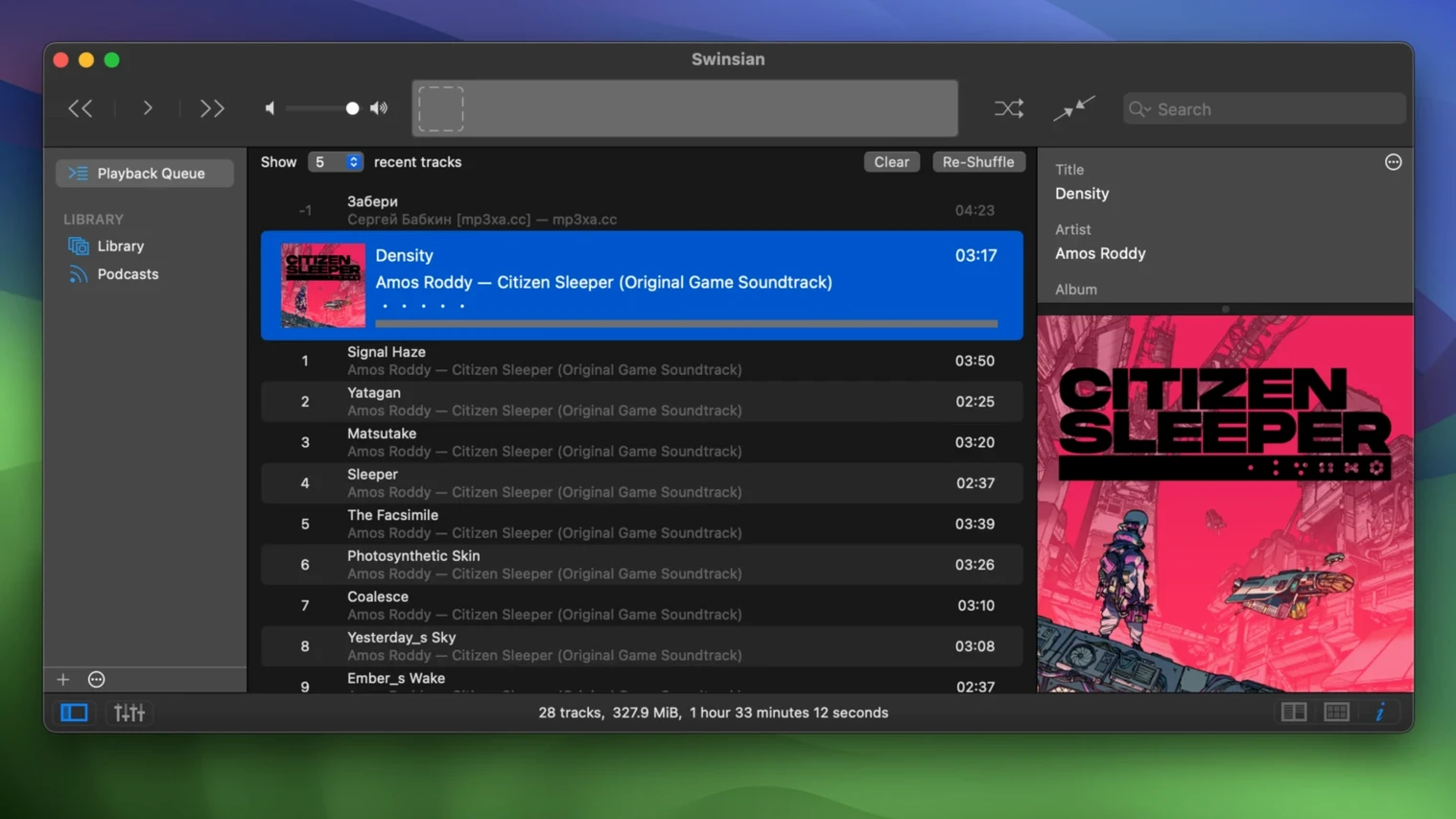
Transcoding rules now survive relaunch
Swinsian 3.0.8 is a maintenance update that resolves several long-standing quirks. Transcoding rules now save correctly between sessions, removing tracks from iPod playlists no longer fails, and the Complete Tags window sorts columns as expected. On the playback side, quadraphonic FLAC files stop glitching. Interface adjustments include new art grid label options and a hidden setting to enlarge text across panels.
How do you set up a library that watches folders?
Point Swinsian to your music directory once and it monitors the folder tree for additions, deletions and metadata changes. Newly added files appear automatically; moved or renamed files update without breaking playlists. The import process reads your existing folder structure, so there is no need to reorganise anything beforehand.
Can you fix a messy tag collection from start to finish?
The Complete Tags window lays out every field for a selection in a spreadsheet-style grid. Select a batch of albums with inconsistent genres or missing years, edit cells directly, and the changes write back to the files immediately. The duplicate finder helps identify tracks with matching audio fingerprints, which you can then merge or delete in one pass.
How does playback adapt across different audio setups?
Swinsian can automatically switch the output device's sample rate to match the track, avoiding unwanted macOS resampling. The built-in equalizer offers a 10-band view for quick adjustments or a 31-band view for precise correction. Separate playlist windows let you line up a queue on a secondary display while the library stays full-screen on the main monitor.
Granting folder access on external drives
A folder that refuses to watch usually means Swinsian lacks permission to read that location. macOS privacy controls can block access to directories on external drives or network volumes. Open System Settings → Privacy & Security → Files and Folders and check that Swinsian appears with the correct tick marks. If the drive is formatted as NTFS without a third-party driver, the player sees nothing at all — reformat to APFS or exFAT before importing.
Tags that look correct in Swinsian but wrong in another app often point to mismatched tag versions. FLAC files carry Vorbis comments, MP3 files use ID3v2 frames, and some tools write both ID3v2.3 and ID3v2.4 without cleaning up the old block. In the Complete Tags window, switch the view to All tags and look for duplicate fields — two ARTIST entries or an ALBUMARTIST that overrides what you expect. Delete the outdated one and re-save.
Playback stutter on high-resolution files occasionally traces back to the sample rate switch itself. Some DACs take a second to lock onto a new rate, and if Swinsian changes the rate track-by-track during a mixed playlist, you hear a dropout at each transition. Disable automatic sample rate switching in Preferences → Playback and set a fixed rate that your DAC handles natively — 48 kHz or 96 kHz depending on your collection.
AirPlay output dropping mid-track happens most often on networks where the Mac and the AirPlay receiver sit on different bands of a dual-band router. Force both devices onto the same 2.4 GHz or 5 GHz network, or connect the Mac via Ethernet if the receiver supports wired streaming. The symptom is always a clean disconnect, not distorted audio, so the fix is purely about network topology.
A missing Album Artwork fetch usually means the file already has embedded art that Swinsian reads but you cannot see. Open the track inspector and look at the Artwork tab — if a low-resolution thumbnail appears, the image is embedded but the source file contains only a small version. Use the artwork fetcher to replace it, but tick Remove existing artwork first in the dialogue, otherwise the old image sticks.
Mistakes newcomers make
The most common early misstep is dragging the app straight from the disk image to the Dock without copying it to the Applications folder. The Dock alias works for a session, but as soon as the image is ejected the icon turns into a question mark. The installer image contains a folder alias specifically for this — use it.
Beginners often let Swinsian import the iTunes library and then manually add the same folders through the folder watcher, creating a library full of duplicates. The duplicate finder catches these, but merging 20,000 tracks with identical audio fingerprints takes a long time and risks losing playlist associations. Pick one import method and stick with it. If you already use folder watching, skip the iTunes import entirely and point Swinsian directly at the underlying media folder.
Another early habit is editing tags in the main track list thinking the changes write back to disk. They do not — the track list edits the library database only. To embed tags in files, use the File → Write tags to files command after making changes, or work inside the Complete Tags window where a save writes both to the library and to the file instantly.
Relying on the waveform seekbar as a precision editor leads to frustration. It shows amplitude, not transients, so dragging to what looks like the start of a beat lands slightly before or after the actual onset. Zoom the waveform view with pinch gestures first, then nudge with the arrow keys for cue-point placement. For cue sheets, drop a .cue file into the same folder as the audio and Swinsian reads the track boundaries automatically.
40,000 tracks with no spinning wheel
You launch Swinsian and the library opens immediately — 40,000 tracks, no spinning wheel. The folder watcher has already picked up the three albums you downloaded overnight, so they sit in the Recently Added smart playlist without any manual import step.
You select the new arrivals and open the Complete Tags window. One album has no year and the genre field reads Alternative & Punk — a leftover from some old ripping tool. You highlight the genre column across all twelve tracks, type Post-Rock, and press Return. The year column gets 2025 the same way. Each cell commit writes the tag back to the FLAC file. You close the window and move on.
The equalizer needs a tweak for the room you are in. You open the 10-band view, pull down 125 Hz by 2 dB to reduce a wall resonance, and save the preset as Studio afternoon. Swinsian remembers it per output device, so the preset switches automatically when you move from the desk monitors to headphones later.
You build a playlist for the evening by opening a separate playlist window and dragging tracks from the library. The separate window sits on a second display while the main library stays visible on the laptop screen. A regular-expression search — artist:/^Four Tet$/ — pulls exactly the tracks you want, no partial matches cluttering the results.
Mid-session you notice a track appears twice. The duplicate finder confirms matching audio fingerprints and shows one entry with incomplete tags. You merge them, keeping the fully tagged version, and the duplicate disappears from every playlist that referenced it. The corrected file stays exactly where it was on disk; the library just stops counting it twice.
Before stepping away you hit the global shortcut to pause playback — no need to switch back to the app. The Last.fm scrobbler has logged everything you played, and the library statistics panel now reflects the updated play counts. You leave Swinsian running. It sits quietly in the menu bar, watching the folder tree, waiting for the next batch of files.