Aspecten
 Download (1 GB)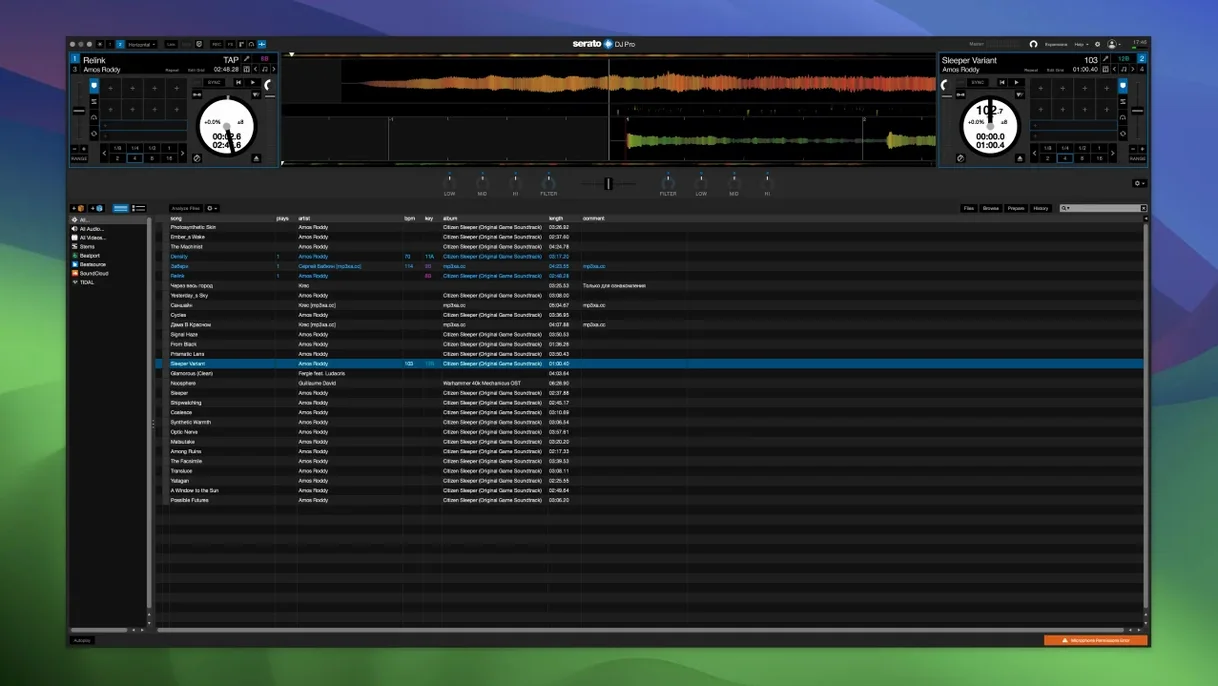
Working DJs who have moved beyond the basics of beat-matching will find that Serato DJ Pro builds its reputation on a set of deeper tools. The core library management and stable playback are the foundation, but the software reveals its character in features meant for preparation, on-the-fly remixing, and tight hardware integration with over 90 officially supported devices.
- Stems isolation in real time: The software can split a track into four component parts — vocals, melody, bass, and drums — during playback. This allows for live acapella drops or instrumental builds without pre-prepared files.
- Stems Pad FX: Beyond simple isolation, effects like Echoes and Brakers are designed specifically to manipulate those separated stems. A drummer roll can be applied to just the drum stem while the vocal carries on unaffected.
- Customizable Slip Release: The Slip mode behaviour, which continues track playback silently during a scratch or loop and returns on beat, can be adjusted per hardware setup. The release timing is tunable to match different scratching styles.
- Broad hardware mapping: Rather than a generic MIDI map, the software provides official, deep integration for controllers and mixers from a range of industry manufacturers. This means platter latency, meter displays, and pad modes are matched to the specific device.
These aspects sit underneath the standard two-deck view. For a professional, the value lies less in the core mixing interface and more in how these preparation and performance layers hold up during a set that demands quick changes.
How Serato DJ Pro works with your Mac’s own features
Serato DJ Pro does not sit in isolation on a Mac. It leans on several parts of macOS, and understanding those connections helps avoid surprises during a gig. The library reads from the standard Music app (or iTunes, on older installations) and from the file system directly. Crates you build inside Serato appear as ordinary folders and playlist files in /Users/username/Music/_Serato_. This means a backup of your Music folder captures your entire crate structure without extra steps.
Audio device routing respects the macOS multi-output setup. If you use an aggregate device in Audio MIDI Setup to send a booth output to a separate USB interface while the main mix goes to the Serato-compatible hardware, the software sees that aggregate as a single output. Latency and clock drift then depend on the hardware combination, not just on Serato. The built-in Core Audio driver handles playback duties when no official Serato hardware is connected, though this mode is meant for library prep, not performance.
Three macOS features deserve attention for DJs who run long sets. First, Notification Centre alerts can overlay the Serato window; turning on a Focus mode that suppresses banners during a gig keeps the screen clean. Second, Spotlight indexing can kick in if you add a large batch of files to your music folder mid-session. Flagging the Serato library folder as excluded in Spotlight preferences prevents disk activity spikes. Third, Time Machine backups running during a performance can briefly lock files that Serato is trying to read. A simple rule: disable automatic backups before a set.
Full-disk access permissions matter for the Stems feature. On first launch after installation, macOS prompts for access to the Music folder and to removable volumes. Granting these lets Serato analyse tracks for stem separation and write the resulting analysis files alongside the audio files. Without that permission, Stems analysis fails silently until you dig into the library and notice missing data.
Pre-show setup with a Serato controller and MacBook Air
A typical three-hour mobile DJ set illustrates how the pieces connect. The session begins forty minutes before the first track plays. The MacBook Air is connected to a Serato-compatible controller, which also acts as the audio interface. Cables run from the controller’s main outputs to the venue’s PA and from the booth output to a small monitor wedge.
Serato DJ Pro opens with the controller already plugged in. The software recognises the hardware and applies the saved MIDI mapping, pad mode assignments, and Slip Release timing. A quick check confirms the library loaded all crates — the DJ scrolls through a crate labelled Wedding Dinner to verify track waveforms are rendered. Un-analysed tracks show flat lines; those get a right-click for batch analysis before the room fills.
The first hour is background music from a pre-built crate. Tracks are dragged to the virtual decks, key lock is left on, and the crossfader stays in the middle for soft blends. The DJ uses the internal FX — a little reverb on outgoing tracks, a high-pass filter sweep to introduce new ones — but keeps the processing subtle. During this phase the software is essentially a playback engine with a friendly browsing pane.
By hour two, the energy shifts. The DJ opens a crate of uptempo edits and begins layering. One deck carries the main track; on the other deck, a second track’s acapella stem is isolated with a single button press. The vocal floats over the instrumental of the playing track, and the DJ uses the channel EQ to carve space for it. The Pad FX section gets busier: a short Braker effect on the drum stem of the outgoing track creates a stutter that signals the transition before the next track drops.
Halfway through, a request comes for a track not in the prepared library. The DJ pulls it from a streaming service integrated into Serato’s browser — no file download needed — and loads it into an empty deck. The software analyses the track’s BPM and key within seconds, grids it, and the DJ mixes it in using the sync button to match tempo. The waveform overview shows where the vocal starts, so the blend happens cleanly.
The final thirty minutes return to lower intensity. Slip mode gets used on the outgoing track of each transition: the DJ scratches a phrase, release timing set tight, and the track continues playing as if nothing happened. At the end of the night, the session history is saved automatically. Every track played, in order, with timestamps, sits in the History panel. The DJ exports that as a text file for the client who requested a playlist record.
Club residents rely on consistent hardware-calibrated platter feel
Club DJs who perform four-hour residencies every weekend form the obvious core audience. For them, stability matters more than novelty. Serato DJ Pro’s calibration for specific hardware means the platter response on a Pioneer DJ mixer feels identical week to week. The Stems feature gives them a way to remix on the fly without carrying a library of pre-split tracks. A DJ who needs to drop an unexpected acapella during peak time can extract it from the original track while the previous song still plays.
Mobile DJs working weddings and corporate events gain a different advantage from the same toolset. The library management — smart crates that auto-populate based on BPM range, key, or genre tags — cuts down on searching. When a dinner set shifts to dancefloor and back again, scrolling through a crate of two hundred slow tracks to find the right one wastes minutes. A smart crate defined as “genre is Soul AND BPM is between 80 and 100” shows only the relevant options.
Turntablists who use digital vinyl systems find Serato DJ Pro’s Slip Release customisation a practical differentiator. The standard Slip behaviour works well enough, but a scratch DJ who prefers a slightly looser return timing can adjust it per setup and save that as part of the hardware profile. The setting survives restarts and applies automatically the next time the same mixer or controller is connected.
Bedroom DJs who stream sets online also extract notable value. The software’s ability to route audio to a separate application — for example, sending the master output to OBS via a virtual audio cable while the cue mix stays in headphones — relies on the aggregate device setup described earlier. Serato DJ Pro does not include a native streaming encoder, but its routing flexibility makes the connection to broadcast software straightforward.
On the other side, two groups tend to find less alignment. Producers who want a DAW replacement will hit the limits quickly: there is no multitrack recording, no MIDI sequencing, and the FX are performance-oriented rather than studio-grade. And complete beginners who have never touched a crossfader may find the interface dense compared to the cut-down Serato DJ Lite. The professional version assumes you already know why you need four cue points per track.
A scenario from a club residency
A DJ holds a Friday-night residency at a mid-sized club that installed a Serato-compatible mixer two years ago. The booth is tight — enough room for the mixer, a laptop stand, and not much else. Arriving at eleven, the DJ connects the MacBook via a single USB cable. The mixer’s screens light up with track information from Serato DJ Pro, mirroring the virtual deck displays. No audio interface sits between them; the mixer handles conversion and outputs.
The DJ opens a crate labelled Peak Time — January, a smart crate that gathers tracks added to the library in the last thirty days with a BPM above 122. The first track loads into Deck A, and the DJ sets a loop on its opening drum break. Over the next eight minutes, three tracks cycle through Deck B, each one teased in using the channel fader while the loop on Deck A provides a constant rhythmic bed. The DJ isolates the drum stem on the looped track and cuts the bass channel to make space for the incoming track’s low end.
An hour in, the DJ notices the crowd thinning slightly. The prepared crates lean too heavily on peak-hour energy. Switching tactics, the DJ browses the full library by key, finds a track in a compatible key at a lower BPM, and begins the transition. The sync button lines up the beats; the DJ uses the filter knob on the hardware to sweep the outgoing track downward over sixteen bars. The room settles, and by the end of the new track the floor is full again. The whole adjustment — browse, load, beat-match, mix — takes under a minute.
After the set, the DJ checks the History panel and sees that the software recorded every track in sequence. The club manager asks for a copy to report to the performing rights organisation. The DJ exports the history as a text file, copies it to a USB stick, and hands it over before packing up.
Beginner mistakes that show up early
One of the first things a newcomer misjudges is the analysis process. Dragging a hundred un-analysed tracks into a crate and loading them straight onto decks during a live set causes CPU spikes and waveform generation delays. The software performs BPM detection and beat-gridding on load, not in the background ahead of time. Analysing the full library before a gig — overnight, if the collection is large — avoids stuttering playback and incorrect grids.
Another frequent error involves Stems. A beginner presses the vocal isolation button on a track and expects a clean acapella. The algorithm is effective, but it is not magic. On tracks with heavy reverb, wide stereo panning, or poorly separated elements, the results sound phasey or incomplete. Experienced DJs learn which tracks in their library work well with Stems and tag them accordingly. Relying on Stems on an unfamiliar track during a transition is a gamble.
Hardware connection order causes its share of problems. Plugging in the controller after launching Serato DJ Pro often results in the software not recognising the device until a restart. The correct sequence is controller first, wait for macOS to see it, then launch the application. Similarly, unplugging the controller while the software runs can drop the audio engine and require a full restart of Serato DJ Pro before sound returns.
Library location confusion is another early stumbling block. Beginners sometimes move music files in the Finder after adding them to Serato crates. The software stores file paths, not copies of the audio. Moving a folder breaks every crate entry that pointed inside it, leaving greyed-out tracks that cannot be loaded. The fix is either to use the Relocate Lost Files function inside Serato or, better, to organise the music folder once and leave it alone.
Finally, there is the misuse of sync as a complete solution. The sync button aligns beat grids, but it does not fix poorly gridded tracks. A track with an incorrect BPM analysis will sync to the wrong tempo. A track where the first downbeat is placed on the wrong bar will drift. Beginners who trust sync without checking the grid on each new track end up with mixes that sound out of phase. A ten-second visual check of the waveform and beat markers before hitting play prevents most of those moments.