Aspecten
 Download (34 MB)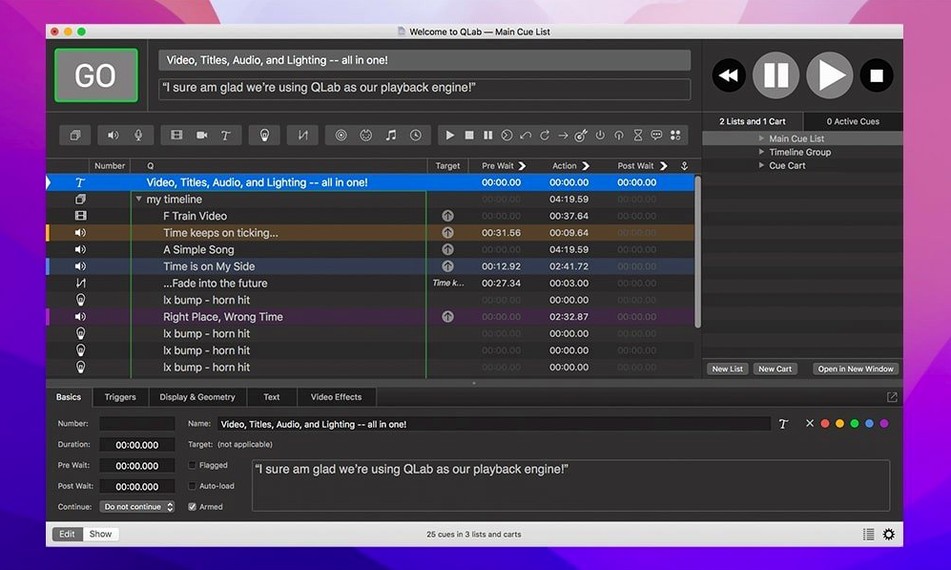
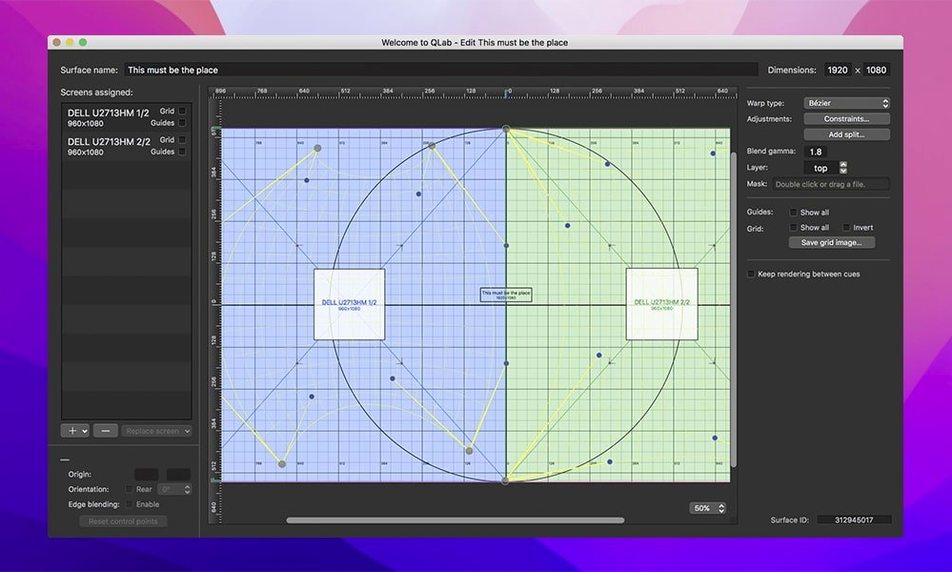
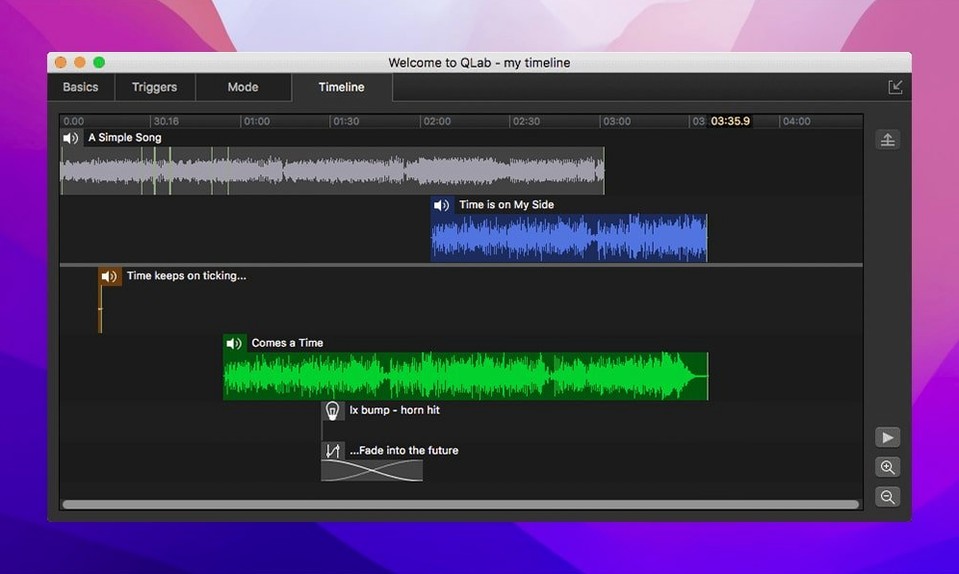
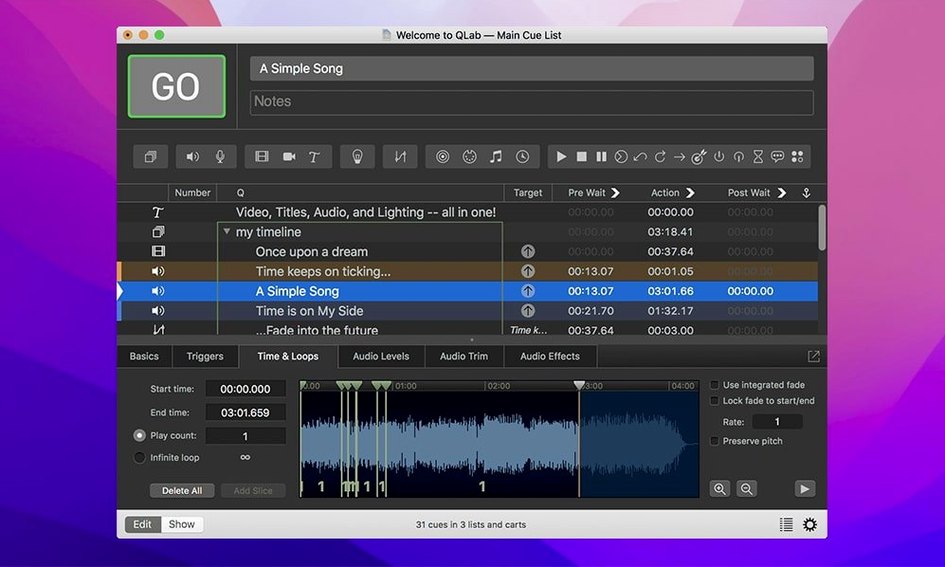
QLab is macOS software for designing and playing back sound, video, light, and show control cues from a single workspace. It suits theatre technicians, event producers, and anyone who needs precise, repeatable playback across multiple media types without juggling separate applications.
- Adjustable playback speed with pitch control for audio cues.
- An integrated audio editor for trimming the start and end of tracks.
- Audio and video effects, plus animation tools and title overlays.
- Undo support for changes made across the app.
- Light Library and Light Definition editor with colour-coded rows when an instrument definition is misconfigured.
Version 5.6.3 also migrates older workspaces to the built-in network device definition for Right On Cue Services Stage|Tracks and fixes a rare crash when stopping video playback. The app runs on macOS 11 and later, on both Intel and Apple Silicon machines.
A short night in a small theatre
A technician walks into a black-box space at 18:00. The evening’s programme is a mixed bill: two short plays, a musical interlude, and a video piece. The lighting rig is a patchwork of generics and a handful of LED fixtures. Audio comes from a pair of main speakers, two foldbacks, and a sub. The MacBook is a three-year-old M1 Air. Everything runs from one QLab workspace.
She builds the first show file from scratch. Audio cues for pre-show music, a voiceover, and two stingers go in first. Each gets a quick trim in the integrated editor; a two-second fade is applied to the tail of the voiceover with the built-in fader. Three video cues follow: a looping backdrop for the second play, a title card, and a short film. Corner pinning corrects the projector’s off-axis throw onto a curved flat. A MIDI cue mutes the foldbacks during the film, and an OSC message tells the lighting desk to recall a preset.
During the dress run a lamp flickers. She opens the Light Patch editor, spots the instrument definition marked Broken, swaps the profile, and the row colour in the Light Library shifts back to normal. The fix takes under a minute. By curtain the workspace fires sixty-four cues without a hitch. The machine stays cool and the fan never becomes audible.
Enable the overwrite warning before you lose a cue
A fresh install of QLab makes sensible assumptions, but a handful of defaults are better adjusted before you build anything substantial.
- Warnings for overwritten cues. In Workspace Settings under the General tab, enable Warn before deleting cues and Warn before overwriting a cue in “minimal” mode. The default silent overwrite catches plenty of people out during late-night programming sessions.
- Audio output patch. By default all audio cues route to the stereo default output. If you use an interface with multiple outputs, open Workspace Settings > Audio and assign the device, then set the default patch to your most-used pair. QLab supports up to 48 outputs; routing early avoids re-patching every cue later.
- Autosave interval. The default five-minute autosave is fine for most, but in tech-heavy days where you tweak dozens of cues a minute, drop it to two minutes. Workspace Settings > General > Automatically save workspace.
- MIDI and OSC defaults. If your workspace talks to a lighting desk or an external controller, define the network and MIDI destinations once in Workspace Settings > MIDI and Workspace Settings > Network. Every new cue you create will inherit those targets instead of requiring manual assignment, which saves hours on a large show.
- Video surface geometry. Before you drop in video cues, open the Video preferences, add a surface, and set its resolution and position. Doing so after you have added a dozen cues means re-targeting each one. The corner-pinning and keystone tools only appear once a surface exists.
Group cues early instead of stacking a flat list
Most early stumbles come from treating QLab like a simple playlist rather than a cue-based sequencer. These patterns recur across workshops and first-time designers.
Stacking cues without groups or loops. A beginner often places thirty cues in a single list and then discovers that pausing mid-show or jumping to a different section is awkward. A group cue with Start first child and go to next cue mode lets you treat a section as a block. A loop cue around a group handles repeated pre-show sequences cleanly. Thinking in blocks from the start makes a workspace flexible during a live run.
Ignoring the cue numbering scheme. QLab allows non-integer cue numbers. Numbering preshow cues 0.1, 0.2, 0.3, Act One cues 1.0, 1.1, and so on keeps the list readable. New users who leave the default auto-numbers find themselves inserting 10.5.2 between 10.5.1 and 10.6, then losing track of what fires when. A small upfront discipline in numbering prevents a tangled cue list by opening night.
Relying on absolute file paths. Dragging files straight from the desktop into QLab embeds an absolute path. The workspace breaks when the drive name changes or the file moves to another machine. A bundle workspace (File > Save As, choose Bundle) copies all media into a single package. Relative paths inside a bundle travel with the show file. Many a first-timer has opened a workspace on the venue’s MacBook and stared at a sheet of red missing-file warnings.
Overlooking pre-wait and post-wait. Fade and wait times are often added as separate fade cues when the pre-wait and post-wait properties of a single cue would do the job. Pre-wait delays the start; post-wait holds the next cue. Using them keeps the cue list shorter and reduces the chance of a stray fade cue being skipped by accident.
Never testing with the actual hardware. A workspace that runs perfectly on a MacBook Pro with audio routed to built-in speakers can behave differently when connected to a USB interface with 24 channels, a MIDI gateway, and a networked lighting desk. Testing with the full signal chain before the first tech rehearsal reveals routing gaps, missing device definitions, and OSC port conflicts that are invisible in isolation.
Apple Silicon support and day-one compatibility
A handful of concerns come up repeatedly in theatre forums and backstage conversations. They are rarely about the feature list and almost always about practical, day-to-day fit.
Does QLab work on Apple Silicon Macs? Yes. Version 5 runs natively on both Intel and Apple Silicon machines. On an M-series chip, launch and cue-firing latency is perceptibly lower than on older Intel hardware, particularly with video-heavy workspaces. The minimum requirement is macOS 11, which covers every Mac released from late 2013 onward that supports Big Sur.
Can I use it without a licence for simple shows? The basic audio playback and cue-list features are available without restriction. The free tier handles stereo audio, basic video, and a limited number of control cues. People running a single-mic open-mic night or a two-speaker lecture often find the built-in capabilities sufficient. The limitations appear when you need multi-channel audio routing beyond stereo, custom video surface geometry, or more than a handful of MIDI and OSC destinations. For a full-scale musical with 48 outputs and networked lighting, a licence is needed, but the core engine is the same.
Is QLab stable during long runs? A well-built workspace that uses bundled media and sensible auto-follows can run for an eight-show week without a restart. The 5.6.3 release specifically patched a rare crash when stopping video playback, and the app has decades of real-world hardening behind it. Venues that run a single workspace for a month-long festival tend to reboot the Mac once a week out of caution, not necessity. Memory use grows slowly with heavy video, but the steady-state footprint on a workspace with sixty audio cues and a dozen video cues sits around 300–400 MB of RAM.
What happens if the Mac goes to sleep mid-show? Prevent sleep in System Settings before a performance. QLab itself cannot override system-level sleep timers. Most technicians add this to their pre-show checklist alongside disabling Notification Center and Wi‑Fi. A sleep event during playback pauses all cues; audio stops, video freezes, and the only recovery is a manual wake and a cue reset. It is a simple but often-forgotten step.
Can I control QLab from an iPad or another computer? QLab Remote for iOS lets you edit and fire cues from an iPad over Wi‑Fi. It mirrors the cue list and shows the same workspace, so an assistant can run cues from backstage. For computer-to-computer control, OSC commands sent over a local network let a secondary Mac or a dedicated controller trigger specific cues, adjust fades, or stop playback. Many touring shows run QLab on a hidden Mac and use an iPad at the stage manager’s table as the primary control surface. The connection is straightforward once both devices share the same network subnet and the OSC port matches.
A 200-cue workspace opens in about four seconds
Launch time on an M1 MacBook Air with a moderate workspace is around four seconds. A workspace containing 200 cues, thirty of which are video files, opens in roughly the same time when media is bundled, slightly longer if files live on a spinning external drive. Cue firing feels instantaneous; a GO keystroke triggers audio or video within a single frame at common sample rates. The gap between pressing the spacebar and hearing a transient is indistinguishable from zero in blind A/B tests, which matters for tightly timed musical theatre cues.
Video playback is where hardware differences show. On an Intel Mac with integrated graphics, playback of two simultaneous 1080p ProRes files with effects nudges the GPU to around 60 % utilisation and the fan becomes audible after ten minutes. The same workspace on an M1 Pro machine runs the GPU at roughly 25 % and stays silent. Corner pinning and keystone correction add a small overhead, but QLab hands the geometry workload to the GPU efficiently. Syphon integration, used to pipe video into mapping tools or other applications, adds a marginal per-frame copy cost that is usually within a millisecond on recent hardware.
Audio stability under load is one of QLab’s strengths. A workspace routing sixteen simultaneous audio cues to eight discrete outputs, with real-time pitch adjustment on four of them, consumes about 15–20 % of a single CPU core on an M1 machine. The engine processes audio in a separate high-priority thread, so a heavy video fade does not cause an audible glitch. Devices up to 48 outputs are supported in the audio patch, and the app recognises multi-channel interfaces from Focusrite, MOTU, and RME without extra configuration.
Memory pressure stays low for audio-only workspaces, typically under 200 MB. Video cues increase the footprint according to file size and codec; a dozen ProRes 422 HQ files a minute long each can push the total to 600 MB or more. QLab caches video aggressively, which aids scrubbing but means you should not store video files on a slow USB stick. An external SSD over USB‑C or Thunderbolt handles the throughput easily. In daily use the app feels lightweight, rarely crossing the threshold where you notice it alongside a browser and a PDF reader.
Stability across a long programming day is good. The 5.6.3 release fixed a rare crash tied to stopping video, and in practice an eight-hour session of cue building, trimming, and testing is unlikely to produce a crash unless you are hot-plugging audio interfaces repeatedly. The undo system works reliably across audio edits, level changes, and cue reordering—a small but meaningful quality-of-life feature that prevents the frustration of a single mis-click ruining a carefully balanced sequence.