Aspecten
 Download (33 MB)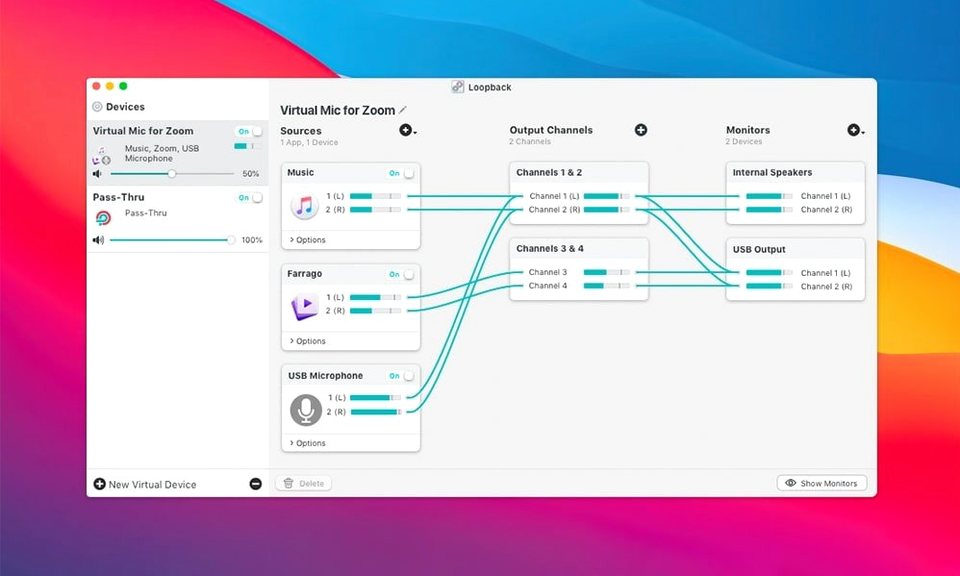
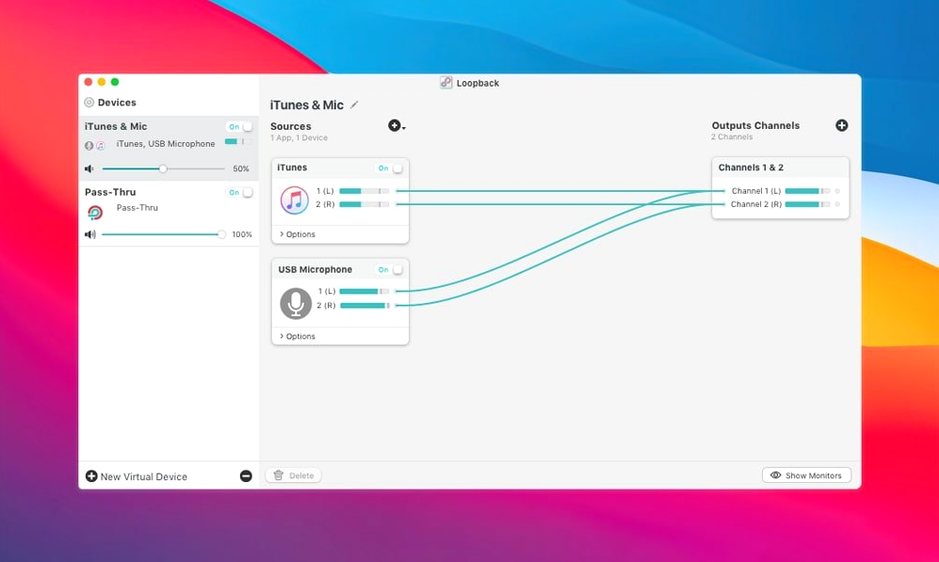
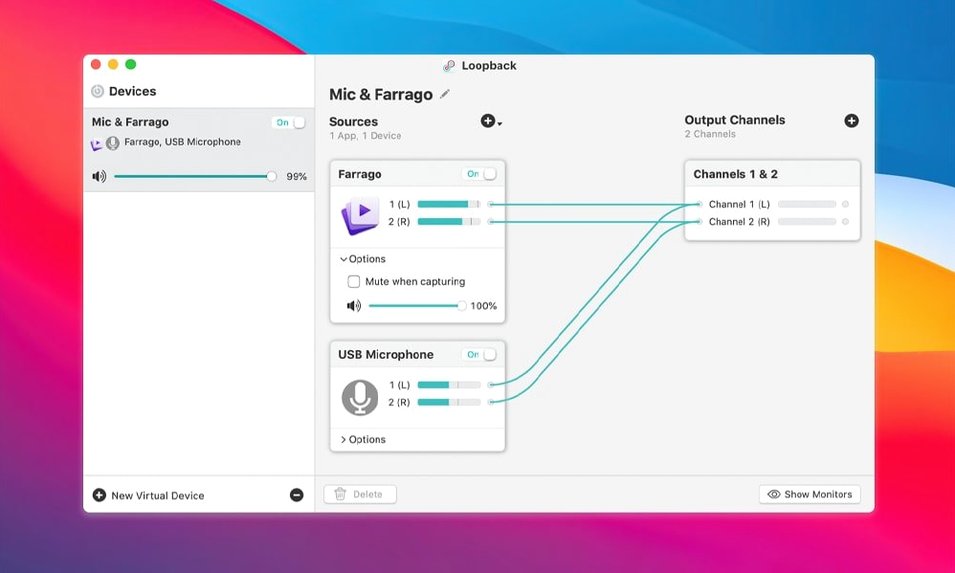
A screen recording captures your voice clearly, but the application sounds remain trapped inside the Mac, unreachable by standard tools. Loopback solves this by letting you build a virtual audio device that merges microphone input with application output, so any recording app sees both sources as one.
Route mic and app audio into a screen recording
Add your USB microphone and an application like Safari to a new virtual device. Adjust the relative volume of each source on the wired interface, then select that device as the input in your screen recorder.
Pass system audio to a conferencing app
Create a device that routes audio from Music or a media player directly into Zoom or Teams. The meeting hears playback at full clarity, free of room echo.
Combine two USB mics for a podcast
Add both microphones to one virtual device. Your recording software sees a single, mixed input, with independent level control for each mic inside Loopback’s routing panel.
Naming a virtual device for a Thursday screen recording
You open Loopback on a Thursday morning, the day you record a software walkthrough. The main window shows an empty canvas with a single output channel on the right. You click the New Virtual Device button and name it Screen Record Mix. The canvas populates with a blank device block.
First you add the sources. You drag a Microphone source from the palette onto the left side of the canvas and pick your USB condenser mic from the dropdown. A thin orange cable appears, connecting the microphone block to the output channel. You tap the desk near the mic and watch the meter flicker — it is live.
Next you drag an Application source onto the canvas. A sheet drops down listing every app currently producing sound. You tick the box beside Safari because your walkthrough needs browser audio, then close the sheet. A second cable snakes from the Safari block to the output channel, sitting parallel to the microphone cable.
You notice the app audio is too loud relative to your voice. You click the volume knob on the Safari source block and pull it down to about 60%. The microphone stays at full. You speak a test phrase while a video plays in Safari — the output meter shows both signals sitting comfortably below the red.
You want to hear yourself without latency so you click the monitor button on the microphone block, which routes a copy of your voice to your headphones. No echo, no comb filtering, just a dry feed.
You open OBS, go to audio settings, and select Screen Record Mix as the microphone input device. OBS sees one stereo stream that carries your voice on the left, your browser audio on the right, and no extra routing work. You hit record, run through the demo, and stop. The playback confirms everything landed in sync.
When the session ends you leave the device in your list. Tomorrow you can select it again without rebuilding anything.
Call it Podcast Mic, not Yeti, from day one
The first forty-eight hours with Loopback determine whether it becomes a tool you reach for or a curiosity that gathers dust. A handful of habits make the difference.
Name devices after their purpose, not their contents. A device called Mic plus Safari plus Music tells you everything today and nothing tomorrow when you swap Safari for Chrome. Call it Podcast Interview Mix or Stream Output. The name appears in every app that enumerates audio devices, so clarity saves constant rechecking.
Set monitoring deliberately, not by default. Every source block has a headphone icon that routes that signal to your chosen output. Turning it on for a microphone while routing the same mic through a virtual device creates a doubled signal — one direct, one returned through the chain. Use monitoring only when you need zero-latency feedback and mute the same source in any software monitoring path downstream.
Build one device and reuse it. There is a temptation to construct a new virtual device for each scenario. Resist it. A well-configured General Recording Mix with your microphone and a generic application source works for screen captures, voice chats, and quick demos alike. You adjust which application passes through by opening the source block and ticking a different box, not by rebuilding the whole graph.
Check the Hidden Sources list early. Some applications that produce audio do not appear in the standard application picker. Click the small disclosure triangle at the bottom of the source palette and reveal Hidden Sources — background processes, helper tools, and system utilities often live there. If an app you need is missing, it is probably in that list.
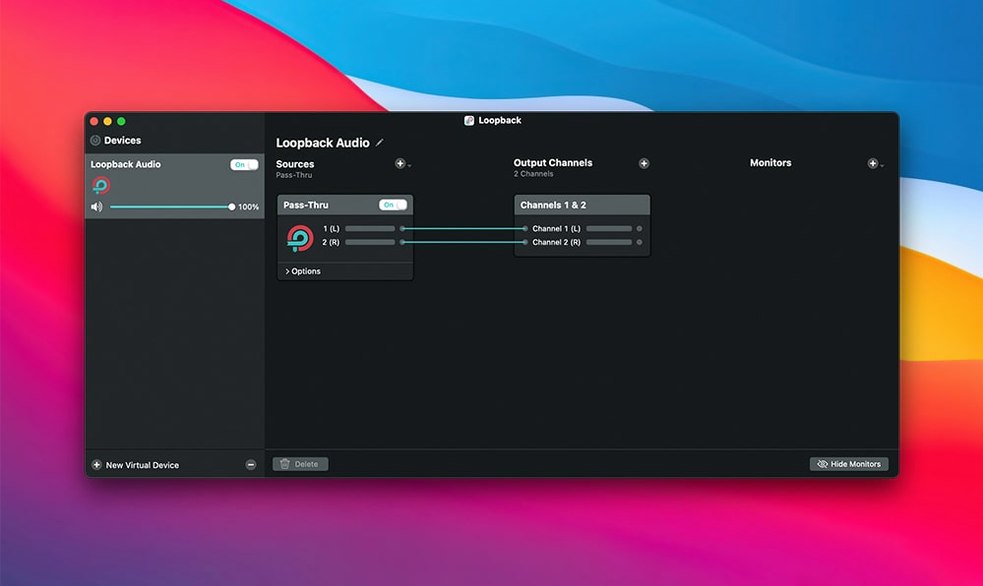
Understand the Pass-Thru toggle. When you create a virtual device, Loopback can optionally let audio pass through to your physical speakers while also routing it to the virtual output. The toggle sits at the top of the device block. Turn it off if you want the audio captured silently; leave it on if you need to hear what you are routing.
No, it won’t replace your physical audio interface
Does Loopback replace my existing audio interface? It does not replace it — it sits beside it. Your physical audio interface still handles microphone preamps, headphone outputs, and analogue-to-digital conversion. Loopback operates purely in software, creating virtual devices that your interface can address. The two work in tandem: you plug a mic into your interface, Loopback picks it up as a source, and you route it wherever needed.
Will it add noticeable latency to my signal chain? The processing happens at the system level through a kernel extension, so round-trip latency is typically under a few milliseconds. For spoken audio and screen recordings the delay is imperceptible. Musicians tracking instruments with software monitoring may want to keep their direct monitoring path outside Loopback, but for voice and application routing it is effectively transparent.
Can I use it with a loopback crack or a loopback torrent? The application is distributed as a standard Mac disk image. Any modified distribution obtained outside the developer's site brings its own considerations: altered audio processing, different plug-in components, or behaviour on newer macOS builds. The ARK plugin that handles audio capture in version 2.5.0 was updated specifically for current system compatibility, and making sure its version matches the app build helps avoid silent failures or crashes that are otherwise tricky to pin down.
Does it work with Apple Silicon Macs? Yes. The download runs natively on both Intel and Apple Silicon machines, with no Rosetta translation required. The architecture support is unified in a single binary.
What happens to my virtual devices when Loopback is not running? They disappear from the system audio device list. Any application set to use a Loopback virtual device will fall back to its default input or output. Restarting Loopback restores the devices, and applications that were pointed at them reconnect automatically in most cases. You do not need to reconfigure routing after a restart.
Can I route audio from an iOS device through my Mac? Indirectly, yes. If you connect an iPhone or iPad via USB and it appears as an audio input device in macOS, Loopback can treat it as a source just like any other hardware input. Combine that with a microphone and application audio to build a single virtual device that captures a mobile game soundtrack, your commentary, and on-screen Mac audio simultaneously.
The missing app appears once it starts playing audio
The application I need does not appear in the source list. Loopback can only see applications that are actively producing or capable of producing audio. Open the target app and play something — a video, a sound effect, a test tone — then check the source list again. If it still does not appear, expand the Hidden Sources section at the bottom of the palette. Some apps, particularly those that use background audio processes, classify themselves as hidden. If the app uses a private audio pipeline that bypasses Core Audio entirely, Loopback cannot intercept it; this is rare but occurs with a handful of professional digital audio workstations using exclusive hardware access modes.
Audio is distorted or crackling. Check the output meter on the virtual device. If it consistently hits red, pull back the volume on one or more source blocks. Crackling can also result from a sample rate mismatch. Open Audio MIDI Setup on your Mac, find the Loopback virtual device, and confirm its sample rate matches the rate your destination app expects — typically 44.1 kHz or 48 kHz. Mismatched rates force sample-rate conversion on the fly, which stresses the audio pipeline.
The virtual device produces silence even though meters show activity. This usually means the destination application has not selected the device correctly. Quit and reopen the destination app, then choose the Loopback device again from its audio preferences. Some applications cache their device list at launch and will not see newly created virtual devices until restarted. If silence persists, confirm that the Mute checkbox on the output channel is not ticked and that macOS Sound preferences do not have the device muted at the system level.
Loopback warns about missing ACE or ARK components after an update. Version 2.5.0 bundles the ARK plug-in version 13.5, which handles the low-level audio capture. If macOS blocks the plug-in on first launch, open System Settings > Privacy & Security and look for a prompt to allow Rogue Amoeba software. Approve it, then restart Loopback. The warning should not recur on subsequent launches.
My microphone input sounds thin or phasey. You may have the same microphone routed through two paths simultaneously — once through Loopback and once through your recording software's direct input. Disable direct microphone access in the destination app and rely solely on the virtual device as the input source. If you need local monitoring, use Loopback's monitoring button rather than software monitoring downstream.
A streamer's setup, from scratch
Mara runs a twice-weekly stream where she plays indie games on a console, narrates over the gameplay, and occasionally brings in Discord callers. Her capture card feeds video and game audio into the Mac via an Elgato device. Her voice comes through a dynamic XLR microphone on a small audio interface. Discord runs on the same Mac. Before Loopback, her stream could hear the game or her voice or Discord, but never all three cleanly.
She opens Loopback and creates a device called Stream Master. She adds three sources. The first is her audio interface, capturing the XLR microphone. The second is an application source targeting Discord, so caller audio flows into the mix. The third is the Elgato Game Capture hardware, which appears as an input device carrying the console's game audio.
She balances the levels: her voice sits at unity, the game audio dips to 70% so it sits underneath commentary, and Discord callers land at 85% to match her own voice level. She enables pass-thru on the virtual device so she can hear everything through her headphones while streaming.
In OBS she sets Stream Master as the single audio input capture source and disables all other audio inputs. The stream receives one mixed stereo track with everything pre-balanced. When a caller speaks during a boss fight, both are audible at the levels she set in Loopback, with no ducking or gain riding needed downstream.
She saves the configuration. On Tuesday she opens Loopback, confirms the device is active, and launches her stream tools. The routing stays exactly as she left it, and her audience hears the mix she intended — every time.