Aspecten
 Download (93 MB)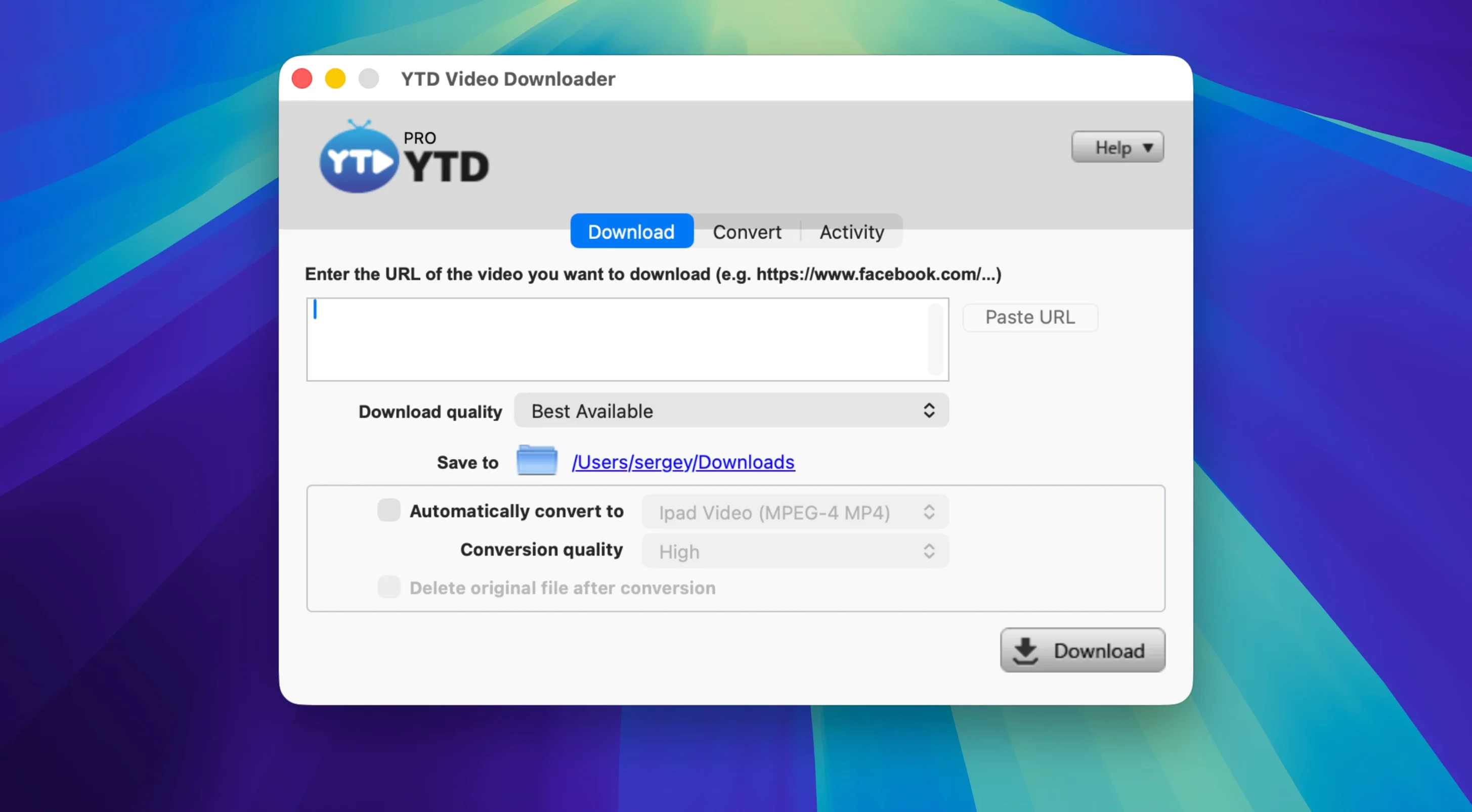
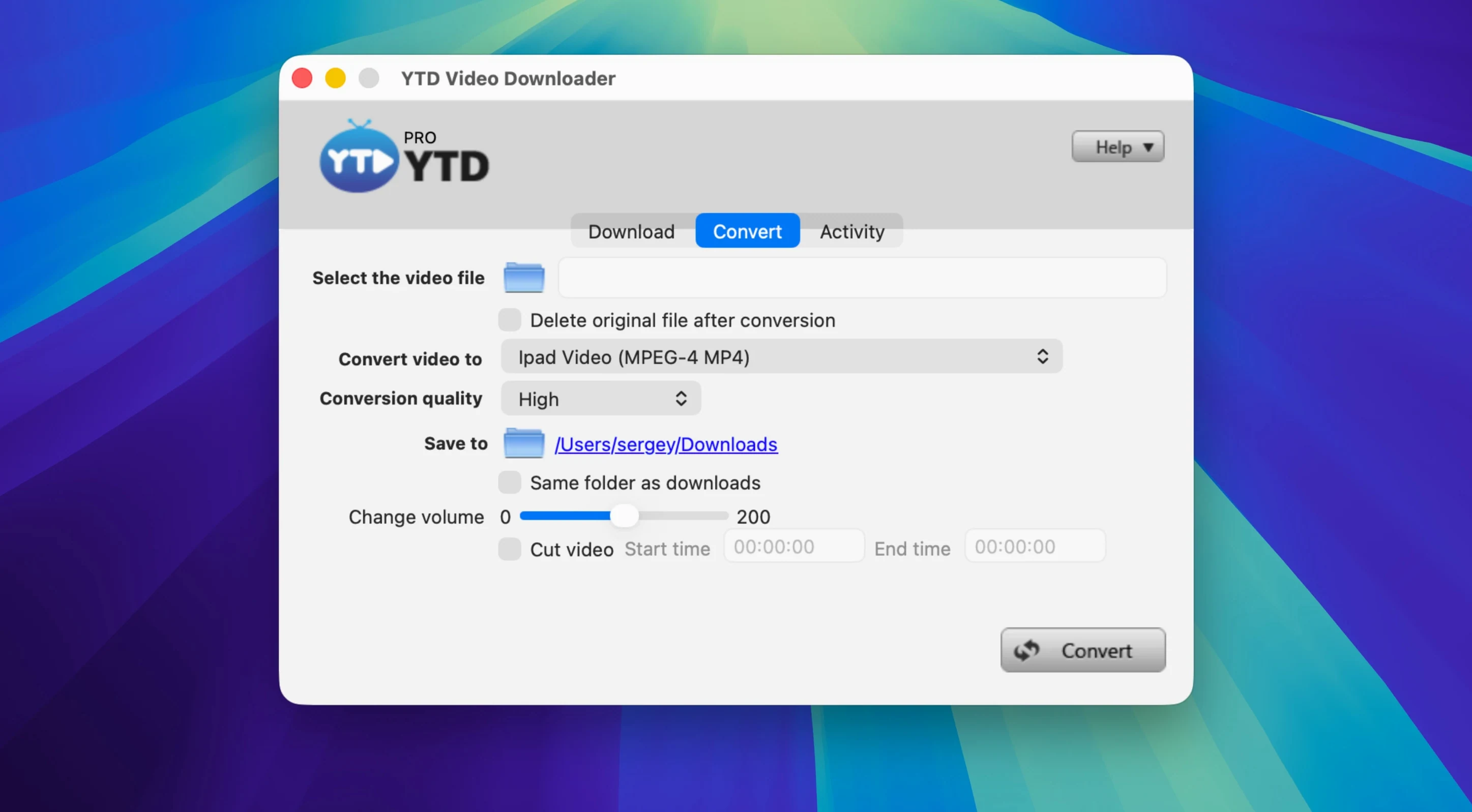
People who keep an archive of talks, lectures or clips from various video sites often settle on a single tool that handles the fetching and the file format in one go. YTD Video Downloader PRO fits that pattern — it pulls videos from platforms such as YouTube, Vimeo, Dailymotion, Youku and Yahoo Video, then converts the results to a local format.
No new features, still 50+ sites
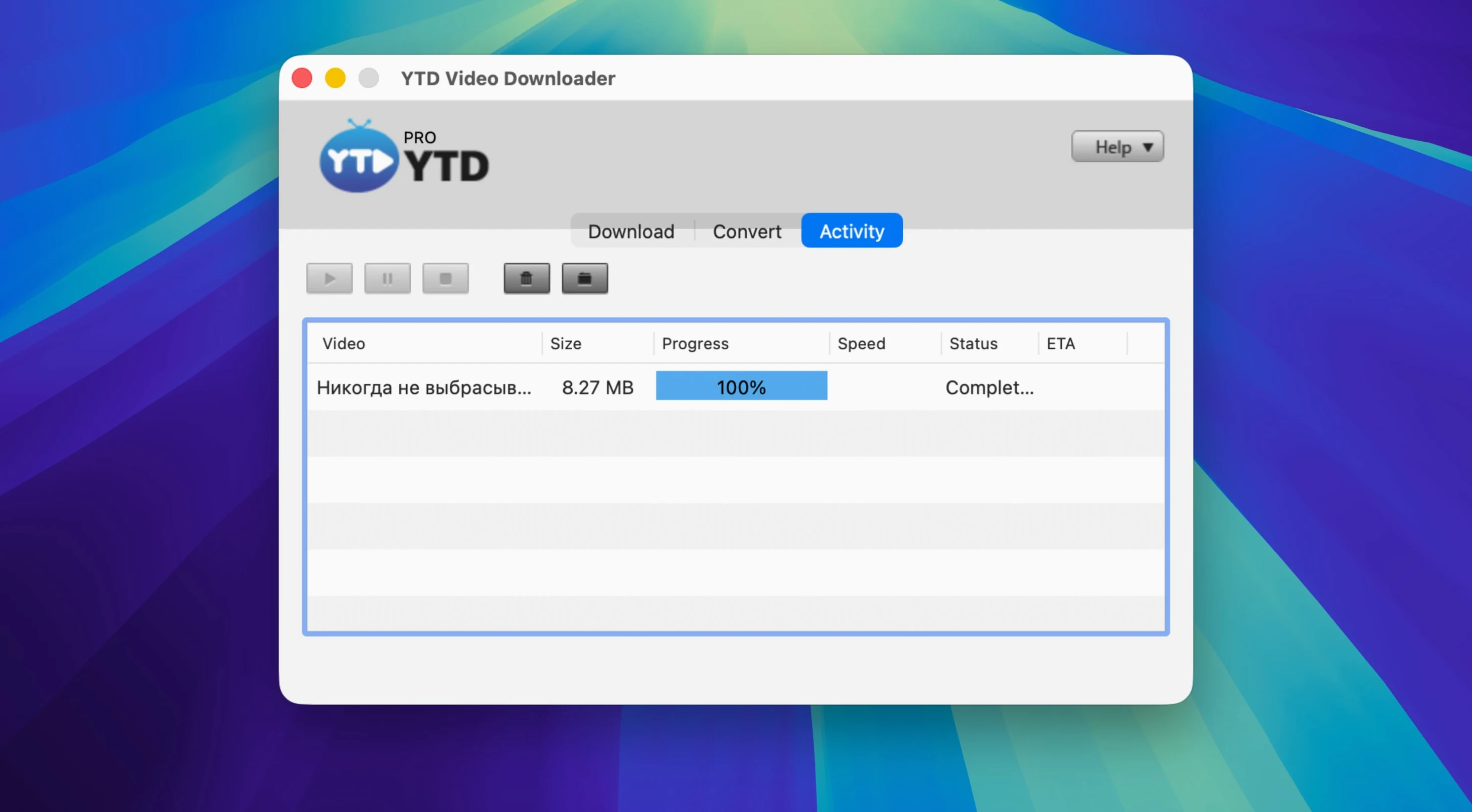
Version 7.8.0 on macOS is a maintenance point. No feature list has been added or rearranged, so the tool remains the same download-and-convert utility it settled into a while ago. The supported site count still sits at more than 50, and the conversion options — MP3 and AAC for audio, with full playlist conversion included — are unchanged. The core loop is simple: copy a link, let the app fetch it, pause and resume as needed, then convert the result if a different format is wanted. Playlist fetching still works as a one-click action, which saves clicking through individual items.
Where the limits sit
The interface is English-only and the app still lists OS X 10.10 as the minimum. That keeps it usable on older Intel Macs, but there is no Apple Silicon native build mentioned. The installer also expects you to mount a disk image and step through a Gatekeeper bypass in Terminal, which is more friction than a standard drag-and-drop install.
Age gates and geo-blocks still won't budge
People scanning a ytd for mac listing often ask the same three things. The first is whether the downloader handles age-restricted or region-locked material. It does not bypass account gates or geo-blocks; if a video demands a login or falls outside your region, the app sees the same restriction a browser would. The second question is about conversion quality. The built-in encoder works with the file the site delivers, so the output is never better than the source stream. Choosing a higher-bitrate preset on a low-resolution clip simply pads the file. The third recurring question concerns playlists — the app fetches a public playlist in one pass, but a private or unlisted playlist requires the link to be shared correctly, exactly as it would in a browser tab.
Points of friction and how to work around them
The Gatekeeper step trips up newcomers. After mounting the disk image, if the app refuses to open, the Terminal command is not a one-off quirk: it tells macOS to trust the bundle. Running it once per install is enough. A second snag appears when a download sits at zero progress. This is usually a clipboard detection lag. Pasting the link manually into the app’s field, rather than relying on automatic detection, forces the fetch to begin. A third point: the resume function remembers the partial file only while the app stays open. Quitting mid-download discards the temporary data, so a connection drop during a long playlist is best handled by letting the automatic retry do its work.
Who fits the tool best
The people who get the most from a ytd video downloader for mac are those running older Intel hardware who want a single local app rather than a browser extension or a web service. Lecturers pulling conference talks for offline reference, language learners saving short clips for repeated playback, and anyone archiving public-domain footage from multiple platforms fall into this group. The straightforward convert-to-MP3 path also suits people who treat video sites as a spoken-word source — interviews, panel discussions, sermons — and listen on a device that handles audio more efficiently than video.
Users on Apple Silicon Macs can run the app through Rosetta 2, but the experience is not tuned for that architecture. The app’s local processing model and lack of activity logging make it practical for machines that sit on a desk and churn through a queue of downloads unattended. People who need a separate ytd torrent utility or who expect the downloader to act as a torrent client are looking at the wrong tool; this is strictly a video-fetching and conversion utility.
Pause one video inside a playlist queue
Several details stay hidden until a few sessions of use. The pause control works on individual items inside a playlist queue, not only on the whole batch — clicking a single row pauses just that file while the rest continue. The automatic retry on a broken connection triggers silently, and after three failed attempts, the app marks the item rather than stalling the queue indefinitely. The format dropdown remembers the last-used setting per session, so converting a series of clips to MP3 does not require re-selecting the output each time. Dragging a video file onto the app window skips the download step entirely and jumps straight to conversion, which is useful for re-encoding files already on disk. Finally, the clipboard detection can be toggled off from the preferences, a small switch that prevents the app from reacting to every copied link during a browsing session.