Aspecten
 Download (324 MB)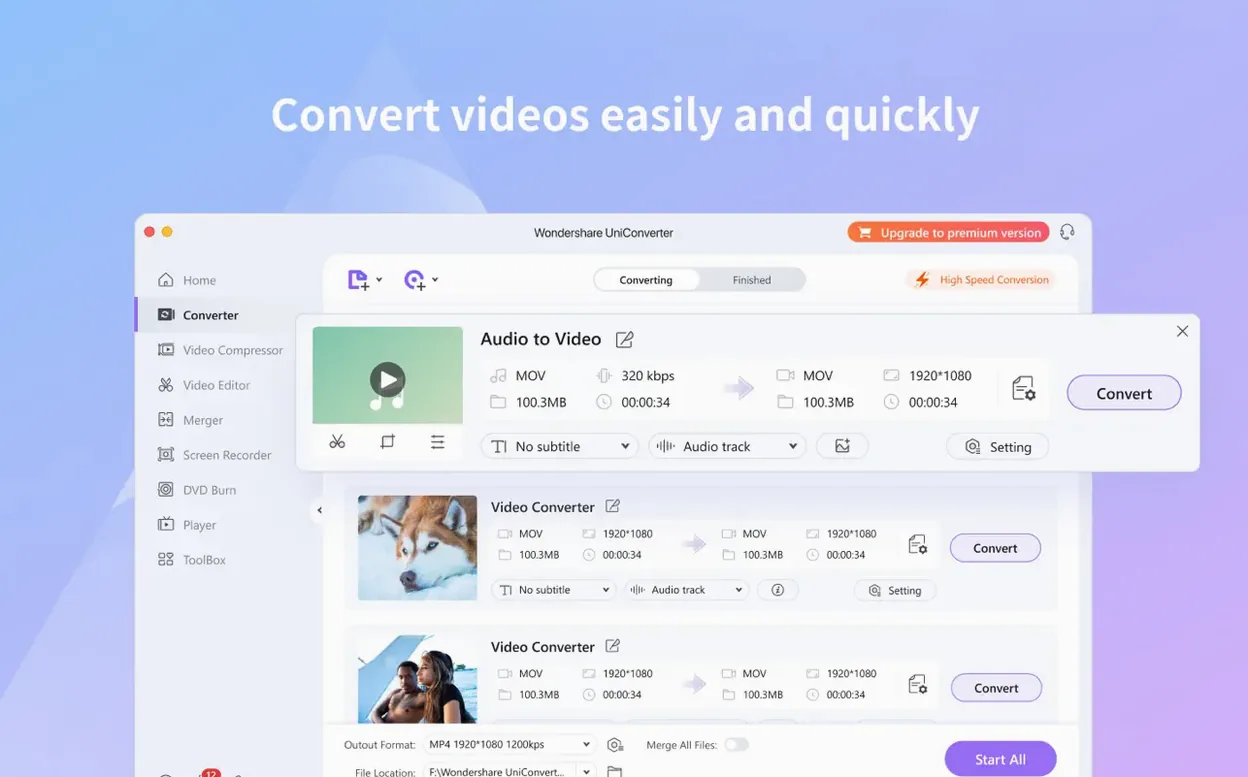
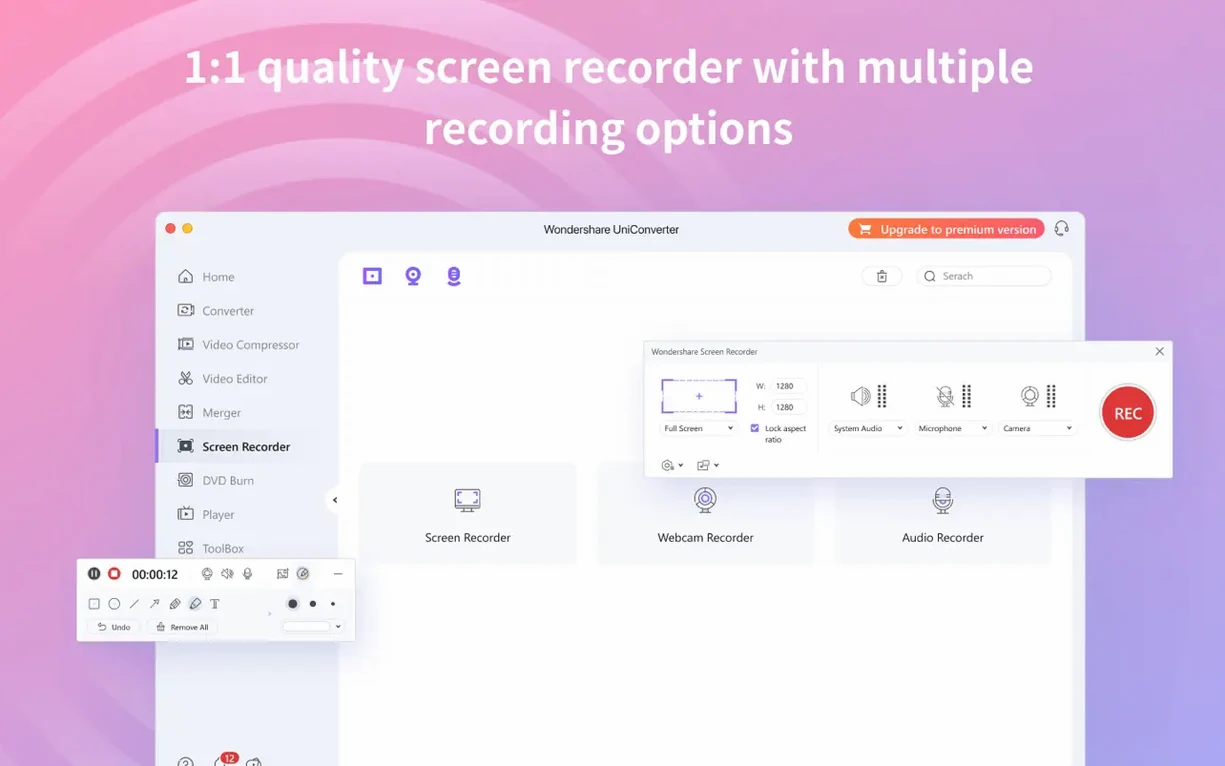
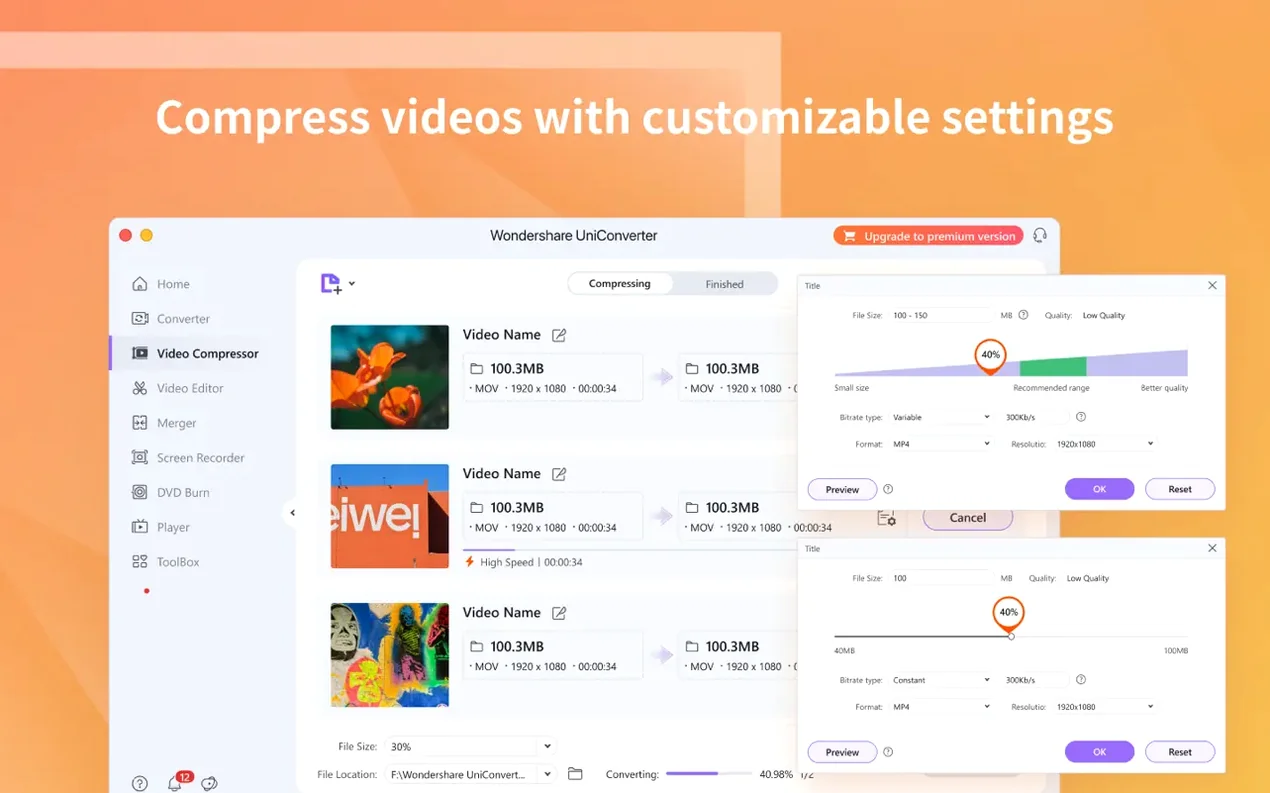
A library of mixed video clips from different cameras often means a tangle of file types that won't play nicely on a tablet or editing timeline. Wondershare UniConverter is a media toolkit built around solving that problem—taking a pile of assorted footage and turning it into a single, clean format.
| Detail | Note |
|---|---|
| Developer | Wondershare Technology |
| Version tested | 15.7.3.564 |
| macOS support | 10.13 or later |
| Architecture | Intel 64-bit, ARM |
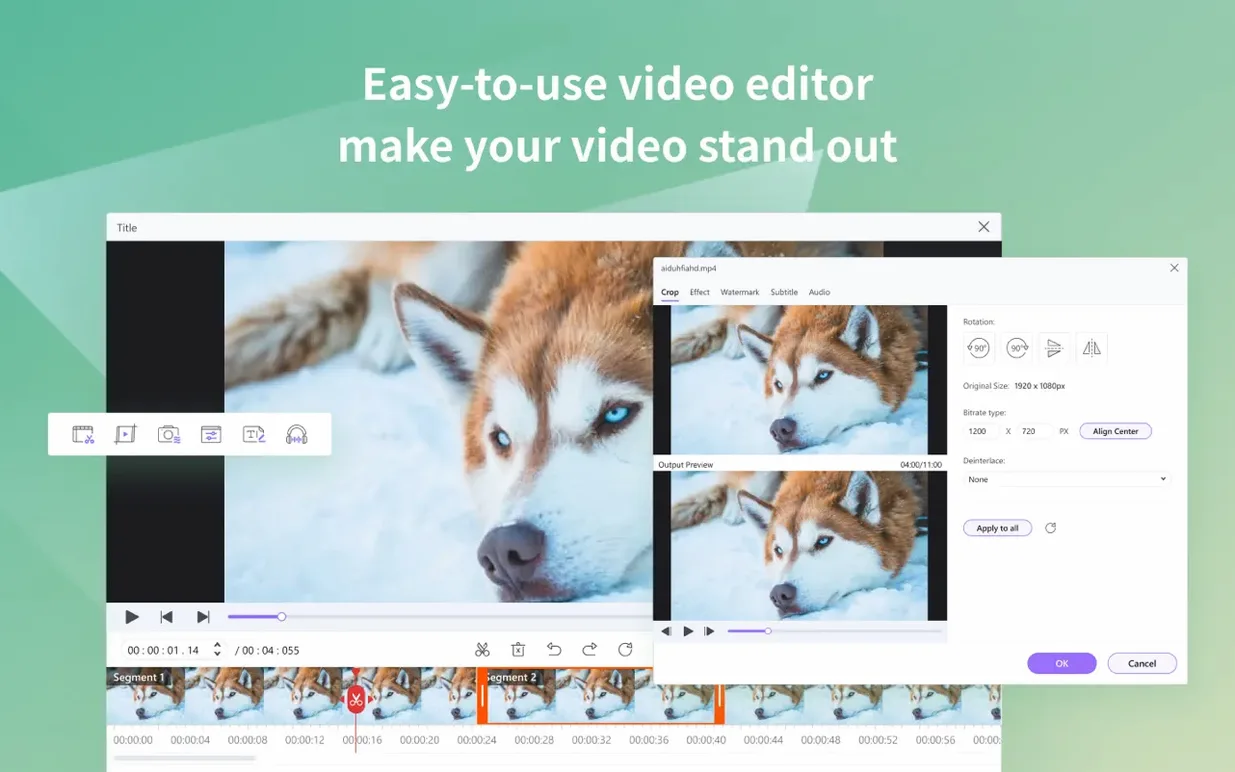
For someone preparing home video for an older media player, a typical session might begin with a folder of 4K HEVC files from an iPhone mixed with AVI clips from a compact camera. Dropping them into the main converter window reveals a list where each clip can be previewed in a small built-in player—handy for checking which segment actually matters before committing to a slow encode. Selecting an H.264 preset from the format panel adjusts the queue accordingly, and batch processing runs them all in one go. An option to extract the audio track into a separate M4A file appears as a small checkbox during format selection, which is useful when pulling commentary from a video clip. The interface stays functional rather than elegant; tool sections for downloading online video or burning a DVD are arranged as tabs, though the connection to an iTunes library for metadata transfer feels like a remnant from older macOS eras. During conversion, the progress panel gives a clear readout of elapsed time and file size change. A built-in editor can trim heads and tails before the job starts, reducing the need to open a separate tool.
Changing the default output folder so files don't vanish
The default conversion quality is set to a balanced middle ground, but the output folder lands in a UniConverter directory inside the user's Movies folder. Checking that path on day one avoids hunting for files later. A better spot might be a project folder already in use, which the preferences panel lets you set per session or permanently.
The hardware acceleration toggle sits under the conversion settings and defaults to on. On an Apple Silicon Mac, leaving it enabled keeps 4K HEVC jobs moving at a reasonable clip. On an older Intel machine with a weaker GPU, turning it off sometimes avoids artefacts in the output—small blocky smears that appear in flat areas of colour. Testing one short clip with and without acceleration early on settles which setting suits the hardware.
A less obvious option is the thread count limiter. By default the app uses all available cores, which can make other tasks feel sluggish during a batch job. Dropping the count by one or two cores leaves the machine usable for email and browsing while converting runs in the background. The difference in total job time is often smaller than expected.
The file-naming pattern for batch output deserves attention too. The default appends a numbered suffix, but switching to the "Keep original name" option under the output settings prevents a folder full of clip_001, clip_002 and the confusion that follows when matching converted files back to their sources.
ARM-native support fixed HEVC audio drift past five minutes
Version 15 brought ARM-native support, which matters for more than just speed. On earlier versions running through Rosetta 2, the app occasionally misread some HEVC files from iPhones shot at 4K 60 fps, producing audio drift after the five-minute mark. The native build eliminated that. For anyone converting long recordings—lectures, performances, uninterrupted game capture—the fix alone makes the newer version worth having.
The interface received a quiet reorganisation as well. The DVD tools, once scattered across three separate tabs, now sit under a single section with a cleaner pathway from disc insertion to format selection. That change cuts down on the back-and-forth that used to happen when ripping a DVD directly to an iPad-compatible format.
Compatibility with OS X 10.11 and later, noted in the latest release, keeps the app available on machines that cannot run newer macOS versions. That is less about new features and more about maintaining a workflow on a setup that already works. Someone running an older Mac mini as a dedicated media server can keep converting and serving files without upgrading the whole machine.
Adding native decoding for AVI and WMV inside Final Cut
UniConverter sits most comfortably between a Finder folder full of raw footage and a target app like iMovie or Final Cut. The codec library it installs adds native decoding for formats those editors normally reject—older AVI containers, WMV files, or FLV clips downloaded from the web. Once installed, dragging a WMV file directly into Final Cut's timeline works without a separate conversion step. That alone removes a friction point in a multi-source editing workflow.
For users who still manage media through iTunes or the TV app, the metadata extraction feature bridges another gap. Converting a folder of downloaded video files while ticking the "Add to iTunes" option transfers them with title, genre and artwork pulled from online sources. The result lands in the TV library organised and searchable, which is cleaner than manual drag-and-drop. The feature depends on filename accuracy, though—a file called lecture_03.mp4 yields no metadata, while a properly named film title pulls in full details.
AirDrop and the wireless transfer tool inside UniConverter overlap in function, but the latter handles Android devices and older iOS hardware that AirDrop skips. The wireless transfer sends converted files directly to a device's media library without cables, useful when handing a tablet to someone who just needs the finished file and none of the conversion history. It uses a local Wi-Fi connection, not a cloud service, so large 4K files move at network speed rather than uploading and downloading.
The download tool integrates loosely with Safari and other browsers. Copying a video URL and switching to UniConverter auto-populates the download field. From there, choosing a format before downloading skips a second conversion later. Grabbing a lecture from YouTube as an MP3 for offline listening becomes a one-step copy-paste action rather than a multi-app chain.
Spacebar previews a file without opening the player panel
Hovering over a file in the conversion queue and pressing the spacebar opens a Quick Look-style preview. It is not documented prominently, but it works on most formats and spares the trouble of opening the built-in player panel for a quick check.
The crop tool includes a "Detect black bars" button that analyses the frame and suggests a crop region automatically. For footage with inconsistent letterboxing—common when mixing clips from different cameras—the manual alternative is tedious. Letting the detector run on each clip before conversion saves a surprising amount of time.
Right-clicking any file in the queue reveals a "Create segment" option that opens a simple split interface. Dragging start and end markers produces multiple output files from one source without duplicating the original in the list. The feature hides behind a context menu with no toolbar button, so many users miss it entirely.
When converting to audio-only formats, the format dropdown includes a small speaker icon next to each audio codec. Clicking it sets the conversion to extract the audio track without re-encoding the video stream at all—faster than a full conversion and lossless for the audio portion.
The queue supports drag-and-drop reordering. Dragging an urgent file to the top of a long batch list has it processed next, no need to cancel and restart the queue. A small arrow indicator shows the current position, and the progress panel updates immediately to reflect the new order.
Batch-converting mixed phone, screen, and camcorder footage
Video editors working with footage from multiple sources—phones, screen recorders, older camcorders, downloaded reference clips—see the clearest benefit. The format library covers the oddball codecs that appear in mixed-media projects, and the batch queue handles the bulk conversion that happens before an edit session begins. The codec plugin for Final Cut and iMovie means converting once and editing natively, rather than converting again inside the editor.
People managing large home-video archives gain from the DVD ripping and metadata tools. Pulling old family DVDs into a modern format and tagging them with dates and titles turns a pile of discs into a searchable library. The iTunes integration, while tied to an older Apple media model, still works for local libraries on machines that run the TV app.
Educators and presenters who download online video for offline use in classrooms or conference rooms also fit the profile. Grabbing a clip in the right format before leaving a reliable connection prevents the awkward moment of a streaming link failing in front of an audience. The audio extraction option turns long video recordings into podcast-style files for students who prefer listening over watching.
Someone who converts a single file once a month may not need the full toolkit. But for anyone whose weekly workflow includes at least one of these tasks—converting, downloading, ripping or batch-processing video—the collection of tools under one roof reduces the number of separate utilities needed. The Wondershare UniConverter 15 download Mac approach keeps things self-contained, which suits users who prefer a single app over a chain of smaller ones. Those searching for a Wondershare UniConverter torrent or a UniConverter Mac torrent often do so because the app bundles functions that would otherwise require three or four separate tools, and having them in one place simplifies a cluttered workflow. The same reasoning applies to anyone grabbing a UniConverter torrent—the appeal lies in consolidation rather than any single feature.