Aspecten
 Download (36 MB)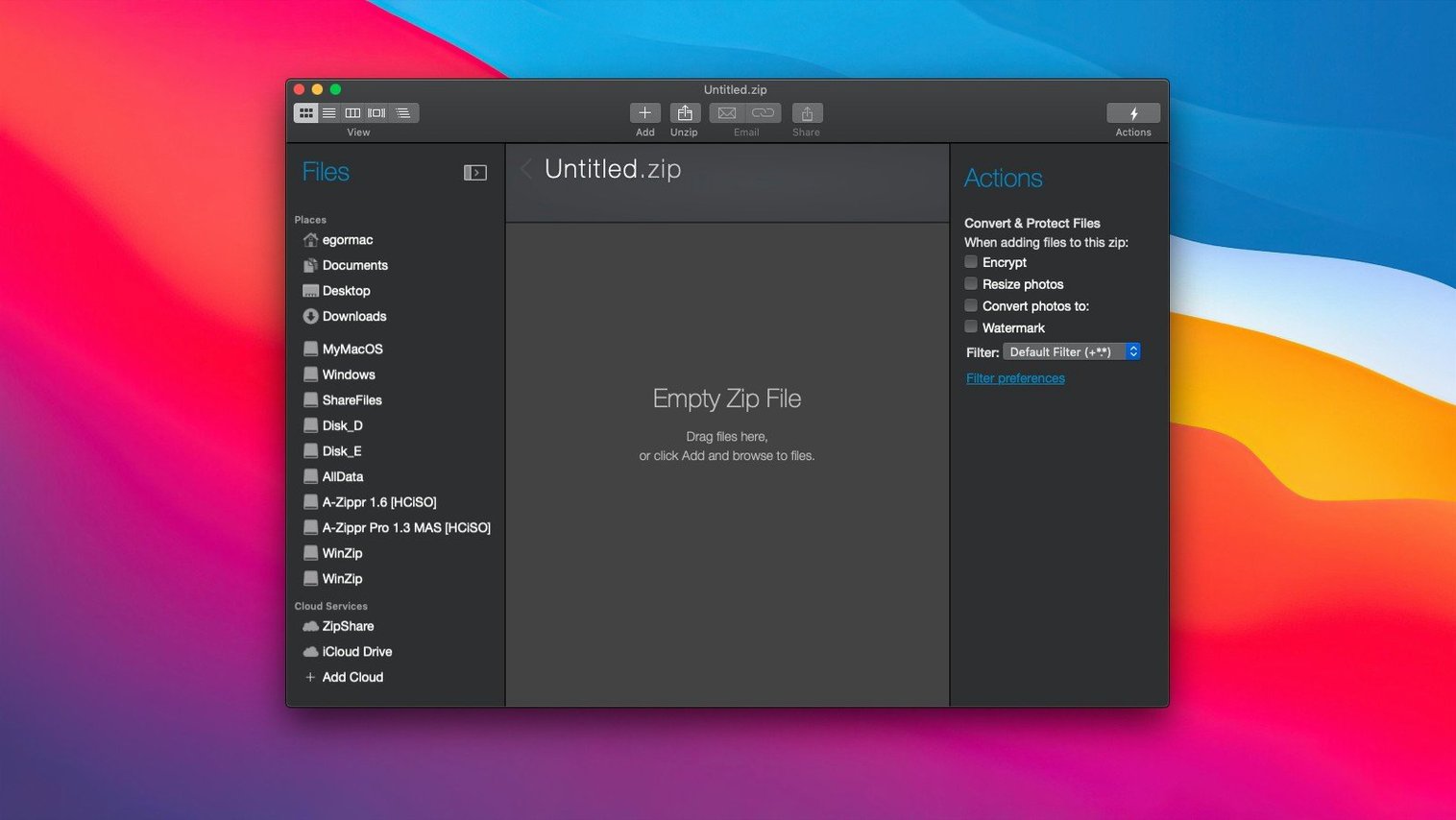
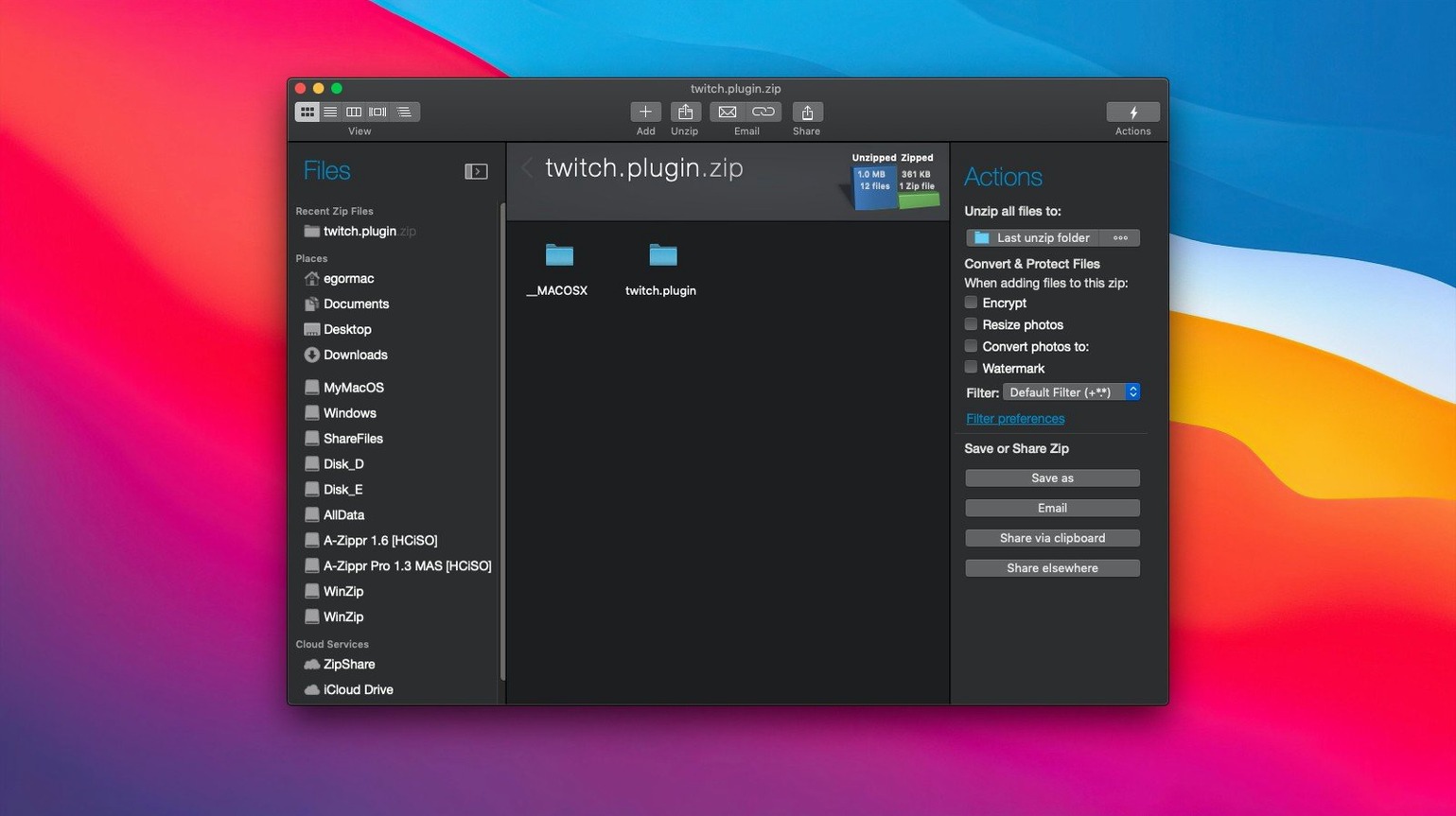
Downloaded a RAR archive you cannot open, or need to send a folder of large images without choking someone's inbox. WinZip Mac Pro tackles those everyday file tangles with a clean, modern interface built for macOS.
Four things to try right after installing
- Zip a file straight from the clipboard. Copy any file in the Finder, open the WinZip window and paste. The app creates a Zip or Zipx file around it immediately — no dragging between folders required.
- Convert an old archive format. Got an LHA, 7Z or TAR.GZ file sitting in your downloads? Open it in WinZip and save it as a standard Zip. The conversion is instant and keeps the contents intact.
- Connect a cloud drive. Add your iCloud Drive, Dropbox or Google Drive account inside the app. You can zip files directly into cloud storage or unzip archives that live there without downloading them manually first.
- Check for duplicate files. Before compressing a messy folder, run the duplicate detection tool. It spots identical files so you do not pack the same document twice.
A quick note on email attachments
The attachment optimiser resizes and compresses files before they hit your mail client. If you regularly send batches of photos or PDFs, this one tool saves more steps than the manual zip-and-attach routine most people fall back on.
Show the Finder toolbar button
Out of the box, WinZip Mac Pro works with sensible defaults, but three adjustments make a noticeable difference to daily use.
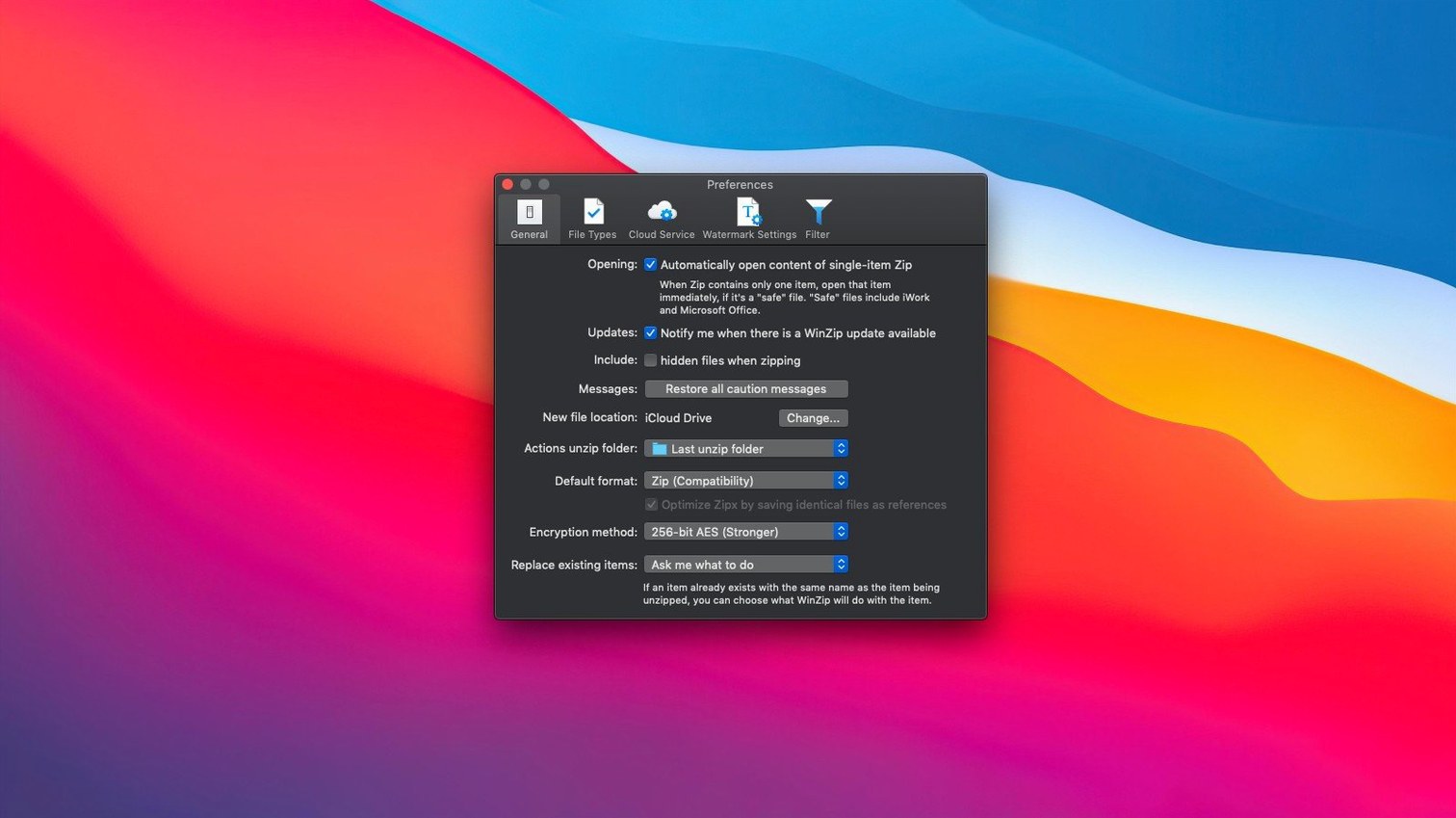
Head to Preferences > General and tick Show WinZip in Finder toolbar. This places a small WinZip icon inside every Finder window, giving you one-click access to zip or unzip the current folder without launching the main app. It is a small addition that removes repeated trips to the Dock.
Next, open Preferences > Compression and set the default output format. The app ships with ZipX selected, which uses advanced compression algorithms and produces smaller archives than standard Zip. However, recipients on older systems or Windows machines without recent compression support may struggle to open ZipX files. If you share archives widely, switch the default to Zip instead. You can still use ZipX per archive when you know the recipient's setup.
Finally, under Preferences > Cloud, review how the app handles cloud files. By default, WinZip downloads a temporary copy before compressing, which can be slow on large cloud-hosted folders. Enable Compress directly in cloud storage if your connection is stable — the app processes files server-side through the connected account and writes the archive back without saturating your local disk.
Fix archive failures from long file paths
Several friction points crop up often enough to mention. Most have straightforward fixes.
Archive fails on a file with a long path. macOS allows path lengths that the Zip format cannot handle, especially inside nested folders. The error message is vague — usually just "Operation failed." The workaround is to move the troublesome folder closer to your home directory root before zipping, or rename deeply nested subfolders to shorter names. WinZip Mac Pro 12.0.7282 handles Unicode paths better than earlier builds, but the format limit still applies.
Cloud account disconnects silently. If iCloud Drive, Dropbox or Google Drive stops appearing in the sidebar, the authentication token has likely expired. Go to Preferences > Cloud, remove the account, and add it fresh. The reconnection takes under a minute and preserves your previous settings.
Encrypted Zip opens blank in Windows Explorer. Windows' built-in Zip tool sometimes fails on AES-encrypted archives created by WinZip. The contents are intact, but Explorer shows an empty folder. The recipient needs WinZip on their end, or any third-party archiver that understands AES encryption (7-Zip works). When sharing encrypted files with people you do not know well, use the legacy ZipCrypto method instead — switch it per archive in the encryption pane.
Conversion from RAR produces a zero-byte file. This happens when the source RAR uses a newer compression dictionary size than the converter expects, or when the archive is multi-part and you opened only the first volume. Make sure all parts of a split archive sit in the same folder before opening the .rar file. For single-file RARs that still fail, extract the contents first with another tool, then recompress with WinZip.
Set it as the default for Zip and RAR
Does it replace the built-in macOS archive utility? Not automatically. You can set WinZip as the default handler for Zip, ZipX, RAR, 7Z and other formats during installation or later from Preferences. Until you do, double-clicking a Zip file opens Apple's Archive Utility as before. Many users keep both — the built-in tool for quick extracts, WinZip for everything else.
How does it handle very large archives? Archives over 4 GB require the Zip64 extension, which WinZip Mac Pro enables automatically when needed. Performance on multi-gigabyte folders depends more on disk speed than on the app itself. On an SSD, compressing a 10 GB folder of mixed files takes a few minutes. The app streams data rather than loading everything into memory, so it does not balloon RAM usage on large jobs.
Can it open password-protected files I received from a Windows user? Yes, provided you have the password. WinZip Mac Pro handles both ZipCrypto and AES-256 encryption. If a Windows user created the archive with WinZip or another tool that supports the same standards, the password prompt appears when you open the file. Archives encrypted with proprietary formats not based on standard Zip encryption will not open.
Does it leave traces of extracted files behind? Extracted files go wherever you tell them to. The app does not cache decrypted content in a hidden temp folder, but macOS itself may keep temporary copies through its own file system mechanisms. If you are handling sensitive material, use the secure delete option under Tools to overwrite the original archive after extraction, and empty the Trash afterwards.
Dragging a folder makes one archive, not many
One of the most frequent missteps is dragging a whole folder into the app and expecting it to produce separate archives per subfolder. WinZip archives exactly what you give it — a single folder becomes a single archive. To batch-zip multiple folders into individual archives, select them in the Finder, right-click, and use the WinZip Finder extension's "Zip and email" or "Zip to cloud" commands. The app processes each top-level item as its own archive.
Another common mistake involves encryption. People set a password, zip the files, delete the originals, and then forget the password. WinZip has no backdoor and no recovery mechanism. If you encrypt, store the password somewhere safe outside the same folder.
Beginners also tend to ignore the duplicate detection tool until disk space runs low. Running it on folders you inherited from colleagues or migrated from old machines often reveals gigabytes of redundant copies. The tool flags exact duplicates by content, not by name, so renamed copies get caught.
Overlooking the clipboard paste function is another missed opportunity. Many new users open the app, browse for files, and click through the add dialogue. Copying a file in Finder and pasting it straight into the WinZip window skips three steps and works identically.
Finally, some new users convert archives from LZH or LHA formats without checking the resulting contents. While the converter is reliable, certain legacy LHA archives use quirks of the format that do not map cleanly to Zip directory structures. After conversion, open the new Zip and verify that folder hierarchy and file counts match before discarding the original.
Encrypt a mixed-media project for a Windows client
Suppose you have just finished a design project. The folder contains Final Cut project files, exported MP4s, a PDF presentation and a folder of high-resolution stills. You need to send the whole package to a client who uses a Windows laptop and has no archiving software installed beyond what ships with the OS.
Start by opening WinZip Mac Pro and connecting your Dropbox account from the sidebar if you have not already. Navigate to the project folder and run Tools > Detect Duplicates on it. The tool finds three copies of the same logo PNG spread across subfolders. You deselect two of them from the archiving list.
Next, select all remaining files and folders and click Add to Zip. In the compression pane, choose Zip (not ZipX — your client's Windows machine may not handle ZipX natively). Tick Encrypt and set an AES-256 password. You send the password separately by a secure channel later. Under Optimisation, enable Compress images for sharing to downsample the stills to a reasonable resolution without visibly degrading them for screen review.
Before creating the archive, choose your Dropbox folder as the destination. WinZip writes the Zip file directly to the cloud, bypassing your local desktop. Once the progress bar finishes, right-click the new archive in the sidebar and pick Copy Dropbox link. Paste the link into an email to your client, send the password through your agreed secure method, and you are done. Nothing sat on your desktop, the archive is small enough for a smooth download, and the client can open it with the standard Windows Zip extractor.