Aspecten
 Download (7 MB)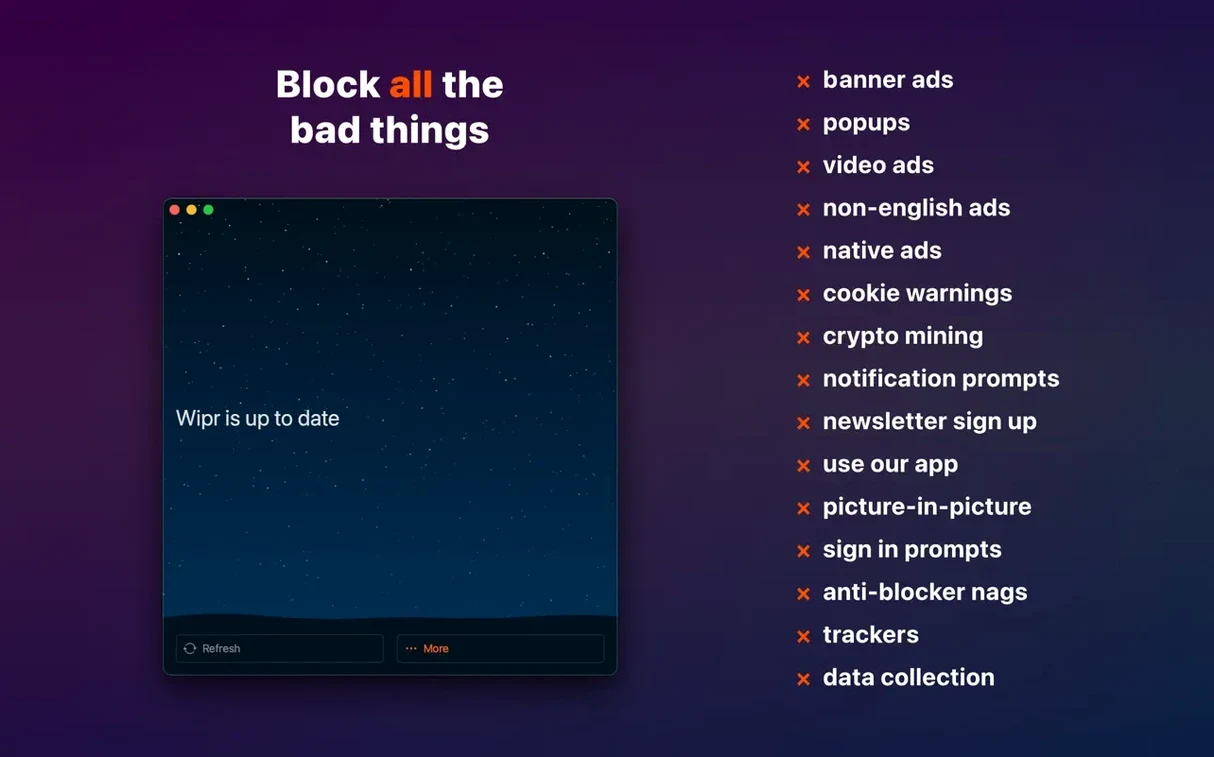
People who want Safari to feel cleaner, without adjusting filter lists or checking dashboards, tend to land on Wipr 2. It is the kind of tool you install once and forget about — until you borrow someone else's computer and notice how much busier the web looks without it.
Under the hood, the app works as a native Safari content blocker. It pulls down a curated blocking list that is refreshed twice a week, so newly aggressive trackers get caught reasonably quickly. The practical effect is twofold: pages shed most of their ad cruft and cookie consent banners, and they often finish loading sooner because less data travels over the wire. On a Mac, that quieter browsing experience sits neatly alongside other everyday tools — a password manager, a read-later app, a text expander — without demanding attention of its own.
Because Wipr 2 is a universal purchase, the same blocking rules follow you across iPhone, iPad, and even Vision Pro. The Mac version runs on both Intel 64-bit machines and Apple Silicon, all the way back to macOS High Sierra. There is no whitelisting interface to manage and no per-site tweaking panel; what you see is what the blocker does. That makes it an awkward fit if you need fine-grained control, but refreshingly simple if you just want Safari to behave.
One limitation worth knowing: the app asks you to disable System Integrity Protection during setup, which is a heavier ask than most Safari extensions require. Once that step is done, Wipr 2 settles into the background and stays there.
How Wipr 2 sits alongside other Mac blockers
Placed next to 1Blocker, the difference in philosophy shows itself within the first minute. 1Blocker splits its blocking into half a dozen toggleable categories — ads, trackers, comments, social widgets, custom elements — and hands the user a dashboard to turn each one on or off per site. That granularity suits someone who tweaks rules for specific news sites or wants YouTube comments gone but the video ads untouched. Wipr 2 takes the opposite approach: one switch, one list, no decisions to make. The trade-off is real. You gain simplicity and lose the ability to carve out exceptions.
AdGuard for Mac goes further still. It ships with a full network-extension architecture, letting you filter DNS requests, apply cosmetic rules, write your own filter syntax, and even block inside other apps beyond Safari. That breadth makes AdGuard appealing if you want a system-wide shield, but it also means a heavier install — a menu bar icon, a separate preferences window, periodic background updates that announce themselves. Wipr 2, by staying inside Safari's content-blocker framework, feels lighter on system resources and quieter in daily use. You do not see it working; pages simply arrive cleaner.
Ghostery occupies a middle ground. It blocks ads and trackers much like Wipr 2, but it also surfaces information about what it stopped, showing tracker names and categories in a popover. For the curious, that transparency is useful. For the easily distracted, it becomes another thing to check. Wipr 2 shows you nothing at all, which some users will find opaque and others will find exactly right.
A rewritten engine and the new Wipr Extra list
The jump to version 2 brought a rewritten engine under the same quiet exterior. The original Wipr app built its blocking on a simpler rule set; Wipr 2 introduced what the developer calls Wipr Extra, a supplementary list that targets the more stubborn annoyances — cookie banners that respawn after dismissal, anti-adblock scripts, and trackers that slip through with randomised domains. In the 2.38 release, Wipr Extra received a round of polishing across many sites, meaning fewer cookie notices survived the first pass. In practice, that change shows up on European news sites and smaller webshops where consent dialogs used to reappear despite the blocker running.
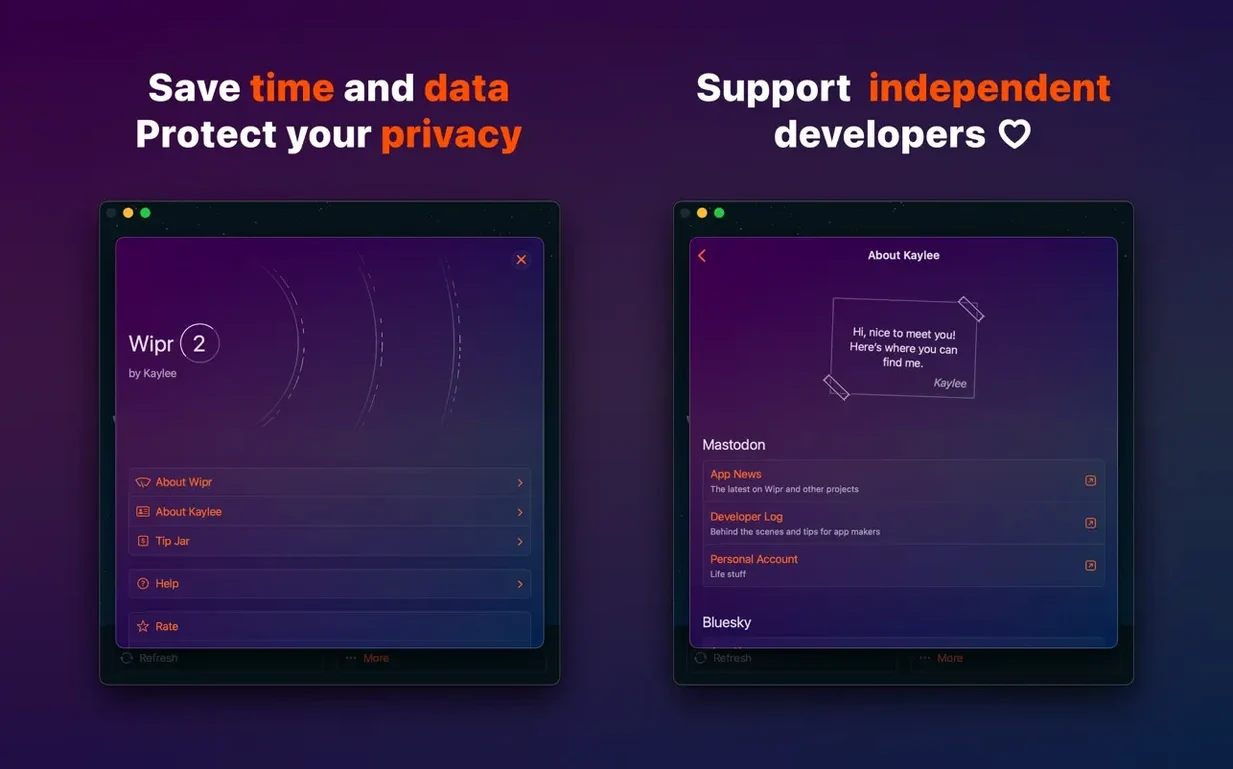
The same update brought accessibility improvements. For users who rely on VoiceOver or reduced-motion settings, the app's minimal interface — already just a single window — became easier to navigate and respond to. The changes are invisible to most, but they reflect a developer paying attention to corners of the experience that a smaller app could easily overlook.
Week-to-week, the twice-weekly list updates mean that a site which broke through on Monday might be caught by Thursday. There is no update notification, no changelog to read; the blocker simply becomes more current in the background. That rhythm suits the set-and-forget user, though it also means you never quite know when a particular annoyance got fixed.
Toggle on Wipr Extra right away
Wipr 2 does not offer much to change, and that is by design. Still, a couple of adjustments from the outset improve the experience.
Enable Wipr Extra immediately. The Extra list is not toggled on by default in every scenario, and without it the blocker relies on the base list alone. The base list catches most ads and trackers, but the cookie-notice filtering lives inside Extra. Turning it on is a checkbox inside the app's single preferences pane, and the difference on a first browsing session is noticeable — fewer interruptions to dismiss before you read.
Check Safari's content-blocker settings. After installation, open Safari's Preferences, go to the Websites or Extensions tab, and confirm that Wipr 2 is active for the sites where you browse. The app cannot force itself on; Safari decides. If you have multiple blockers installed — a leftover from testing another tool, perhaps — Safari may run only one at full capacity. Disable the others if you want Wipr 2 to handle everything.
Leave the refresh interval alone. The app does not expose a setting for how often lists update, but the twice-weekly cadence is built in. Some users chase freshness by reinstalling the app or toggling its filter, which serves no purpose. The server side determines what gets pushed, and the app picks it up on its own schedule.
One last note for those who search for a wipr 2 free route or a standalone wipr 2 ipa: the Mac version is a native app, not an IPA sideload, and it installs through a standard disk image. Dragging it into Applications and launching it once is all the setup that the software itself requires — SIP step aside, the rest is hands-off.