Aspecten
 Download (396 MB)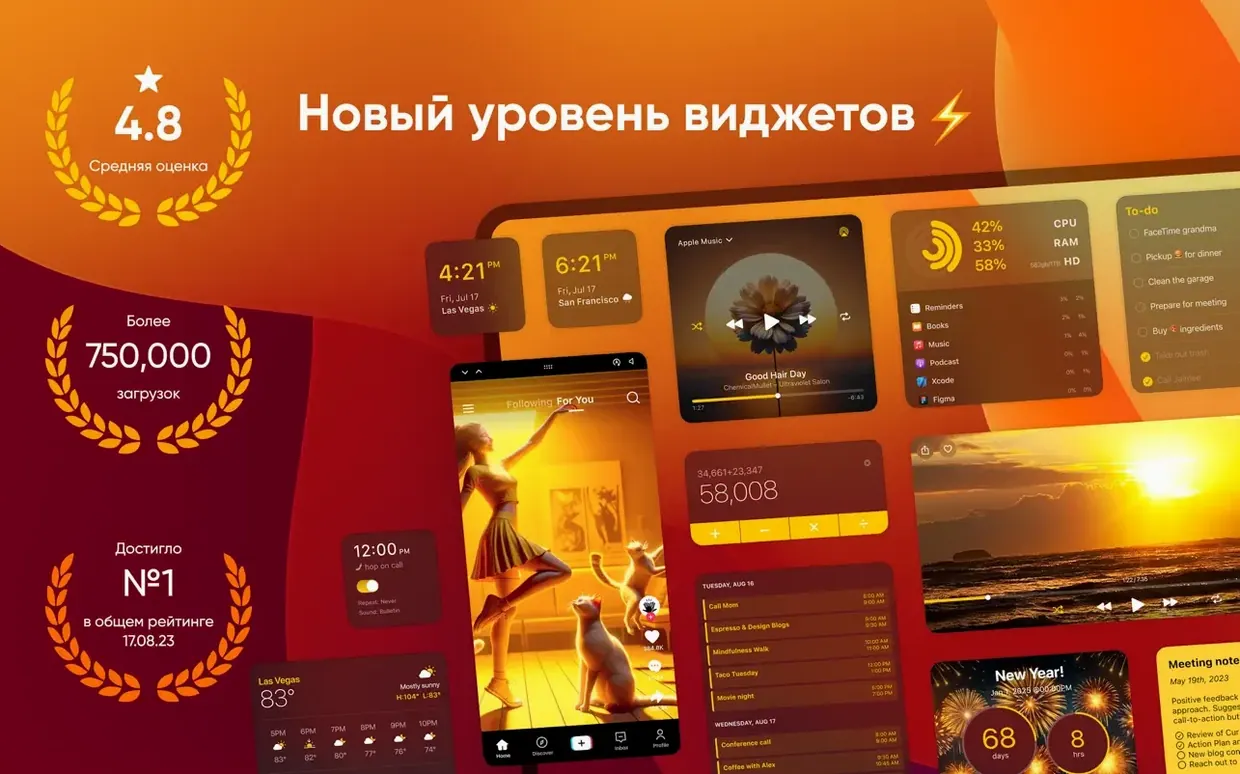
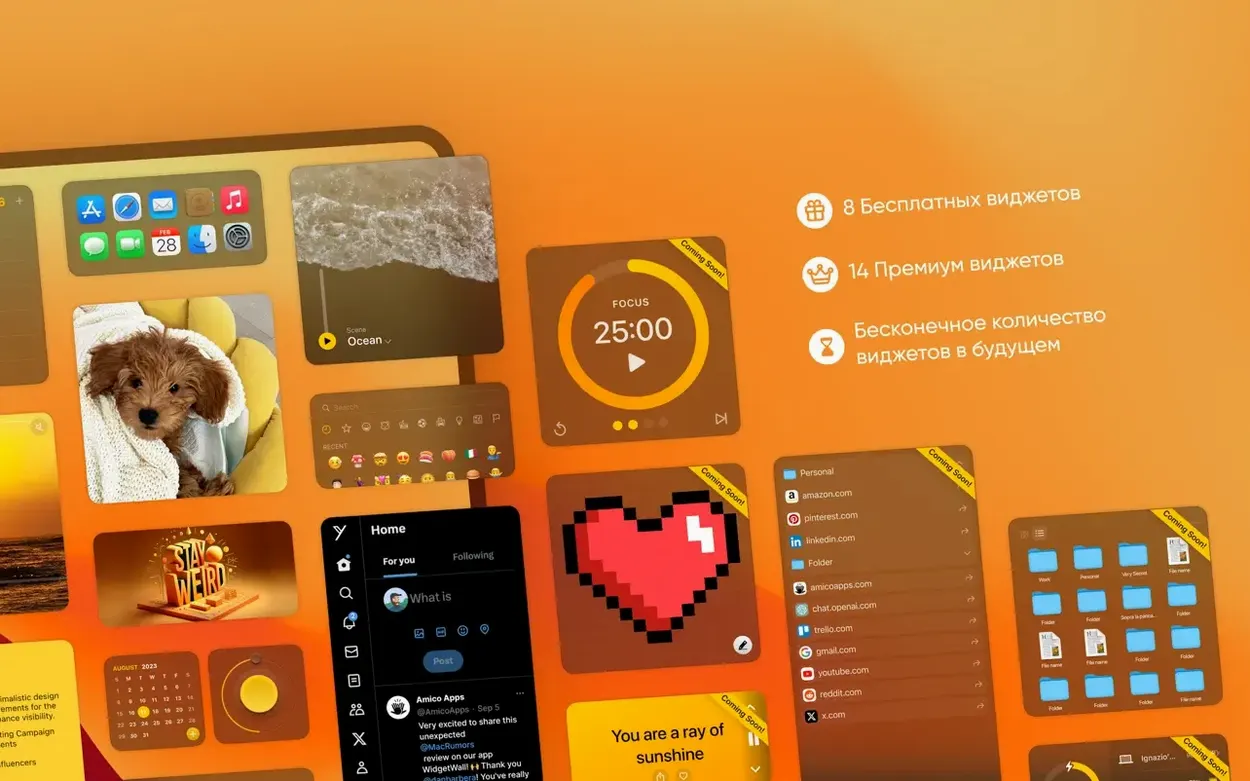
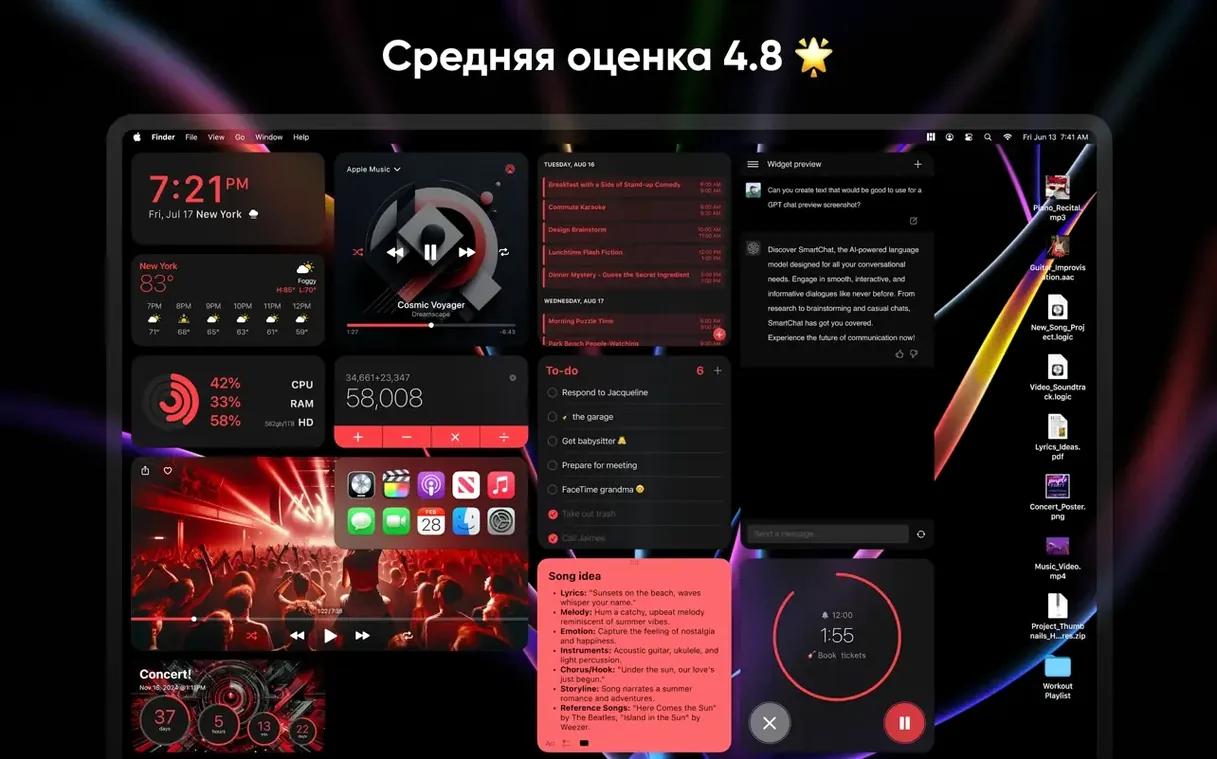
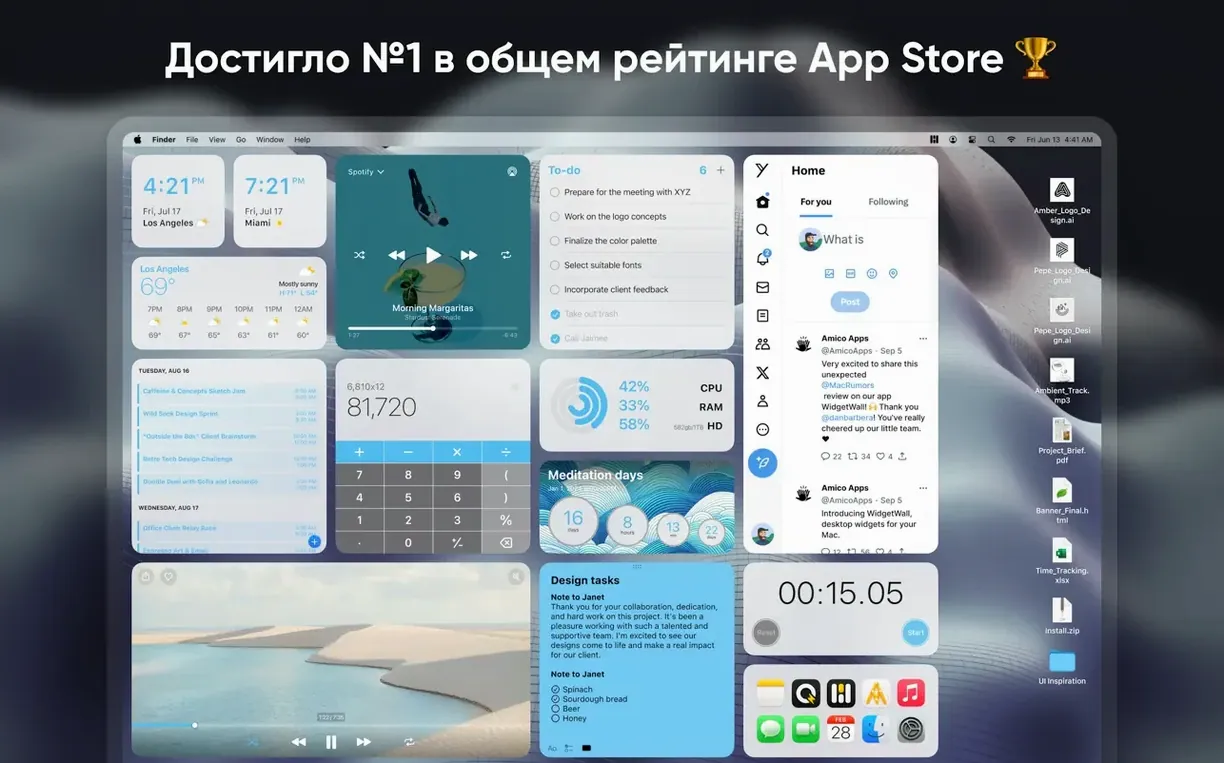
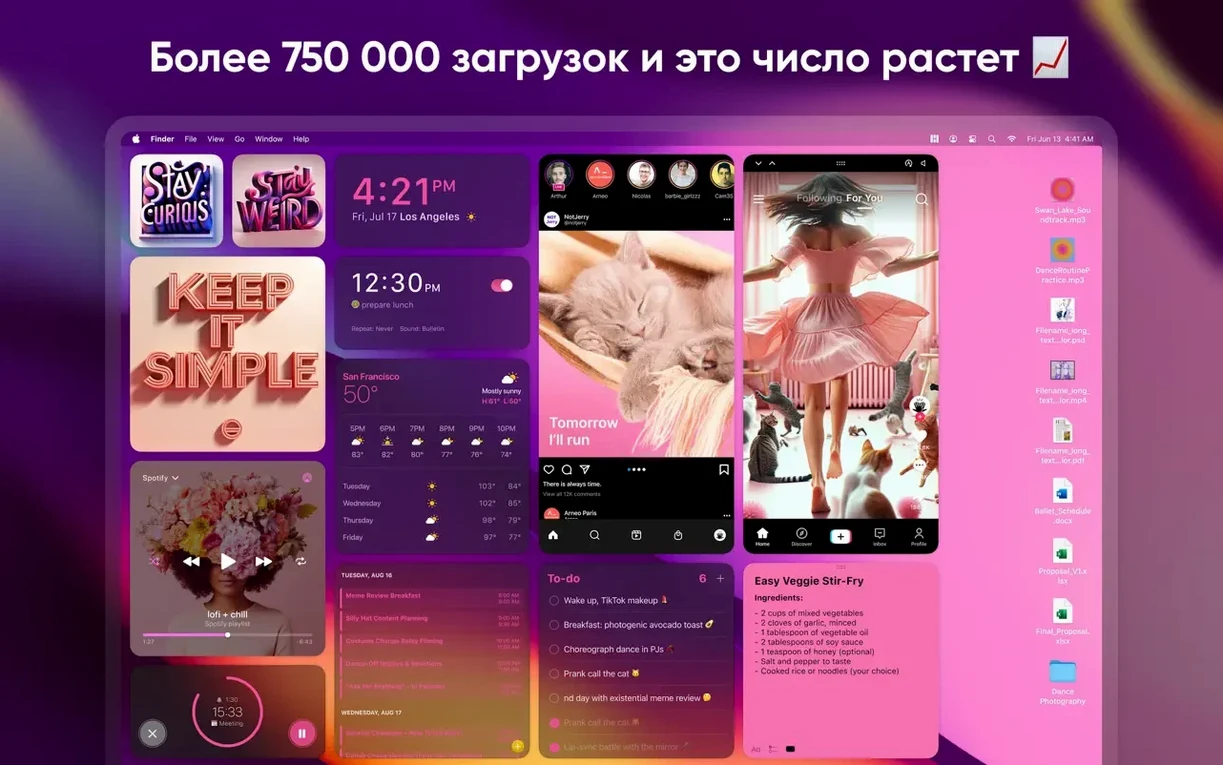
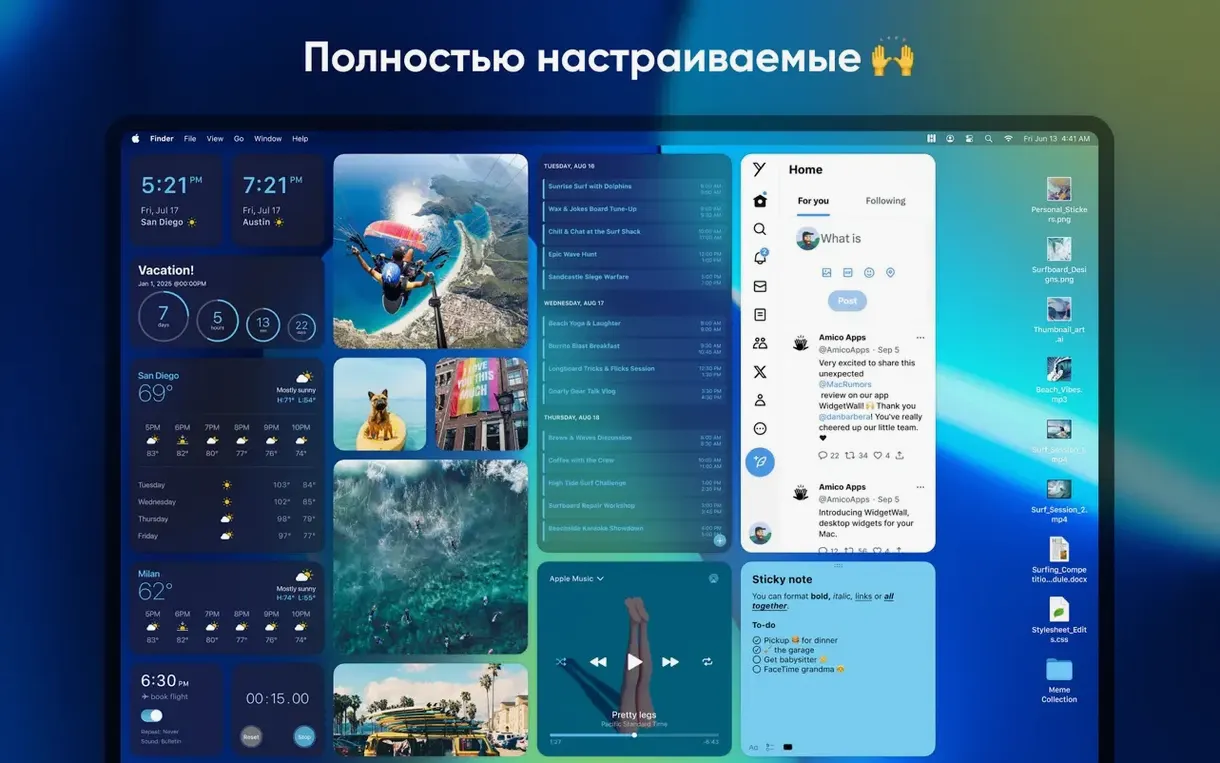
WidgetWall is a Mac utility that places functional, resizable widgets directly onto the desktop. Instead of pulling widgets into a sidebar overlay, it treats them as permanent desktop objects. The collection covers tools (Calculator, Stopwatch, Timer, Pomodoro Timer, Alarm, Countdown and Countup timers), media (Photos, Video, Music, TikTok), info panels (Weather, Stats, Calendar, Reminders, Notes, Clock), and a handful of playful additions — Confetti, an Emoji Browser, and White Noise. A Browser widget and App Shortcuts round out the set. Each widget can appear in small, medium, or large sizes, and the app installs several examples automatically after the initial setup.
Right-click to resize any widget without opening the app
Several WidgetWall interactions sit just below the surface. A right-click on any widget opens a context menu that offers size switching without opening the main app. Hovering near a widget's corner reveals a subtle handle — dragging from that spot rescales smoothly rather than snapping between the three fixed sizes, which helps when matching widget widths to an icon grid or a desktop picture's composition.
The Clock widget carries a quiet trick: clicking its face toggles between analogue and digital display on the spot. No menu dive required. The Calculator widget accepts keyboard input the moment it has focus, so typing 12*4 and pressing Return produces a result without touching the mouse. The Stopwatch and Timer widgets remember their last state across restarts unless deliberately reset — a detail that matters when a session gets interrupted.
Five widgets (Weather, Calendar, Reminders, Notes, Music) pull live data from system sources. The Calendar widget, for instance, reads from the macOS Calendar app without extra configuration. Reminders shows tasks due today, and checking one off on the desktop marks it complete system-wide. The Music widget displays the current track and offers play/pause and skip controls right on the desktop — a miniature controller that saves reaching for the menu bar.
A less obvious feature: holding the Option key while dragging a widget duplicates it. This makes building a multi-timezone desk setup with several Clock widgets a ten-second job.
Morning desktop with Weather, Calendar, and Pomodoro already in place
Nine-thirty in the morning. The desktop wakes to a pale grey wallpaper, and WidgetWall tiles are already in their places — a medium Weather widget in the top-left corner, a small Calendar beneath it, the Pomodoro Timer parked at the bottom-right, and a large Notes widget along the right edge showing yesterday's bullet list.
The first action is a glance. The Weather widget shows 14 °C and overcast in Utrecht, pulled silently since the Mac woke. The Calendar widget confirms a call at eleven. No clicks yet — the information just sits there, legible without opening an app.
At ten past ten, the Notes widget gets attention. Three leftover tasks from Monday need updating. A double-click on the widget body opens the note in a floating edit panel rather than the full Notes app; the text is edited inline, the panel dismissed with a press of Escape, and the desktop refreshes the display instantly. No window management, no app switching.
Midday brings a focused writing block. The Pomodoro Timer is set to 25 minutes with a single click on the preset, then started. The countdown sits at the bottom-right, visible in peripheral vision. When the chime sounds, a five-minute break timer begins automatically — a sequence that repeats three more times before lunch. The widget never demands foreground attention; it simply ticks down in place.
Late afternoon, a quick calculation is needed. The Calculator widget sits at the left edge, medium-sized. Clicking its display area accepts keyboard input directly. A few keystrokes — 847/3 — and the answer appears. The widget returns to idle after a few seconds, still showing the last result in case it's needed again.
By evening, the desktop widgets have served as clock, task list, focus timer, and scratchpad without a single trip to the Dock. That quiet persistence is the core of WidgetWall's rhythm: it turns the desktop from wallpaper into a low-friction dashboard.
Widgets stay put when you plug in an external monitor
Version 3.15.2 refined several behaviours that affect everyday use. Widget positioning became stickier across display resolution changes — plugging in an external monitor no longer scatters widgets to default positions. The Weather widget received a data-fetching adjustment that reduced its refresh delay after waking from sleep, so the forecast appears within seconds rather than the half-minute lag present in earlier builds.
The Notes and Reminders widgets gained support for dark text on light backgrounds when the system appearance is set to Light mode, replacing the previously fixed light-text style that washed out against bright wallpapers. The Calculator widget's keyboard handling was tightened: earlier versions occasionally swallowed the first digit after clicking the widget body; that no longer occurs.
Apple Silicon Macs saw a small memory improvement — idle widget background processes now occupy roughly forty percent less RAM than in the 3.14 series. Intel Macs received no architectural change but benefit from the same UI refinements. Several widgets, including Clock and Stopwatch, now respect the system's twelve- or twenty-four-hour time preference automatically rather than requiring a manual toggle.
The widget library itself expanded gradually across recent updates. The Emoji Browser and TikTok widgets arrived as optional additions, joining the earlier core set. The App Shortcuts widget, which places launchable icons for any installed application directly on the desktop, gained the ability to display custom icon selections from the user's own image files.
Workflow: building a project dashboard
A freelance designer wants a desktop dashboard for an ongoing client project — deadlines visible, quick access to project files, a focus timer, and ambient sound. WidgetWall handles all four without a single third-party integration.
The setup begins by right-clicking the desktop and choosing to add a new Countdown Timer widget. The target date — the project deadline, a Friday three weeks away — is entered. The widget is set to large size and dragged to the top-centre of the screen, where it reads "21 days remaining." Below it, a medium Reminders widget is placed, pulling the project task list already stored in Apple Reminders. The list is filtered to show only items tagged with the client's name; WidgetWall respects that system-level tag immediately.
To the left of the reminders, an App Shortcuts widget is configured. Three apps — Sketch, Finder (pointing to the project folder), and a time-tracking tool — are selected from the shortcut picker. The widget displays their icons in a vertical row. A single click on the Finder shortcut opens the project directory directly, bypassing the need to navigate through nested folders.
The bottom-left corner receives a medium Pomodoro Timer, preset to 45-minute focus blocks with 10-minute breaks — matched to the designer's preferred work rhythm. The bottom-right corner holds a White Noise widget, set to a soft rain loop at low volume. The widget's volume slider is adjusted once; the setting persists across sessions.
The entire dashboard takes under four minutes to assemble. During the working day, the designer glances at the countdown, checks off completed reminders on the desktop, launches project files from the shortcuts, runs the Pomodoro cycle, and adjusts the rain volume when needed. No window overlaps the widgets because WidgetWall reserves desktop space intelligently — windows snapped to the screen edges stop short of the widget areas. When the project ends, the Countdown Timer is removed with a right-click, and the Reminders widget is repointed to the next client's tag. The rest of the layout stays intact, ready for the next project with only a few adjustments.