Aspecten
 Download (8 MB)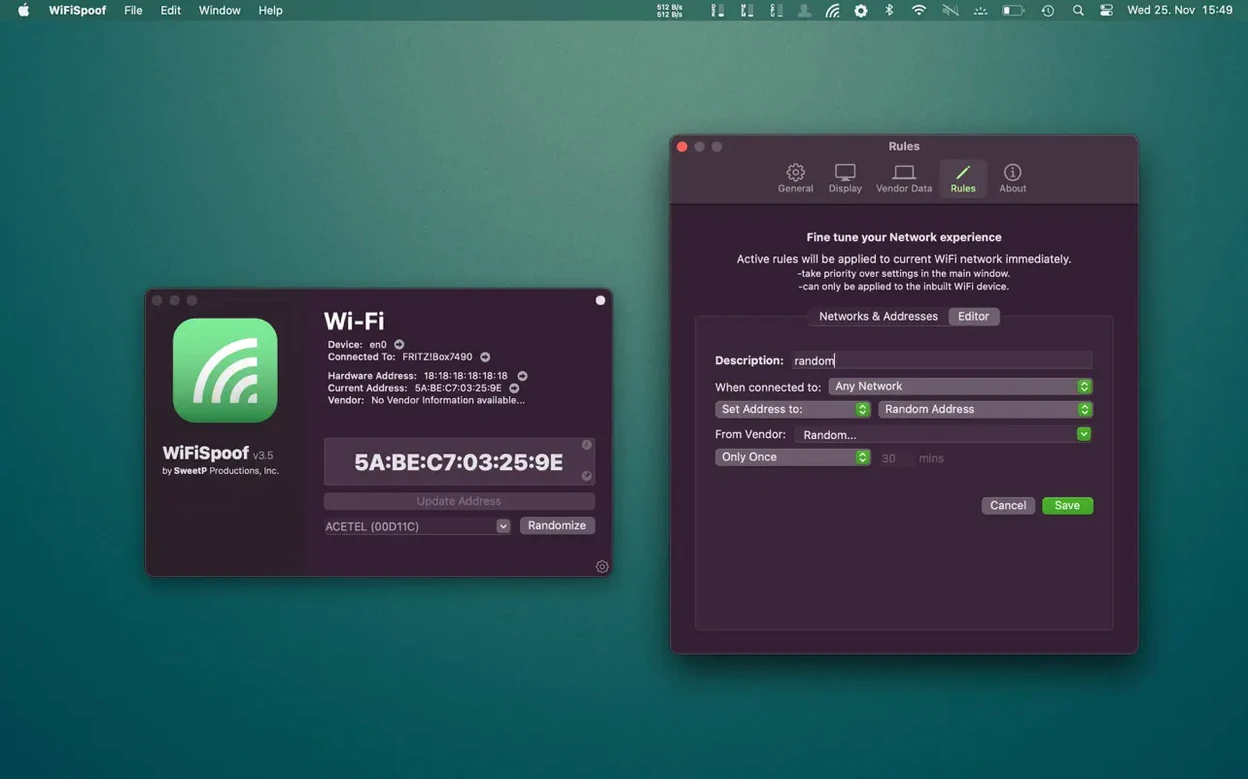
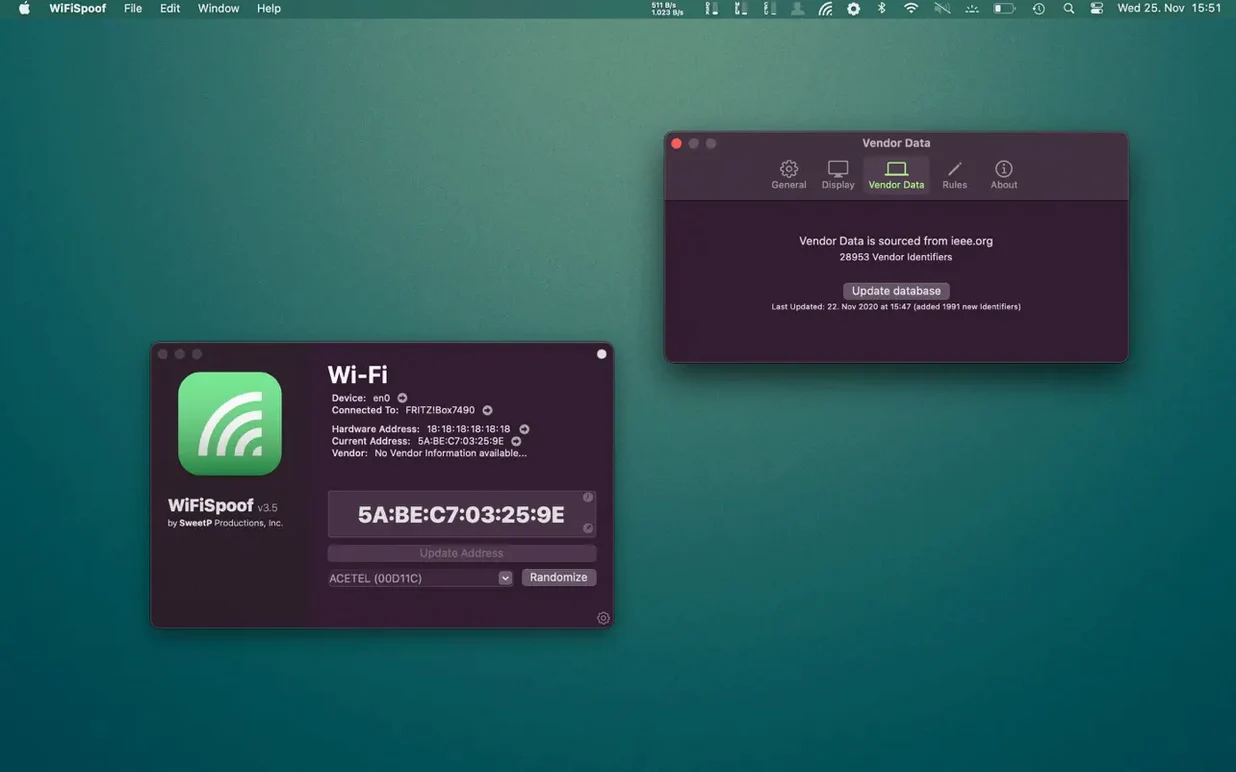
The reverse OUI lookup is the part that often gets overlooked. Changing a MAC address is one thing; knowing whose card you appear to be using is another. WiFiSpoof shows the vendor tied to both your real and spoofed addresses, so you can spot an improbable manufacturer name before you connect.
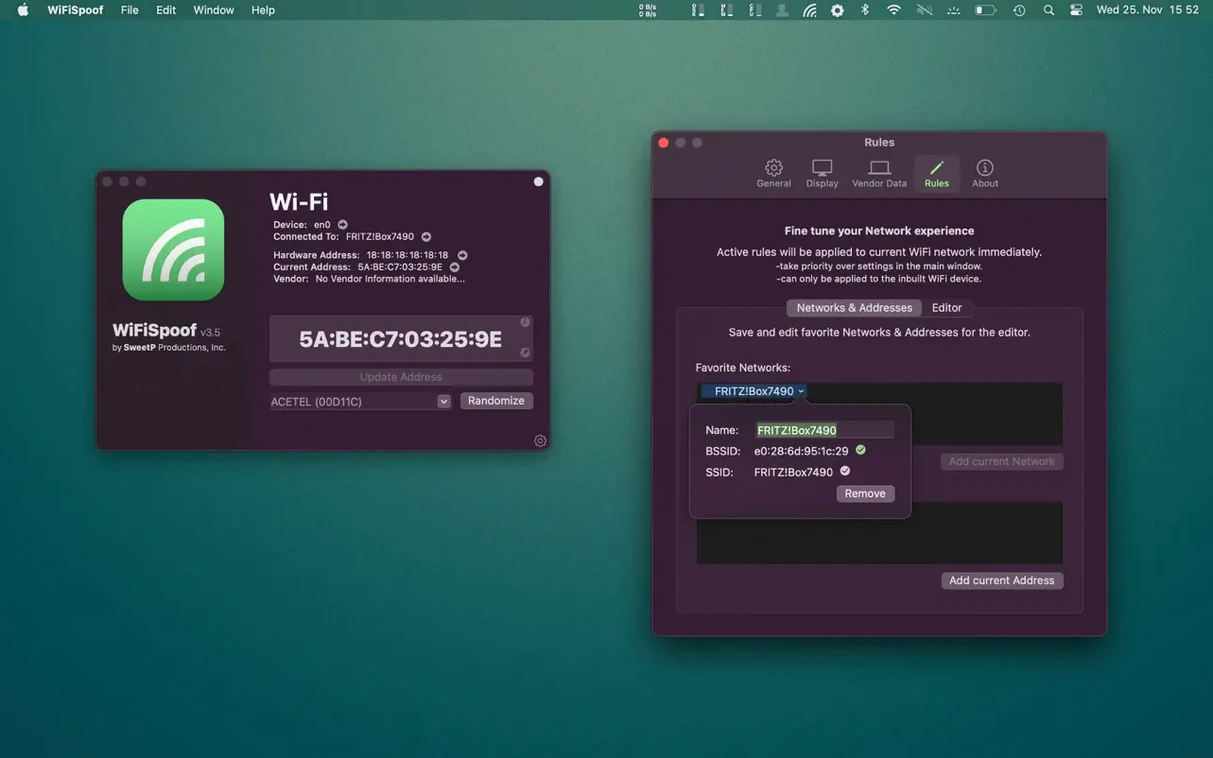
It sits next to your regular network tools without overlap. The menu bar keeps the current address visible, and a global hotkey can shuffle the Wi-Fi and Ethernet identifiers in a second. You might use it on a public network where a fixed hardware address becomes a tracking point over time, or on a home setup where you prefer different identities per SSID — the custom rules for selected networks handle that automatically.
Random generation is built in, and it respects the structure of a proper MAC address rather than just throwing out hex pairs. If you need a specific value, typing it directly replaces any Terminal session. The app reads your existing card data on launch and updates the display when you switch.
It is a narrow utility, and it works best alongside the Wi-Fi menu and a VPN rather than trying to replace either. The interface stays out of the way, and the vendor lookup gives you a sanity check that raw command-line tools simply do not offer.
Terminal, MacSpoof, or WiFiSpoof — three MAC-spoofing lanes
On a Mac there are three main ways to change a MAC address: Terminal commands, the free MacSpoof utility, and WiFiSpoof. Terminal gives you raw control — one ifconfig command does the job — but you get no vendor lookup, no saved profiles, and the change does not survive a reboot unless you script it yourself.
MacSpoof covers much of the same ground as WiFiSpoof but in a sparser form. It lists interfaces and lets you randomise or type an address. What it does not do is tie an address to a particular network SSID, nor does it show you the Wi-Fi card vendor data, BSSID, or connection health metrics that WiFiSpoof surfaces. If all you want is a quick one-off change and you prefer open-source simplicity, MacSpoof serves that need. WiFiSpoof leans further into the routine: set a rule once, walk into the coffeeshop, and the address switches itself.
LinkLiar takes yet another approach. It runs as a background daemon and randomises all interfaces on every network change. That level of automation suits someone who never wants to think about a MAC address again. The trade-off is granularity — you cannot easily pin a specific vendor to a specific network, and you do not get the live interface details WiFiSpoof shows. WiFiSpoof occupies a middle ground: more deliberate than LinkLiar, more contextual than MacSpoof.
Gatekeeper blocks the helper tool until you run the un-quarantine script
The most common stumble is Gatekeeper blocking the initial helper tool. The disk image includes an Open Gatekeeper friendly script; pressing Enter in Terminal clears the quarantine flag so the app can install its background component. Without that step the app launches but cannot actually change an address.
On Apple Silicon Macs with System Integrity Protection fully enabled, some interface cards refuse to accept a new MAC address. The built-in Wi-Fi adapter usually works, but certain USB Ethernet dongles and Thunderbolt adapters require a SIP relaxation. The workaround is to disable SIP temporarily, apply the spoof, and re-enable it — or boot into recovery, run csrutil disable, and remember to turn it back on afterwards. Not every adapter needs this; it depends on the chipset driver.
Another hiccup: a network that enforces MAC-based access control. Spoofing an address the router has not whitelisted simply knocks you off the network. The custom rules section handles this neatly — set your home SSID to use the real hardware address and let public networks randomise.
Occasionally the menu bar icon fails to reflect a change after waking from sleep. Clicking the interface list to refresh usually sorts it, and the actual address does take effect even if the display lags.
Adjusts the hardware identity before the association handshake completes
WiFiSpoof works in parallel with macOS Location services and the built-in Wi-Fi menu rather than competing with either. The Wi-Fi menu still handles network selection; WiFiSpoof just adjusts the hardware identity before the association handshake completes. If you use the macOS firewall or Little Snitch, those tools see the spoofed MAC as the source address in their logs, which keeps records consistent with the identity you chose.
Pairing it with a VPN closes a specific tracking gap. A VPN tunnels your traffic and masks your IP, but the MAC address is broadcast at the link layer before any tunnel is established. WiFiSpoof handles that layer, so the two tools address separate parts of the privacy chain. You might also combine it with a DNS-over-HTTPS profile installed via System Settings; the three together — MAC, IP, DNS — leave fewer fingerprints on an open network.
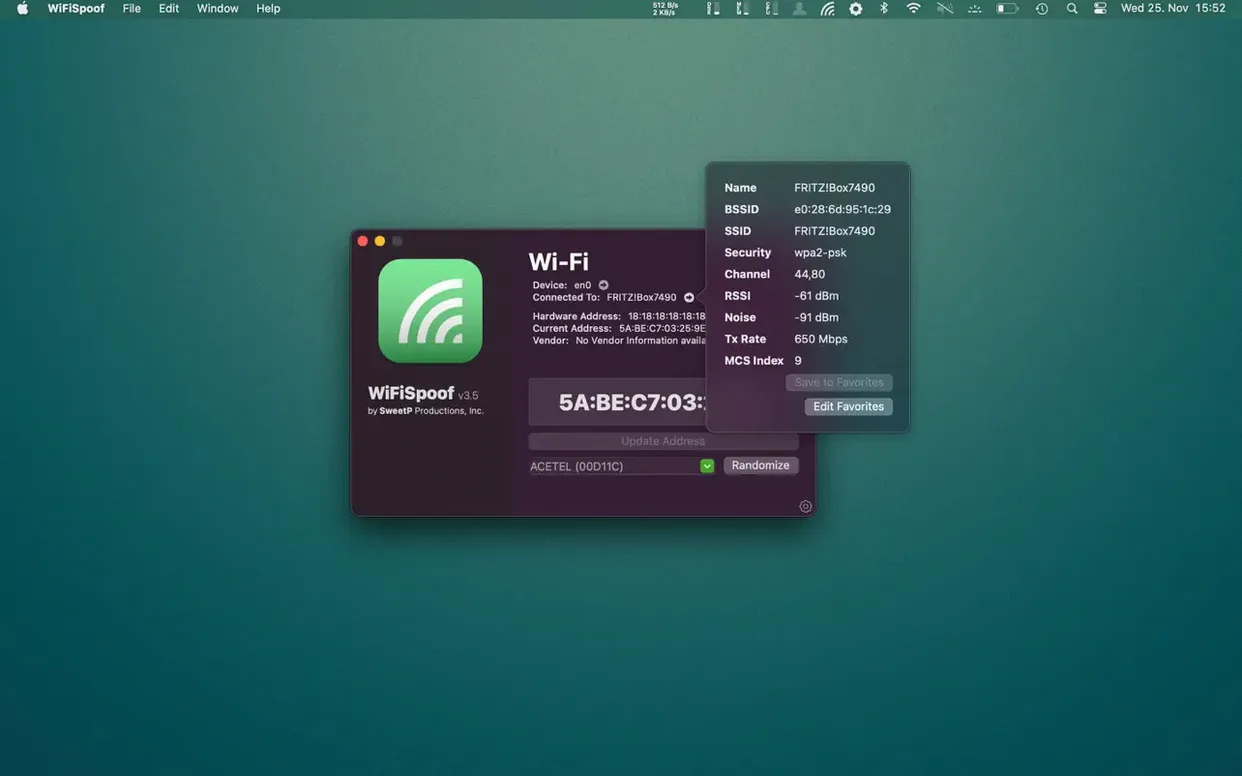
For anyone who runs network diagnostics, the connection detail pane becomes a quick sanity check alongside Wireless Diagnostics. You can read BSSID, channel, RSSI, noise floor, Tx rate and MCS index in one place without opening the option-click Wi-Fi menu or launching a separate scanner. It is not a full site survey tool, but the figures are enough to confirm whether a poor connection is an access-point problem or a local interference issue.
Shortcut support is absent, but the global hotkey can be wired into a Keyboard Maestro macro for scripting. A common pattern is to trigger a randomisation on waking from sleep, something a simple Automator action can chain together with the hotkey. Searching for a wifispoof for mac free download typically lands on the same release that includes the TNT activation, meaning the hotkey and rule features are available without restriction.