Aspecten
 Download (21 MB)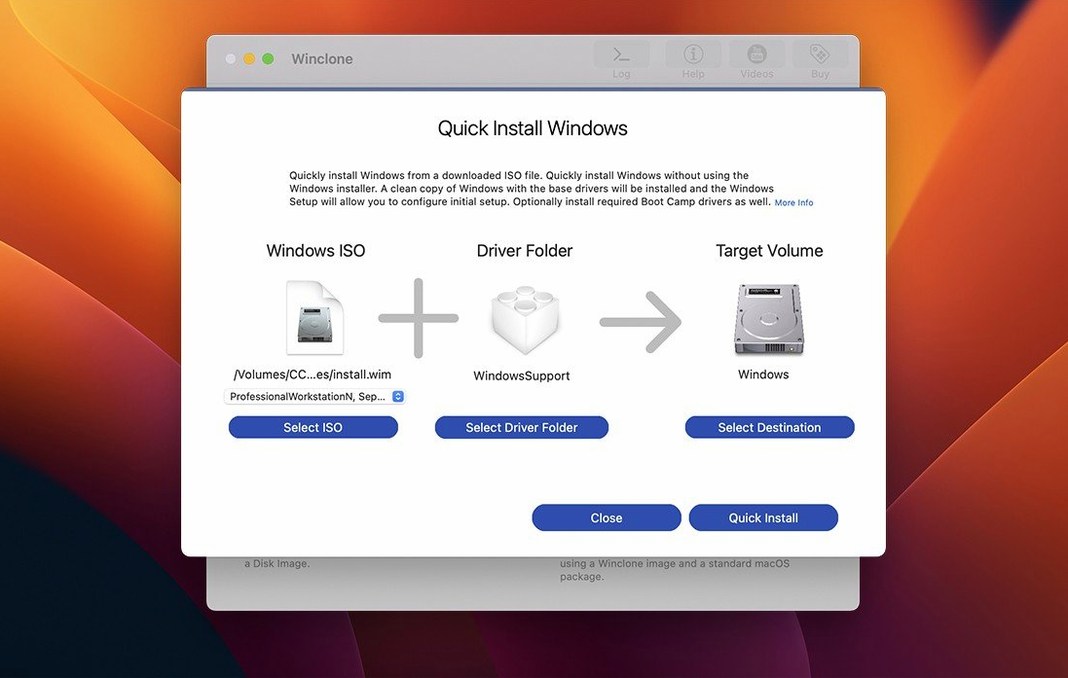
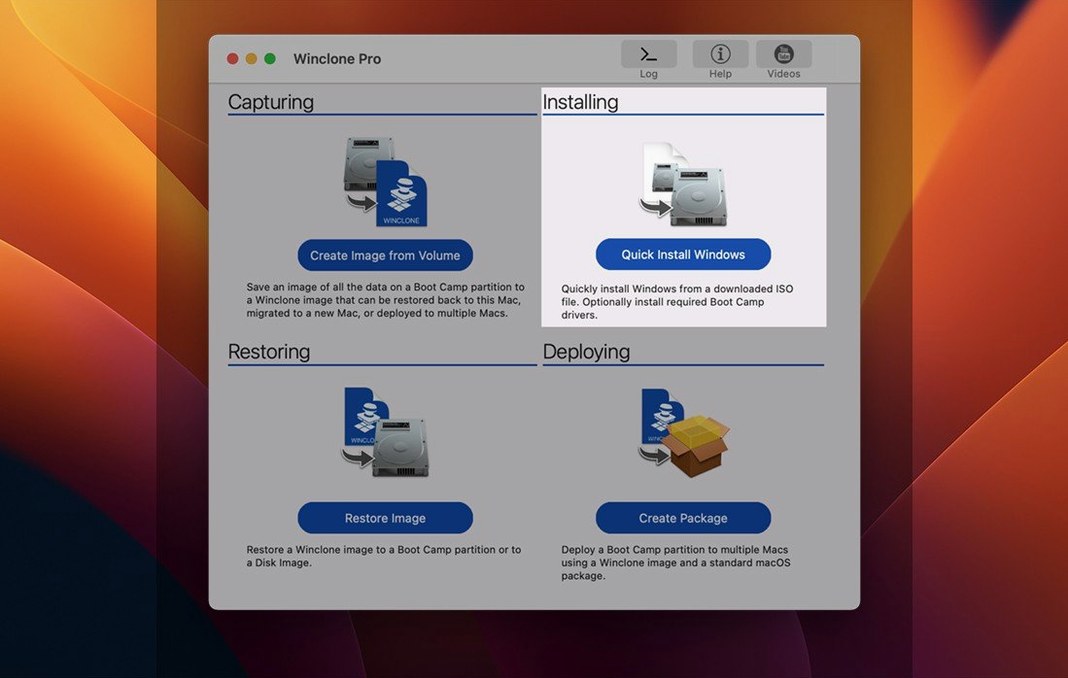
Anyone who has used macOS's built-in Disk Utility to create a simple disk image knows the concept: capture a volume, store it, restore it later. Winclone 10 applies that same logic to Boot Camp, wrapping the complexity of Windows partitions in a Mac-friendly tool. It runs on Intel Macs with macOS 10.15 Catalina or later, and version 10.5 has been verified for Tahoe compatibility. Apple Silicon is not part of the picture — this remains an Intel-only utility.
- Clones an entire Boot Camp partition to an image, then restores it to the same or a different Mac.
- Creates incremental images, so subsequent backups capture only what changed since the last clone.
- Builds a package installer that sets up a fresh Boot Camp partition and lays a Winclone image onto it, useful for deploying a standard Windows setup across multiple machines.
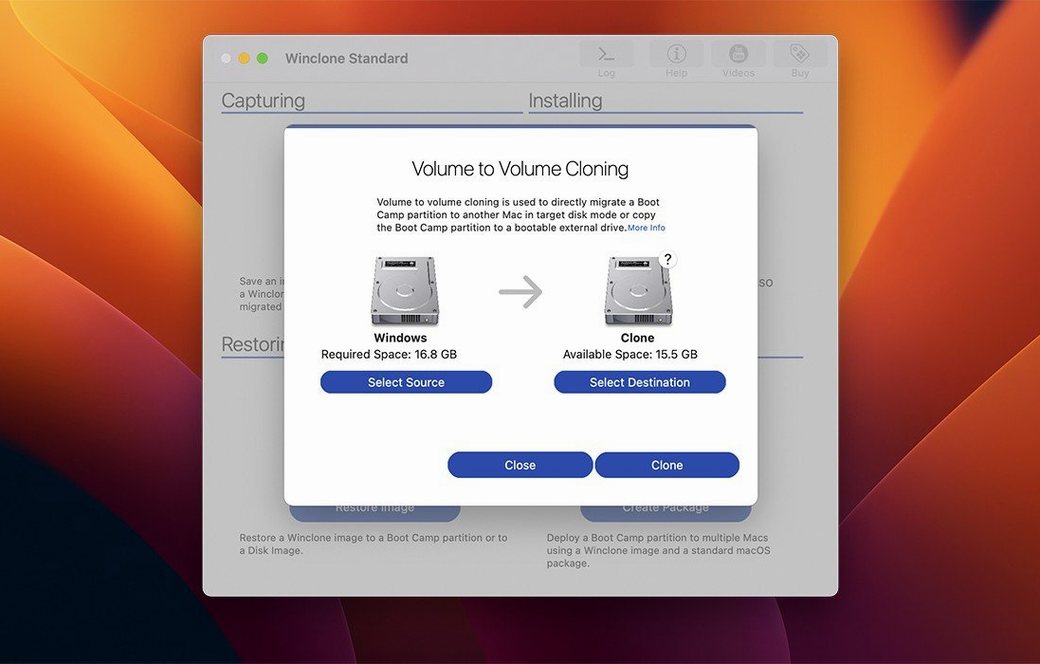
- Migrates Windows directly from one internal drive to another — no intermediate image file needed.
- Checks for mismatched GPT and MBR boot records and reports them before you attempt a restore.
- Saves images to external drives or network storage, and plays a sound when an operation finishes or fails.
Winclone 10 also includes controls for making a legacy bootable installation or switching to EFI booting on Windows 7 and later. The interface shows a completion percentage and a time estimate during longer tasks, so you are not left watching an indeterminate progress bar. It is a focused tool for a specific job: preserving a Windows environment on Intel Mac hardware without manual disk partitioning or command-line recovery work.
Settings worth changing early
A fresh install of Winclone 10 ships with defaults that work, but a couple of adjustments make it fit a real workflow better. The first stop is the Notifications pane. The success and failure sounds are on by default and, for a large image that takes 40 minutes, the audible cue is genuinely useful. On a shared machine or in an open-plan office, though, you may want to switch to a silent notification instead. The toggle is right there in preferences.
Next, check the temporary file location. By default Winclone stages working files on the boot volume, and a full 256 GB Boot Camp partition will fill that space quickly. Point it to an external drive with ample room, especially if you work on a Mac with a smaller internal SSD. The setting is under the General tab — it takes ten seconds to change and avoids a failed operation halfway through a clone.
Also worth enabling: the option to verify images after creation. It doubles the time a full clone takes, but the verification step catches bit-level corruption that a quick mounting test would miss. For incremental backups the overhead is minimal, because only changed blocks get checked.
Cloning while Windows is hibernated locks the NTFS volume
The most common stumble is starting a clone while Windows is hibernated. Boot Camp restarts from a hibernated state lock the NTFS volume, and Winclone sees a partition it cannot read properly. The image may complete, but restores from that image often fail. Shut Windows down fully — not sleep, not hibernate — before launching the Mac side. A quick check: if the Boot Camp volume mounts read-only in the Finder, Windows did not shut down cleanly.
Another frequent misstep is choosing the wrong target format when restoring to an external drive. Winclone offers DOS-FAT32, ExFAT, and NTFS as destination options, and picking FAT32 on a volume larger than 32 GB produces an error that looks like a corrupted image. The tool does not block the selection beforehand. If the destination is going to hold a modern Windows installation, stick with NTFS.
Beginners also tend to treat a Winclone image as a live backup they can browse in the Finder. The image contains raw partition data, not a mountable volume. Double-clicking it in macOS does nothing useful. If you need to pull out a few files, restore the image to a spare external drive first, then boot from it or attach it to a Windows machine.
Disk-to-disk migration skips the imaging middle step
The disk-to-disk migration feature gets less attention than the clone-and-restore cycle, but it saves a step when upgrading a Mac's internal drive. Instead of imaging the Boot Camp partition to an external disk and then restoring it, you select the source and target drives directly. Winclone handles the partition resizing on the fly — expand or shrink the file system to fit the new drive's layout without a separate partitioning tool.
Holding the Option key while clicking the Restore button reveals a legacy boot mode checkbox that is otherwise hidden. Useful on older Macs that shipped before EFI booting became standard for Windows, or when restoring a Windows 7 image that was built as a BIOS installation. The checkbox is easy to miss because the main interface presents only the EFI option for Windows 7 and later.
The incremental imaging logic works on block-level changes, not file-level diffs. That means a 60 GB Boot Camp partition with only 2 GB of changed data produces an incremental image close to 2 GB, regardless of how many files were touched. You do not need to configure file exclusions or worry about temp files bloating the image — the block approach sidesteps that entirely.
GPT/MBR mismatch errors block restores until corrected
GPT/MBR mismatch errors. Winclone reports inconsistent boot records before a restore and refuses to proceed. The fix is usually straightforward: boot the Mac into macOS Recovery, open Terminal, and run diskutil list to identify the disk identifier. Then use gpt destroy and gpt create on the target disk to rebuild the partition table from scratch. After that, a fresh restore from the Winclone image will write matching GPT and MBR entries automatically. Do this on an empty target disk — the commands wipe the partition map.
Restore fails with a volume-in-use message. macOS sometimes mounts the Boot Camp volume read-only after a clone or a failed restore attempt. The volume appears greyed out in Disk Utility but still holds a lock. Open Terminal and run diskutil unmountDisk /dev/diskX (replace X with the correct disk number) before retrying the restore. Winclone does not force-unmount volumes on its own.
Package installer deployment stalls on multiple Macs. When using the package-creation feature for mass deployment, a common snag is a mismatch between the package's partition-size setting and the target Mac's available free space. The package assumes the size you specified during creation; if a target machine has less room, the installer hangs without a clear error. Measure the smallest target Mac first, set the Boot Camp size to 10 GB below that machine's free space, and build the package once. That single adjustment avoids re-imaging a dozen machines.
Winclone appears to hang at 99 percent. The final step of a restore writes the boot sector and syncs the partition tables. On slower external drives — especially mechanical disks connected via USB 2 — this can sit for several minutes. The progress bar is not frozen; the disk LED is still active. Let it finish. Pulling the drive early leaves a partition that looks intact but will not boot, and the only fix is a full re-restore.