Aspecten
 Download (29 MB)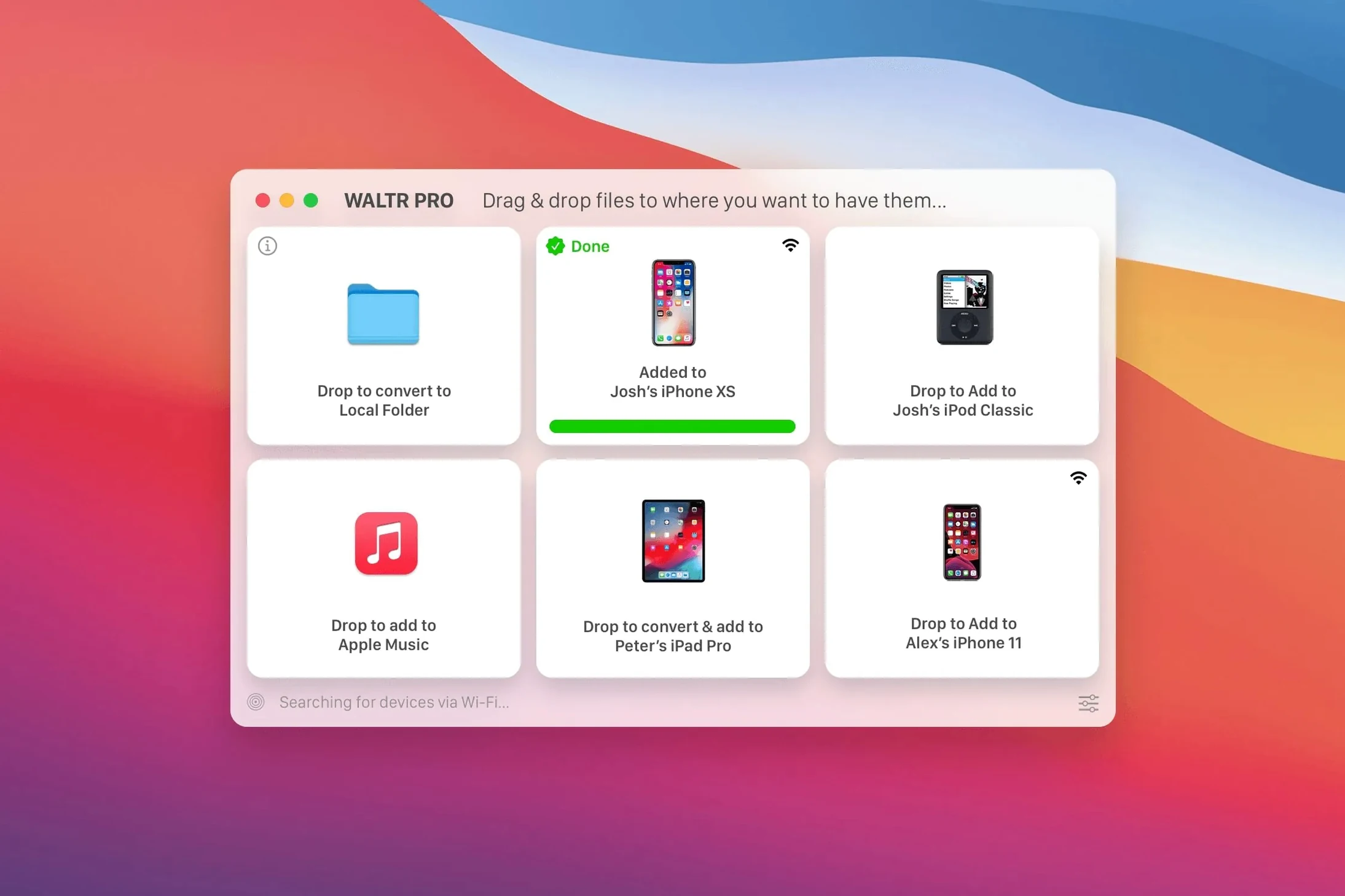
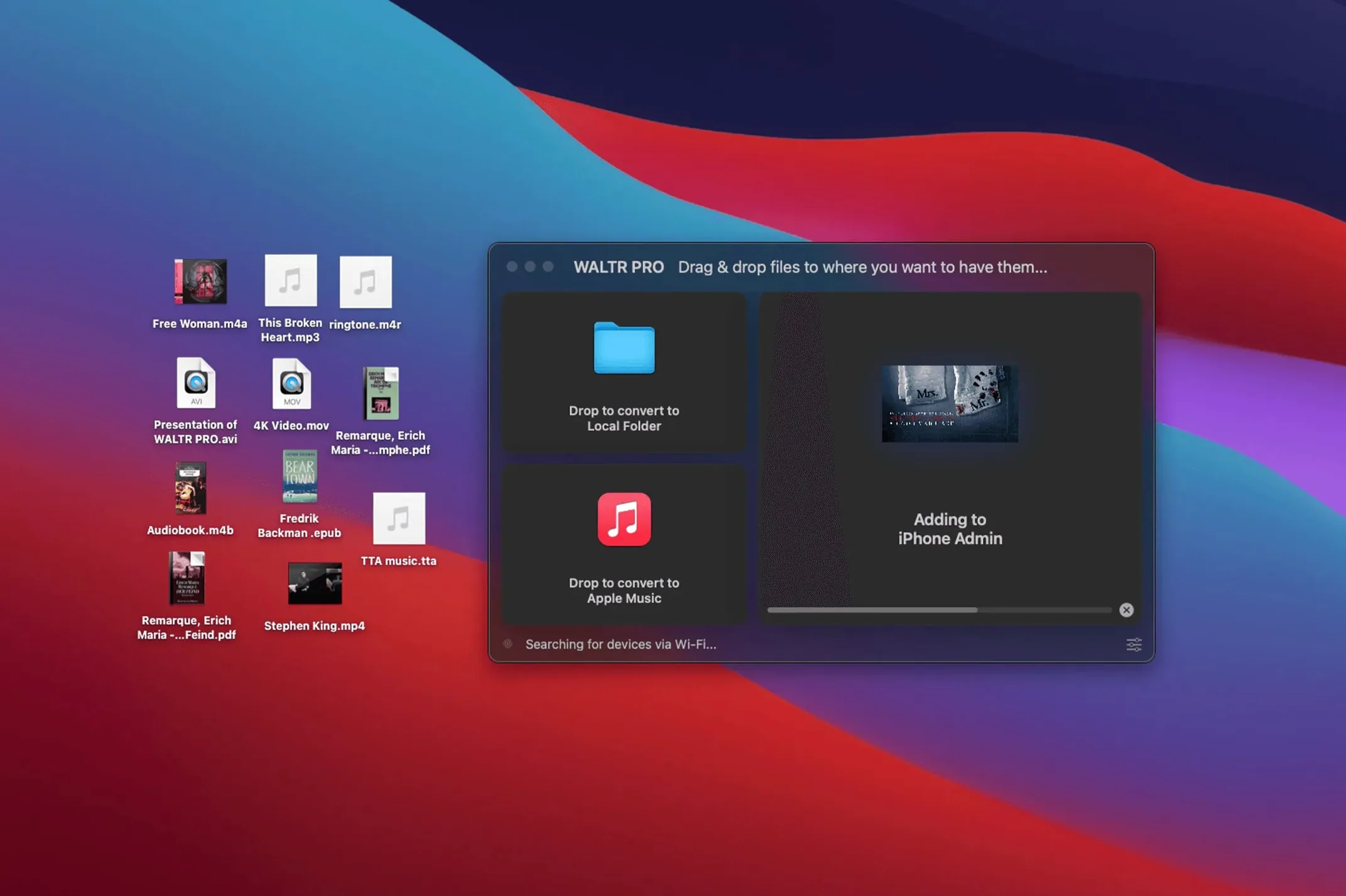
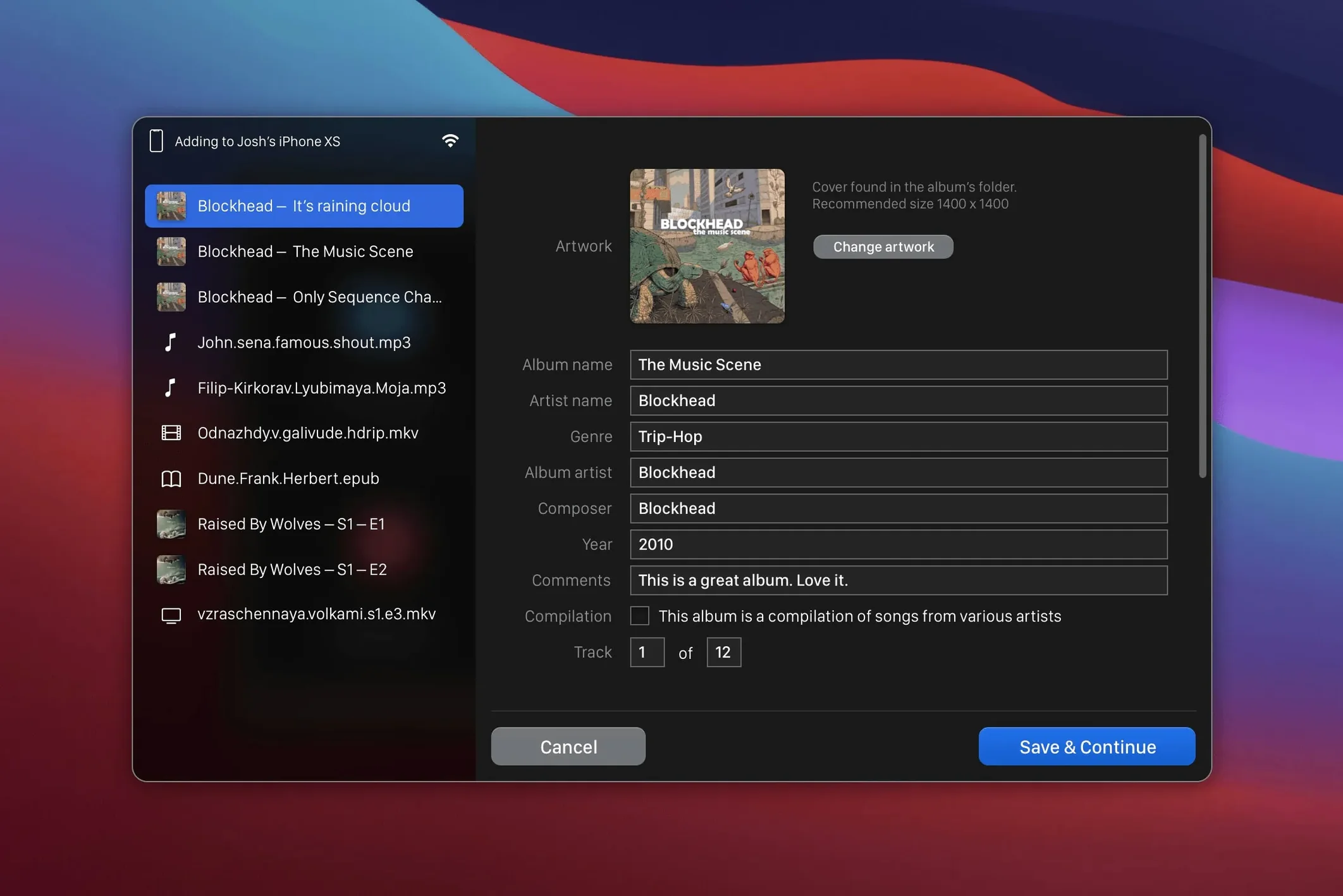
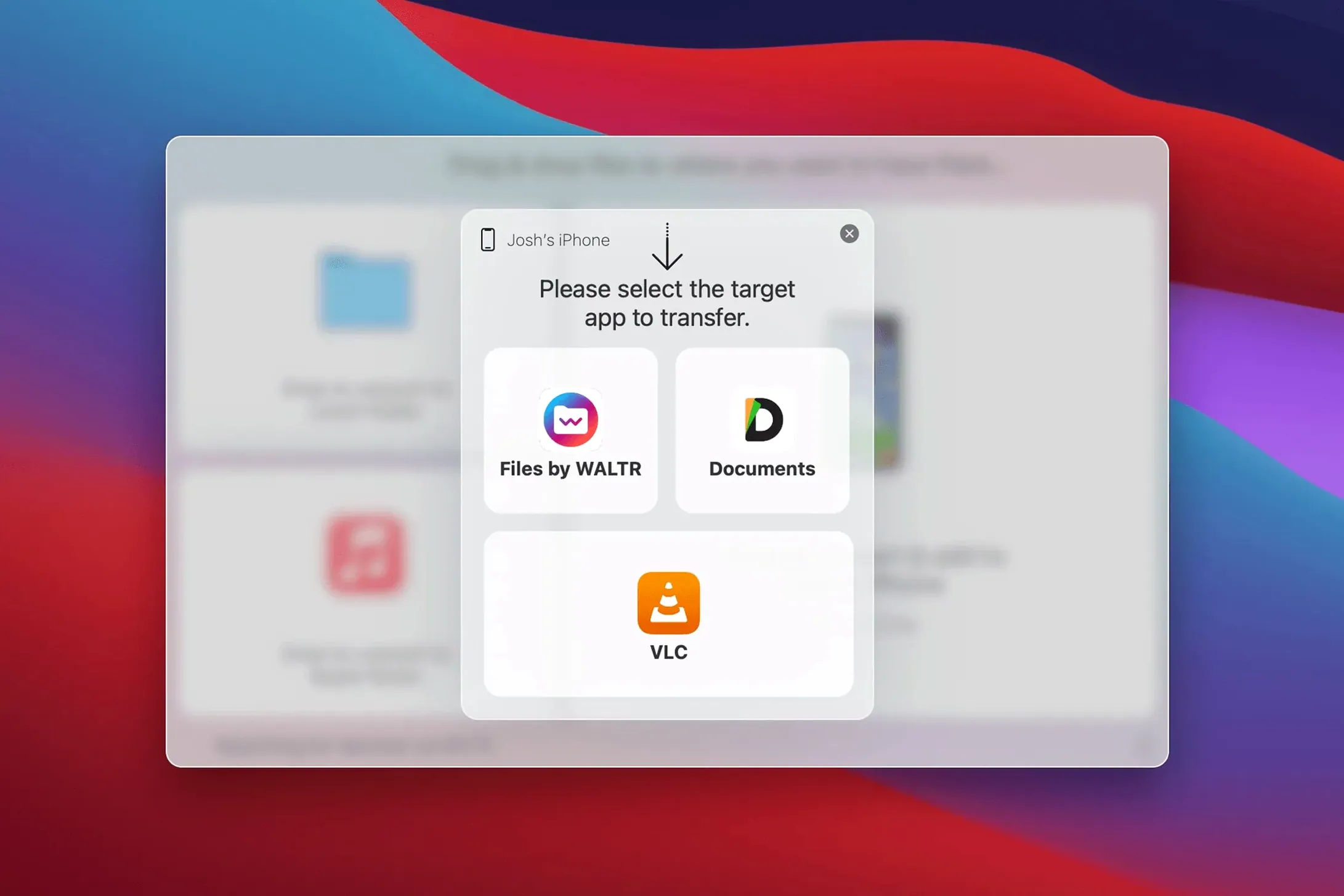
WALTR PRO is a Mac utility that places media files directly onto an iPhone or iPad for playback in the native Music and Movies apps. Before installing, people tend to ask three practical questions: what formats it handles, how the connection works, and what the setup involves.
| Detail | Note |
|---|---|
| Current version | 4.0.122 |
| Architecture | Intel and Apple silicon |
| Minimum macOS | 10.13 |
Softorino designed the app to accept files that iOS normally rejects. Alongside MP3, MP4, AAC, and M4A, it reads MKV, AVI, FLAC, and CUE, converting them on the fly so they appear in the library without iTunes or Finder sync. Transfer runs over Wi-Fi once the device is recognised, which removes the need for a cable after the first connection. The result is that a FLAC album or an MKV video lands in the stock Music or Movies app as if it had been purchased there, with artwork and metadata preserved where possible.
When your device just says 'waiting'
A few sticking points crop up often enough to mention. The first is device recognition. If WALTR PRO sits idle with a 'waiting for device' message, the fix is usually simple: unlock the iOS device and tap 'Trust' when the dialogue appears. Without that tap, the Mac and the phone never complete the handshake. On older iPods, enabling 'Enable disk use' in Finder or iTunes sometimes nudges the connection along.
Another snag involves metadata. An MKV file might arrive with no artwork or a generic title. The reason is usually that the source file itself carries incomplete tags. Softorino's converter pulls what it can from the container, but a file ripped without embedded metadata will show up bare in the Music or Movies app. The workaround is to tag the file beforehand with a tool like Meta or Kid3, then drop it into WALTR PRO — the app reads the tags at the moment of transfer.
CUE files paired with a single long audio file cause a different kind of confusion. If the CUE sheet references a filename that does not match the audio file exactly, the split fails. Renaming both files so the CUE's FILE line points to the correct name — and keeping them in the same folder — solves it. WALTR PRO interprets the CUE on arrival, so the preparation matters before the drag.
Wireless transfers can stall on congested networks. If the progress bar freezes, toggling Wi-Fi off and on again on the Mac often resets the link. In rare cases, switching the iOS device to a 2.4 GHz network when the Mac is on 5 GHz — or vice versa — clears the bottleneck. The app does not mention this, but the transfer protocol relies on a stable local path between the two devices, and mixed-band routers sometimes confuse that path.
Plug in via USB first to lock in the trust
The initial launch presents a plain window and a prompt to connect a device. A sensible first move is to plug the iPhone or iPad in via USB for the inaugural transfer. Doing so establishes the pairing and lets the Wi-Fi connection register without the variables of wireless discovery. After that single cabled session, every subsequent transfer can run wirelessly.
Next, create a dedicated folder for inbound media. A folder named For WALTR on the desktop works well: drag a few test files there — one MP3, one FLAC album folder, one MKV — and feed them in one by one. This reveals how each format behaves before committing a large library. The MKV test is especially useful because it confirms whether the video's audio stream is AAC or something more exotic; WALTR PRO handles most codecs but sometimes remuxes rather than re-encodes, and a quick playback check on the device catches any silent videos early.
Another early habit worth forming is setting the iOS device to 'Show Apple Music' off in Settings > Music if the library is entirely local. WALTR PRO puts files into the on-device library, and a cluttered Apple Music cloud view can make transferred albums harder to spot. The local library stays tidy and the new additions sit at the top.
Check the 'Recently Added' section in the Music or Movies app after each batch. If an album appears split into two entries, the CUE file or the source tagging likely needs attention. Catching that on a small batch saves redoing a larger transfer later.
Owning a FLAC library that Apple won't touch
Three groups find WALTR PRO especially useful. The first is anyone with a FLAC library. Apple's ecosystem still treats FLAC as an outsider format — Apple Music on Mac plays it, but iOS does not accept it directly, and Finder sync will not convert it. Dragging a folder of FLAC albums into WALTR PRO and watching them land on an iPhone as playable tracks, with artwork intact, solves a long-standing gap without touching a transcoder first.
The second group is video collectors who keep files in MKV containers. HandBrake batch-conversion is powerful but slow, and the output often needs manual metadata work. WALTR PRO removes that step: an MKV file dropped onto the app arrives on the iPad as a native video, ready in the TV or Movies app. The conversion happens during the wireless transfer, so the Mac stays usable throughout.
The third group is people who keep an older iPod in service. The app recognises the original iPod Classic — a device that iTunes still syncs but that typically demands a specific format. Loading it with AVI files or CUE-split albums without pre-conversion keeps the old hardware fed with new media, and the USB-only connection on those iPods means the transfer is reliably fast.
There is also a smaller niche: ringtone makers. The M4R format support means a short audio clip trimmed elsewhere and saved as M4R drops straight into the iPhone's ringtone list. No iTunes wizard, no renaming trick — just a drag and a few seconds of Wi-Fi transfer.
Loading a fresh FLAC album over Wi‑Fi on a Saturday
Imagine a Saturday morning. The Mac is already on, running WALTR PRO 4.0.122 in the background. An iPhone 13 sits on the desk, unlocked, on the same home Wi-Fi network. The goal is to load a newly acquired FLAC album, a single MP3 track from a friend, and two episodes of a show in MKV format.
First, the FLAC folder. It is dragged from the desktop onto the WALTR PRO window. The app flashes a brief 'converting' label, then shows a progress bar for the transfer. On the iPhone, the Music app — already open — refreshes within seconds. The album appears under 'Recently Added', cover art in place, each track numbered correctly. The metadata came from the embedded FLAC tags.
Next, the MP3. A simple drag, no conversion needed. WALTR PRO sends it raw. The track joins the same 'Recently Added' list. The whole thing takes perhaps four seconds.
Then the two MKV files. Both are dropped at once. The app queues them, converts the first, transfers it, then moves to the second. The Mac's fan stays quiet — the encoding load is moderate. On the iPad, the TV app now shows the two episodes, complete with titles pulled from the MKV headers. Tapping one starts playback immediately, with subtitles available if they were muxed into the file. The whole session, from first drag to watching the opening scene of the episode, takes under three minutes for four media items.
The process feels less like managing files and more like handing objects across a table. That simplicity is the point: no cables, no separate converter, no manual library refresh. The iPhone simply gains the media, and the Music and TV apps behave as if the files had always belonged there.