Aspecten
 Download (4 MB)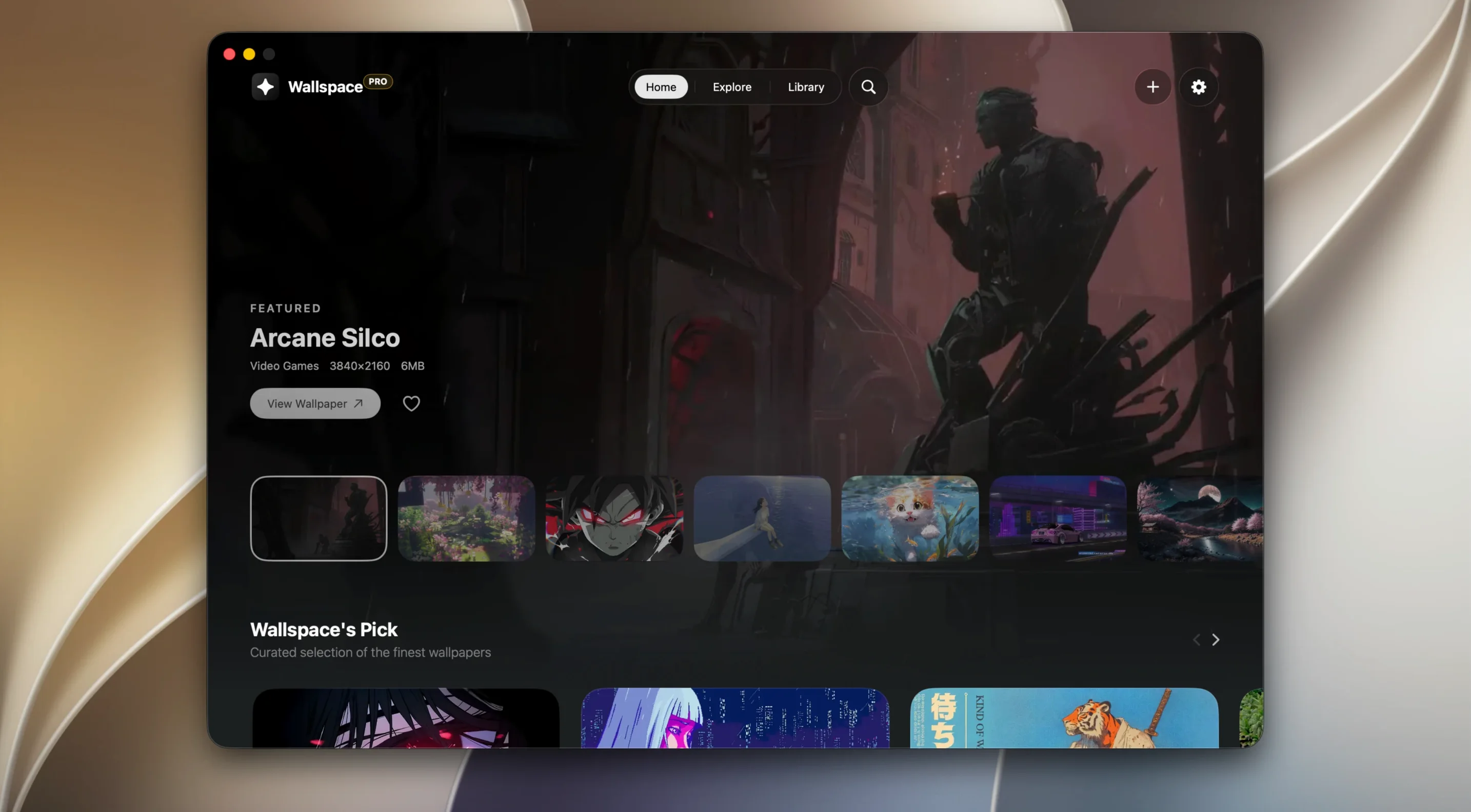
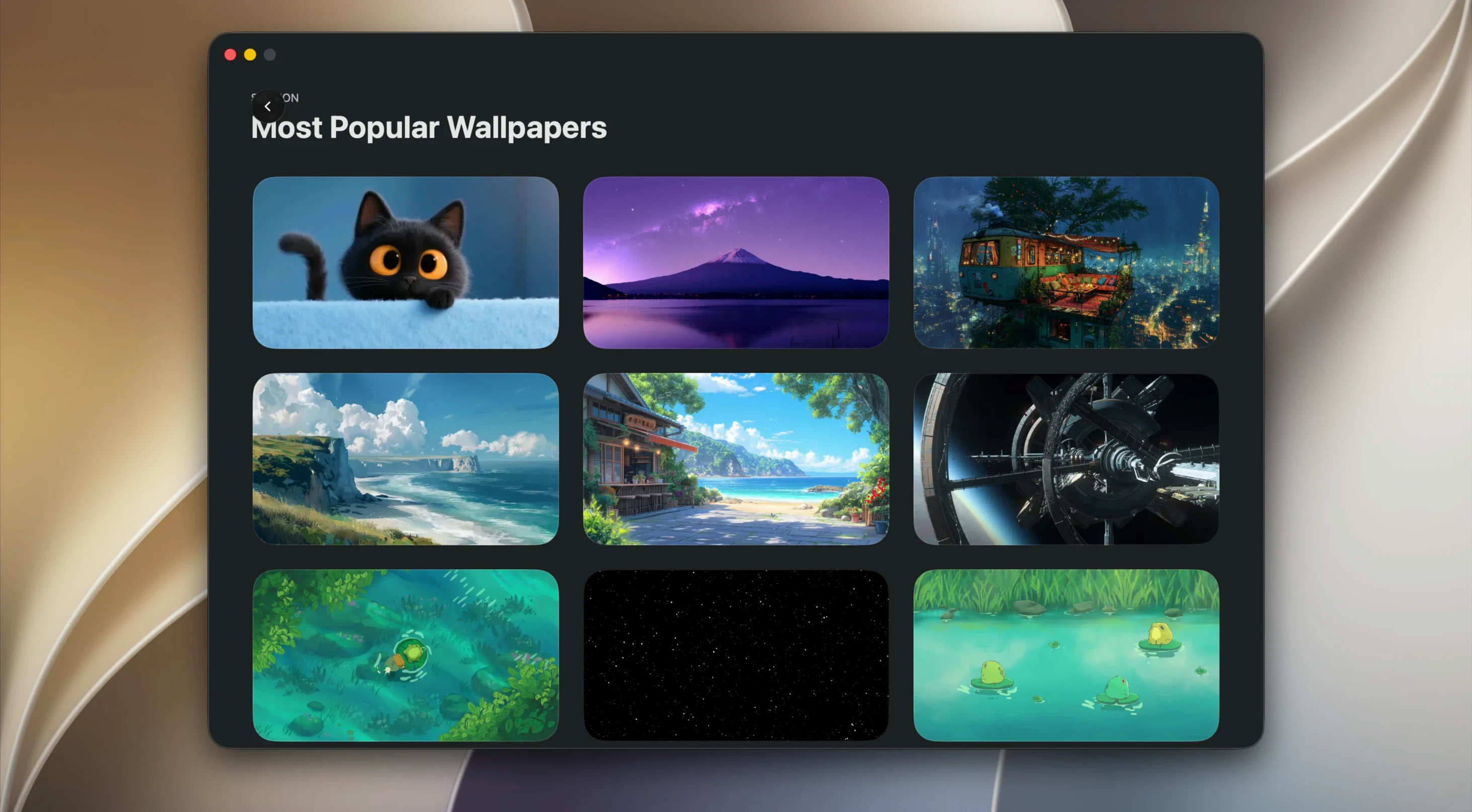
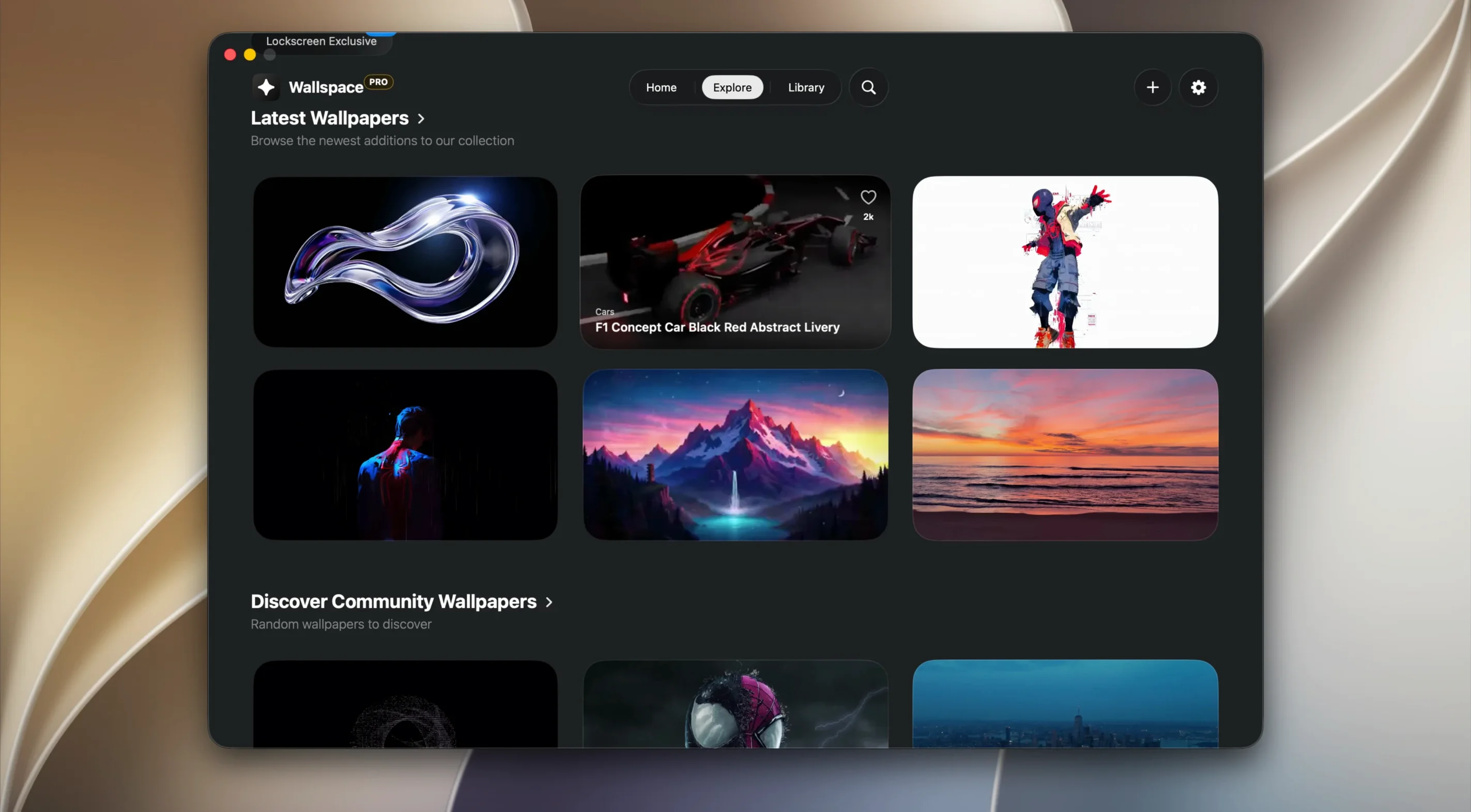
A static desktop background can feel at odds with a machine that does so much at once. Wallspace tries to close that gap by letting you set video files as live wallpapers on both the desktop and the lock screen, without leaning on a web-based engine.
Does it choke your Mac while you work
- Does it slow the Mac down when other apps are busy? The developer states background CPU use sits under 2%, and the app can pause playback automatically on battery power or during intensive tasks.
- Can I use my own video files? Yes. An MP4 file can be set as a wallpaper directly, with no conversion step required.
- Will it work with more than one display? The app supports separate wallpapers for each connected screen.
- Is an account needed? No login or account creation is required to use the app.
- How does it find new wallpapers? An AI search lets you describe a mood, scene or style to locate matching options.
Runs on native playback, not a web wrapper
Wallspace uses native macOS video playback rather than a web wrapper, which helps it stay light. It requires macOS 15 or later and runs on Apple Silicon Macs. After copying the app to the Applications folder, you launch it from Launchpad like any other piece of software.
Wallpaper survives after you quit the app
Several touches sit just below the surface and are worth knowing about. The app does not need to stay open in the foreground once you have set a wallpaper. You can quit Wallspace entirely and the video keeps playing on the desktop. It only needs to run when you want to change the background or adjust a setting.
Dragging an MP4 file from Finder directly onto the Wallspace window sets it as the current wallpaper immediately, bypassing the library browser. The same works for files dragged onto the menu bar icon if you have enabled it.
A small detail that saves time: the AI search field accepts natural phrases like “mist over a lake at dawn” or “abstract geometric slow motion” and returns results without requiring tags or categories to be browsed. Typing a vague mood usually surfaces something usable within the first few rows.
On multi-display setups, holding the Option key while clicking a wallpaper sets it for all connected screens at once. Without the key, the change applies only to the active display. This is not labelled in the interface, but it works consistently.
Stretched video on an odd-shaped display
One recurring issue is a video that plays but appears stretched or cropped on a display with an unusual aspect ratio. The fix is to select the same wallpaper again after opening the Scaling popover, switching from “Fill” to “Fit” or “Centre”. The change sticks per display, so ultrawide monitors can have one behaviour while the built-in screen uses another.
If a wallpaper does not appear on the lock screen, check that the Lock Screen toggle is switched on for that wallpaper. The setting is per-wallpaper, not global. A common oversight is setting the desktop version, assuming the lock screen follows automatically — it does not.
When the app seems to use more CPU than expected, the culprit is usually a very high-bitrate MP4 file. Re-encoding the video with a lower bitrate using a tool like HandBrake brings resource use back down. The app does not warn about unusually large files, so it is worth checking if you notice fan activity.
Setting up a dual-display workspace with custom videos
Imagine a setup with a MacBook Pro and an external 4K display. The goal is a calm, slow-moving scene on the larger screen and a functional, darker video on the laptop display. Here is a start-to-finish workflow using only local MP4 files.
- Download two MP4 files. For the external display, a long take of clouds moving over hills. For the laptop, a dark abstract loop with minimal motion. The widely shared wallspace for mac free download search leads to the installer that makes this setup possible, though the videos themselves can come from any source.
- Open the downloaded disk image and drag Wallspace to Applications. Launch it from Launchpad.
- In the Wallspace library, click the Plus button and select the cloud video from Finder. Repeat for the dark abstract file. Both now appear in your local collection.
- Click the external display in the display selector at the top of the window — Wallspace shows which screen is active. Select the cloud video and confirm the Scaling is set to “Fill”. Toggle Lock Screen off for this one if you prefer a static lock screen later.
- Switch to the laptop display via the selector. Set the dark abstract video. Enable Lock Screen if you want the same video to carry over when the Mac locks. Choose “Fit” under Scaling if the loop’s resolution does not match the laptop’s native aspect ratio.
- Quit Wallspace. Both screens continue playing their assigned videos. The pause-on-battery setting can be turned on in preferences if you want playback to stop when unplugged.
Later, if you want the same scene across both screens, hold Option while clicking either wallpaper. That single action synchronises them, and the lock screen setting from the clicked wallpaper propagates. Switching back to independent wallpapers requires setting each display individually again.
Experimenting with the AI search can surface curated alternatives if the local files do not suit the space. A search like “fog rolling through pines” often returns subdued, slow-motion options from the built-in 4K library that blend well with a working environment. Those who download wallspace specifically for its search tool tend to use it as a discovery layer first and add personal videos later.