Aspecten
 Download (479 MB)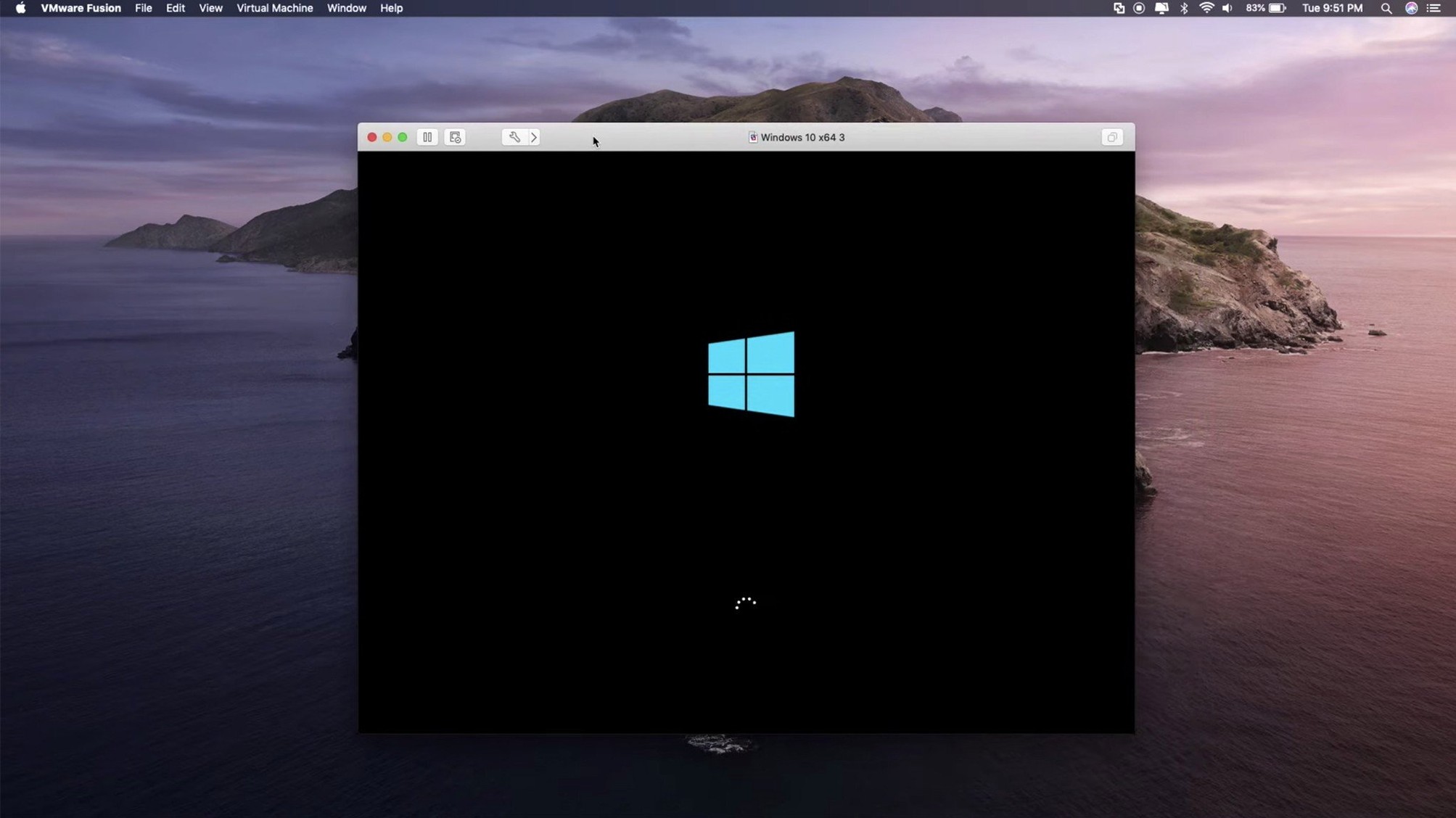
Six fresh guest operating systems arrive in the 26H1 update, from Fedora 44 to the long-term-support Ubuntu 26.04 LTS. Fusion Pro sits on a Mac as a quiet workhorse, running virtual machines that feel native enough to share folders, clipboards and network connections with macOS. Rather than replacing the tools you already use, it adds a layer underneath them — a place to spin up a development environment, open a Windows-only utility or test a deployment without leaving the Mac desktop.
- Local Kubernetes clusters — create and manage clusters for development or testing without an external cloud service, keeping the entire workflow on one machine.
- OCI container support — a command-line interface lets you pull and run OCI containers directly, bridging virtual machines and containerised workloads in the same tool.
- Broad Linux guest catalogue — recent additions include Fedora 43, SUSE Linux Enterprise 16, openSUSE 16.0 and FreeBSD 15.0, so the distribution you standardise on at work is likely present.
- ARM ESX remote connections — connect to ARM-based ESX hosts, useful for teams running mixed-architecture data centres or evaluating ARM server workloads from a Mac.
- Shared clipboard and drag-and-drop — move files and text between macOS and a guest VM without intermediate steps, keeping a multi-OS desk feeling like one machine.
Fusion Pro fits into a setup that already includes Xcode, Homebrew or a terminal multiplexer by handling the operating systems those tools do not reach. A developer can run a Linux build server in a window while testing the result on macOS, or keep a clean Windows install solely for Visio files, with no reboot and no second computer on the desk.
A support technician’s Wednesday morning
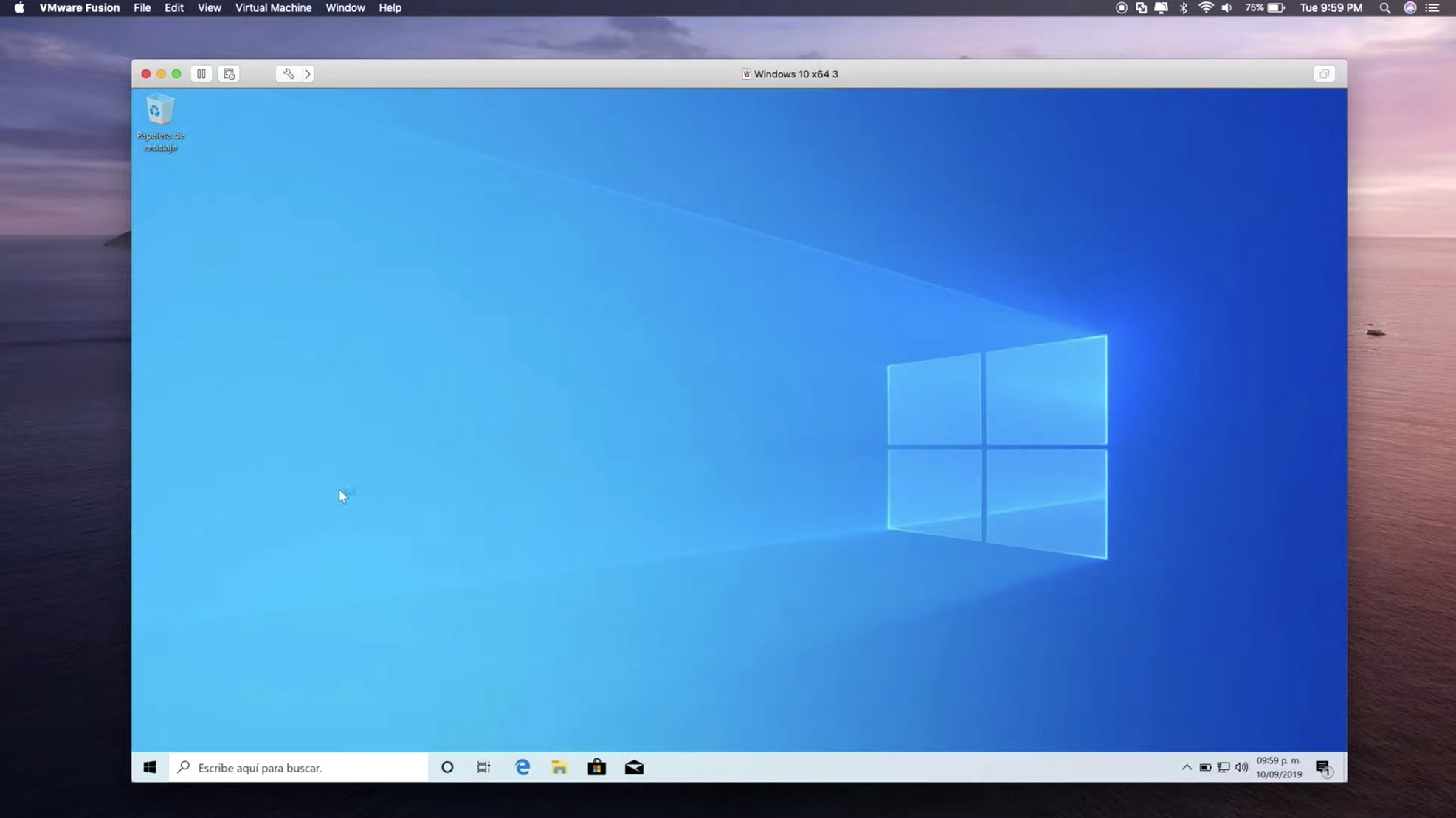
A field technician arrives at a small accountancy firm that runs Macs across the office but still relies on a Windows-only payroll application. One Mac has VMware Fusion Pro with a Windows 10 virtual machine pinned to the desktop. The technician opens the VM, checks that USB passthrough recognises the security key fob plugged into a Thunderbolt hub, and runs a month-end reconciliation while the firm’s bookkeeper watches. The virtual machine creation timestamp, new in 26H1, confirms the image was built three months ago and last powered on that morning — a small audit trail detail that helps when several staff share the same Mac. By lunchtime the payroll run is done, the VM is suspended, and the Mac carries on with its usual Safari and Mail duties. No second machine, no remote desktop lag, and no explaining to the accountant why Windows needed an update mid-task.
Three-browser testing fix when clipboard sharing breaks
Windows 11 refuses to install on an Apple Silicon Mac
The Windows 11 installer checks for a TPM 2.0 module by default. Fusion Pro on Apple Silicon does not expose a virtual TPM, so the installer halts. The workaround is to create the VM, start the Windows installer, press Shift+F10 to open a command prompt, launch regedit, and add the LabConfig registry keys that bypass TPM, Secure Boot and RAM checks. The installation then proceeds normally. Microsoft documents this path, though it is not the default.
Shared folders stop working after a macOS update
Major macOS updates occasionally reset kernel extension permissions. When a shared folder appears as a disconnected network drive inside the guest, open System Settings > Privacy & Security on the Mac and check that VMware Fusion appears under allowed extensions. A restart of the VM usually restores the mount. If not, reinstall VMware Tools from the Fusion menu — the installer replaces any driver components that the macOS update removed.
USB device not recognised in the guest
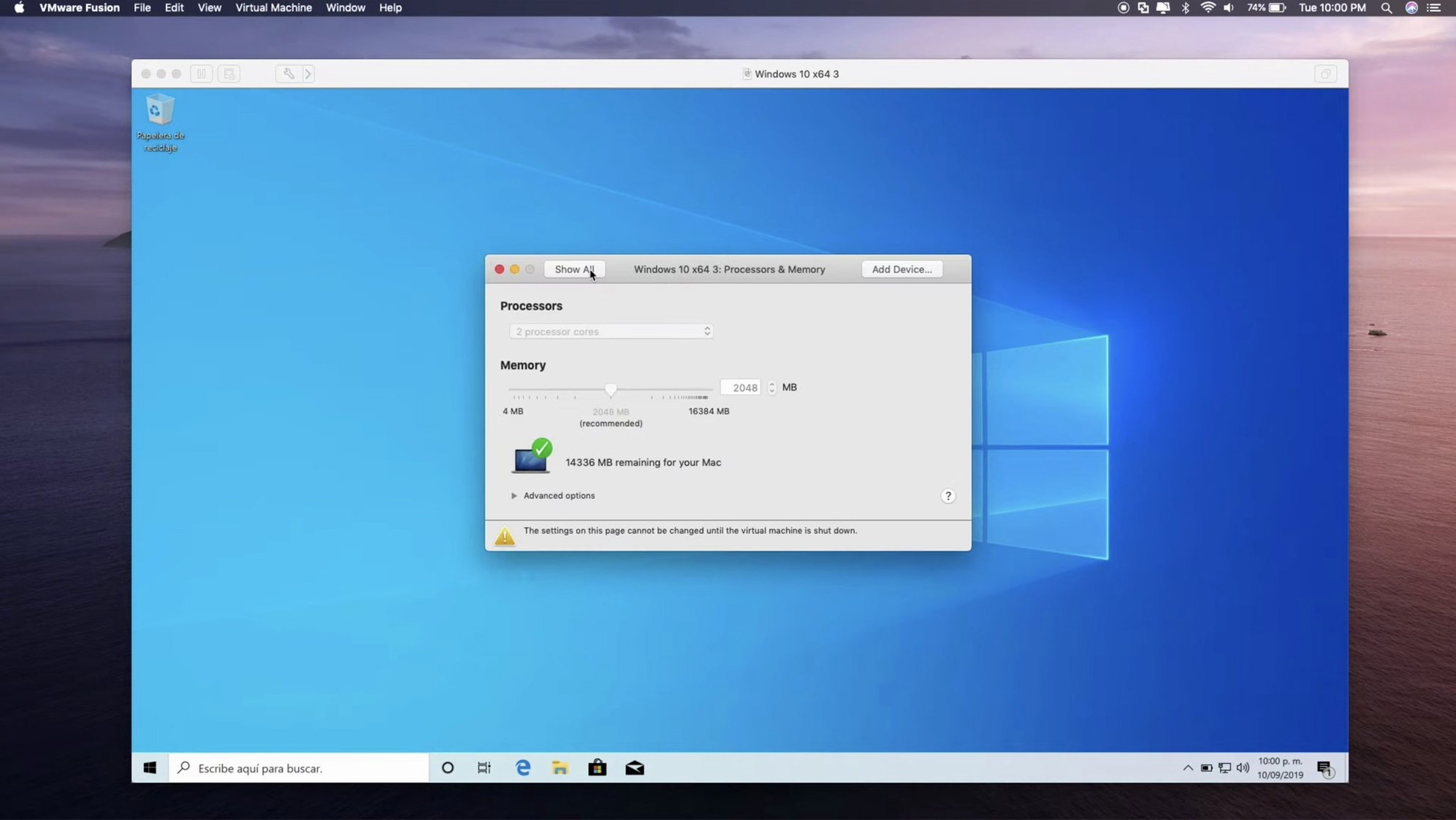
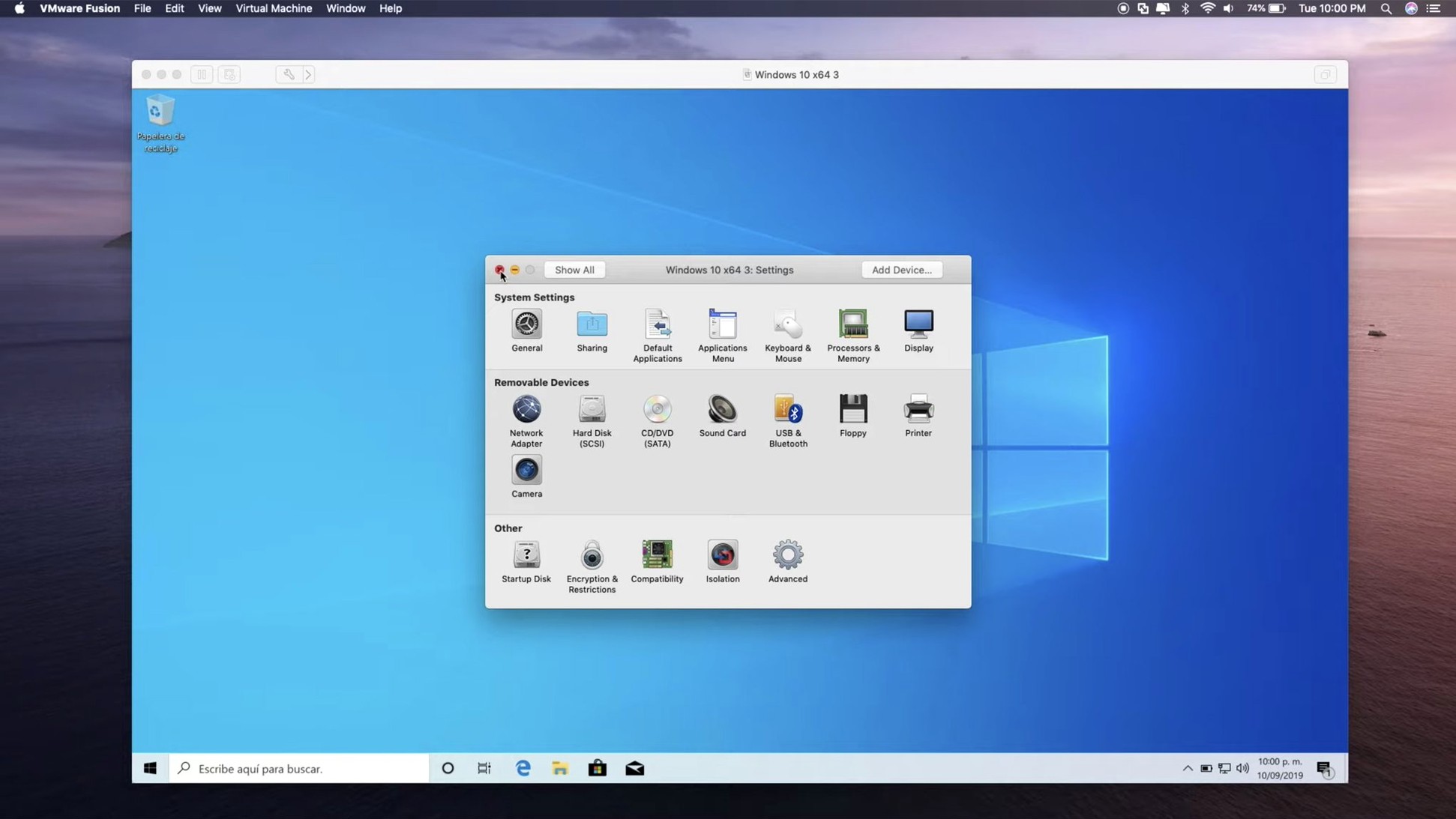
A USB 3.1 device plugged into the Mac may not show up in the virtual machine if the host claims it first. The fix is to open Virtual Machine > USB & Bluetooth and select the device manually to switch ownership to the guest. For devices that need to connect before the guest boots — a licence dongle, for example — tick the Connect to this virtual machine checkbox in the USB settings panel so the handover happens during startup.
Verifying a web app across three browsers on Windows 11
A tester needs to verify that a web application behaves correctly across three browsers on Windows 11, all while keeping the macOS development environment running. The session starts at nine in the morning.
The Mac already has a Windows 11 VM in a suspended state from the day before. A double-click on the .vmwarevm bundle and the VM resumes in under ten seconds — desktop exactly as it was, browsers still open. The tester copies a set of test URLs from a macOS Notes window and pastes them directly into the Windows VM’s Notepad using the shared clipboard. No network transfer, no USB stick.
With the URLs ready, the tester opens Edge, Chrome and Firefox inside the VM, arranges them side by side on a separate virtual desktop, and runs through the test matrix. A misbehaving layout in Edge gets a screenshot saved to the Windows desktop; that screenshot is then dragged across to the macOS Finder via drag-and-drop, landing in a folder shared with the bug-tracking tool. The whole operation takes twenty minutes.
Mid-session, the tester needs to pull a new Docker image for a related API. Rather than boot a separate Linux VM, they open a macOS Terminal, use the vmrun utility to run an OCI container command through Fusion’s command-line interface, and have the container running alongside the Windows guest without touching the virtual machine’s resources. The Windows VM stays responsive throughout.
By ten o’clock the test results are written up, the VM is suspended again, and the Mac’s memory is fully returned to the host. The entire session happened without a reboot, without cloud VMs, and without leaving the desk.
How Fusion Pro compares with similar Mac apps
Parallels Desktop focuses on making Windows feel transparent on a Mac — Coherence mode blends Windows application windows directly into the macOS desktop, and the setup wizard downloads and installs Windows with a few clicks. That integration comes at the cost of some lower-level controls. Fusion Pro, by contrast, leaves the guest inside its own window by default and exposes more virtual hardware knobs: vCPU topology, virtual networking modes, and explicit USB controller types. Someone who wants Windows to disappear into macOS will lean toward Parallels; someone who builds and tears down lab environments regularly will find Fusion’s interface less obstructive to that work.
UTM takes a different approach entirely. Built on QEMU, it runs on both iOS and macOS, supports emulation of non-native architectures, and is published as an open-source application. It handles ARM Windows and legacy PowerPC operating systems with patience rather than speed. Fusion Pro runs only on Intel and Apple Silicon Macs and does not emulate foreign CPU architectures — it virtualises what the hardware already runs. For quick, throwaway VMs or running old macOS builds on an iPad, UTM fits. For daily-driver Windows 11 with DirectX 11 acceleration, Fusion’s graphics stack is noticeably smoother.
VirtualBox matches Fusion’s broad guest OS catalogue and adds a cross-platform footprint that spans macOS, Windows and Linux hosts. Its snapshot and cloning system is mature, and the extension pack adds USB 2.0 and 3.0 support. Where VirtualBox can feel sluggish under graphics load, Fusion Pro’s DirectX 11 support and eGPU compatibility give Windows guests a more responsive desktop — dragging windows, scrolling web pages and rendering CAD viewports all benefit. VirtualBox suits a multi-host lab where consistency across operating systems matters more than per-pixel performance. Fusion Pro suits a Mac-centric desk where the virtual machine needs to feel like local hardware.