Aspecten
 Download (124 MB)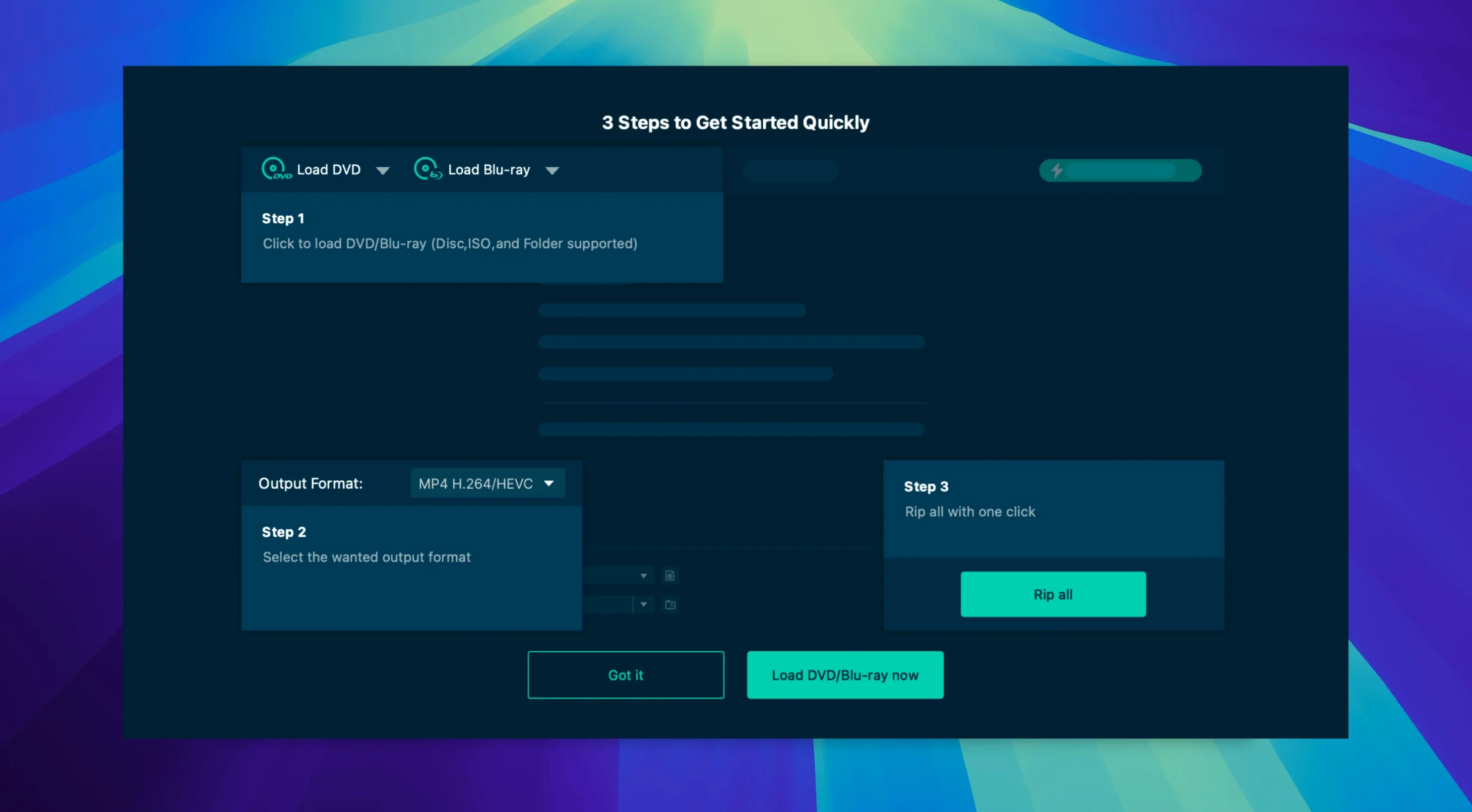
VideoByte BD-DVD Ripper 2.1.6 is a utility for converting optical media and disc images into playable digital files.
Intel code on Apple Silicon through Rosetta 2
The software requires macOS 10.10 (Yosemite) or later, but it is built solely for Intel processors. It will run on Apple Silicon Macs only through Rosetta 2 translation, which is not listed as officially supported by the developer. The application opens from the Applications folder after you mount the disk image and complete a Gatekeeper-related launch step.
Which copy protections can it handle?
The app can remove commercial disc encryptions including CSS, AACS, BD+, Cinavia, APS, and CPRM. That covers most standard Blu-ray and DVD protections you will encounter on store-bought discs.
What source formats are supported?
You can load a physical Blu-ray or DVD disc, a BDMV folder, a VIDEO_TS folder, or a disc image in ISO format. The converter preserves original audio tracks and subtitle streams during processing.
What output options do I get?
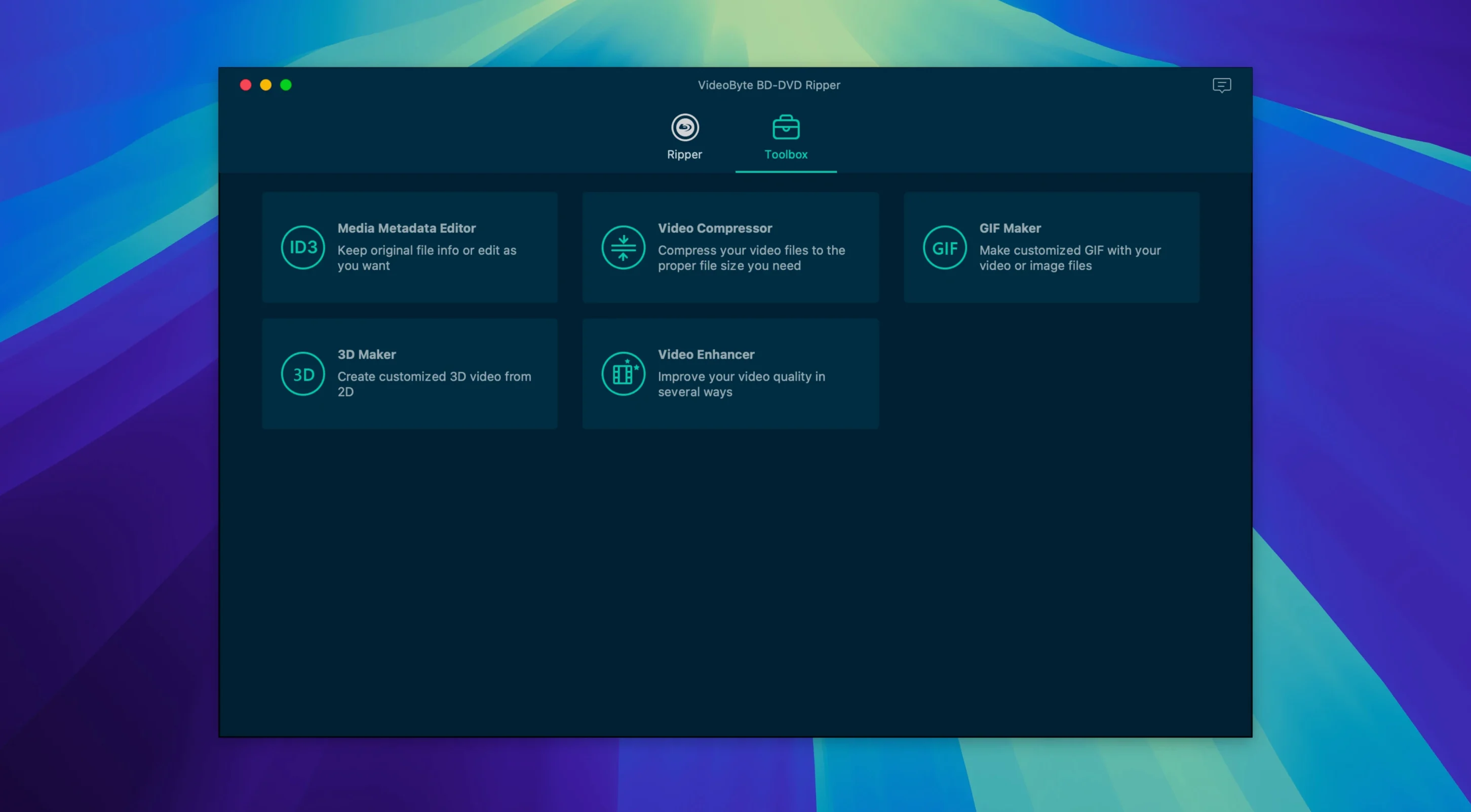
The app advertises more than 300 video and audio output formats. It includes ready-made device profiles for Apple, Samsung, and Sony hardware, alongside editing tools for trimming, rotating, cropping, watermarking, and applying effects or filters. The interface is available in English, German, French, and Japanese.
GPU acceleration shortens conversion times
On an Intel Mac with a dedicated GPU, the application leans on hardware acceleration from NVIDIA, Intel, or AMD when it is available. That shortens conversion times noticeably. A full Blu-ray rip to H.264 MP4 with the default bit rate finishes in roughly the time it takes to play the film back at 1× speed — sometimes faster on a machine with a recent discrete graphics card. DVD-to-MKV conversions are quicker still, rarely exceeding twenty minutes for a feature-length title.
Memory use stays modest. During a long conversion session with two discs queued one after the other, the process hovered around 400–600 MB of RAM. The CPU graph showed consistent, high utilisation across all cores while encoding was active, but the system remained responsive for light tasks such as web browsing or text editing. Idle memory pressure stayed green throughout. The application does not spawn background helpers after quitting; once you close the window, resource use drops to zero.
Stability is unremarkable in the best sense. Across a dozen discs — a mix of region-free Blu-rays, region-locked DVDs, and one scratched rental disc — the app completed every job without a hang or a crash. The only hiccup came from a disc with a deep circular scratch near the outer edge. The drive retried for several minutes before the app reported a read error and stopped the job cleanly, rather than locking up or producing a corrupt output file.
Workflow: ripping a TV series DVD to iPad-friendly files
Suppose you have a six-episode DVD set of a British comedy series. Each episode sits in its own title on the disc, and you want individual MP4 files with hard-coded English subtitles for an iPad.
After inserting the disc and letting the drive spin up, you open VideoByte BD-DVD Ripper. The disc loads and the title list appears within a few seconds. You select the first episode title — usually the longest runtime after the main feature — and set the output format to the iPad profile under the Apple device presets. That profile locks the resolution to 1024×576, H.264 video, and AAC stereo audio at a sensible bit rate.
Next, you open the subtitle settings. The app lists all subtitle tracks found on the disc. You pick the English track and tick the option to burn the subtitles directly into the picture. A quick preview in the trim window confirms the sync is correct for the first few lines of dialogue.
You then click the scissors icon to open the trim tool. The episode runs 29 minutes, but the last ninety seconds are closing credits you do not need. You drag the end marker left to cut just after the final scene, leaving a 27-minute file. No cropping or rotation is required for this 16:9 source, so you skip those panels.
You repeat the title selection and trim steps for the remaining five episodes, queuing all six in the conversion list. The output folder is set to a directory on an external SSD. With hardware acceleration enabled, the batch processes in roughly thirty-five minutes. Each file lands correctly named, properly trimmed, and with subtitles burned in and readable on the iPad screen.
Blu-ray title list populates in about eight seconds
The disc drawer slides shut with a soft clunk. VideoByte BD-DVD Ripper is already open, and the disc icon appears in the source pane after a short read cycle — perhaps eight seconds for a clean Blu-ray. The title list populates: the main feature at 1 hour 52 minutes, a handful of short extras, and a director's commentary track shown as a secondary audio option.
You select the main title and set the output to MKV with the Matroska container, keeping the original DTS-HD audio and the English subtitle track as a soft stream rather than burning it in. The resolution is left at 1080p, no cropping, no filters. On a 2019 iMac with a Radeon Pro 580X, the conversion starts and the progress bar moves steadily. The estimated time remaining reads 48 minutes and ticks down accurately. The fan becomes audible after ten minutes but never ramps to full speed.
While the rip runs, you open the extras tab and queue up two short featurettes, each set to a lower-bit-rate MP4 profile for a phone. The queue panel shows three jobs lined up. The app processes them in order, and the log area reports each completed step without flooding the screen. When the last file finishes, a system notification chimes. You eject the disc, rename the output files with meaningful titles in the Finder, and add them to your media library. The whole session — from inserting the disc to filing the finished files — takes under an hour.
Standard containers play immediately in QuickTime
The output files are standard video containers — MP4, MKV, MOV — that need no special treatment. They play immediately in QuickTime Player, VLC, or IINA. Dropping a converted MKV into Subler lets you add metadata, chapter markers, and additional subtitle tracks before importing into a library. The files index correctly in Plex and Infuse without manual renaming when you follow a sensible naming convention during output.
Finder integration is straightforward. The app remembers the last output folder you set, and you can change it per job. A right-click on a completed file in the job list reveals a "Show in Finder" command, which opens the enclosing folder. The app does not register itself as a default handler for any file type, so your existing media associations remain untouched.
On the automation side, the application does not offer AppleScript support or a command-line interface. You cannot trigger a rip from a shell script or a Shortcut. However, the batch queue works well enough that you rarely need external orchestration; you load a stack of discs one after the other, build the queue, and let it run. For users who keep a ripping station Mac that handles only disc conversion, the app sits neatly alongside MakeMKV and HandBrake without conflicting — each reads from the same optical drive without issue, as long as you run them one at a time.
The app also coexists with macOS's built-in screen recording and media tools. A converted video can be pulled into iMovie for further editing, or into Keynote as a slide element, without format friction. Audio-only rips to AAC or MP3 land in the Music app without extra transcoding. The ripper does not try to replace any part of the system media pipeline; it produces standard files and steps aside.