Aspecten
 Download (45 MB)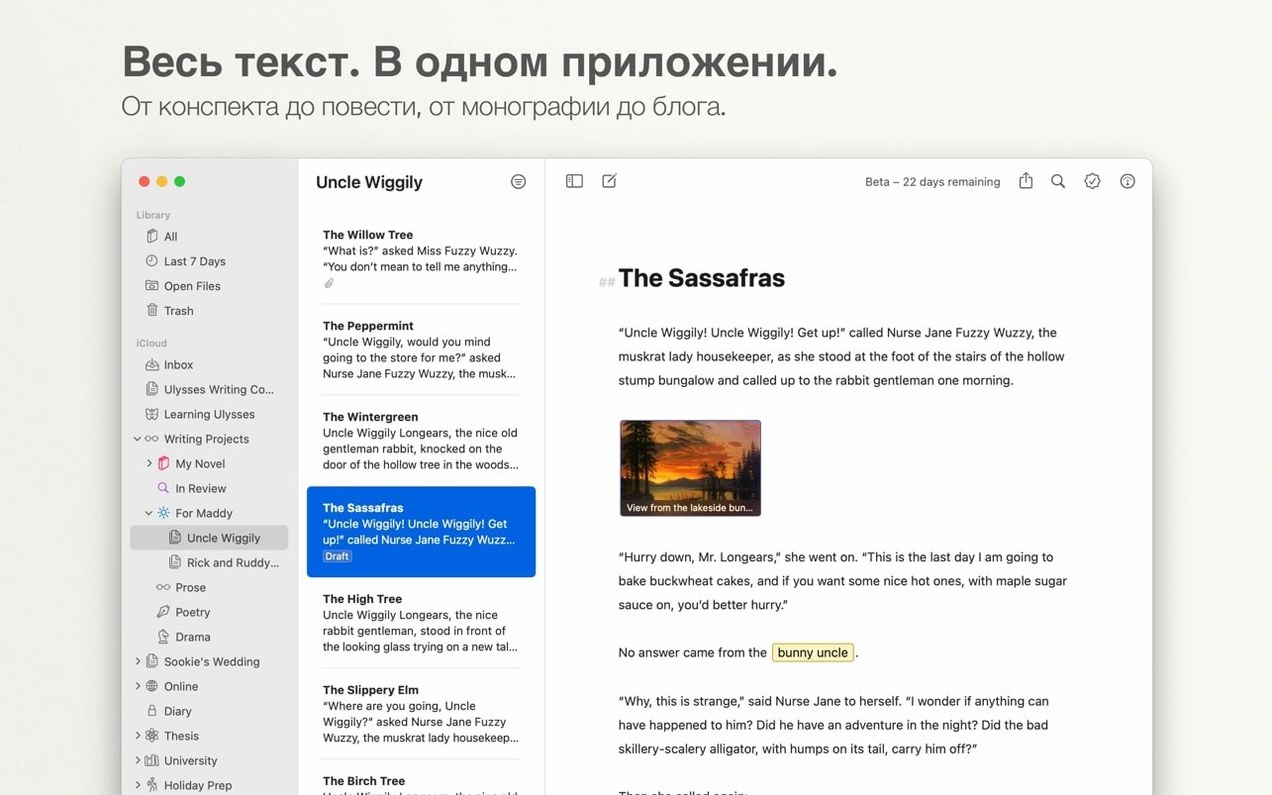
Ulysses stores everything in plain text, using Markdown for formatting. There is no separate preview window — headings, bold text, and links appear styled as you type, but the underlying file remains a clean .txt or .md document. The library organises sheets into groups, and every change saves automatically. You never see a save dialogue.
Syncing runs through iCloud. All your sheets and groups stay current across a Mac, iPad, and iPhone without manual transfers. The interface on macOS 13 or later feels native on both Apple Silicon and Intel machines. Localisation covers twelve languages, among them German, Japanese, Russian, and Simplified Chinese.
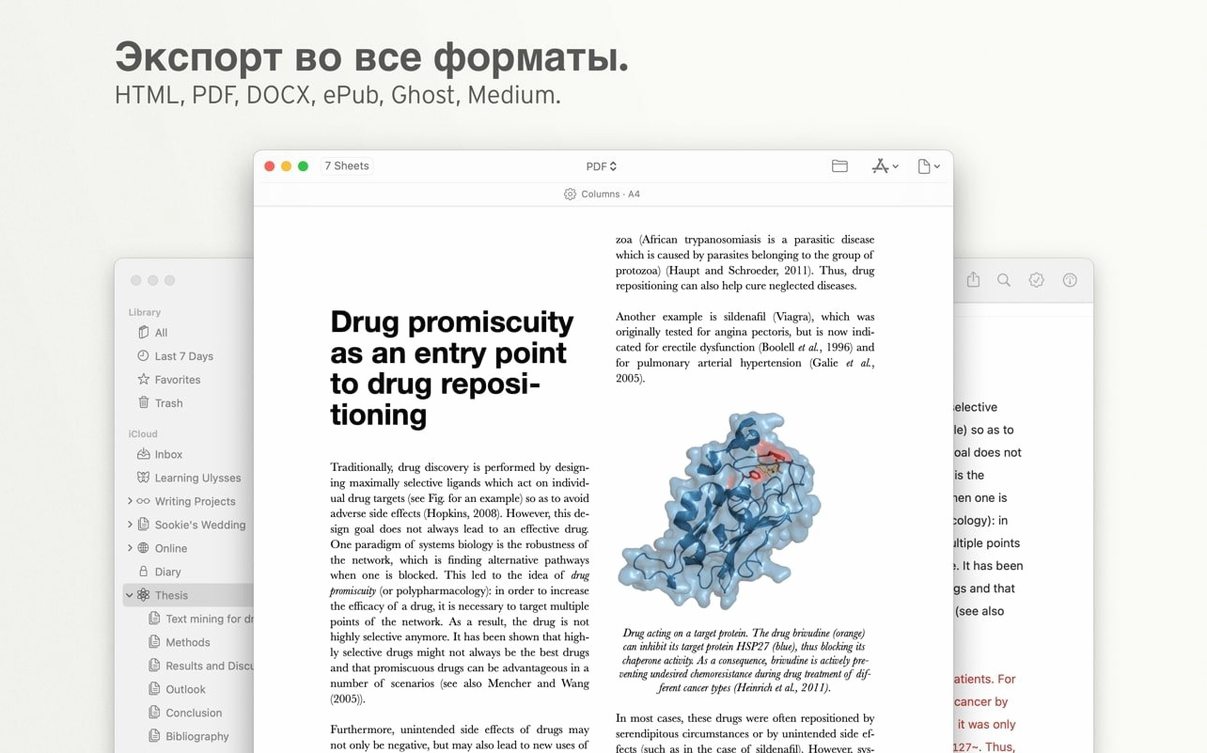
Export options include PDF and plain-text formats. Publishing is built in for WordPress and Medium. You connect a blog, add a title and tags, and send the post without leaving the app. There is no HTML wrangling — Ulysses translates the Markdown during upload.
A few things to keep in mind: the library is a single database rather than a folder of loose files on disk, so you cannot browse your sheets in Finder. And while Markdown support is solid, collaborative editing and in-line comments are absent — this is a tool for solo long-form work, not shared drafts.
Long-form writers who draft in a single flow
Writers who produce long-form work in a single, uninterrupted flow get the greatest return from Ulysses. The combination of plain-text storage, a unified library, and a typing-forward interface suits anyone who drafts articles, essays, book chapters, or documentation without needing to stop for layout decisions. The app rewards users who commit to its internal organisation rather than spreading files across Finder folders.
Students gain from the automatic save and iCloud sync. A research note added on an iPad appears on the Mac without a manual push, and the group structure can mirror a semester’s subjects. The export-to-PDF path is practical for submitting assignments, and the Word export covers formatting requirements from university templates.
Bloggers with active WordPress or Medium accounts get a streamlined publish flow. Rather than composing in a text editor, pasting into a browser, and fixing formatting, they can write, add tags, set a featured image, and publish inside one app. Editors who handle multiple blogs find the connection manager a time-saver, though the app remains single-user — there is no editorial queue or multi-author pipeline.
Markdown-curious users who want to learn the syntax without seeing raw markup benefit from the styled-as-you-type approach. Headings, links, and images render in-line, which flattens the learning curve. Programmers and technical writers who already write Markdown for documentation feel at home but might miss a raw-text view for precise formatting checks.
iCloud-only sync with Handoff support
Ulysses leans on iCloud as its sync backbone. There is no Dropbox or Google Drive layer — every sheet lives inside the app’s iCloud container. On a Mac with iCloud Drive enabled, the library updates in near real time. Handoff works between the Mac app and the iOS version: a sheet open on an iPad shows its icon in the Mac’s Dock, and switching is quick.
For export workflows, Ulysses hands off to other apps through the share sheet and the standard macOS print-to-PDF pipeline. A finished draft exported as a Word document opens in Pages or Microsoft Word without extra conversion. The plain-text exports slot into Obsidian, Bear, or any editor that reads Markdown. Because the export is a generated copy, edits in those apps do not flow back into Ulysses — the library remains the master source.
Shortcuts integration on macOS lets you automate routine tasks. You can build a shortcut that exports today’s sheets as PDFs and saves them to a specific Finder folder, or one that collects sheets with a given keyword into a new group. The app also responds to URL schemes, so launcher utilities and custom scripts can open a specific sheet directly.
External folder support is absent. You cannot point Ulysses at a directory of Markdown files on disk and have it treat them as a library. This keeps the library tidy but means users who switch between Ulysses and a file-based editor will duplicate content. The app is most cohesive when used as the sole writing environment.
Dark themes and editor feel adjustments
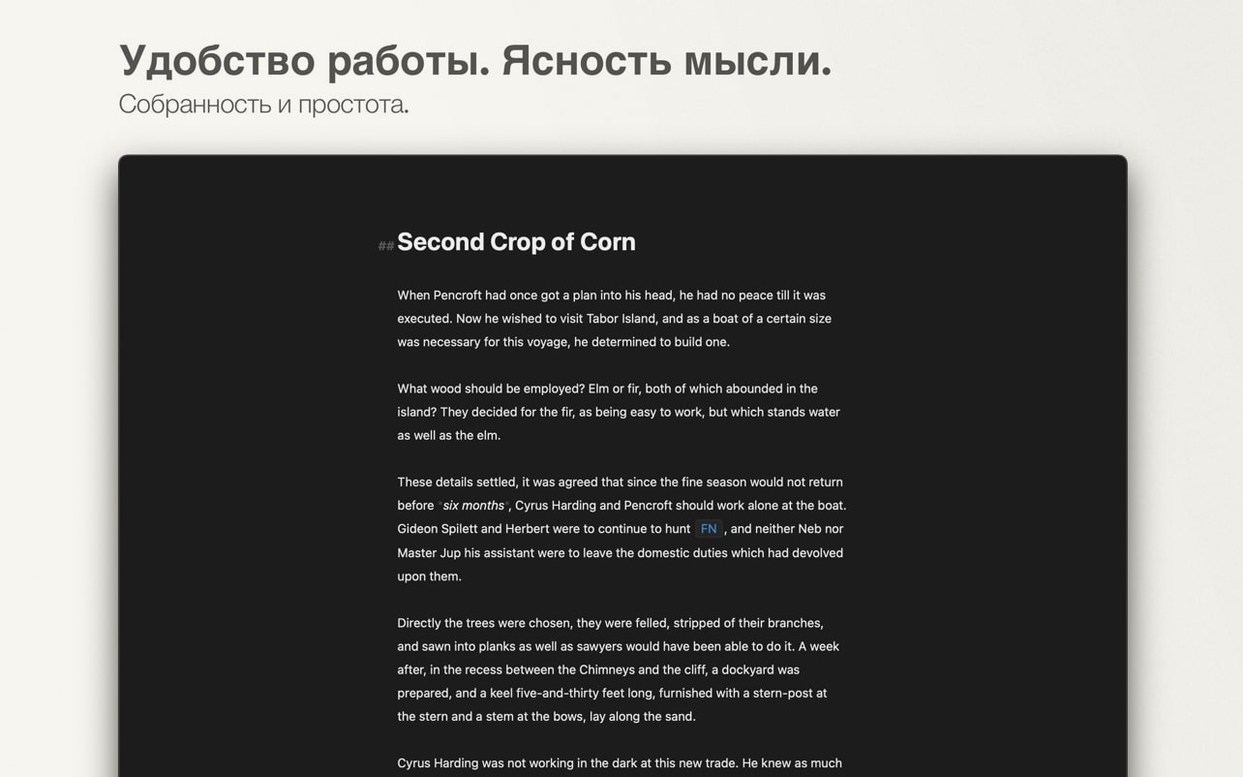
The default editor appearance uses a light background with modest contrast. Switching to a dark theme — or one of the custom colour palettes — changes the writing feel considerably. The typeface, line height, and margin width are adjustable in the editor settings, and a full-screen mode strips away everything except the text area. Focus mode dims all but the current paragraph.
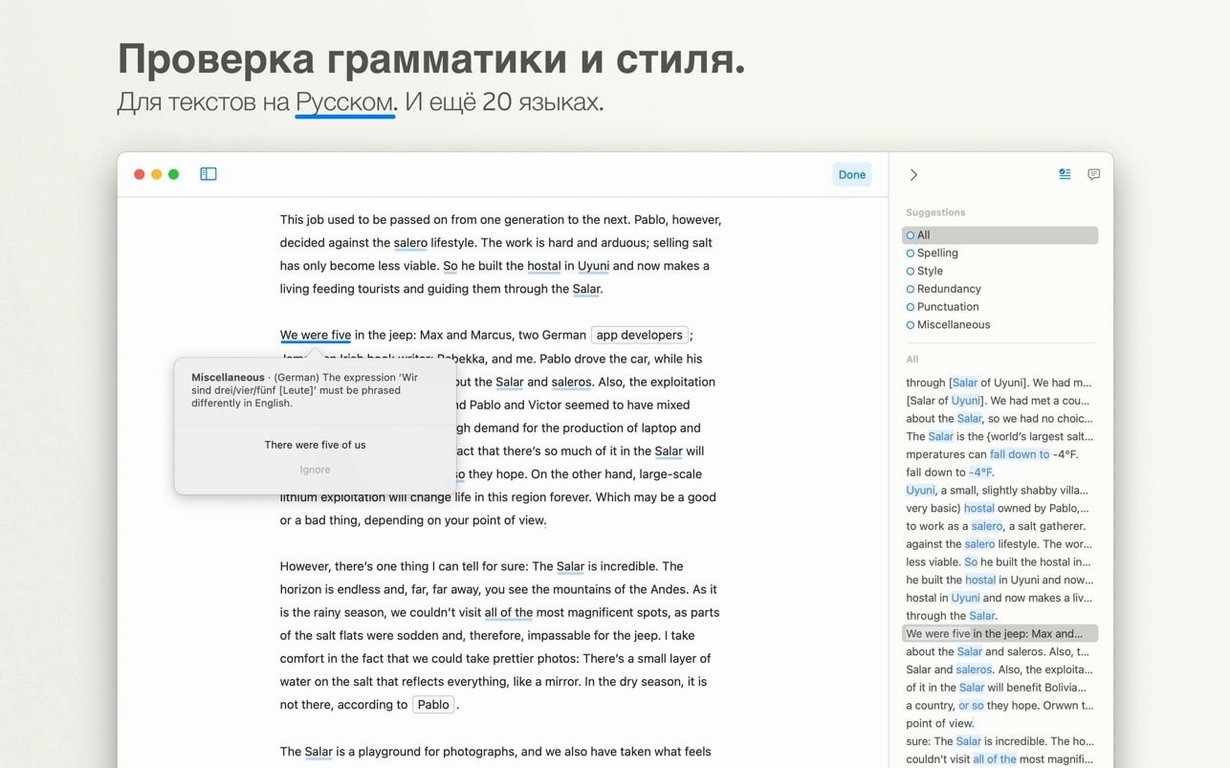
Grammar and style checking can be toggled per project. The built-in proofreader catches repeated words, long sentences, and passive constructions, but it is aggressive out of the box. Dialling it down or turning it off for creative drafts avoids a stream of underlines. The goal-setting panel — visible from the editor toolbar — lets you set a word count or character target for a sheet; keeping it visible gives a gentle nudge without breaking flow.
Export styles deserve early attention. The default PDF export uses system fonts and modest spacing, but custom styles can match a publication’s typography. Spending fifteen minutes setting up an export style with a preferred serif face, wider margins, and a title page template turns a plain Markdown sheet into a submission-ready document with one click. The same care applied to WordPress publishing — setting a default category, tag format, and image size — removes friction from each post.
Keyboard shortcuts are worth memorising or remapping. The standard set (⌘I for italic, ⌘K for a link) follows Mac conventions, but the markup bar shortcuts — especially for headings and lists — reward practice. The typewriter scrolling mode, which keeps the active line vertically centred, is off by default and suits users who dislike typing at the bottom of the screen.
Launches in under three seconds with progressive iCloud loading
Ulysses launches in under three seconds on both Apple Silicon and Intel Macs running macOS 13 or later. The library loads sheets from iCloud progressively; a library with several thousand sheets still opens quickly because the app fetches only visible content. Scrolling through long documents — 20,000 words or more — stays smooth on integrated GPUs, with no visible lag during Markdown rendering.
Memory use is modest for a modern writing app. A session with a dozen sheets open sits around 200–250 MB of RAM. CPU usage remains near zero at idle and spikes only during export or publishing. Exporting a 50-page document to PDF takes a few seconds and briefly pushes one core, while publishing to WordPress is network-bound rather than CPU-bound.
Stability under daily use is high. Crashes are rare, and the automatic save means a crash rarely loses more than a sentence. The iCloud sync mechanism handles offline edits gracefully: work without a connection, and the changes upload when the network returns. Merge conflicts are handled silently, with duplicated sheets appearing only when the same sheet was edited on two devices simultaneously while offline.
Battery impact on MacBooks is low for a Cocoa app. Writing for an hour with the editor open and iCloud sync active consumes about the same energy as a plain text editor. The dark theme and full-screen mode together trim energy use slightly on Macs with mini-LED or OLED displays. Overall, the app behaves like a background citizen — it does not prevent sleep, hog the GPU, or spin up the fans during routine writing sessions.