Aspecten
 Download (18 MB)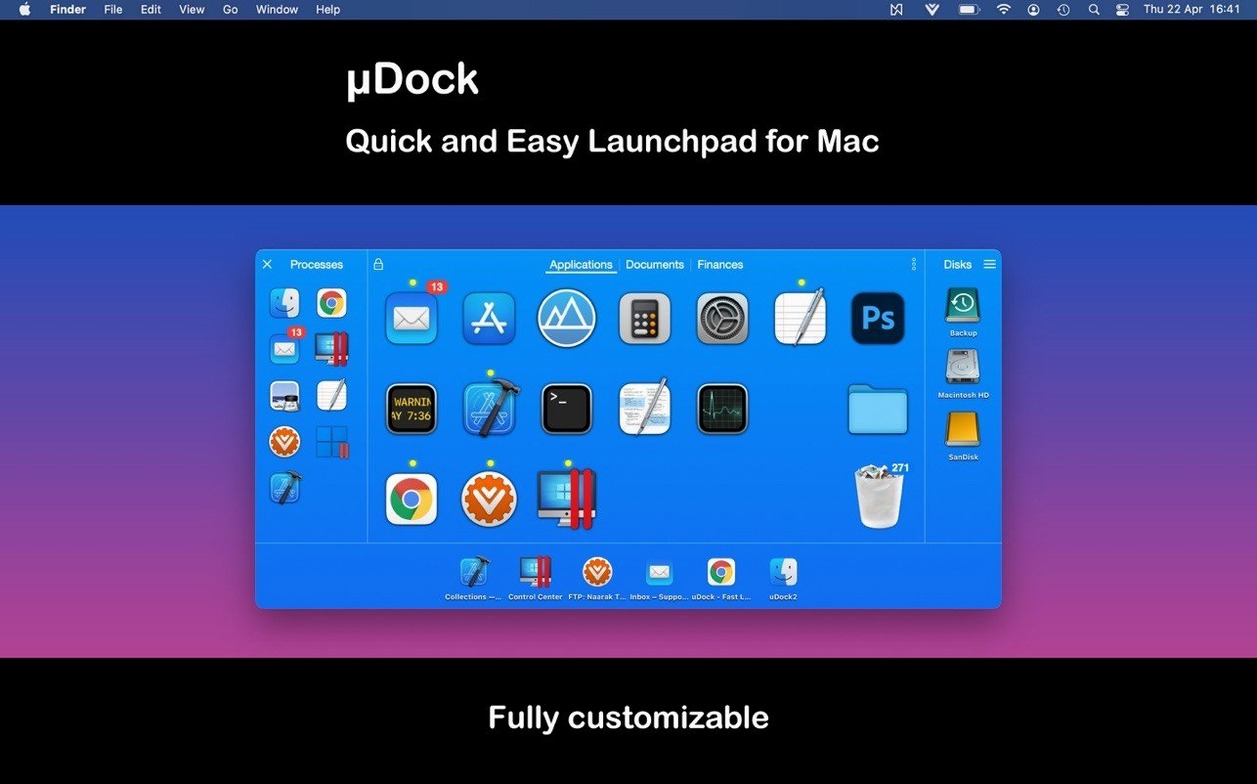
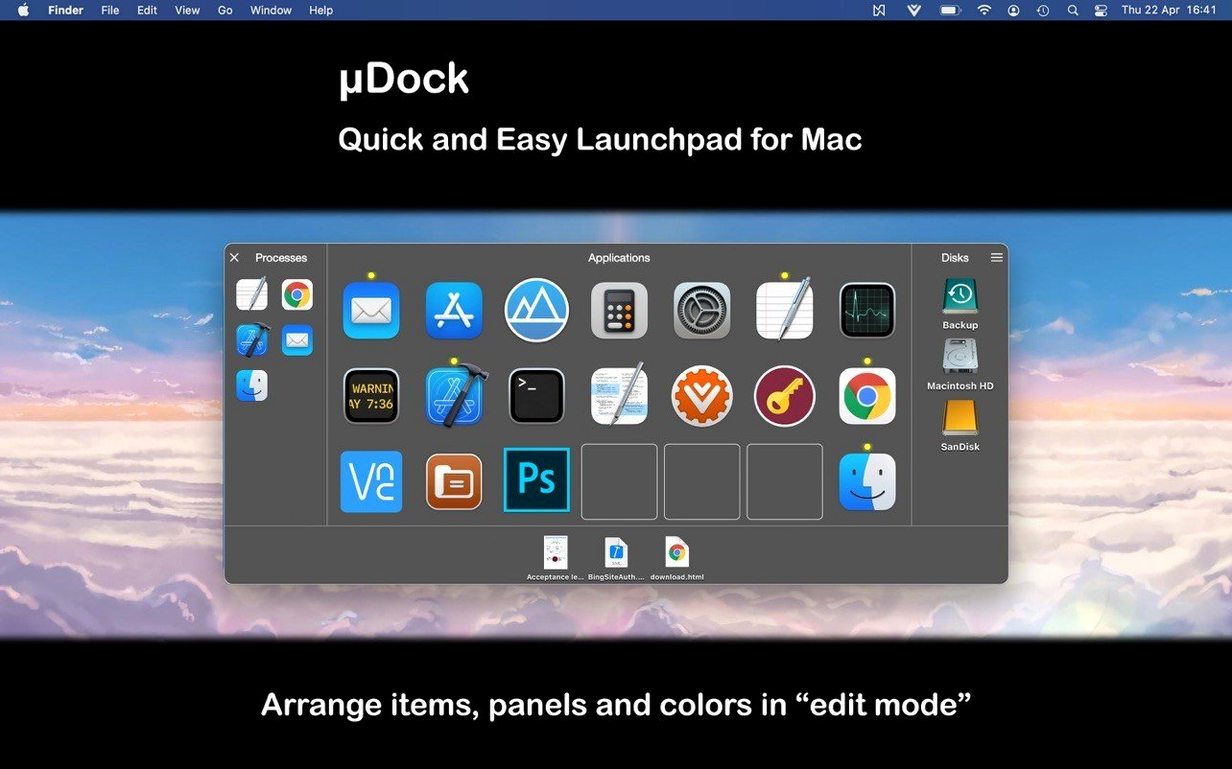
People who keep a lot of apps, folders and drives within reach tend to find the standard Mac dock a bit rigid. uDock appeals to that group—users who want tabs to organise their launchers, direct access to running processes from the toolbar, and a way to reach bookmarked SFTP servers without opening a separate client.
The first thing to try is setting up a few custom tabs. You can group apps by task, by project or just by how often you use them, then assign a hotkey to each tab. That alone reshapes the launching workflow from a flat row of icons into something you can jump to with a keystroke. The tab bar stays compact, so it does not fight the existing dock for space.
Next, open the system toolbar menu and look at the process list. Every running application and mounted drive appears there, which turns uDock into a lightweight monitor as well as a launcher. Clicking a process brings its window forward. The same menu holds any SFTP bookmarks you have added, which saves a trip to a dedicated file transfer app for quick uploads or checks.
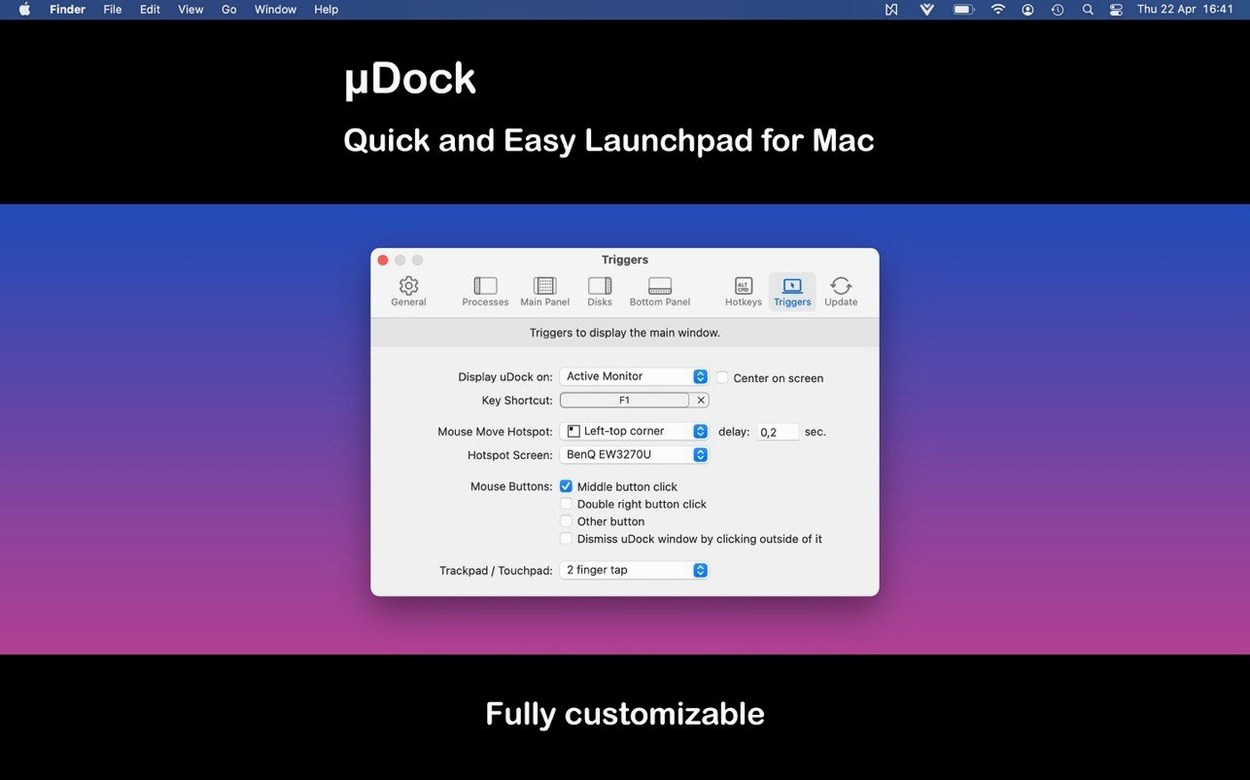
Spend a few minutes with the hotkey options. The default bindings are sensible, but assigning a global shortcut to your most-used tab makes the whole setup feel almost invisible—the app stays in the toolbar, out of the way, until you call it.
Adding hotkeys to a keyboard-first workflow
Power users who launch applications by keyboard rather than by mouse get the strongest immediate benefit. When you already reach for Cmd+Space or a third-party launcher several times an hour, adding uDock's tab hotkeys gives you another layer of muscle memory that bypasses the dock entirely. Developers, writers and anyone who keeps five or six apps open for a single project will recognise the value of switching contexts with one shortcut instead of hunting through a crowded screen.
People who work with multiple external drives also find it practical. A photographer returning from a shoot with two portable SSDs, or a video editor juggling scratch disks, sees every mounted volume listed in the toolbar menu without opening Finder. The SFTP bookmarks extend that same thinking to remote folders, which suits web developers and anyone who maintains a site or server.
Users who find the standard dock too static—or too small to hold everything they regularly open—tend to keep uDock around after trying it. The tab structure means you can keep a tab for current client work, another for utilities, and a third for personal apps, then collapse the ones you are not using. No dock icon duplication, no spring-loaded folders to dig through.
It is less suited to people who prefer a single, visually guided way to open things. If you rarely use keyboard shortcuts and like everything in one place, uDock's toolbar-menu approach may feel like an extra step rather than a shortcut.
Switching a three-project morning into one click
Imagine a freelance copywriter who starts the morning with a manuscript in Ulysses, research notes in Obsidian, a style guide open in Safari, and a folder of client briefs on an external drive. In uDock she creates a tab called Morning pages and assigns it Ctrl+Opt+Cmd+M. One keystroke later, all four items are in front of her. After lunch she switches to a tab named Invoices, which holds Numbers, a local folder of PDF receipts, and an SFTP bookmark to her accountant's server. She uploads the month's files without launching a separate FTP app. By late afternoon, a third tab labelled Admin gives her a quick process list to quit memory-hungry apps she is not using, and a single click on the backup drive icon to check disk space. The dock itself stays clean, showing only Finder, Mail and her browser.
Building muscle memory with two tabs first
A few small habits make the first week smoother.
- Start with two tabs, not six. Make one for your current main task and one for utilities you open less often. Once the muscle memory settles, you can split further. Starting with too many tabs often leads to abandoning them before they become automatic.
- Pick hotkeys that do not collide. Test your chosen combinations against your existing launcher and any screenshot or accessibility shortcuts. A key combo that silently steals focus from another tool is easy to miss on the first day and annoying to debug later.
- Add SFTP bookmarks early. Even if you only connect to one server occasionally, having the bookmark in uDock means you will reach for it when a quick file transfer comes up, rather than postponing it. The built-in client handles uploads, downloads, renaming and folder creation, which covers most ad-hoc needs.
- Check the process list once a day. A glance at what is running helps you notice apps you forgot to quit, and over a few days you will spot which processes you actually need quick access to. You can then promote those to a tab or a hotkey.
- Place the app where you want it before launching. The installer notes you can drag it to a folder other than Applications if you prefer. Keeping it in a Utilities folder or a personal scripts directory is fine, as long as the path stays consistent so activation remains intact.