Aspecten
 Download (15 MB)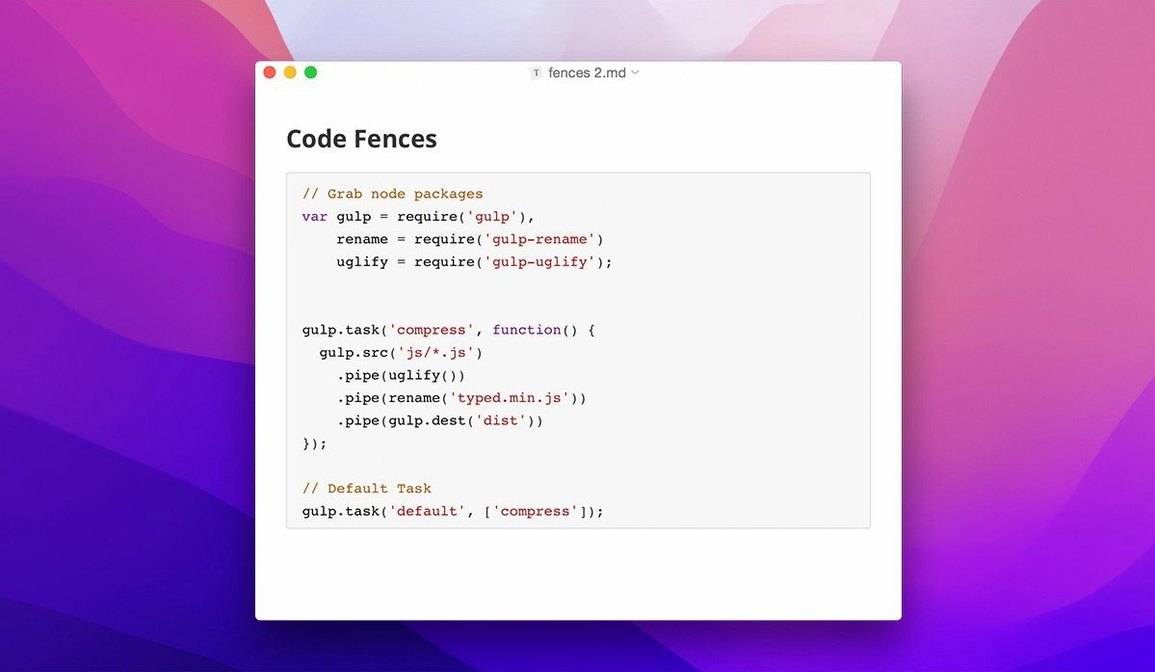
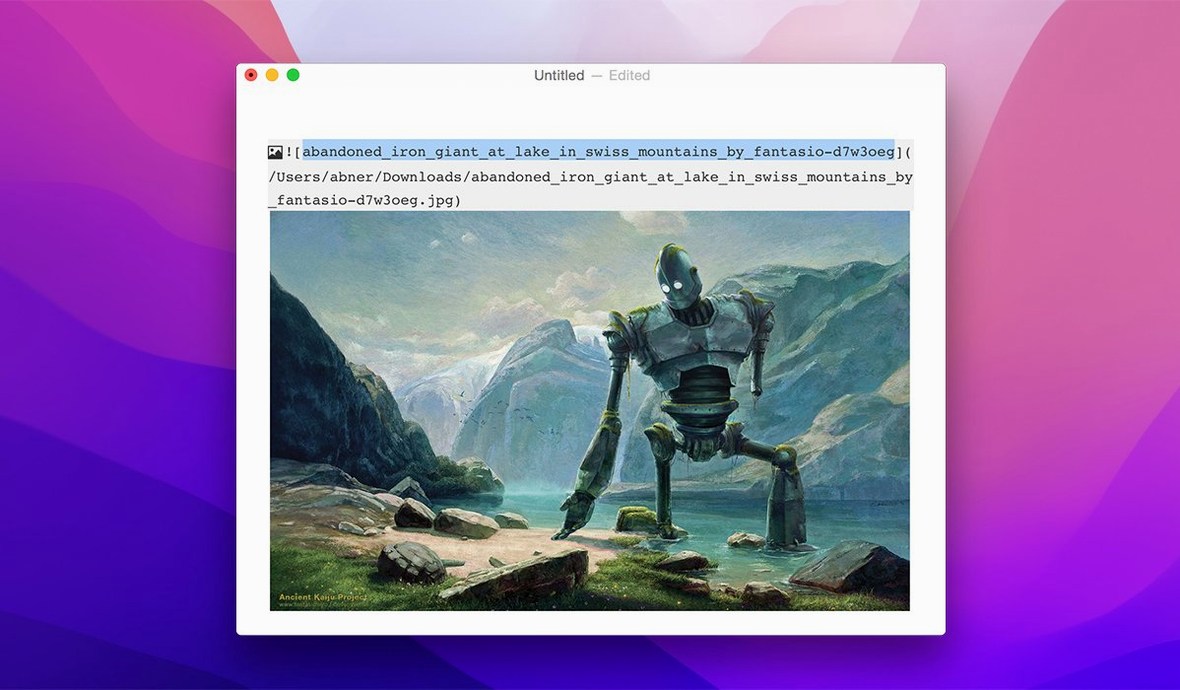
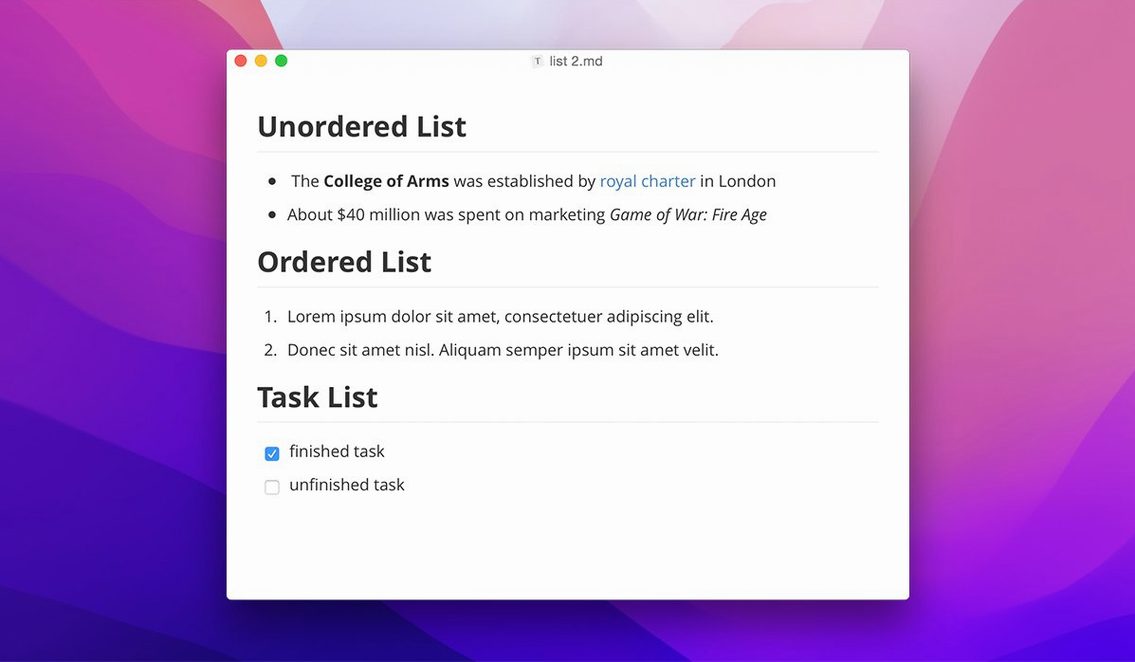
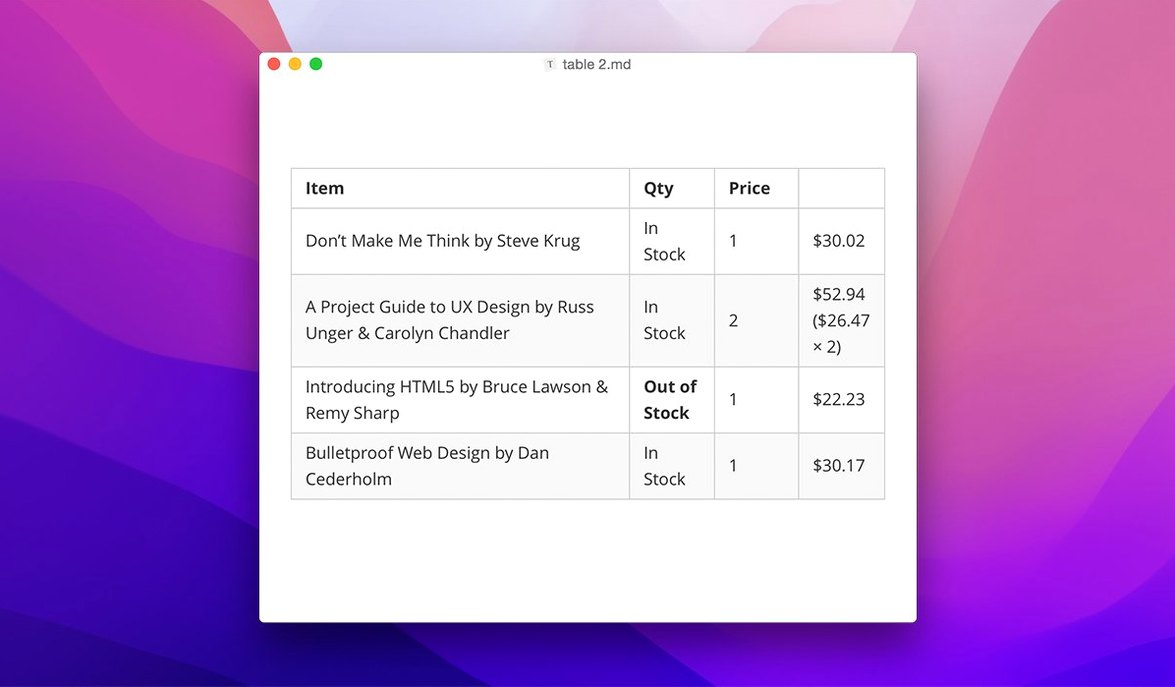
Thirty interface languages sit inside Typora, from Arabic to Vietnamese, yet the editor itself strips writing down to just the words. There is no separate preview pane, no mode switcher, and none of the asterisks or hash marks that usually clutter a Markdown file. What you type becomes the finished look the moment the cursor moves on.
The workflow hinges on that single-pane design. Headings embolden and enlarge in place. Links fold down to their anchor text. Images resolve immediately. The result reads like a clean document while staying a plain-text file underneath. Version 1.14 adds context-menu style settings on macOS, so font size, line width and theme choices sit a right-click away rather than buried in a preferences window.
A recent update also lets the sidebar show non-Markdown files, which helps when a project mixes plain text, configuration files and notes. Export is handled through pandoc, and a fix in 1.14.10 corrects an issue where pandoc export from source mode would fail. The welcome panel no longer clips its content either.
The app runs on both Apple Silicon and 64-bit Intel Macs, and the developer support site points to macOS 11.0 as the supported baseline, though the stated requirement reaches back to 10.13.6. It is a reader as much as an editor — a place where Markdown loses its scaffolding and simply becomes text.
Plain .md files that any editor can open
Typora saves everything as plain .md files, which means almost any text editor on the system can open them without conversion. TextEdit, BBEdit, CotEditor — all read the same file that Typora writes. The benefit shows up when a project needs a quick grep search across a folder of notes, or when a colleague who does not use Typora needs to view the raw Markdown.
The Finder integration is straightforward but useful. Right-click a .md file in Finder and Typora appears as an Open With option once the app has been launched at least once. Files dragged into an open Typora window open as new tabs. On macOS 14 and later, the file picker respects the system-wide recent-items list, and Typora's own sidebar mirrors a folder tree that can show hidden files — a toggle added in version 1.14 that makes .git directories and dotfiles visible without switching to the terminal.
With pandoc installed separately, Typora bridges into the wider document ecosystem. A single document can be exported to Word (.docx), LaTeX, PDF via LaTeX, EPUB, or MediaWiki markup. The pandoc path is configurable in the export preferences, so a custom pandoc build or a Homebrew-installed version slots in without fuss. The 1.14.10 release fixed a regression where source-mode pandoc export would break — a reminder that the integration runs close to the surface and benefits from keeping pandoc up to date.
macOS services and Quick Look do not render Markdown natively with the same fidelity as Typora's live preview, but the plain-text nature of the files means they preview legibly in Quick Look via the built-in text renderer. For richer previews, a third-party Quick Look extension like QLMarkdown brings the rendered view into Finder.
Why image links stay broken after install
One recurring trouble spot is the missing preview of certain syntax elements after a fresh install. Images with relative paths sometimes stay as links. The cause is usually a mismatch between Typora's working directory and the image location. Opening the enclosing folder from Finder and dragging the root project folder into Typora's sidebar sets the working directory correctly. From there, relative paths like ./assets/photo.png resolve as expected.
Code-fence syntax highlighting can appear absent for less common languages. Typora relies on highlight.js, which covers a broad set of languages but not every dialect. Switching the fence label to a supported alias — shell instead of bash, or javascript instead of js — often restores colouring. The full list of supported languages lives in the Typora theme folder under highlight.js.
Another occasional snag involves the floating editor toolbar added in version 1.14. On older macOS installations, the toolbar can appear truncated when the window is narrow or when display scaling is set above the default. Resetting the window size with Window > Zoom or toggling the toolbar off and on in the View menu usually restores it. If the toolbar still misbehaves, switching to a different theme in the Themes menu forces a full redraw.
Keyboard navigation in the sidebar file tree, also new in 1.14, works with arrow keys and Enter to open files. A few users find that the tree loses focus after closing a tab. Pressing Cmd-Shift-F (the sidebar toggle) twice — once to close, once to reopen — returns focus to the file list without reaching for the mouse.
Switching the theme and line width
Out of the box, Typora uses a default theme and a fixed line width. A quick stop at Preferences > Appearance reveals the theme list. The built-in themes — Newsprint, Night, Whitey, and several others — differ more in reading comfort than in layout. Night switches to a dark background with restrained contrast that suits long evening sessions. Newsprint widens the text column and picks a serif typeface. Testing two or three themes early settles the visual tone before any serious writing begins.
The Editor section of Preferences holds a setting called Indent size on save. By default, Typora uses a four-space indent inside code blocks. Changing this to two spaces keeps code fences compact and consistent with most JavaScript and Python style guides. Nearby, the Smart punctuation toggle converts straight quotes to curly quotes and double hyphens to em-dashes. Writers who prefer the plain ASCII equivalents — common in technical documentation — can switch it off here.
Under Markdown preferences, the Strict mode checkbox enforces a narrower Markdown syntax. Turning it on disables Typora-specific extras such as highlight syntax and inline HTML rendering. It is worth enabling for documents destined for GitHub or static-site generators where portability matters more than presentation.
The Export preferences pane holds the pandoc path field. If pandoc is installed via Homebrew, the path is typically /opt/homebrew/bin/pandoc on Apple Silicon or /usr/local/bin/pandoc on Intel. Setting this early prevents failed exports later. A quick test with File > Export > Word (.docx) confirms the connection.
Open a whole folder instead of single files
Start with a single folder rather than loose files. Create a project folder in Finder, add a few .md files, then open the whole folder in Typora with File > Open Folder. The sidebar mirrors the folder structure, and new files created with Cmd-N land inside that directory automatically. This small habit avoids the scattering of untitled files across the desktop that often happens with document-based apps.
Learn two keyboard shortcuts early. Cmd-/ toggles source-code mode, which shows the raw Markdown exactly as it would appear in a plain text editor. It is useful for checking link URLs or cleaning up stray syntax. Cmd-Shift-T opens the table-of-contents sidebar panel, which builds a clickable outline from headings in the document. For anything longer than a page, the outline panel becomes the fastest way to jump between sections.
For writers coming from a two-pane Markdown editor, the first hour can feel disorienting — there is no rendered preview to glance at for reassurance. A practical way to build trust is to type a short sample document that exercises headings, bold, italic, lists and a code block, then toggle source mode to see the clean Markdown behind the rendered view. The round trip demonstrates that nothing is hidden or transformed beyond the standard syntax.
If Typora