Aspecten
 Download (64 MB)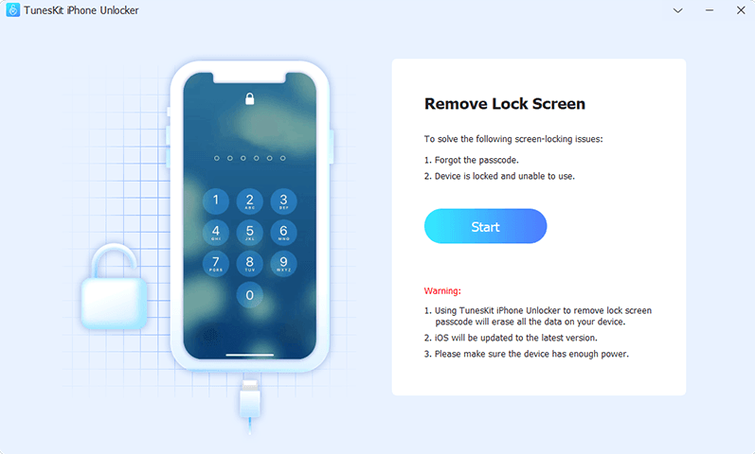
Screen Time lock removal is one of the quieter additions to this tool's feature set. TunesKit iPhone Unlocker is a third-party Mac application built to strip away passcodes, Face ID failures and Apple ID bindings from an iPhone, iPad or iPod touch. The current build, version 2.7.0.16, runs on Intel Macs and keeps its interface strictly in English. The following points are what you find in the latest release.
- The core unlock functions cover screen passcodes, Face ID and Touch ID blocks, and the removal of a linked Apple ID from the device.
- Screen Time lock handling is listed as a supported scenario, useful when a restrictions passcode has been set and then forgotten.
- The app is a single-language tool; all menus, prompts and status messages appear in English only.
- Installation requires a small workaround: a Terminal command is used to let the app launch under Gatekeeper on macOS 10.11 or later.
- Compatibility is limited to Intel-based Macs. There is no native Apple Silicon build in this version.
- The installer itself is a standard drag-to-Applications affair, once the Gatekeeper step is complete.
What you get in 2.7.0.16 is a focused toolkit that has not changed its fundamentals. The breadth of lock types it can address—from a simple passcode to an iCloud-linked Apple ID—makes it a practical fallback for several common lockout situations on older iOS devices.
A workflow: removing a forgotten Screen Time passcode
Screen Time passcodes are easy to set and surprisingly easy to forget, especially when a family member configured it months ago. The removal process in TunesKit iPhone Unlocker follows a predictable sequence that works best when you prepare the device beforehand.
- Connect the iPhone or iPad to the Mac with a USB cable. Wait for the app to recognise the device; the model name and iOS version appear in the main window.
- Click Unlock Screen Time from the mode selection screen. The app checks the device state and prompts you to confirm Find My iPhone is disabled. If it is not, the tool walks through the steps to turn it off from the device settings.
- With Find My switched off, click Start. The app begins reading the restrictions data. On a device running iOS 15 the read phase took under a minute; older iOS versions may take slightly longer.
- When the passcode appears on screen, note it down and enter it directly into the Screen Time settings on the device. The app does not modify settings remotely—it retrieves the existing code and displays it.
- Disconnect the device and re-enable Find My iPhone if it was turned off earlier.
The whole sequence relies on the device staying awake during the read phase. A screen that dims or locks mid-process can interrupt the connection, so it is worth disabling auto-lock before starting. The retrieved passcode is the one currently set on the device; if a newer restrictions code was applied after the scan, that earlier result becomes useless.
Unlocking trade-in iPhones without the previous owner’s password
A shop that handles second-hand iPhones often receives devices still tied to their previous owner's Apple ID. The technician has the device in hand, the original invoice from a trade-in, but no way to reach the seller for the password. In that scenario, TunesKit iPhone Unlocker sits on a dedicated bench Mac—typically an older Intel iMac running macOS Monterey—where it handles the Apple ID removal before a factory reset.
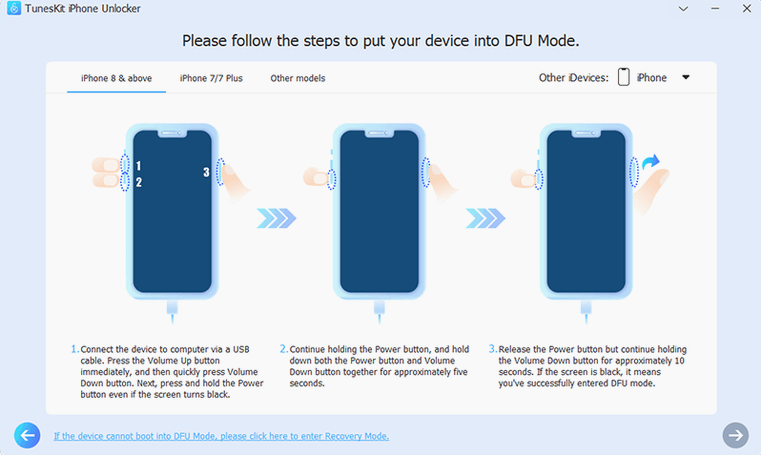
The technician plugs in an iPhone 8, puts the device into recovery mode manually and selects Unlock Apple ID from the app. Because the device runs iOS 15.6, the tool proceeds without requesting additional DFU tricks. Once the Apple ID is stripped, the phone can be wiped and set up fresh for resale. The whole job fits between walk-in customers; the app's single-purpose design means no extra configuration screens slow things down. The technician keeps a printed note on the wall reminding staff to check the iOS version first, since the activation lock removal path narrows considerably outside the iOS 12.0–16.7.15 band that the FAQ outlines.
A charging cable is not enough: the USB data connection requirement
First-time users often assume the tool works over Wi-Fi or Bluetooth. It does not. A USB connection is mandatory for every unlock mode, and a cable that charges the device may still fail to carry data reliably. Swapping the cable is the first troubleshooting step when the app stays stuck on "detecting device."
Another early slip is launching the app before running the Gatekeeper workaround. The disk image includes a small utility labelled Open Gatekeeper friendly; skipping it leaves the app blocked at launch with a generic macOS security prompt. The Terminal command it triggers is harmless, but it must run on each Mac where the app is installed.
Some users rush into an unlock mode without checking which iOS version the device runs. The activation lock removal path for the Apple ID function supports a specific range of iPhones and iOS releases. Trying it on an iPhone 12 running iOS 17 simply fails, and the error message does not always explain why. Checking the device details in Finder or the app's own detection screen before clicking Start saves a round of confusion.
Finally, forgetting to disable Find My iPhone before a Screen Time or passcode removal is a recurring mistake. The app warns about it, but the warning dialog can be dismissed too quickly. When Find My stays on, the process halts partway through and the only remedy is to start over.
Disable auto-lock to prevent interruption during unlock
The app ships with no preferences panel and no user-facing settings beyond the mode selection screen. What you can adjust is the environment around it, and a few small changes make a measurable difference to reliability.
- Disable auto-lock on the target device before starting any unlock mode. Set the display timeout to Never under Settings > Display & Brightness. A sleeping device breaks the USB handshake mid-process.
- Switch to a direct USB port on the Mac, not a hub. The tool sends sustained commands over the connection and even powered hubs occasionally drop the link during longer operations like Apple ID removal.
- Turn off macOS sleep temporarily from System Preferences > Energy Saver. An unlock that runs for ten to fifteen minutes can be cut short if the Mac enters sleep, and the app does not auto-resume.
- Keep a second cable nearby. The app is sensitive to cable quality and an MFi-certified Lightning cable that works fine for syncing in Music can still cause detection failures in the unlocker, particularly with older iPod touch models.
- Quit background iOS management apps. Tools like iMazing or older iTunes builds that poll connected devices can conflict. The safest state is having only TunesKit iPhone Unlocker open during the unlock.
Those who use the tuneskit iphone unlocker full version free download path often pair it with a dedicated Mac that has no other peripheral software running. The fewer variables in the USB chain, the less likely an unlock session stalls halfway. The same logic applies when the app arrives via a tuneskit torrent source: a clean, single-purpose machine keeps the process predictable.