Aspecten
 Download (34 MB)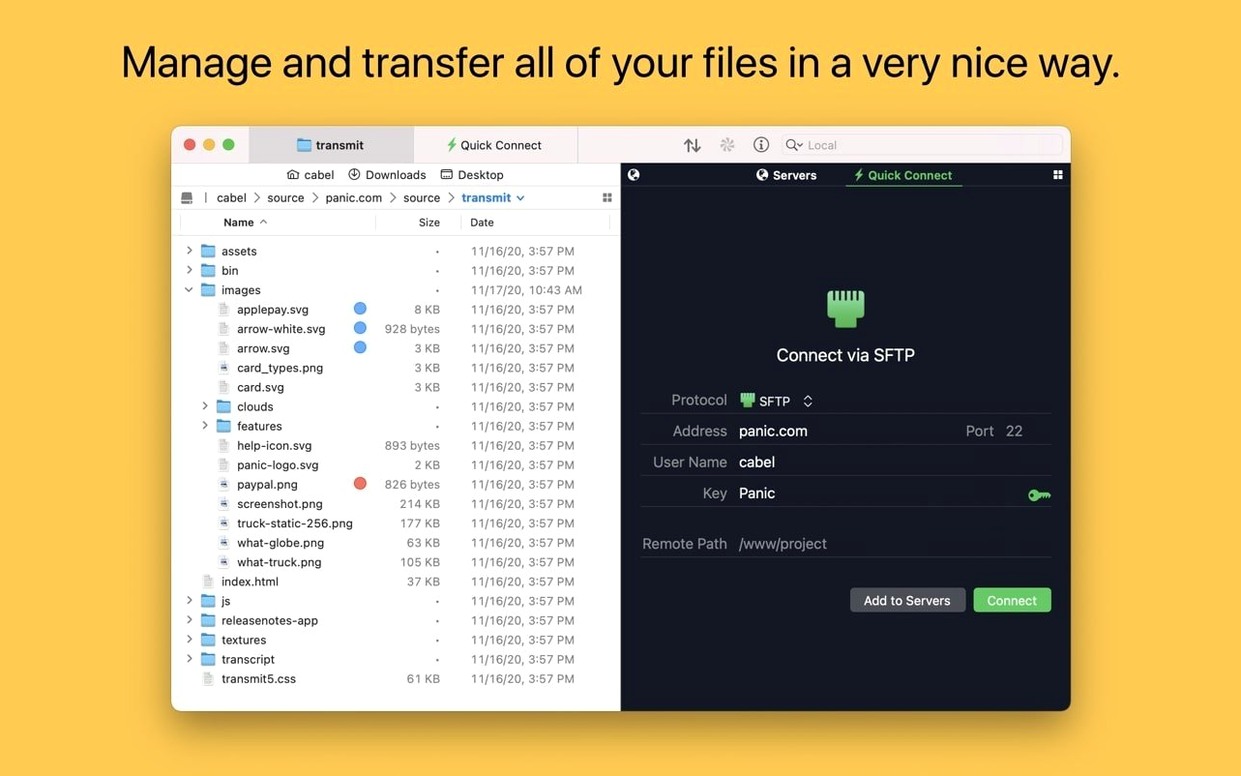
System administrators, web developers, and anyone managing complex cloud storage setups use Transmit 5. It handles the repetitive back-and-forth of uploading, syncing, and organising files across remote servers, letting you switch between FTP, SFTP, S3, and WebDAV without leaving a single window.
Drag files between FTP, S3, and WebDAV in one window
- Managing files across different protocols at the same time. A single window can hold tabs for an FTP server, an S3 bucket, and a WebDAV connection, so moving items between them is a direct drag-and-drop operation.
- Bulk renaming on the server. You can rename a batch of files remotely using find-and-replace or sequence numbering, which saves pulling everything down just to tidy up a directory.
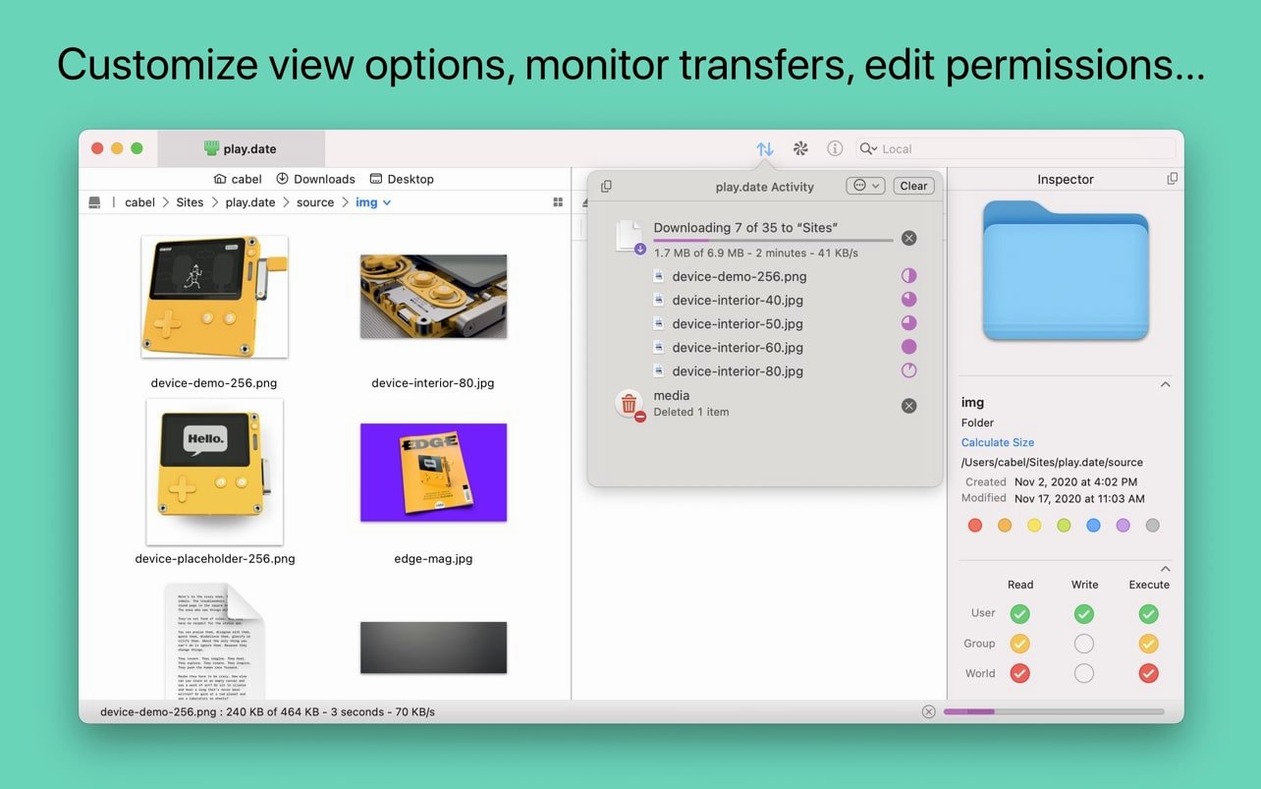
- Inspecting files without opening them. The information sidebar shows permissions, ownership, and checksums while you browse, which helps when debugging deployment issues or verifying uploads.
Requires macOS 13.0, so older Macs are left out
- The minimum system requirement is macOS 13.0, so it is not an option if you are maintaining an older Mac without an upgrade path.
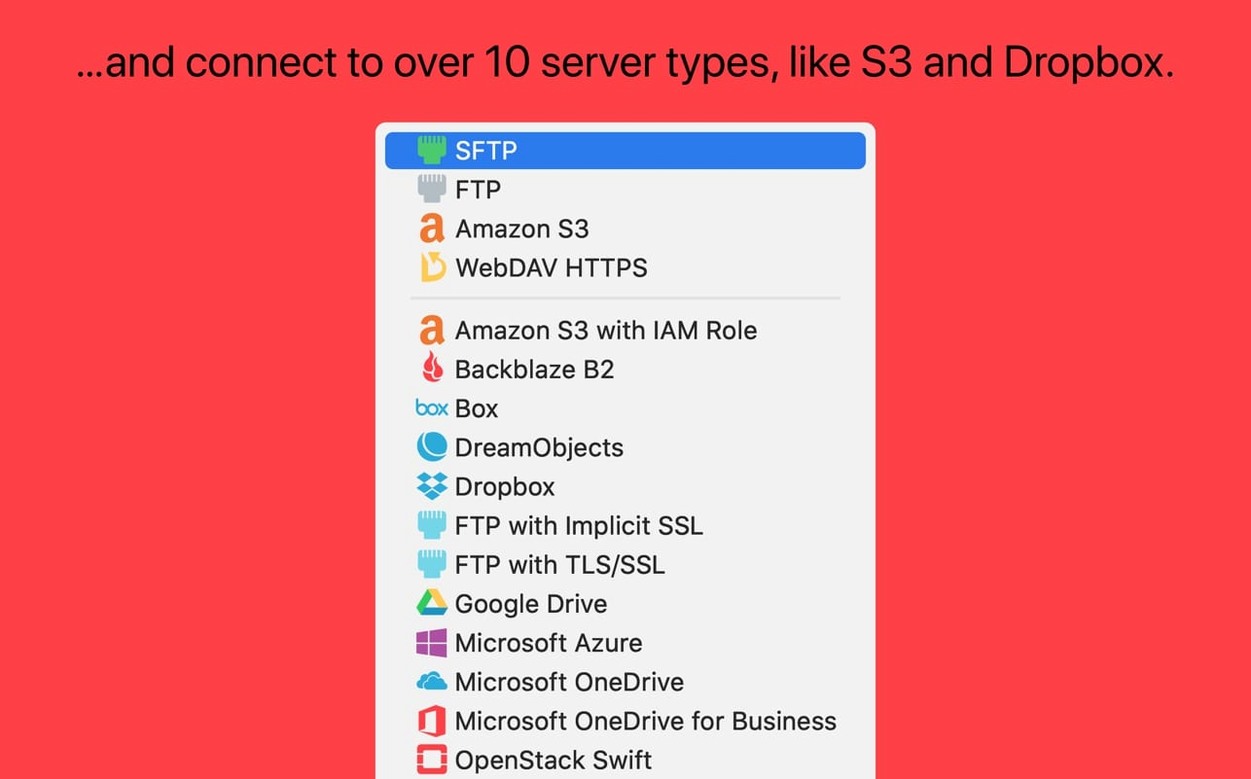
- Cloud service support extends well beyond the basics—Backblaze B2, Box, and Google Drive are included—but you need to set up each connection type yourself.
Does this replace a dedicated S3 client or s3cmd?
One of the first questions is whether Transmit replaces a dedicated S3 client or a command-line tool like s3cmd. The answer depends on how you work. For routine uploads, folder browsing, and dragging files between buckets, it covers most of what those tools offer with less typing. If your workflow relies on scripting, lifecycle policies, or deeply nested bucket permissions, you will still reach for the AWS CLI or the web console for those specific tasks.
Another common question is about key management. Transmit can generate and store SSH keys inside the app, so you are not forced to juggle ssh-keygen in Terminal and then point the client at the resulting files manually. People switching from older FTP-only clients often ask whether two-factor authentication works for SFTP connections. It does, and the setup is straightforward: you configure the authentication method per server in the connection settings, and Transmit prompts you for the second factor when needed.
Some users want to know if Panic Sync is mandatory. It is not—it is an optional service that keeps your server list and connection details synchronised across Macs running Transmit. You can skip it entirely and manage everything locally. The app does not lock features behind it.
Lastly, there is the question of large files. The release notes specifically mention improved error reporting for files that are too large for S3, so if you are pushing multi-gigabyte objects, you will at least get a clear explanation rather than a cryptic failure. Transmit has long handled very large S3 files, but knowing where the ceiling sits for a particular bucket configuration matters.
Double-clicking a remote file downloads a temp copy instead of editing in place
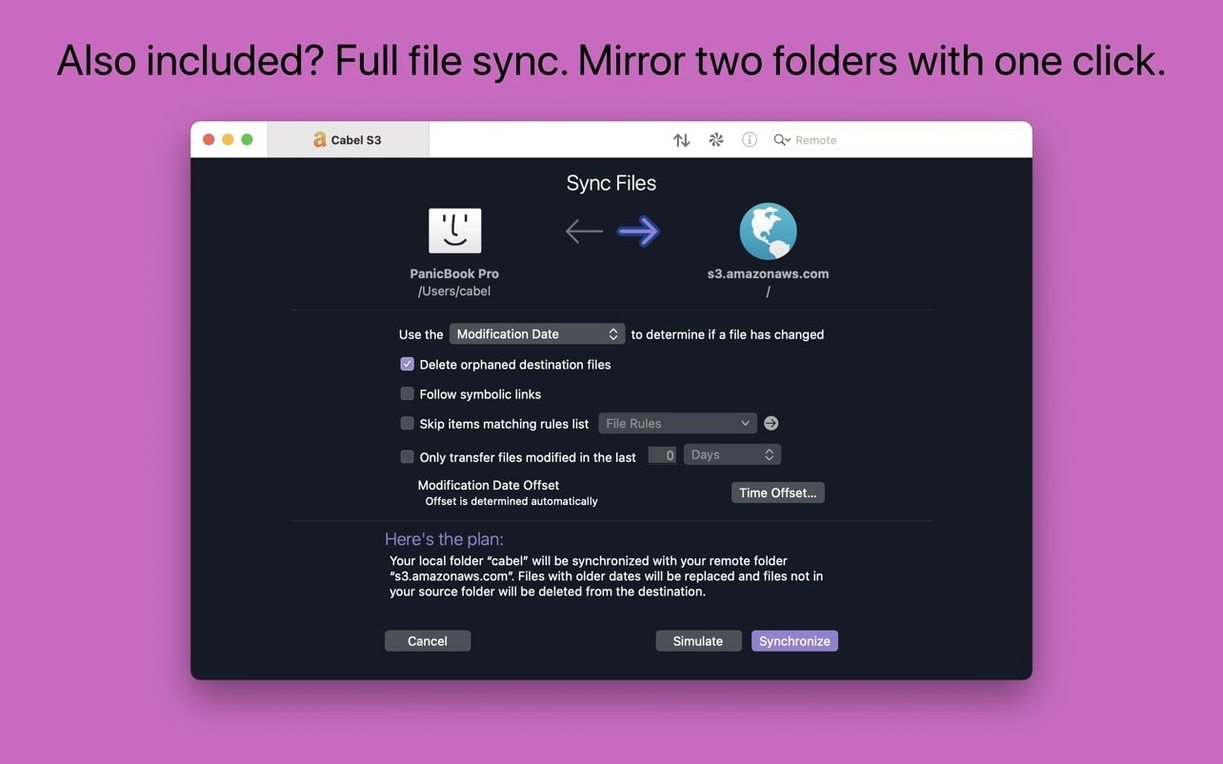
The most frequent early mistake is connecting to a server and immediately double-clicking a remote file expecting to edit it in place. Transmit downloads a temporary copy and opens it in your local editor. If you save and close, the changes are not pushed back automatically. You need to either use the built-in sync feature or manually re-upload the modified file. Understanding this flow prevents the disconcerting moment of finding your edits never left your Mac.
Another slip-up involves the Places Bar. Beginners sometimes drag folders onto it thinking they are creating shortcuts, but end up moving the actual directory. The Places Bar accepts dropped folders as references; the original stays put. Still, paying attention to whether the drag is a copy or a move action—visible in the cursor—saves a minor panic.
People new to S3 often misconfigure the endpoint field, leaving it set to the default US East region when their bucket lives elsewhere. The connection succeeds without an obvious error, but the bucket appears empty. Checking the region and matching the endpoint corrects this in seconds.
Finally, ignoring the tags feature early on. Tagging favourite or frequently updated servers—staging, production, backup endpoints—makes filtering a long server list far quicker. Setting this up from the start costs almost no time and pays off once you have accumulated a dozen connections.
SFTP timeouts often come down to a key exchange mismatch
A recurring issue after a transmit mac download and initial setup is a connection timing out on an SFTP server that works fine in Terminal. Often this is a key exchange algorithm mismatch. Transmit's SFTP implementation negotiates a specific set of algorithms, and older or unusually hardened servers may not overlap. Checking the server logs usually reveals the mismatch, and updating the server's sshd_config to include a compatible algorithm clears it up. If you do not control the server, switching to an SSH key type the host supports—RSA versus Ed25519, for example—can work around it.
Dropbox and Google Drive connections occasionally refuse to authenticate after a macOS update. The root cause is typically a revoked OAuth token. Removing the connection from Transmit's server list and re-adding it forces a fresh token exchange, which restores access. This is a low-effort fix that resolves most cloud-service hiccups.
The Get Info toolbar button behaviour was tweaked in version 5.11.6; it now activates immediately on launch. Before that, some users reported it staying greyed out until they selected an item. If you have been using an older build, the difference is subtle but welcome.
When a transmit 5 torrent or a transmit 5.10.9 build was floating around, people sometimes ended up with a version that lacked the S3 error-reporting improvements. Large-file uploads to S3 would fail with a generic message. Updating to a release that includes the clearer error feedback—such as version 5.11.6—makes diagnosing size-limit problems straightforward.
Drag from a remote tab straight into a Finder window
Transmit integrates with Finder in a practical way: you can drag files from a remote server tab directly into a local Finder window, and the app handles the download transparently. The reverse works too—dropping local files onto a remote tab starts an upload without switching contexts. This makes it feel less like a standalone client and more like an extension of the desktop.
The "Open in Terminal" command links Transmit with your shell workflow. If you are browsing a remote directory and realise you need to run a script or check something via the command line, you can open that exact location in Terminal with one click. The path resolves locally for mounted or synced directories, which bridges the gap between GUI browsing and command-line precision.
Panic Sync ties Transmit to other Macs running the app, but it also pairs naturally with Panic's code editor, Nova. If you use both, server definitions sync across them, so a site you set up in Transmit appears as a publish destination in Nova without re-entering credentials. This is not a flashy feature, but it removes friction from a routine deploy-check-deploy loop.
For people who grabbed a transmit mac torrent expecting a self-contained tool, the app's interaction with macOS keychain is worth noting. It stores passwords and keys in the system keychain by default, not in a proprietary database. This means other apps that respect the keychain—like BBEdit or ForkLift—can share credentials if they are configured to look there. It also means migrating to a new Mac with your keychain intact preserves your Transmit logins without re-entering everything.
Batch renaming dovetails with Finder tags. You can rename a group of remote files and then apply macOS tags to the local copies after downloading. The tags survive subsequent uploads, so colour-coding or keyword-labelling assets on your Mac carries over to the server, assuming the file format and metadata handling allow it.