Aspecten
 Download (37 MB)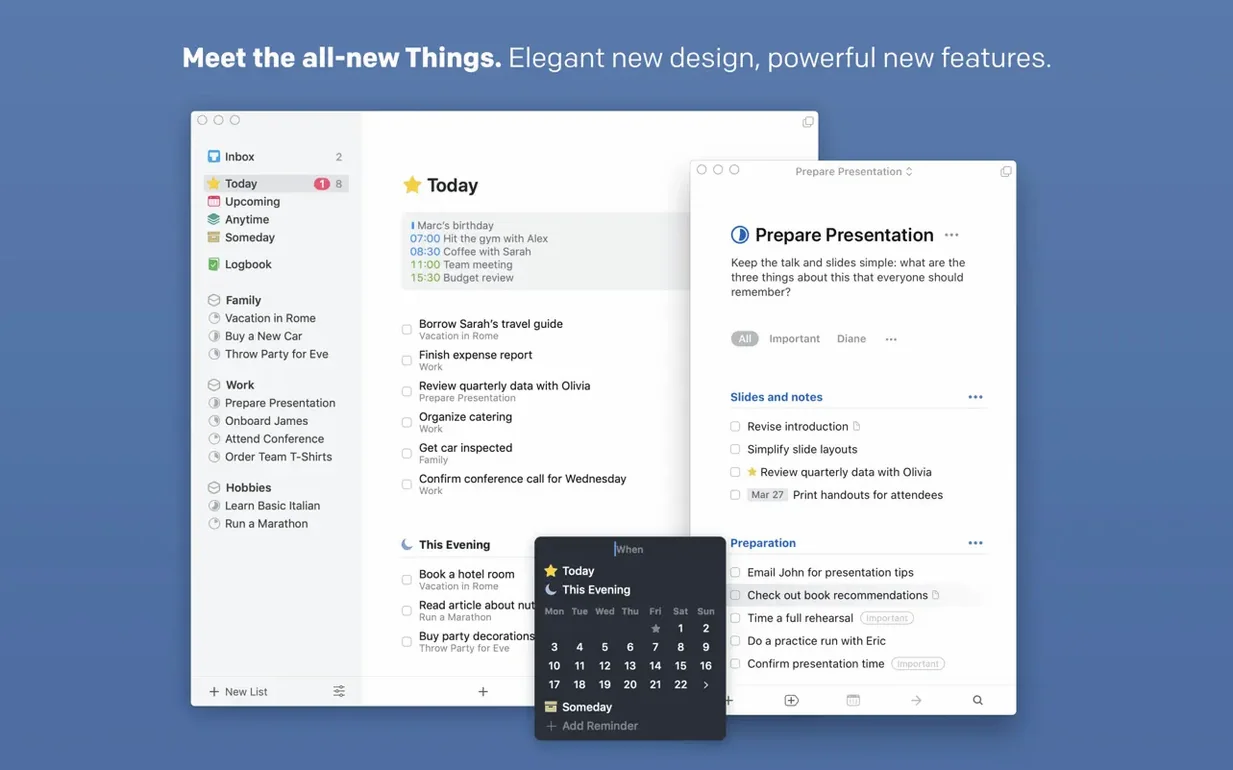
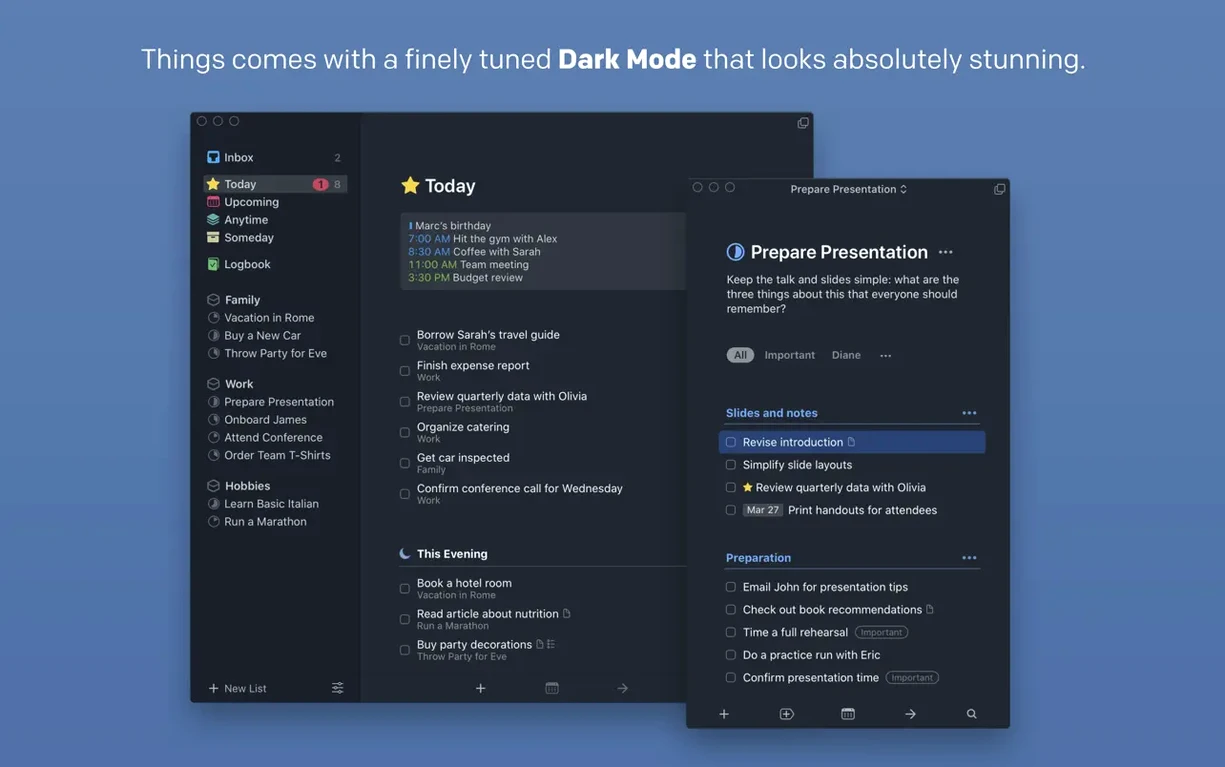
People who already have a settled Mac setup — a calendar they trust, a notes app they live in, a few utilities that run via AppleScript — often look at a dedicated task manager as the last piece. Things slots into that space without demanding you rearrange everything else.
1. Collect from anywhere
Incoming tasks land in the Inbox. You can send them there via the Share sheet from Mail or Safari, dictate them through Siri, or use the new Spotlight integration to add a to-do without opening the app. The Quick Entry window, tied to a global shortcut, accepts text and drops it straight into the Inbox while you stay in another programme.
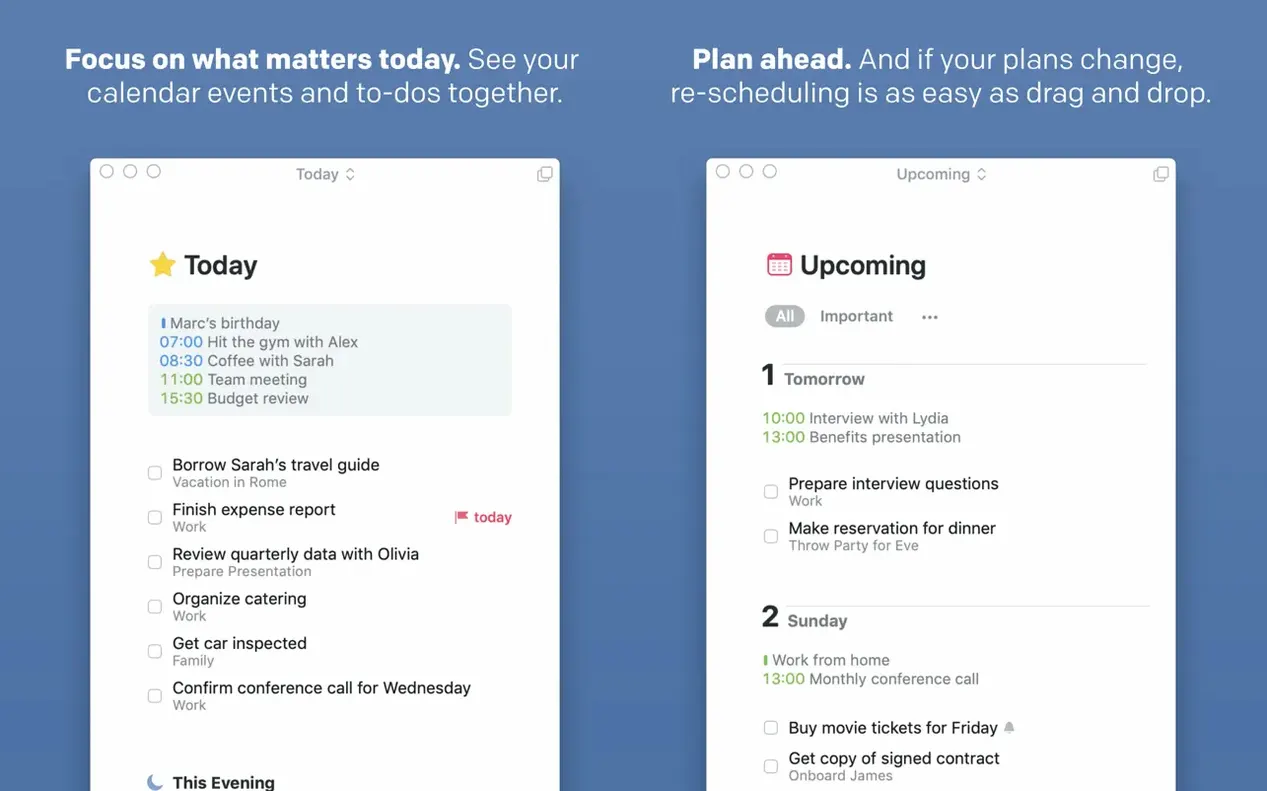
2. See tasks next to calendar events
The Upcoming list shows your Things tasks and calendar events in a single timeline. No switching between apps to check whether Thursday morning has room for the project milestone sitting in Today. The new extra-tall widget extends that view to the desktop.
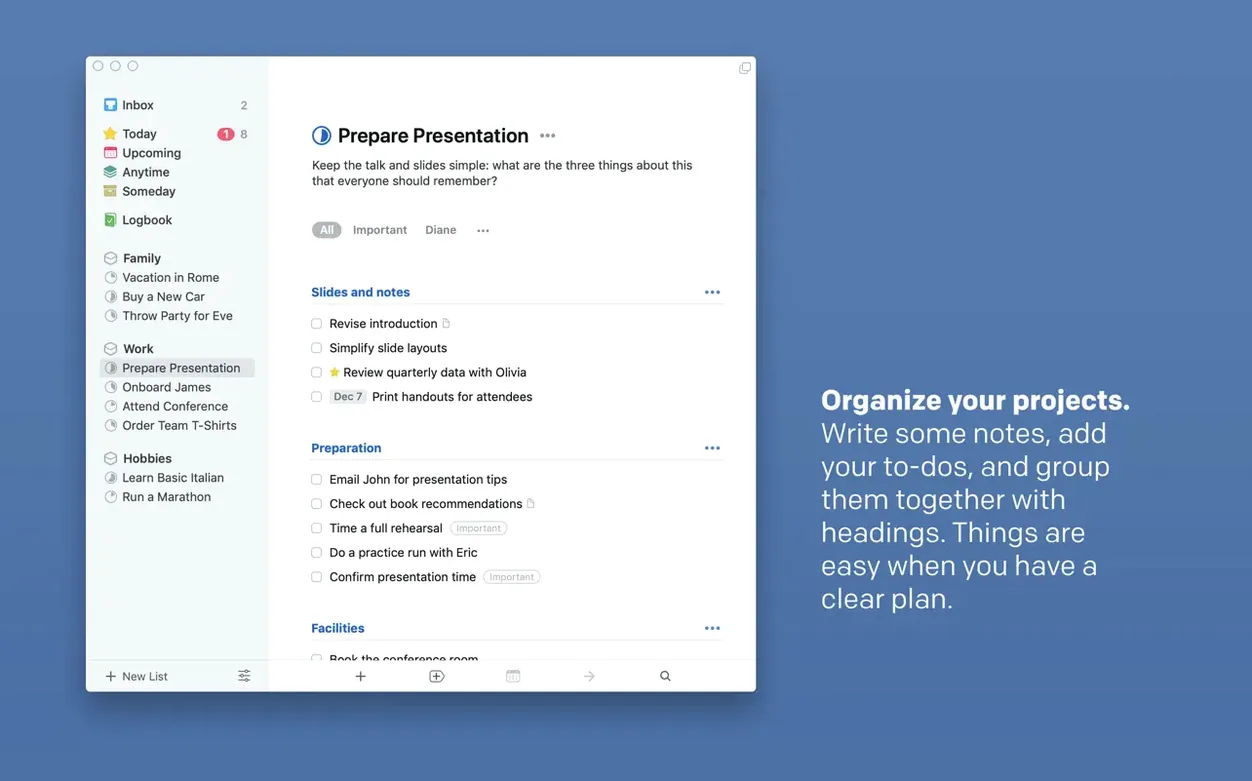
3. Group work that belongs together
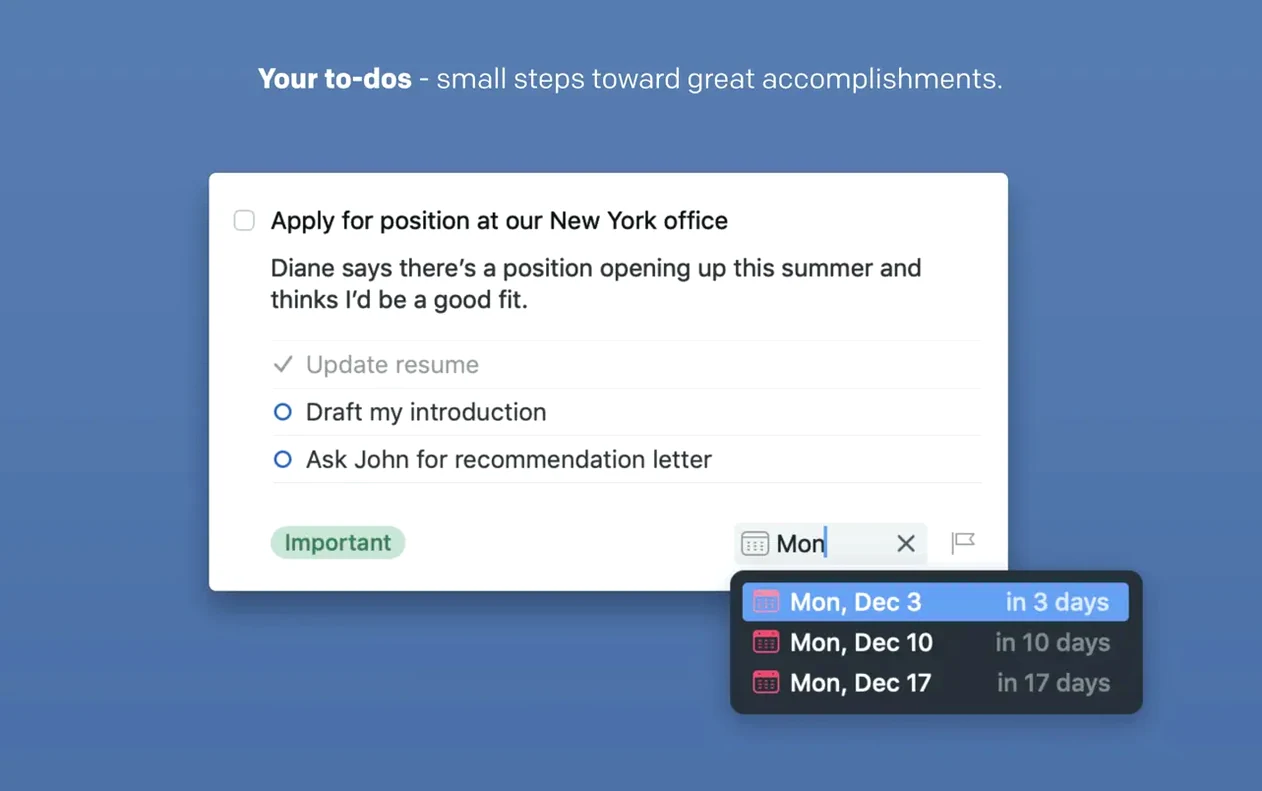
Projects hold the steps for larger goals, with headings to break them into phases. Subtasks and deadlines sit inside each task, and Areas gather related projects under one heading. Notes on a task carry reference details, so the supporting information stays with the work, not in a separate document.
4. Automate the routine
AppleScript support means Things can respond to scripts from other Mac tools. A Keyboard Maestro macro or a Hazel rule can create a task when a file appears in a folder, or pull a list of Today items into a daily note.
When the Inbox swells and Today stays empty
One recurring annoyance surfaces when the Inbox grows past a dozen items and nothing lands in Today. The fix is straightforward: open the Inbox, select a task, and press Command-T to set a date, or drag it onto the Today heading in the sidebar. Without that small nudge, Things treats everything as unsorted and will not surface it in the daily view.
Syncing confusion often stems from the same account not being signed in on every device. Things Cloud requires the same Apple ID or Things Cloud account across the Mac, the iPhone, and the iPad. If a task added on the phone does not appear on the Mac within a few seconds, toggling the sync off and back on in Preferences usually resets the connection.
Repeating tasks sometimes misbehave when the repeat rule was set on a task that already had a due date. The way to avoid that: create the task, set its repeat schedule through the Repeat popover, and then leave the due date field alone. Things calculates the next occurrence from the repeat rule, not from the original due date, and adjusting both can lead to unexpected timing.
When the Quick Entry shortcut stops working after a system update, the cause is often a conflict with a new macOS keyboard shortcut that captured the same combination. Open System Settings, head to Keyboard Shortcuts, and check whether the global hotkey has been stolen. Reassigning it in Things' Preferences resolves the collision.
How Things fits with other apps and macOS features
Handoff works between a Mac and an iPhone or iPad without any configuration. If you are editing a task on the Mac and pick up the phone, the same task opens there automatically. The reverse is just as smooth — start a project on the phone during a commute and find it waiting on the Mac when you sit down at the desk.
Share actions from Safari and Mail capture a link or selected text and turn it into a task. The task's notes field holds the original URL, so you can return to the source email or webpage later. That turns Things into a lightweight bookmarking tool for actions you plan to take, rather than pages you merely want to keep.
Notification Center widgets come in three sizes, and the new extra-tall variant introduced in version 3.24.0 shows more tasks without scrolling. The widget respects the list you last viewed — Today, a specific project, or a tag-filtered view — so it mirrors whatever you need at a glance.
Siri integration after version 3.24.0
The 3.24.0 release added support for the new Siri AI on macOS 27. You can now dictate a task with more natural phrasing — "remind me to chase the invoice on Friday morning" — and Things parses both the action and the date. Spotlight integration works in parallel: type a task title directly into Spotlight, select the Things suggestion, and the item lands in the Inbox without the app ever coming to the foreground.
Tick off tasks from the Touch Bar without opening your Mac
The Touch Bar on compatible MacBook Pro models shows the day's tasks. Tapping a task opens it, and a long press reveals a completion button. It is a narrow feature, but useful during a meeting when you want to tick something off without switching windows.
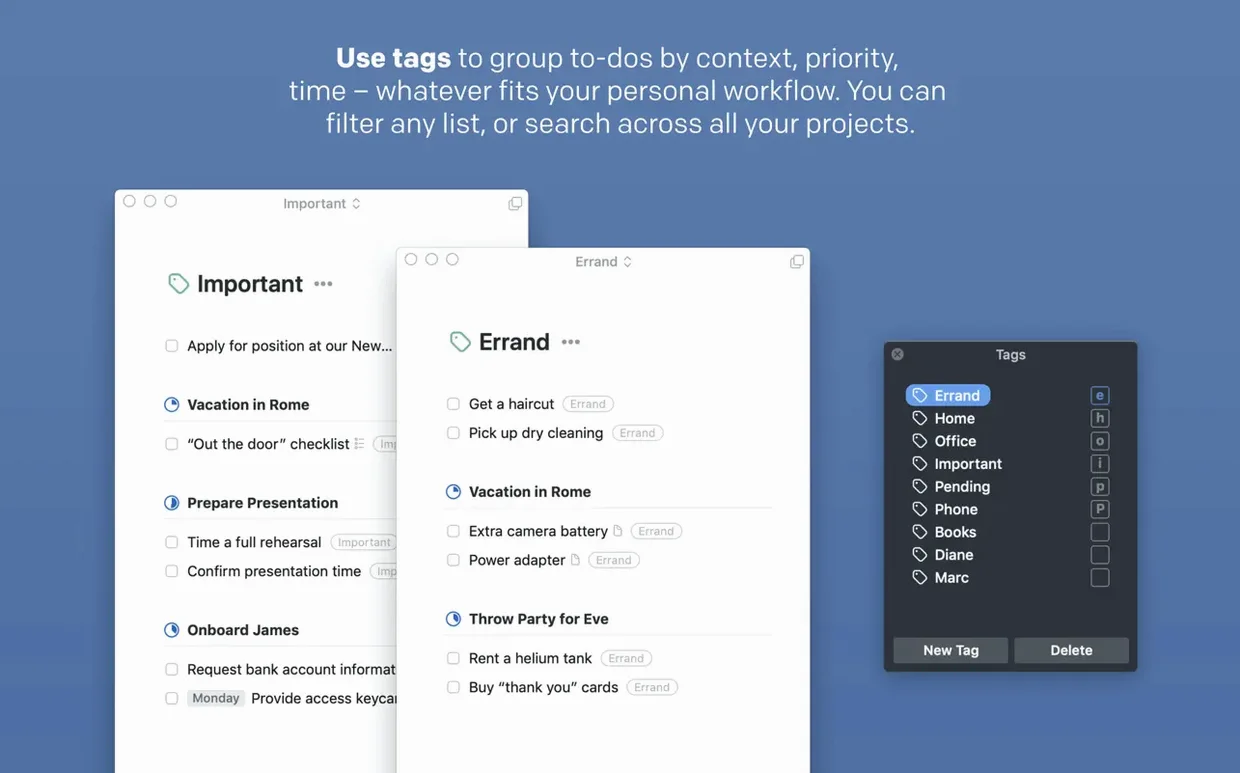
Tags support filtering by multiple criteria. If you assign @phone and @morning to a set of tasks, filtering by both tags shows only the items that match both. That lets you build ad-hoc lists — "calls I can make before noon" — without creating a separate project.
Within a task, the notes field accepts paste from most Mac apps and preserves plain formatting. Subtasks can be reordered by dragging, and collapsing a project heading hides everything beneath it, which keeps long project lists from overwhelming the sidebar. None of these gestures are advertised prominently, but they smooth out daily use once you discover them.
Deadlines sit apart from the date field. A task can appear in Today with a soft date while carrying a hard deadline a week later. When the deadline approaches, a small flag appears in the sidebar. That dual-date system prevents the common trap of treating every scheduled task as equally urgent.