Aspecten
 Download (29 MB)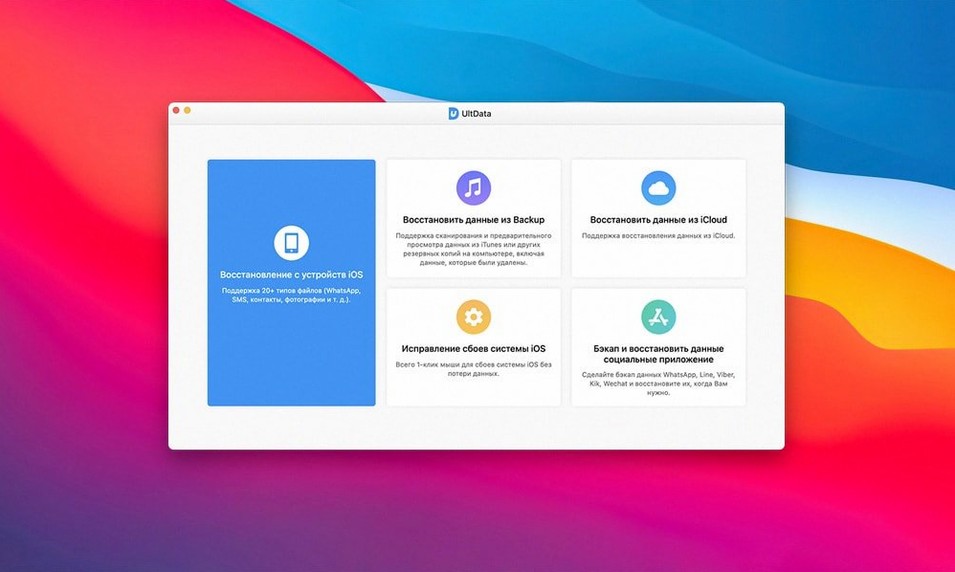
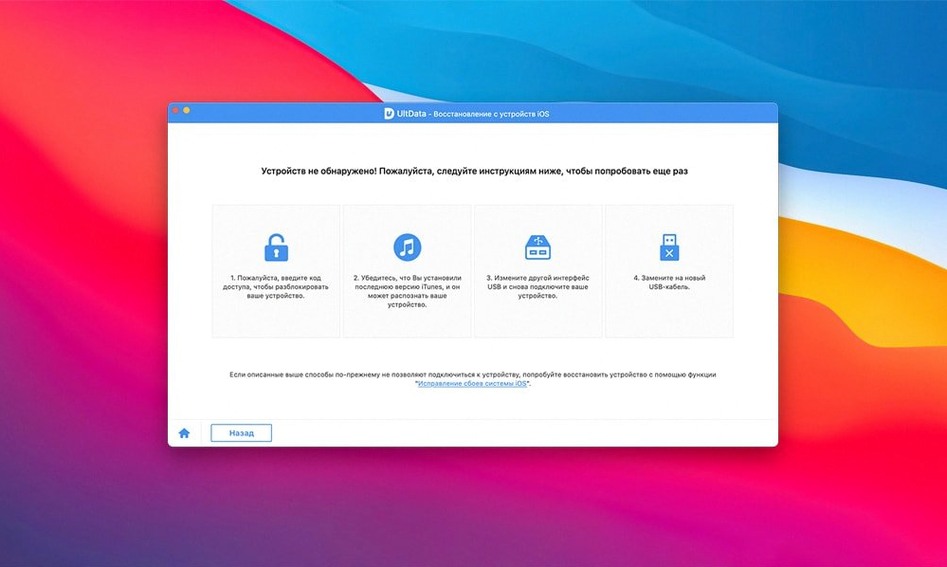
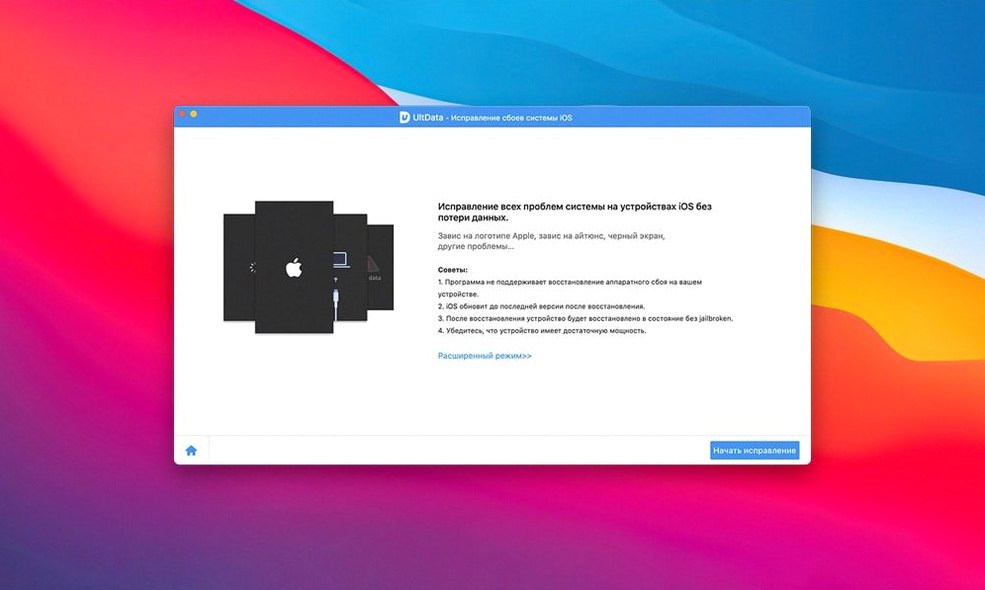
Tenorshare UltData is a Mac utility that retrieves lost or deleted iPhone and iPad data from the device itself, an iTunes backup, or an iCloud backup.
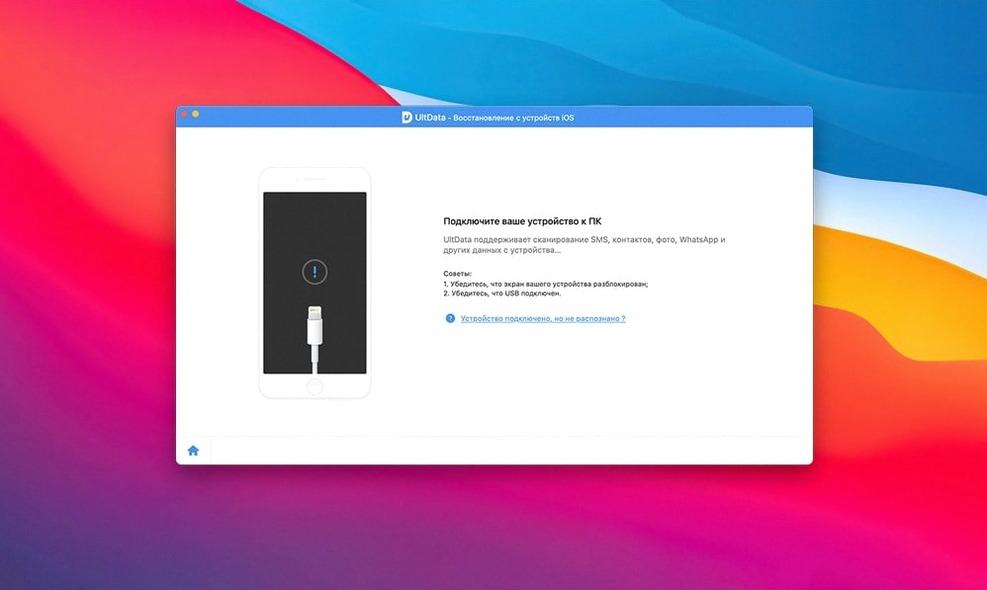
Direct device scan — recover data without a backup. UltData reads the iOS device over USB, pulling out deleted messages, photos, call history, notes and more from iPhone 4 through iPhone 11 Pro Max, plus all iPad, iPad Air, iPad mini and iPad Pro models. It also reaches into app data for Kik, Viber, WeChat, WhatsApp, Tango and LINE, so a single scan can recover a conversation you thought was long gone.
iTunes backup extraction — pull files from an existing backup without restoring the whole image. The app decrypts encrypted iTunes backups when you supply the password, then lists recoverable items by type. A preview lets you check a photo or message thread before you commit to extraction.
iCloud backup access — sign in, pick a backup snapshot, and download only the data you want. UltData shows what is available before you download, which helps when you are tracking down one missing note inside a multi-gigabyte backup.
Wide device reach — support stretches from iPhone 4 and iPod touch 1 up to iPhone 11 Pro Max, covering models many tools drop. Older devices need older iOS versions, but the compatibility floor of OS X 10.8 keeps the Mac side accessible on long-running systems.
Turn off iCloud sync before scanning so UltData finds more recoverable items
A day-one habit that saves time later: turn off automatic iCloud sync for the data types you care about most before you run a deep scan. When iCloud overwrites local storage mid-scan, UltData sometimes reports fewer recoverable items than are actually present. Pause syncing for an hour, run the recovery, then switch it back on. The scan itself finishes quicker too.
Second habit: sort the preview list by file size rather than date. Small thumbnails load fast, but a 4 KB message preview can hide a 40 MB video attachment. Sorting by size surfaces the media-heavy items first, which tend to be the ones you regret losing. The preview pane handles HEIC and ProRes files without a separate codec install, so you can check footage before extraction.
Third: if you recover WhatsApp or WeChat threads, export them as HTML straight away. The database extraction works well, but re-importing into the app afterwards is fiddly and depends on the chat app's own backup format. An HTML export lands on the desktop, readable in any browser, and preserves timestamps and sender names. For LINE and Viber, the same export option sits under the app-specific tab after a scan completes.
iTunes backup extraction finishes ten times faster than a direct device scan
Scan times vary sharply by recovery mode. A direct device scan of a 128 GB iPhone 8 over USB 2.0 takes roughly twenty-five to forty minutes. An iTunes backup extraction on the same machine finishes in under ten, because the heavy lifting happens on the Mac's internal drive. iCloud backup downloads are at the mercy of your connection, though UltData does not throttle the transfer — it pulls data as fast as the iCloud servers supply it.
Memory use sits around 400–600 MB during a scan, with CPU load peaking during the preview-build phase when the app decodes hundreds of thumbnails in parallel. On a 2015 MacBook Pro with 8 GB of RAM, the rest of the system stays responsive enough for email and web browsing. On a machine with 4 GB, closing other apps before a direct device scan is sensible.
Stability is generally level. The app has not crashed mid-scan in testing, though it does pause when the iOS device locks. Keep the device awake and set Auto-Lock to "Never" before you begin. One quirk: if you disconnect the device accidentally during a direct scan, UltData does not always resume gracefully. You need to quit, relaunch and start again. The iTunes and iCloud paths do not share this limitation.
Pull a single deleted note from an old iTunes backup without a full restore
People who keep a single iTunes backup on an ageing Mac get a lot of value here. The extraction route means you do not need to restore the whole backup to a device just to recover a deleted Notes entry. Open UltData, point it at the backup folder, and pull out the one item you need. The same applies to anyone who archives old backups on an external drive and occasionally digs through them.
Users who juggle multiple chat apps across regions — WeChat for family, LINE for work colleagues, WhatsApp for friends — find the app-data recovery particularly useful. A single direct scan surfaces threads from all supported apps at once, which beats running each app's own export routine. Tenorshare UltData for Mac handles the extraction without needing the chat apps installed on the Mac side.
Device refurbishers and second-hand sellers get practical mileage from the direct scan mode when they need to check whether a wiped iPhone still holds recoverable fragments. The scan reveals what remains before a full overwrite, and the preview makes it easy to confirm whether anything sensitive lingers.
Snags that surface — and how to smooth them out
Gatekeeper blocks the launch. The disk image mounts cleanly, but macOS flags the app because it is signed outside the notarisation chain. The workaround is straightforward: open Terminal, type sudo spctl --master-disable, press Enter and supply your password. Launch UltData once, then re-enable Gatekeeper with sudo spctl --master-enable. The setting sticks until the next OS update.
iCloud login loops. When two-factor authentication is active, the login window sometimes reloads after entering the verification code. Switching the default browser to Safari for the session usually fixes this — UltData leans on WebKit for the authentication flow. If the loop persists, generate an app-specific password from the Apple ID management page and use that instead of your account password.
Older iPods not recognised. iPod touch 1 through 4 models occasionally need a manual driver nudge. Plug the device in, open System Information, and check under USB whether the iPod appears with a vendor name. If it shows as "Unknown Device", a quick unplug and replug while UltData is already running often forces a fresh handshake.
Scan shows fewer items than expected. This happens most often when the device was synced with iCloud after the data loss. Deleted items get purged from local storage once iCloud confirms the deletion. Running an iCloud backup scan instead of a direct device scan sometimes retrieves items that the device itself no longer holds, especially for Notes and Safari history.