Aspecten
 Download (15 MB)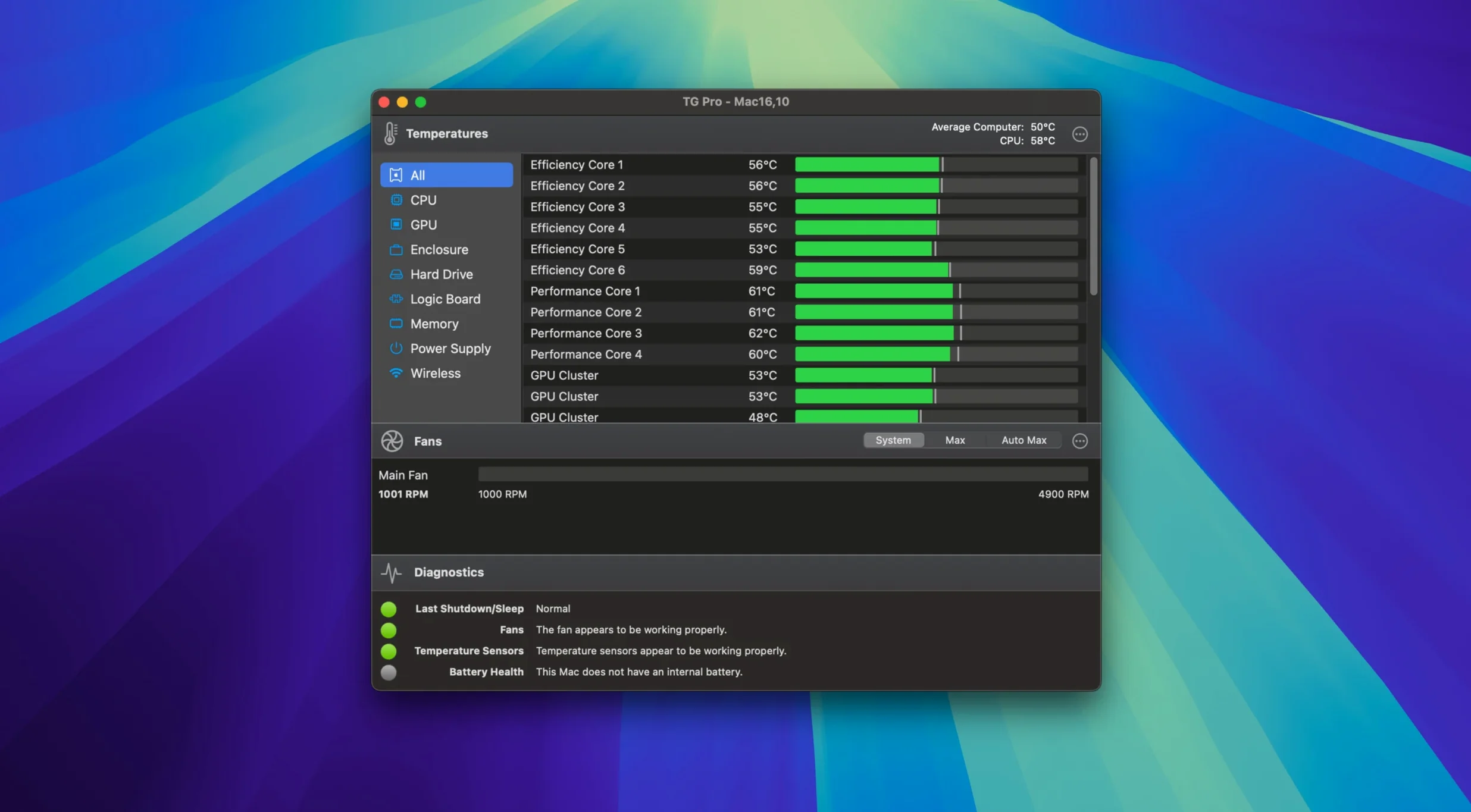
TG Pro runs on any Mac from 2008 onward, covering everything from old Intel machines running macOS 10.13 High Sierra to the latest M4, M4 Pro and M4 Max models. Hackintosh systems are also supported via a simple preference toggle, which is unusual for a hardware utility of this type.
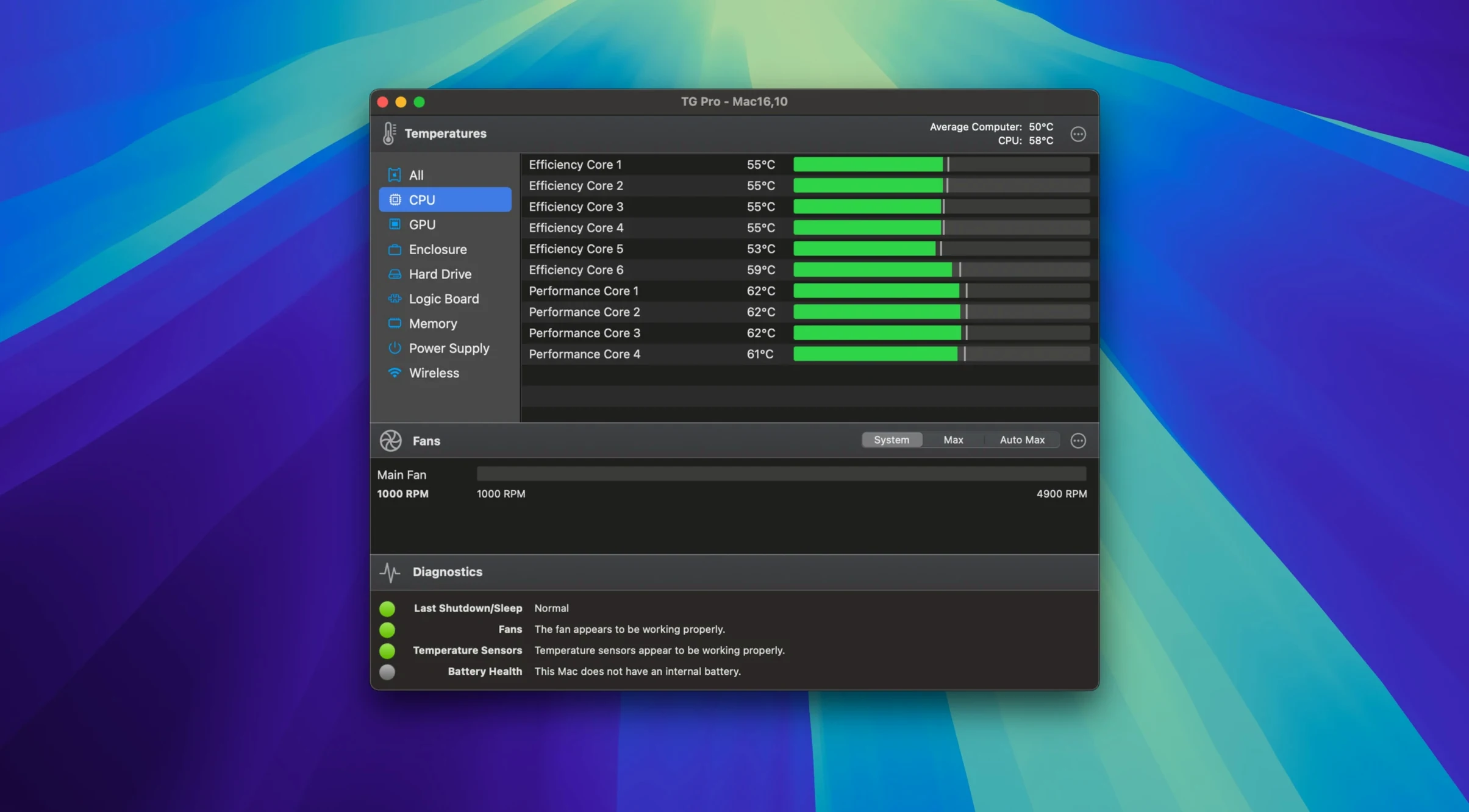
The main window presents a clear list of every temperature sensor your Mac exposes — CPU, GPU, logic board, memory, Wi‑Fi chip, SSDs and the battery on portables. Each reading updates in real time, and a colour-coded bar gives you an immediate sense of whether a component is running cool, warm or hot. If you suspect a hardware problem, the built-in diagnostics can log sensor behaviour over time, which is useful when chasing intermittent faults.
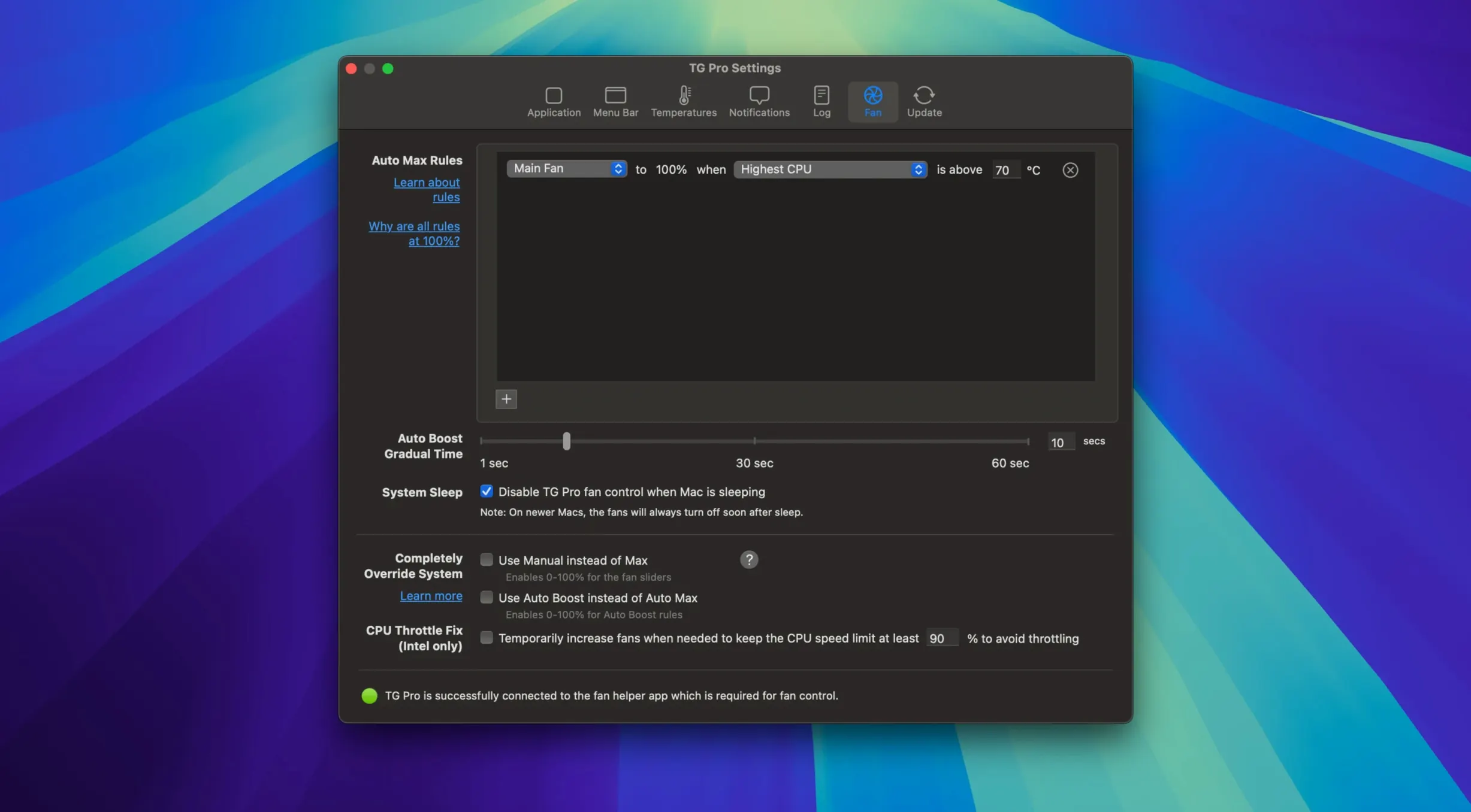
Fan control is where the app earns its place. You can switch any fan to manual and set a fixed speed, or you can build custom rules that react to specific sensors. For example, you might ramp up the exhaust fan when the GPU diode crosses 65 °C, but leave it quiet otherwise. Automatic mode remains available, and the latest update fixed a longstanding issue where Auto Boost rules could fail when swapping between mains power and battery.
What makes TG Pro feel practical rather than gimmicky is that it stays out of the way. It lives in the menu bar, shows a compact temperature summary, and only speaks up when something needs attention. It will not make a cool-running Mac run cooler, but for anyone troubleshooting thermal throttling, testing fan replacements or simply wanting to understand what their hardware is doing under load, it provides the data and the controls without fuss.
Menu bar numbers you can read without opening the app
You install TG Pro, open it once, and then largely forget it exists. The app sits in the menu bar showing two or three small numbers — usually CPU proximity, GPU, and the highest-reading sensor on the machine. That is the whole session for most days: a glance while a render churns away, nothing more.
On a heavier day, the pattern changes. You launch something demanding — a long video export, a large compile, a game running through Rosetta — and the menu bar reading climbs. You click the icon, and the dropdown shows the full picture: fan speeds on the left, the hottest components on the right. If the fans have not responded the way you would like, you open the main window from the menu, switch to manual control, and drag the fan slider up a notch. The change is immediate; you hear the fan spin up within a second or two.
From there, the session becomes a loop. You watch the temperature settle, adjust the fan once more, and decide whether to save the setting as a rule. With a rule in place, you close the main window and let the app manage itself. Before shutting down, you check the log to see whether any sensor crossed a threshold you set earlier. Usually nothing did, which is itself the useful result.
A specific task: sorting out a noisy Mac mini
The problem: an M1 Mac mini that ramps its single fan aggressively during video calls. The fan spins up, the call audio picks it up, and every participant hears a low whine. The machine is not overheating — the fan behaviour is just conservative.
The fix starts in TG Pro’s main window. With the call running and the fan at full speed, the CPU proximity sensor reads 71 °C. That is warm but far from concerning. You switch the fan from automatic to manual and drag the slider down to around 2800 rpm, a speed that is audible only if you put your ear near the case. The pitch drops immediately in the call.
You leave the fan at that speed and watch the temperature for five minutes. It settles at 74 °C — a rise of three degrees, still well within safe limits. You now create a rule: when CPU proximity exceeds 80 °C, increase fan speed to 4000 rpm. When it falls below 70 °C, return to 2800 rpm. The rule handles itself from then on. Calls stay quiet, and the mini still gets extra cooling if a hot afternoon pushes the sensor higher.
One difference between macOS versions matters here: on Apple Silicon Macs, fan speed values are reported in rpm as expected, but on older Intel machines the same fans may report as a percentage of maximum. The rule you build on one machine may need remapping on another.
Warmer components age slightly faster
Will this shorten my Mac’s life? Not if you use it sensibly. Slowing a fan means the component runs warmer, and warmer components age slightly faster. But the margins are small — a CPU diode at 75 °C instead of 70 °C is not a meaningful difference. What matters is that you keep an eye on the readings and set rules with reasonable thresholds. TG Pro’s alerts make this easy: pick a temperature that you want to stay under, and the app tells you if you cross it.
Does it need to run all the time? No. You can quit the app entirely and macOS takes over fan control again. But if you want your custom rules to apply whenever the machine is on, the app needs to be running, even if you never open the main window. Its CPU usage is low enough that this rarely matters.
Will it work on a Hackintosh? Yes, but you need to switch on the Hackintosh preference first. Without that toggle, some third-party fan controllers are not detected properly. After the toggle, most boards expose their fans and sensors in the usual way.
Can I break something by setting a fan speed too high? TG Pro only lets you set speeds up to the maximum the fan hardware reports. You cannot force a fan past its design limit. The realistic risk is the reverse — setting a fan too low and letting something overheat. The alerts and colour coding exist exactly for that situation.
Conveniences and shortcuts that are easy to miss
The menu bar dropdown is more capable than it looks. Click any temperature or fan speed to jump straight into the relevant section of the main window. That saves a lot of scrolling on machines with many sensors, such as Mac Pro towers with multiple drives and expansion cards.
In the main window, holding the pointer over any sensor name shows the sensor’s internal identifier. That is useful when you build rules and two sensors have similar names, or when you want to refer to a specific component in a support discussion.
Rule management has a small but helpful detail: every rule has an enabled checkbox, so you can keep a rule for later use without deleting it. If you experiment with fan curves and want to compare behaviour, toggling rules on and off is faster than recreating them.
Alerts can be set per sensor, not just globally. If you care only about the GPU diode on a MacBook, you can silence other sensors and leave notifications for that one. The log records when the alert fired, which sensor triggered it, and what the reading was at that moment.
On portables, the menu bar can show battery temperature alongside CPU and GPU readings. That is a small addition, but it helps when you wonder whether a hot lap is caused by the processor or the battery charging.
Why a fan may ignore manual control on recent portables
Fans do not respond to manual control. Check whether the fan is listed as controlled by system in the main window. On some Macs, especially recent portables, macOS keeps certain fans under its own management until the app requests control. Quitting and relaunching TG Pro usually resolves this, as does checking that the app has permission under Privacy & Security in System Settings. On M4 models, version 2.103 added full fan control, so an older build would show fans but not move them.
Fan speeds disappear after using Siri or dictation. This was a known issue fixed in version 2.103. If you still see it, update the app, then toggle the affected fan from automatic to manual and back once. The reading returns and the control resumes.
Rules stop working when switching between power sources. On laptops, a rule keyed to battery power could fail after plugging in the charger. Version 2.103 fixed this for Auto Boost rules. If you built a rule that behaves unpredictably on power changes, recreate it after updating and test by unplugging and replugging once.
The menu bar shows a dash instead of a number. That happens when macOS has not exposed a particular sensor to third-party tools. It is common for Wi‑Fi or memory sensors on certain models. The dash is not a fault in the app; that component simply does not report a readable value.
A fan rule makes the machine too loud at idle. The usual cause is a threshold set too low. If the rule says “increase fan at 55 °C” and the machine idles at 57 °C, the fan will run fast almost constantly. Raise the trigger point by ten degrees and watch the readings for a few minutes. Rules are best tuned with the main window open, so you can see exactly when the trigger fires.
High CPU usage from TG Pro itself. The app is designed to run quietly in the background, but on a very old Intel Mac the sensor polling can add a small load. If Activity Monitor shows TG Pro using more than a few percent consistently, reduce the refresh interval in the preferences. The default is already gentle; a slower interval will not affect fan rules, which evaluate on their own schedule.