Aspecten
 Download (220 MB)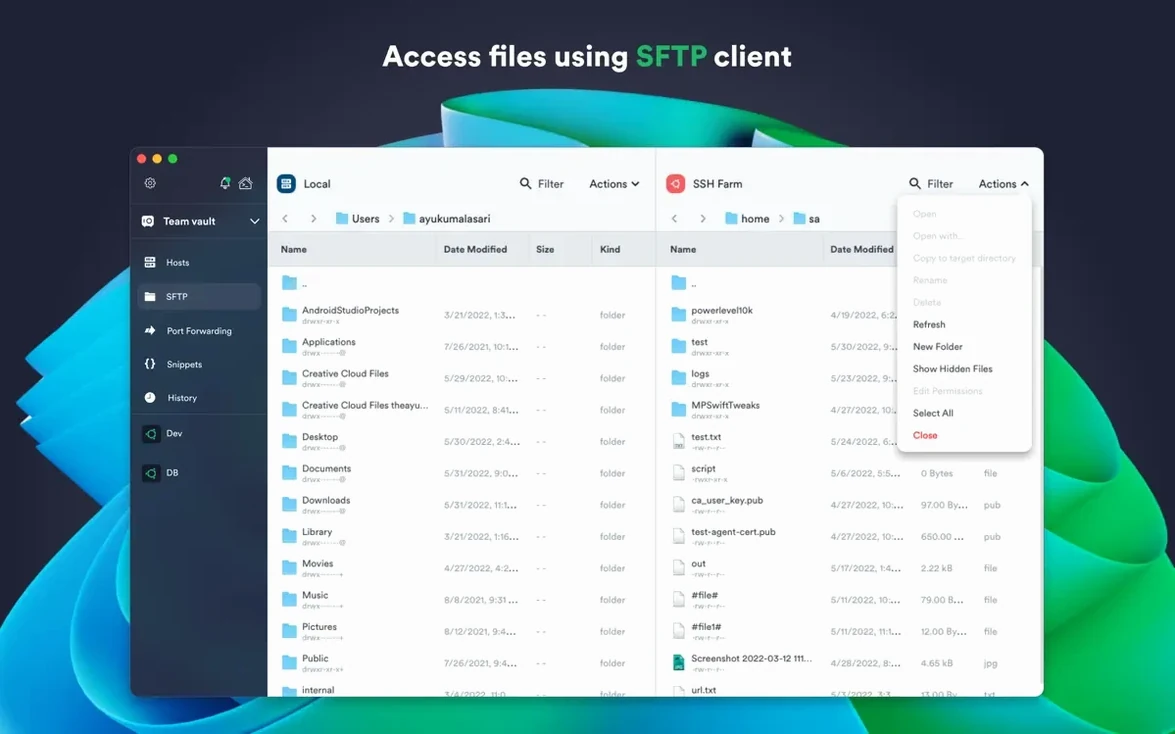
Someone who already keeps their terminal sessions tidy in a tool like iTerm2 will find Termius extends that order beyond one screen. It pulls saved connections, keys and frequently used commands into an encrypted cloud store, so a setup you build on a desktop Mac is present when you switch to a laptop later.
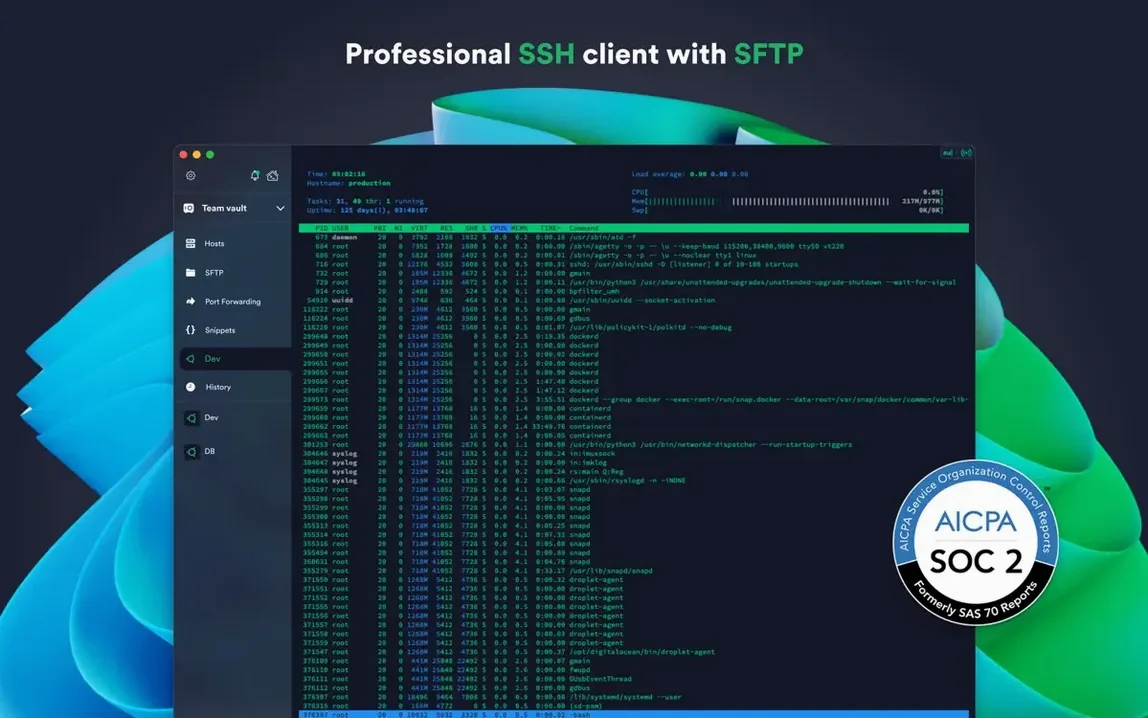
A dedicated SSH workspace beside your local terminal
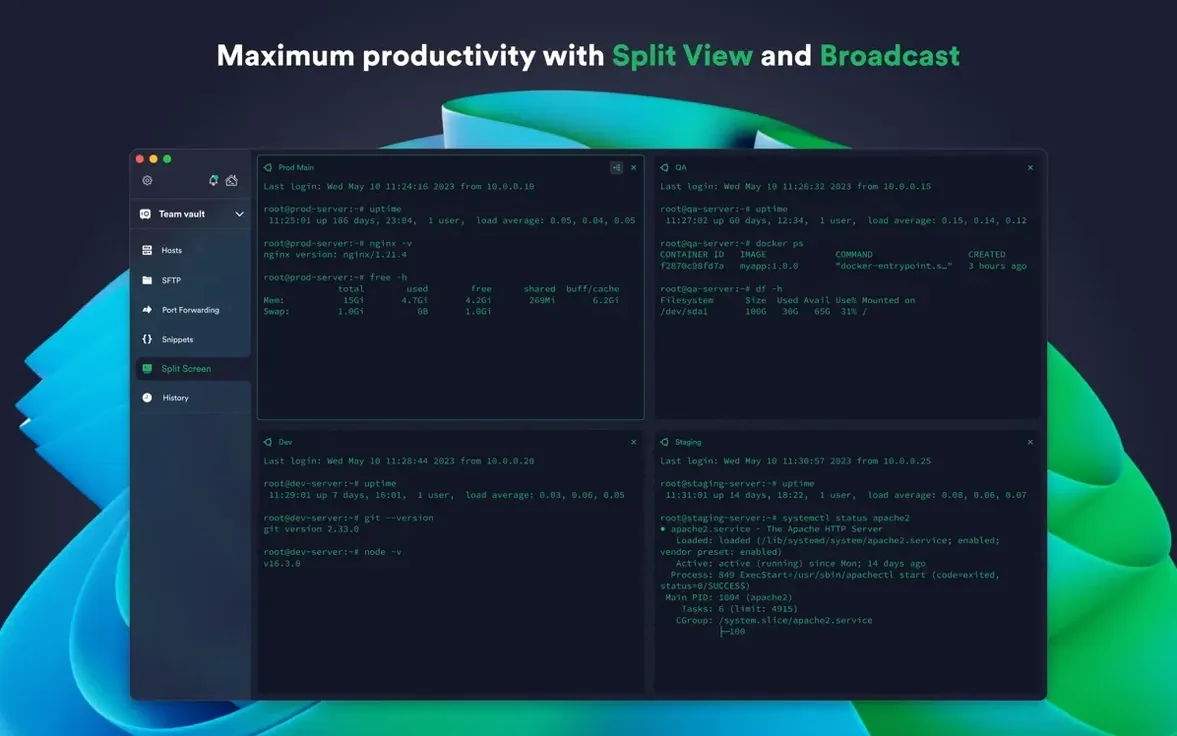
It does not replace your everyday terminal for local tasks. Rather, it sits beside it as a dedicated SSH workspace with a tabbed interface and split view for multiple sessions at once. Per-connection themes and fonts help tell production servers apart from test ones at a glance.
What part of the security flow does it handle?
It keeps your keys on the local machine through SSH agent forwarding, while FIDO2 hardware-key authentication adds a physical factor. Touch ID or Face ID can guard stored credentials, with two-factor authentication available for the Termius account itself.
Can it speed up repetitive remote work?
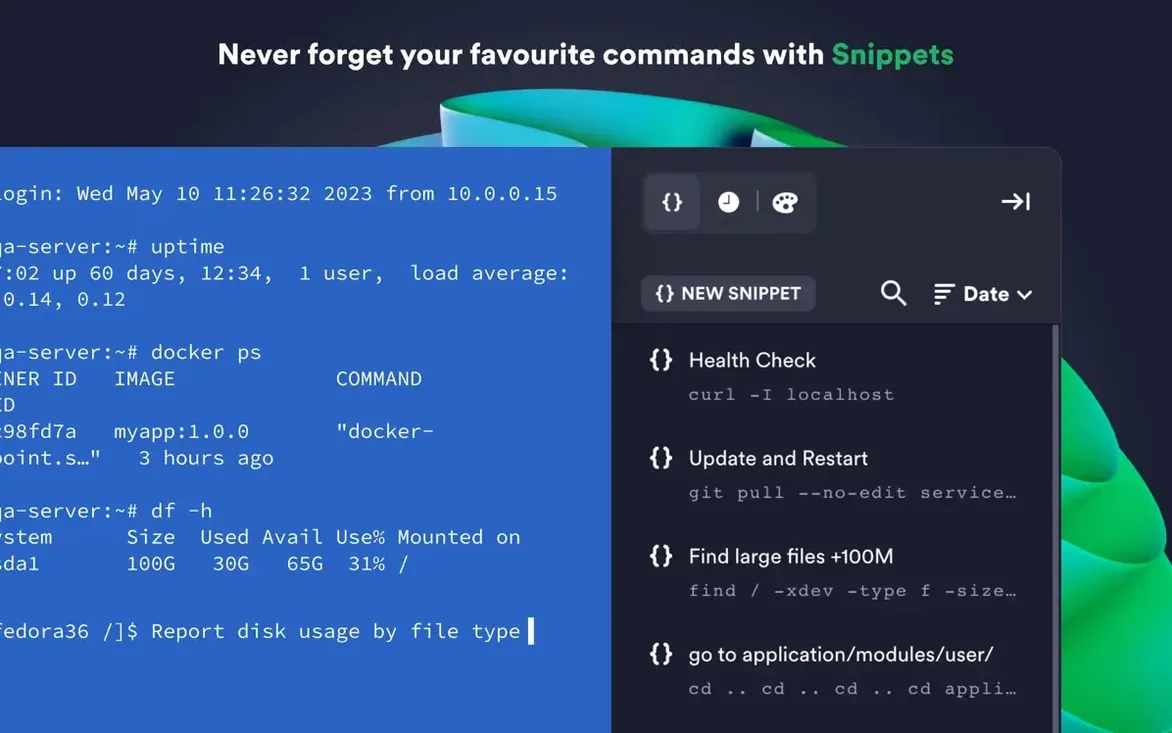
Frequently used commands and shell scripts can be saved and run with a single tap. Custom environment variables let each session start with the context it needs, cutting out the same few setup lines.
Switch the default terminal font for longer sessions
Out of the box, Termius opens with a default set of fonts and transparency values that are fine but rarely ideal for extended use. The first change worth making lives under Preferences → Terminal → Font, where switching to a monospaced face like JetBrains Mono or SF Mono at 13 or 14 points tightens the character grid on Retina screens. The difference is most apparent scrolling through dense command output with long path names.
A second early adjustment is resize behaviour. In Preferences → Terminal → Resize, disabling "Re-wrap text on resize" stops long lines from rearranging when you drag the window border during a live session. This matters when you park log output side-by-side with a second tab and want the line breaks to stay predictable.
The General pane hides a setting called "Restore workspace on launch." Turn it on and Termius reopens exactly the tabs and splits you had when you quit. Without it, each launch returns a blank slate needing manual reconnection. Anyone who alternates between three or four long-running sessions across different VLANs will notice the friction disappear.
For users who rely on a jump host, the Host → Proxy / Jump section of a connection profile deserves more than a cursory glance. By default, the jump server inherits the authentication mode of the parent connection. Override it with a specific key file and the chain becomes faster to connect — especially when the production jump box demands ed25519 keys while internal hosts use ECDSA.
Rotating SSH keys across six servers via a bastion host
A freelance DevOps engineer manages a handful of client environments that span three cloud accounts and two on-premise clusters. Each Tuesday morning they rotate SSH keys on six application servers behind a bastion host. Before Termius, this meant keeping a local password manager open, copying key paths into an iTerm2 profile, and retyping the jump host rules in a plaintext config that grew stale when IP addresses changed.
With Termius, the engineer stores each bastion and its downstream hosts as a group in the sidebar. The group inherits the proxy settings, the ed25519 key, and a custom environment variable that points to the correct AWS region for that client. Double-clicking the bastion entry connects; a second double-click on an app server inside the group opens a new tab already tunnelled through the active jump. The six key rotations take about twelve minutes instead of twenty-five, and the shared command history means next week's rotation command auto-completes after typing three letters. A snapshot in the built-in SFTP panel lets them confirm the new public key landed before closing the session, without launching a separate file transfer tool.
Drag multi-step sequences from the snippet library onto a tab
The snippet library accepts not only single commands but sequences separated by line breaks. Drag a multi-step server update onto a connected tab and each line fires in order, pausing only where a command needs interactive input. Nobody advertises it, but it turns the snippets pane into a lightweight macro runner for deployments that do not yet have a CI pipeline.
The port forwarding setup has a quiet time-saver. When you create a new local-forward rule through the GUI, the "Address" field auto-populates with 127.0.0.1. Typing a hostname instead of an IP and then pressing Enter will save it, but pressing Tab first commits the entry and moves focus to the port field without a mouse click. A small thing that adds up when you configure three or four forwards before a database migration.
Command history in Termius is shared across sessions by default, but right-clicking any entry reveals a "Copy and send to active session" option. It sidesteps the clipboard entirely — useful when the command contains a sensitive token you do not want lingering in system pasteboard memory. A companion detail: holding Option while clicking a snippet runs it immediately in the active split pane, skipping the drag-and-drop step.
If you use a dedicated machine label scheme — say web-01 through web-08 — the search bar in the hosts sidebar recognises partial matches and groups results by connection type. Typing "web" narrows the list to exactly those eight entries, and pressing Cmd-Shift-D duplicates the currently selected host as a new profile with the same authentication and proxy rules pre-filled. Relabelling it for the next node in the cluster takes seconds instead of minutes.
Anyone who found Termius through a termius torrent or spotted a termius mac crack online will quickly notice that the legitimate cloud sync underpins most of the conveniences described. The snippet library, host groups and history sync depend on the encrypted cloud store; without it, each device becomes a separate island. A termius mac installation configured with proper sync behaves like a single workspace spread across machines, which is where the tool earns its place between a local terminal and a heavier infrastructure management suite.
Workflow: patching three application servers through a jump host
A sysadmin picks up a routine patch cycle: apply a kernel update to three application boxes behind a corporate VPN jump host. The workflow starts by opening Termius and selecting the saved host group labelled "Staging — EU West." The group contains the jump server profile and three app-server profiles: eu-app-01, eu-app-02, eu-app-03. Each app server profile has "Use Jump Host" set to the staging bastion, with its own ed25519 private key referenced under Authentication.
The admin double-clicks the bastion entry. A tab opens showing the login banner and a ready prompt. Next, they right-click eu-app-01 in the sidebar and choose "Open in new tab via jump host." Termius tunnels the second connection through the already-active bastion tab without re-authenticating. They repeat this for eu-app-02 and eu-app-03, arriving at four open tabs: one for the jump and one per target.
Before running updates, the admin drags a pre-written snippet labelled "Preliminary health snapshot" onto the eu-app-01 tab. It runs a quick disk check, memory report and service status dump, writing the output to a timestamped file on the local Mac via the SFTP panel already pointed at the home directory. The same snippet is Option-clicked in the other two tabs, running in parallel.
With health checks confirmed, a second snippet called "Apply kernel patch and reboot" is dropped onto eu-app-01. The script updates the kernel package, schedules a reboot, and echoes a boot-time estimate. While eu-app-01 restarts, the admin shifts focus to eu-app-02 and applies the same snippet. They cycle through the three servers in staggered order so at least one instance stays live. Each reboot confirmation appears in the shared command history log, colour-coded by host, making it easy to scroll back and verify that no server missed the update.
After all three are back up, the admin runs the health snapshot snippet once more and compares the before-and-after output in the SFTP panel with a quick diff. The entire cycle — health check, patch, reboot, verification — completes inside one window without touching a separate terminal config file, a password manager lookup, or a file transfer utility.