Aspecten
 Download (318 MB)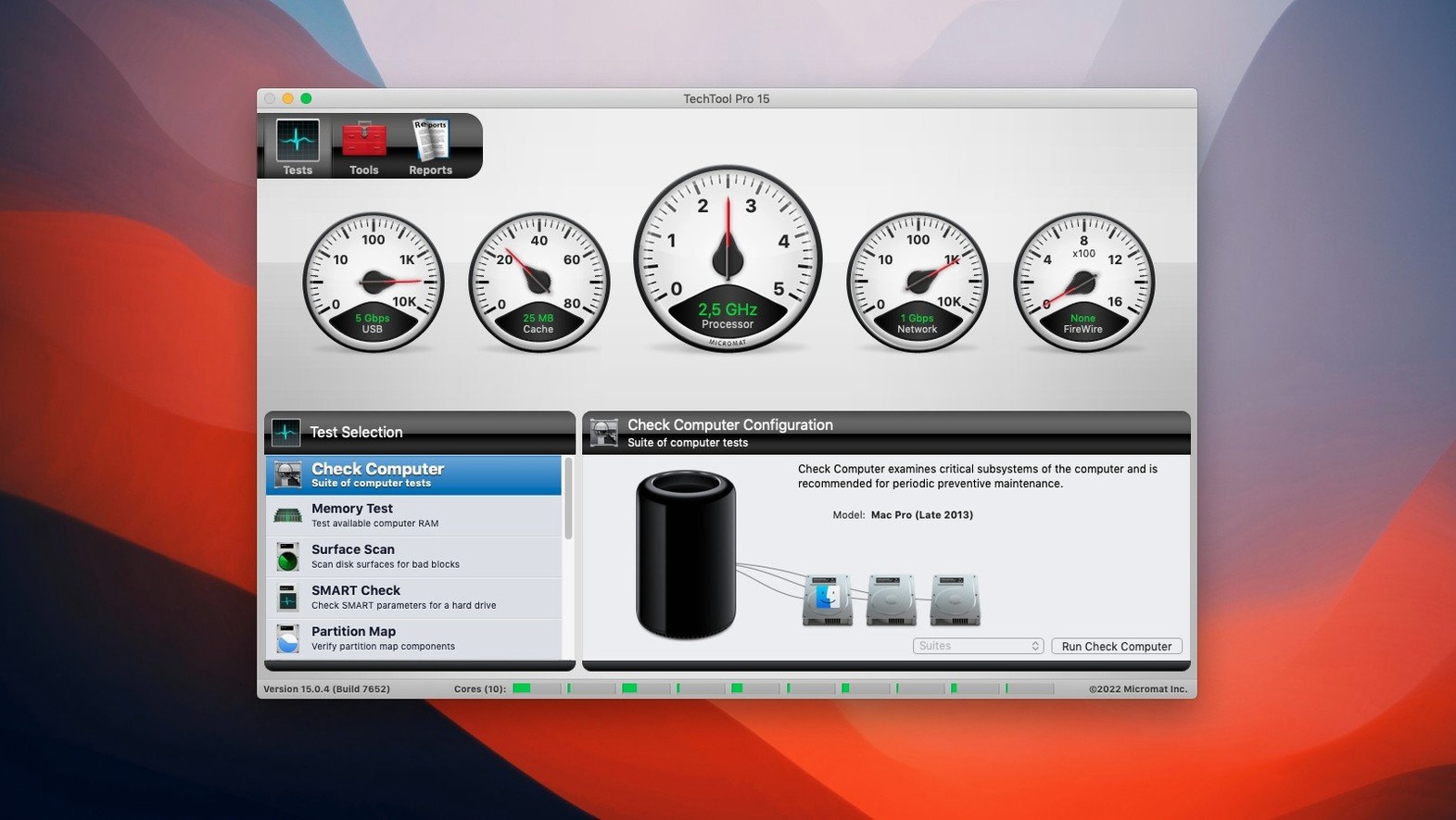
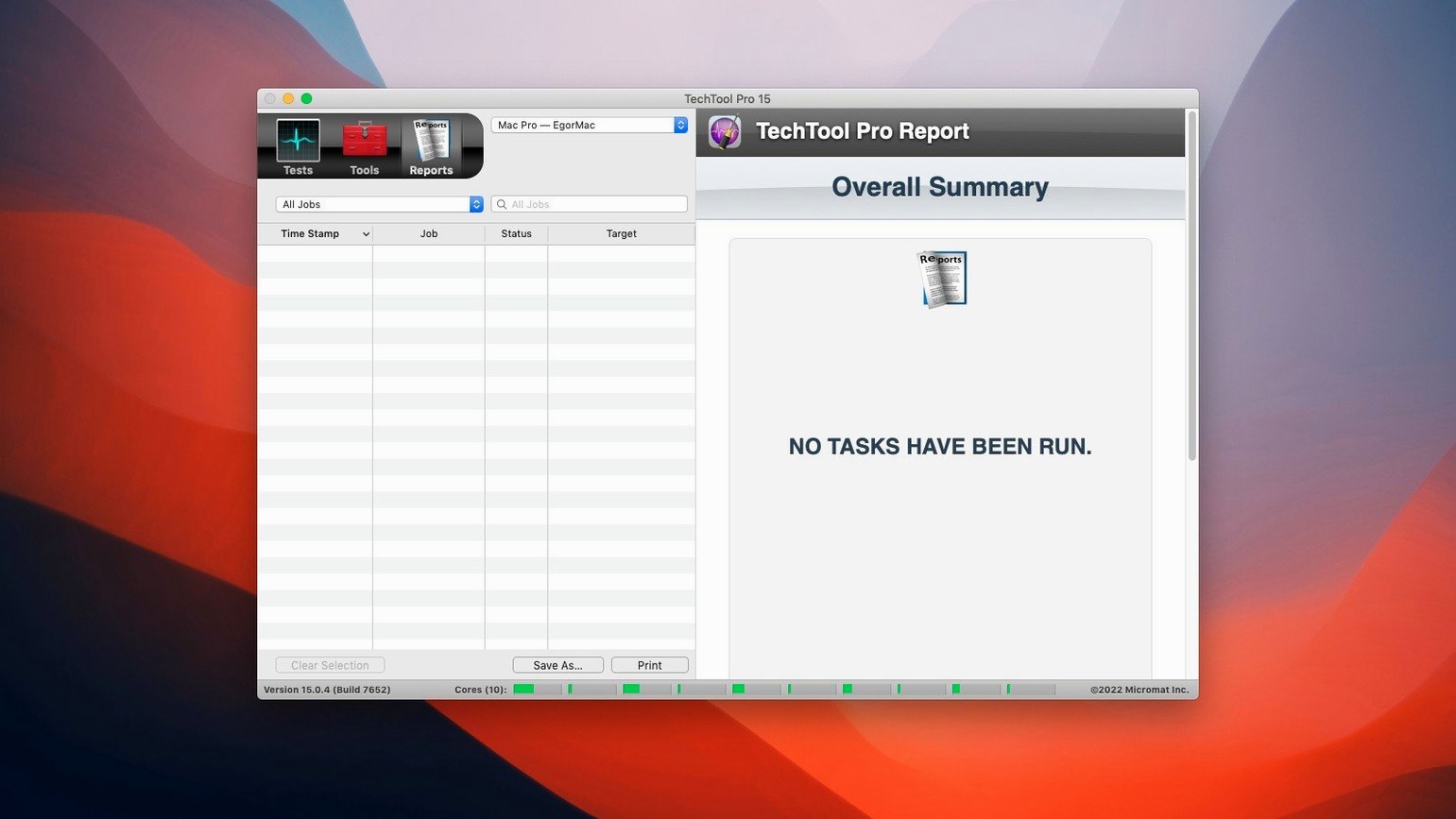
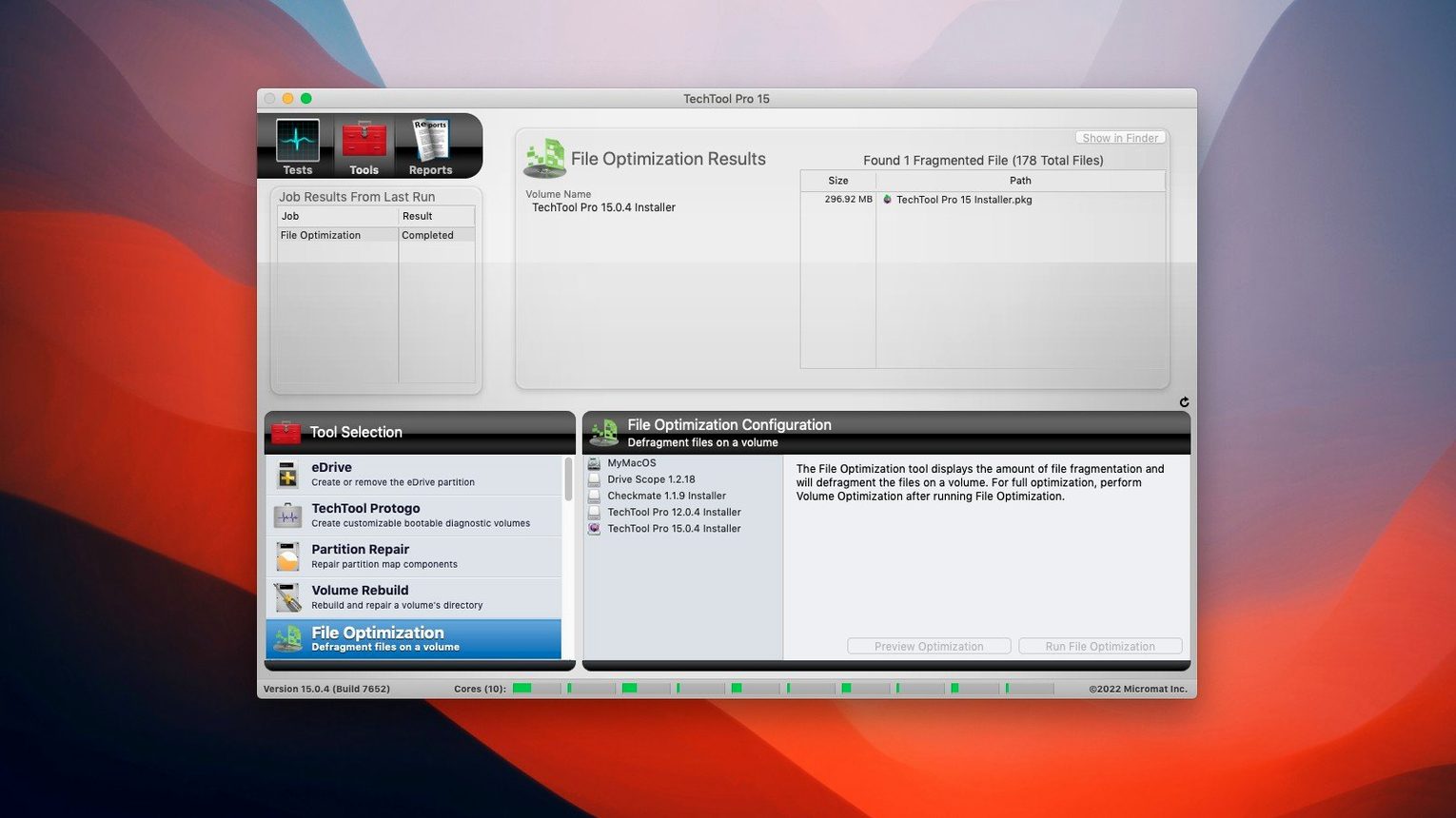
1. Start with the SMART reporter
Open the suite and find the drive list. Select any attached volume and run a SMART test. The tool reads a hard drive or SSD's self-reported health attributes and flags state changes that often precede a physical failure. It is faster than a surface scan and gives you a first answer without uncabling anything.
2. Run a volume structure check
If the SMART data looks normal but behaviour is odd, move to the volume repair tools. Techtool Pro can rebuild a damaged directory on both spinning disks and SSDs, restoring file access permissions on the partition when they have drifted. The process is linear: select the volume, run the check, then apply the suggested fix.
3. Set up active monitoring
Switch on Techtool Protection. Once enabled, it sits in the background. When a monitored drive reports a problem, the tool can show an on-screen message and send an email notification. It suits machines that run unattended or act as a local server.
4. Build a rescue volume
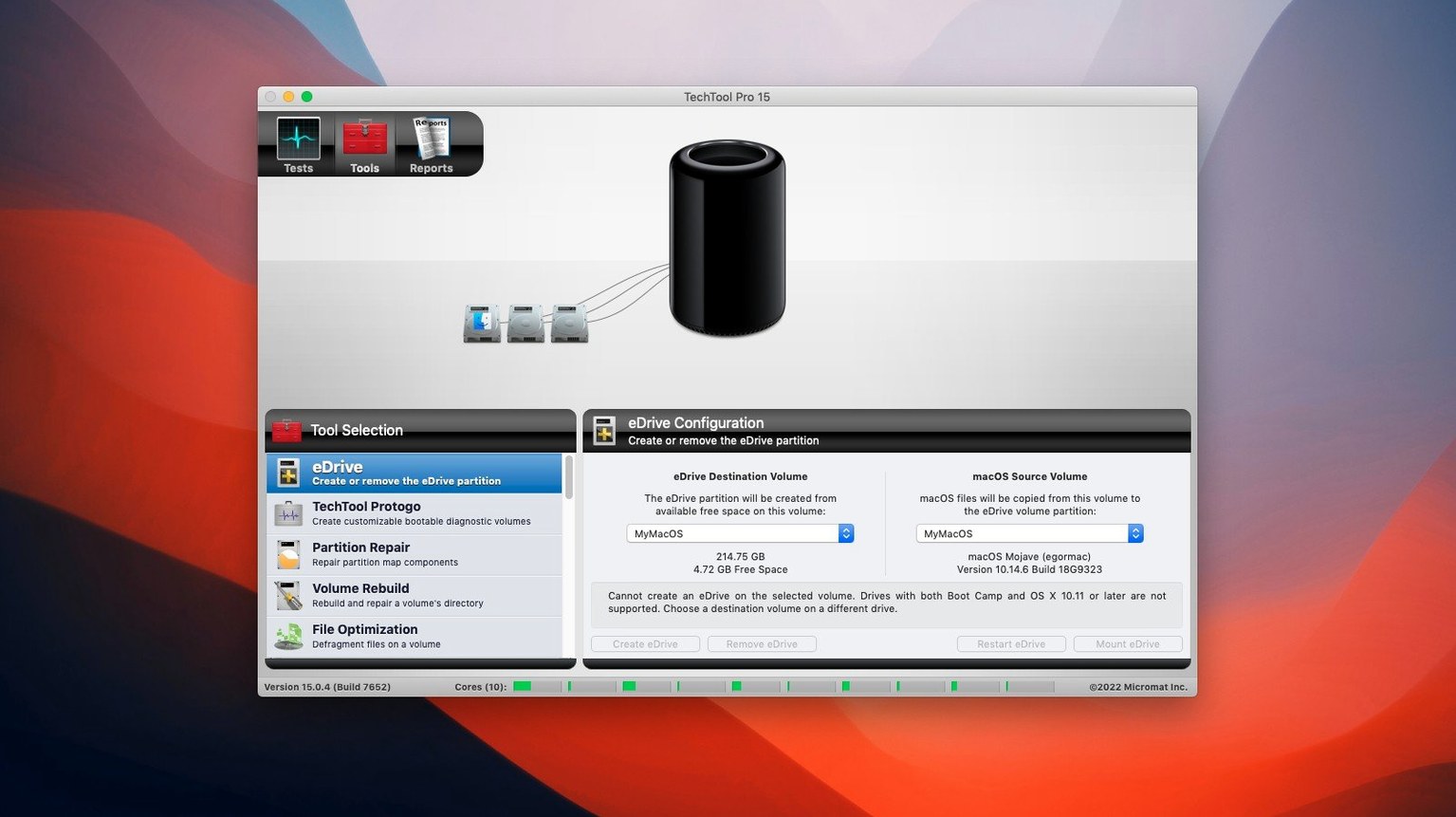
Use the built-in facility to create an emergency boot partition directly on the active system volume, without a DVD. If you prefer external media, the integrated Protogo function creates a custom bootable diagnostic drive. Both options give you a working environment when the main system refuses to start.
5. Clone before you repair
Before any repair attempt on a suspect drive, use the volume cloning tool. It copies the entire partition to another drive, sector by sector. If the repair later changes something you did not expect, the clone is your fallback.
The single-window layout keeps these tools within reach, though the visual density takes a moment to scan. It is a diagnostic workbench for people who want to question a disk before it fails entirely, not a tune-up utility for casual spring cleaning.
Works alongside Time Machine, not as a replacement
Techtool Pro does not replace a backup utility such as Time Machine or Carbon Copy Cloner, and it does not compete with a dedicated disk editor. It works alongside them. A common routine is to let Time Machine handle hourly snapshots while Techtool Protection monitors SMART thresholds and directory health in the background. When a drive acts strangely, you reach for Techtool Pro before you reach for a restore.
The suite also cooperates with macOS's own Disk Utility, but with a wider remit. Disk Utility can run First Aid on a volume; Techtool Pro can rebuild that volume's directory with a different engine and then test the hardware underneath it. Technicians often run both, in sequence, to get two independent assessments of the same problem.
On the network side, the device configuration monitor can track changes across several Macs. A small office that keeps a local server and a handful of workstations might run the tool on each machine and collect email alerts in one inbox. It is a lightweight alternative to a full MDM profile for shops that only need to know when a disk starts to misbehave.
Who profits most from the full toolbox
Three groups tend to keep Techtool Pro installed. The first is the home user who keeps a Mac for five or six years and wants early warning before a drive dies. They run a SMART check every few months and leave Techtool Protection on. The second group is the independent repair technician who sees a different machine every day. For them, the volume clone and the bootable Protogo drive are the daily workhorses. The third is the Mac administrator in a school or small studio, where a single faulty disk can stall a whole room. The email alerts and the ability to rebuild permissions without reinstalling macOS save repeated trips to the machine.
People who only need a quick file recovery or a one-off memory test will use only a fraction of the suite. That is fine; the tools do not demand to be used as a set. But the value grows when you treat it as an early-warning and repair chain: monitor, diagnose, clone, repair, verify.
Clone verification failures fixed in newer builds
One recurring issue is a volume clone that fails during verification. This was addressed in version 20.1.7, which corrected a File Sync clone verification failure. If you run an older build and see a verification error, the workaround is to clone without verification and then run a separate volume structure check on the clone afterwards. The result is the same, just in two steps.
Another snag is that Techtool Protection can feel chatty on a machine with several external drives. The default threshold for free-space warnings is conservative. You can quiet it by adjusting the alert settings per volume: raise the minimum free-space figure or disable space monitoring on archive drives that are meant to be nearly full.
When Protogo refuses to build a bootable drive, the culprit is often the USB stick itself. Protogo needs a drive with a GUID partition table and at least as much free space as the bootable system it will carry. An old thumb drive formatted as MBR will fail silently. Reformat it in Disk Utility as Mac OS Extended (Journaled) with a GUID Partition Map scheme and the process usually completes without further complaint.
Users who search for a techtool pro 20 serial number or a techtool pro torrent sometimes end up with a build that predates these fixes. The verification bug and a crash tied to TechTool Monitor launching were both addressed in build 9559. A copy of techtool pro 20 that sits several point-releases behind will carry those unfixed edges, so a techtool pro 21 torrent can be a practical way to get the latest corrections for a tool whose whole purpose is system stability. A known-good build saves time when you are already dealing with a suspect disk.
Finally, a slow SMART check on a large external hard drive is normal. The tool reads every reported attribute, and some USB bridges add latency. If a check seems stuck, let it run for at least ten minutes before you force-quit. On very large spinning drives, a full surface scan is an overnight job, not a coffee-break task.