Aspecten
 Download (10 MB)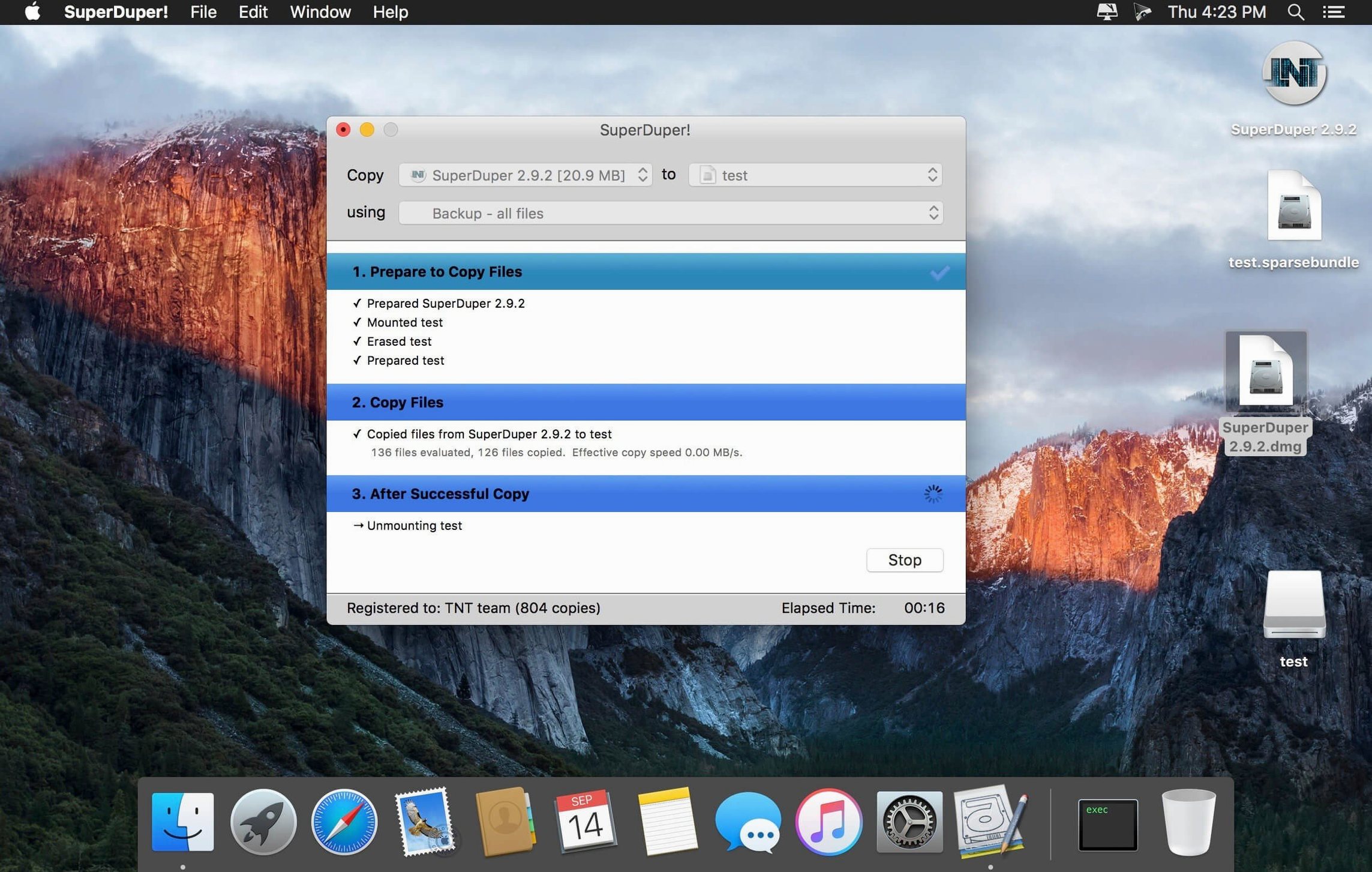
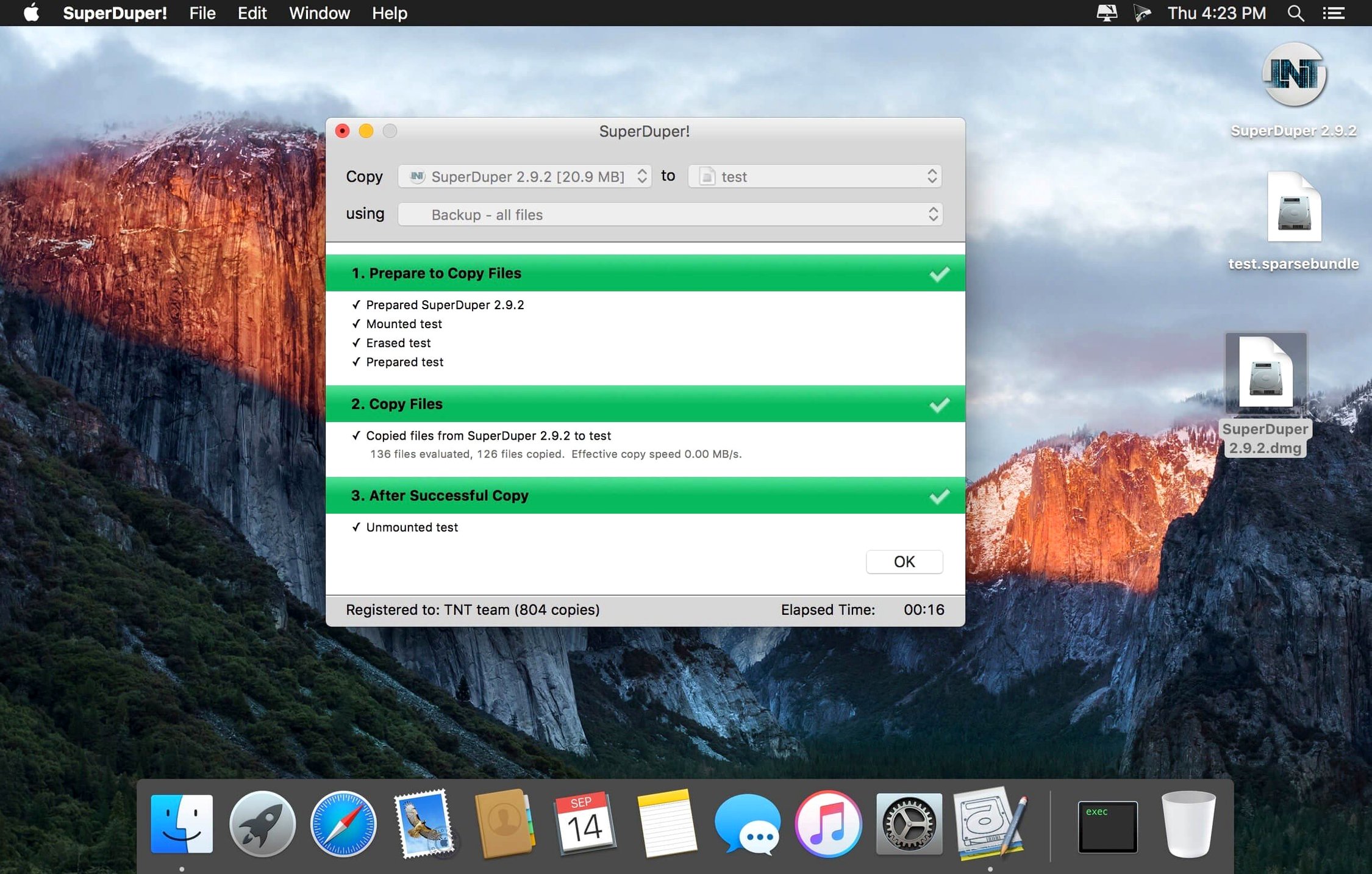
SuperDuper! is a disk-cloning and backup utility for macOS that keeps a bootable copy of your Mac's entire drive. It sits alongside the tools you already use — Finder for manual copying, Spotlight for searching, Disk Utility for formatting — and adds one thing those do not: a fully bootable clone you can start up from when a drive fails or a system update causes trouble. Where cloud sync services handle individual files, SuperDuper! preserves the whole working state of your Mac, including the operating system, applications and settings.
- Creates a bootable copy of your internal drive on an external disk, so you can start up and work without delay.
- Copies a complete disk, volume or image file instead of picking through folders item by item.
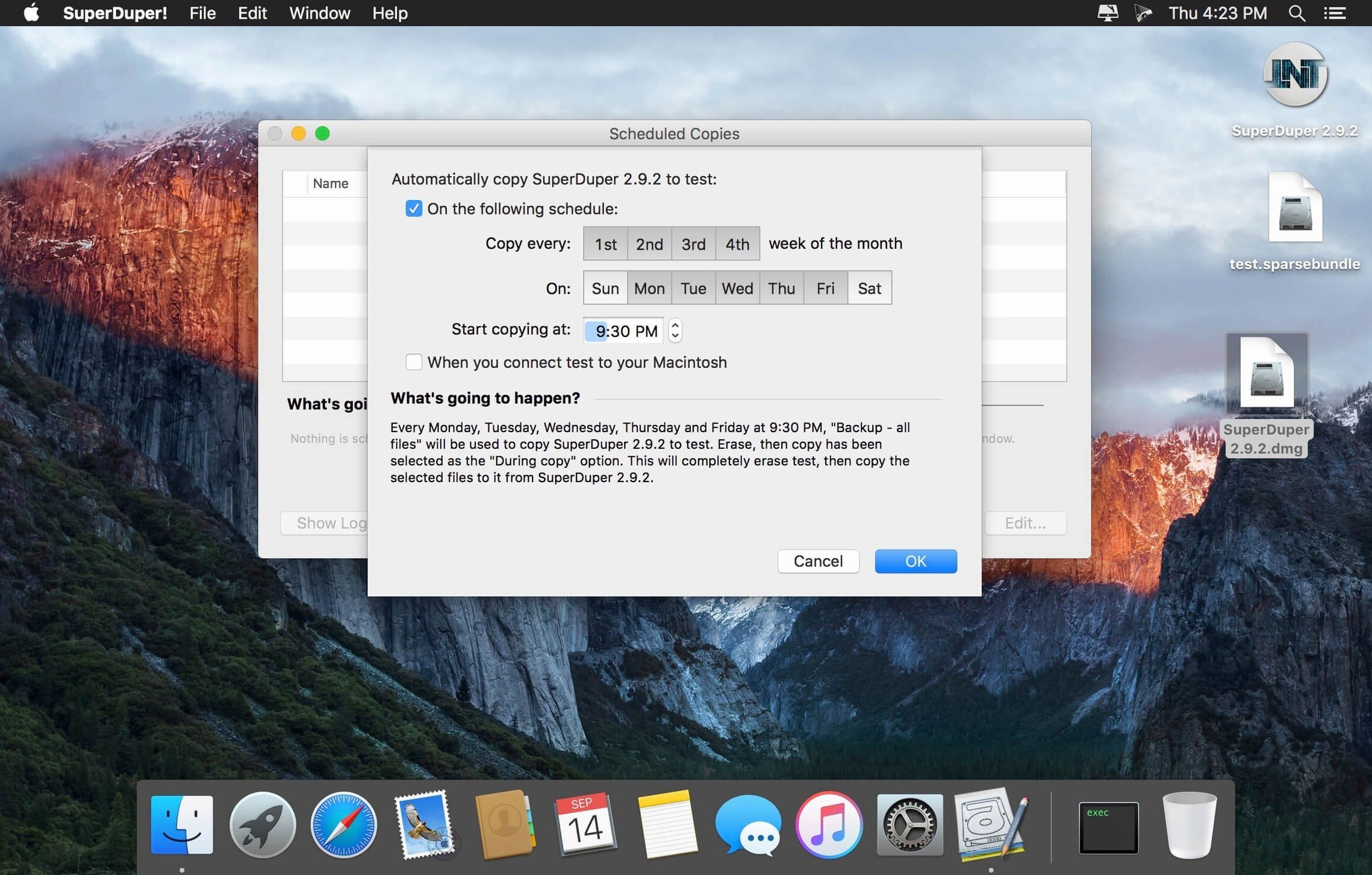
- Schedules automatic backups to keep a clone current without revisiting the app each week.
- Sets a checkpoint before major changes, giving you a known-good system copy to return to.
- Runs manual folder-to-external-media copies when you only need a subset of data moved.
The scheduler and checkpoint features mean the app can run quietly in the background, maintaining a safety net that takes little attention. Because the copy is bootable, recovering from a drive problem does not require reinstalling macOS or pulling files back from a cloud service before continuing work. The interface keeps these operations straightforward, and the disk-image installer follows the familiar drag-to-Applications pattern that most Mac utilities use.
Pointing it at a destination before anything happens
A fresh install of SuperDuper! does nothing until you point it at a destination. Spend half an hour on the first full clone, then set scheduling once you know the copy works. The clone will take a while — USB 3 or Thunderbolt speeds dictate how long — so start it when you can leave the Mac idle. After the clone finishes, restart and hold the Option key to confirm the external drive appears in the startup picker. Boot from it once, let it settle, and check that your key applications launch. Many users skip this step and discover only during an emergency that the clone never worked.
Name the destination drive clearly. A label like MacBook clone 2025-04 is far more useful than Untitled when you are staring at the boot picker under pressure. If you plan to keep two rotating clones, add a tag to each — one stays offsite, one stays connected. Also, disable Spotlight indexing on the clone drive via System Settings > Siri & Spotlight > Spotlight Privacy. The clone does not need it, and the overhead of indexing an external bootable volume can slow daily backups.
For users searching superduper mac tips, one overlooked setting is the On failure behaviour in the schedule pane. The default is to stop and show an error, but switching it to Run anyway lets the copy proceed past minor file locks. That small change prevents Monday-morning surprises when a temporary cache file blocked the entire weekend run.
It erases the destination before writing
The most common early error is cloning to a drive that already holds important data. SuperDuper! erases the destination before writing — there is no merge option for bootable clones. People who drag a clone onto their Time Machine drive lose both backups in one click. Keep a dedicated external disk for the bootable copy, formatted as APFS or Mac OS Extended (Journaled) with a GUID partition scheme.
Another frequent slip is treating a bootable clone like a regular external drive. Dragging files onto it manually, editing documents there, or letting applications write caches to it breaks the one-to-one mirror relationship. The clone then drifts from the source, and incremental Smart Updates take longer or produce unexpected results. Use the clone only for booting and restoring; do your real work on the internal drive.
Beginners who download superduper download and run it once often assume the clone stays current. A clone made in March is useless by May unless a schedule keeps it updated. Set a weekly Smart Update — the app handles the rest. Also, do not interrupt a clone mid-write to "save time." Partial clones are not bootable, and the destination must be erased again before the next attempt.
The bootable-clone concept diverges across three utilities
Three utilities occupy roughly the same space on macOS: SuperDuper!, Carbon Copy Cloner, and ChronoSync. Each handles disk cloning or system backups, but their approaches diverge in ways that affect daily use.
Carbon Copy Cloner shares the bootable-clone concept and adds snapshot-based retention, task grouping and a more visual interface. Where SuperDuper! keeps the window sparse — source, destination, a few options — Carbon Copy Cloner surfaces task history, scheduling previews and file-level filtering in a single panel. The trade-off is interface weight: SuperDuper! feels lighter and quicker to set up, while Carbon Copy Cloner rewards users who want detailed logging and per-task configuration. Both produce reliable bootable clones, and both use Apple's own replication tools under the hood, so clone quality is comparable.
ChronoSync is less about bootable system clones and more about synchronising folders, volumes and remote Macs. It can create a bootable backup, but that is not its primary design. ChronoSync excels at bidirectional syncs, complex rule-based copies, and scheduled jobs that span local and network destinations. For someone who needs to keep a work folder mirrored between two Macs and a NAS, ChronoSync fits better. For someone who wants a single external drive that can start a dead Mac without fuss, SuperDuper! is the more direct choice.
Disk Utility creates disk images and restores volumes, but it cannot schedule incremental updates or produce a bootable clone while the system is running. SuperDuper! fills exactly that gap. Those who search super duper for mac are often coming from Disk Utility, realising they need automation and a safety net that Apple's built-in tool does not provide.
No background daemon outside scheduled copies
SuperDuper! 4.0.7 runs as a lightweight foreground app with no background daemon outside scheduled copy windows. While idle, it uses negligible CPU and memory — Activity Monitor typically shows it under 30 MB of RAM and zero CPU when no copy is running. During a Smart Update, the app reads the source and destination file trees, compares them, and writes only changed blocks. The comparison phase is fast — under a minute for a typical 500 GB drive — and the write phase moves as quickly as the destination disk allows.
A full clone of a 256 GB internal SSD to a USB-C external SSD completes in roughly 15–20 minutes on a modern Mac. Spinning hard drives are slower; expect 45–90 minutes depending on RPM and bus speed. The app does not throttle itself artificially, but it also does not saturate the system. Other applications remain responsive because SuperDuper! uses standard file-system calls rather than low-level block copying. That means you can keep browsing or writing while a clone runs, though disk-intensive tasks like video export will compete for throughput.
Stability has been uneventful across several macOS versions — a quiet compliment for a utility that touches every file on the disk. The 4.0.7 update added a boot-registration workaround for macOS 27 Golden Gate, and that pattern holds: Shirt Pocket responds to OS changes with targeted fixes rather than large rewrites. The app rarely beachballs or crashes during scheduled copies. On one occasion, a clone stalled on a locked QuickLook cache file; the scheduled retry picked it up the next night without intervention. Those who grab superduper mac full from various sources sometimes encounter version mismatches, but a clean install of the current build settles into silent, predictable operation. The scheduler fires reliably after system restarts, and the menu bar icon — a small hard-drive indicator — stays unobtrusive without demanding attention.