Aspecten
 Download (54 MB)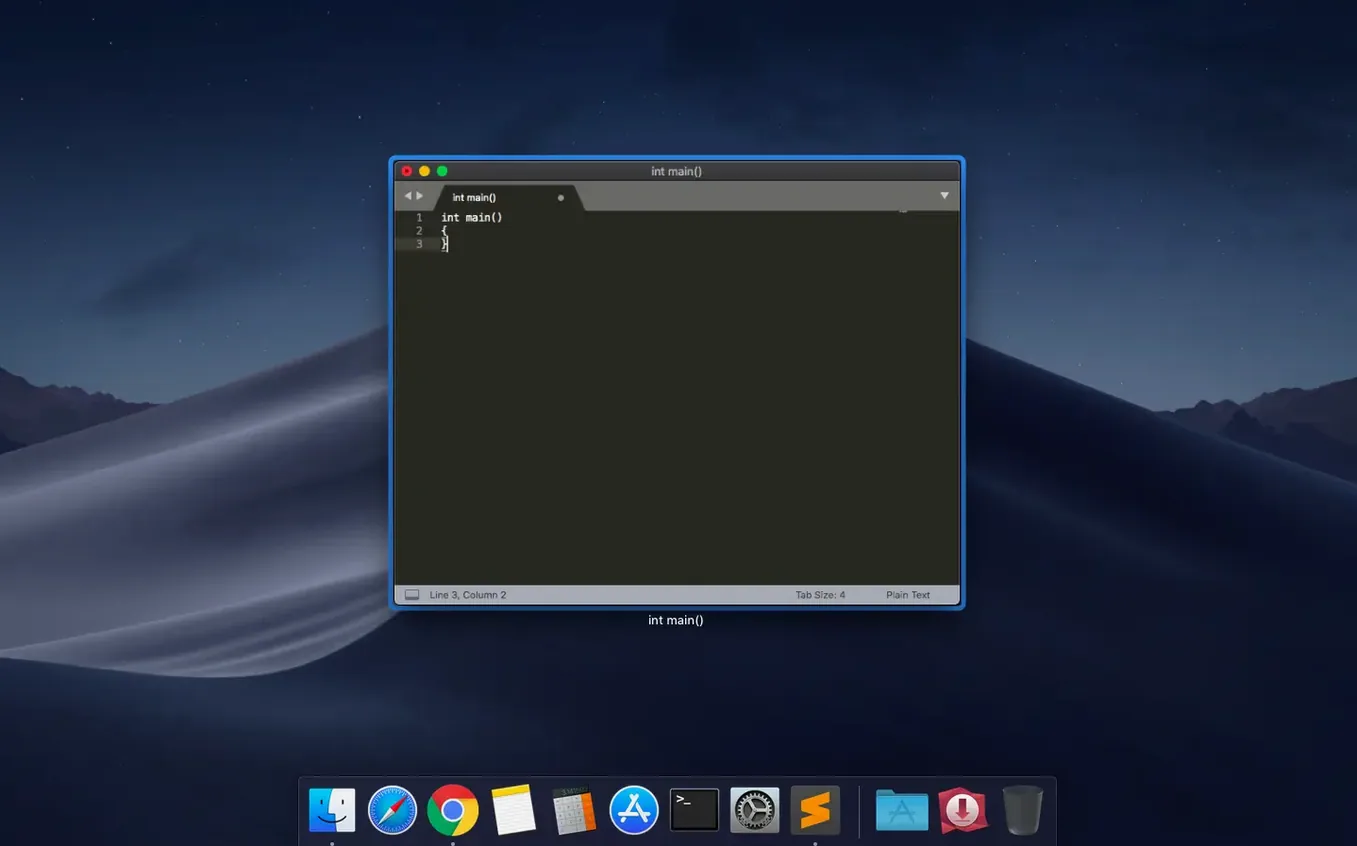
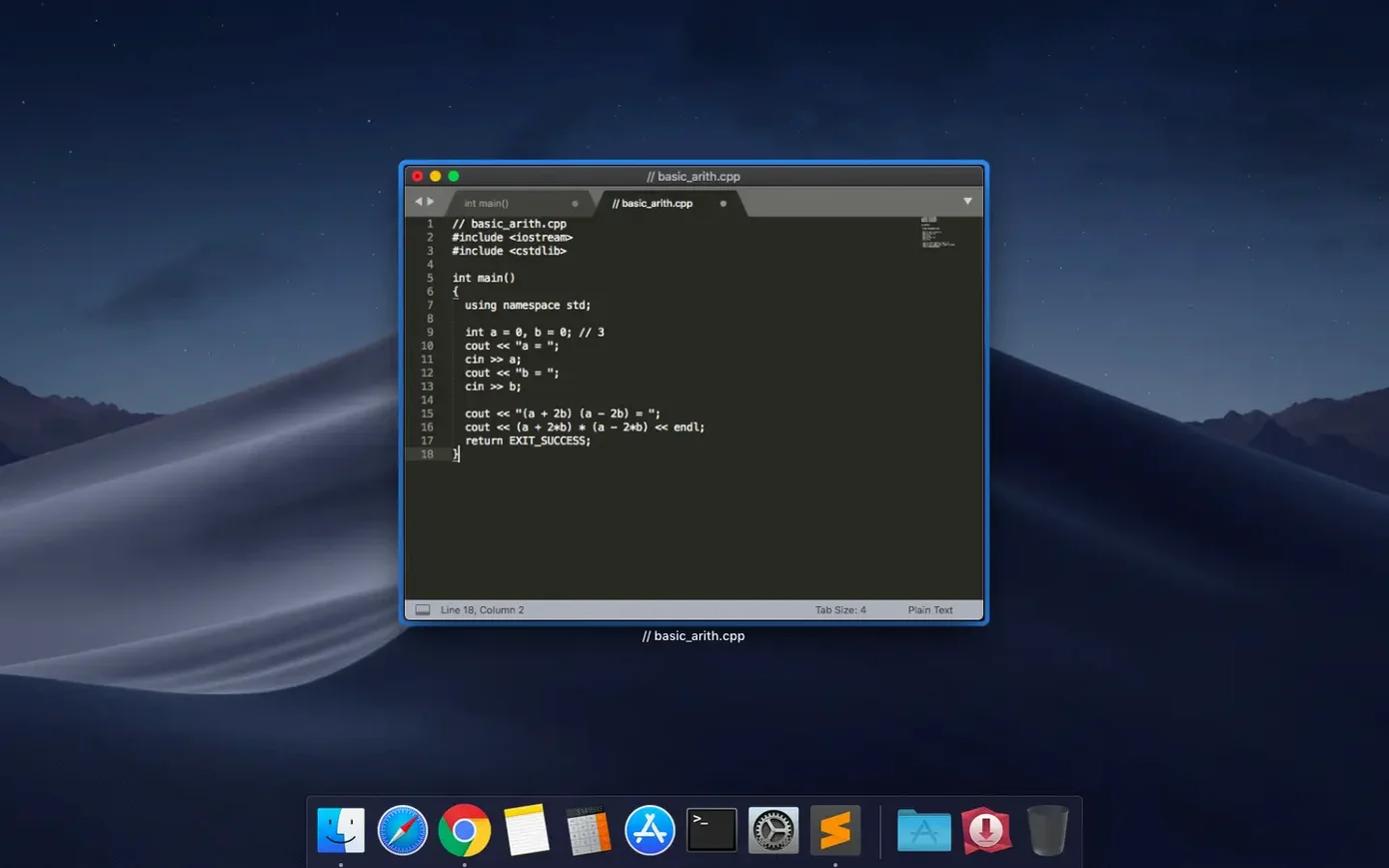
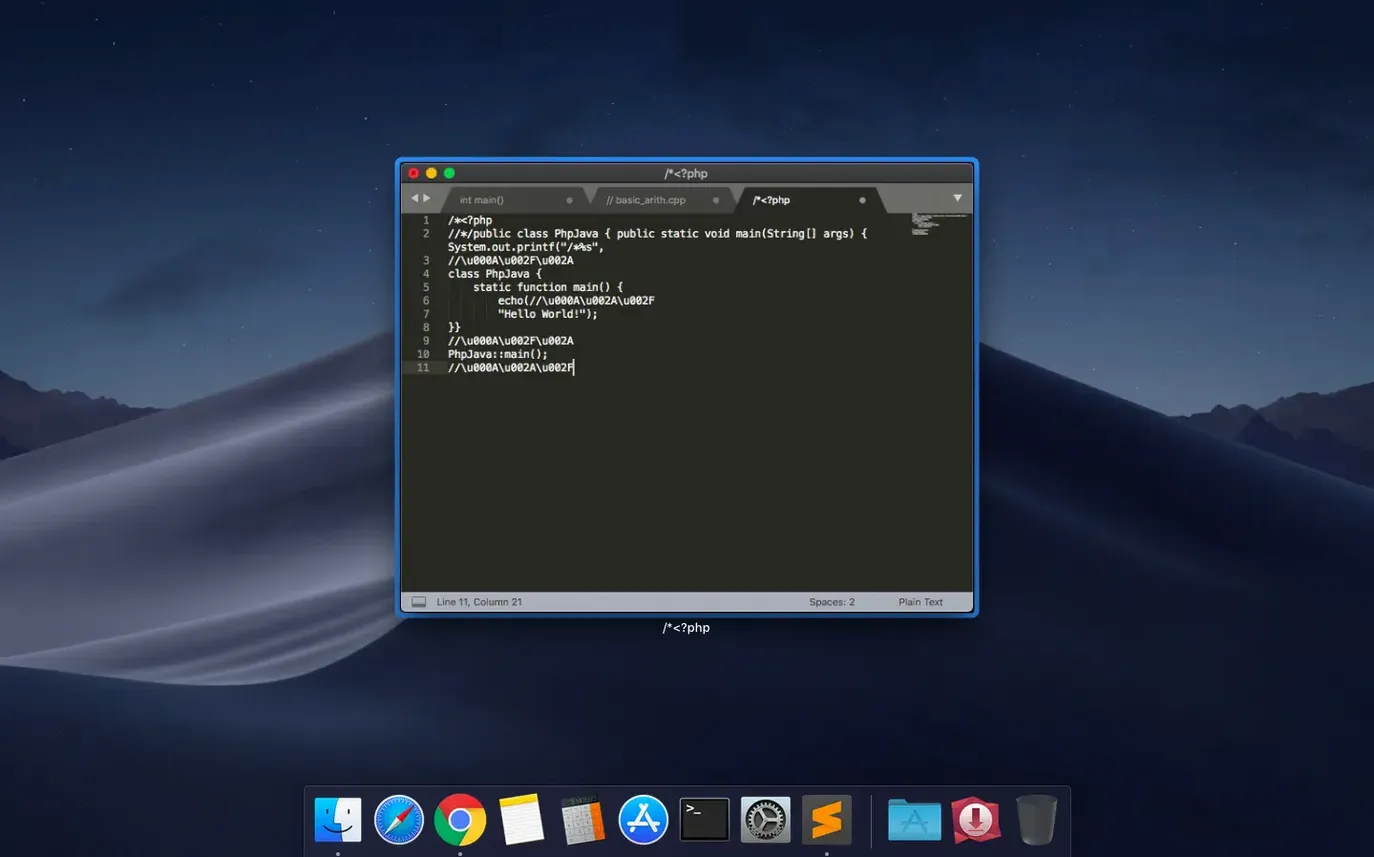
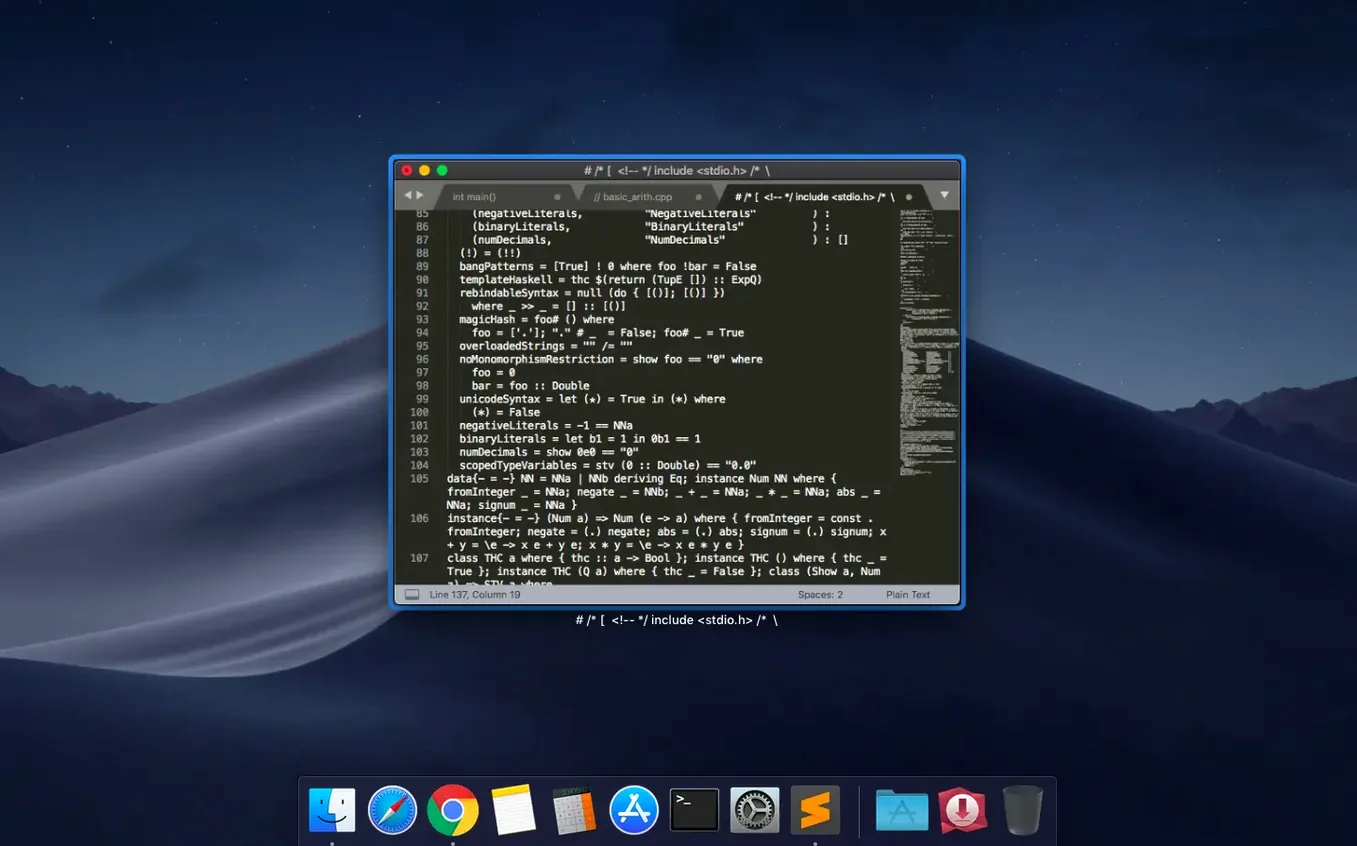
If BBEdit feels like a cabinet of fine tools, Sublime Text is more like a precision instrument cluster — less about breadth, more about handling a few motions extremely well. It opens fast, stays out of the way, and tends to reward keyboard-first habits.
Minimap and multiple cursors reshape file navigation
The minimap along the right edge gives a zoomed-out view of the whole file; click anywhere to jump. Multiple cursors and column selection let you make the same edit in several places at once — rename a variable across a dozen lines without search-and-replace. Fuzzy file search and search-as-you-type keep navigation quick, and syntax checking while you type catches errors before a build. The package manager handles installs, updates and removal of extensions without restarting the app.
Running code without leaving the editor window
Build systems run your code directly from the editor, so you stay in one window. Macros and repeat-last-action cut down repetitive keystrokes; auto-save means fewer manual saves. The editor supports several visual themes out of the box, with more available through the package system. On Mac, it runs natively on both Intel and Apple Silicon.
Near-instant launch on Apple Silicon
One of the first things you notice after switching to Sublime Text is the launch time. On a modern Apple Silicon Mac the window appears almost instantly, and even on older Intel machines running macOS 10.13 the cold start rarely exceeds two seconds. File opening scales well too — a 40 MB log file loads without the pause some editors impose while they parse syntax or build an index.
Memory use stays modest for a GUI editor. With a dozen medium-sized source files open, the process tends to sit between 150 and 300 MB of RAM. That figure rises if you load many heavyweight packages, but the core remains lean. The package manager lets you disable extensions individually, so you can keep the footprint small by leaving unused syntax bundles dormant.
Stability has been a strong point across the 4.0 series. Build 4215 resolved two specific issues — the vintage M command and a compatibility glitch on macOS 10.13 and 10.14 — and in extended coding sessions the editor rarely surprises with a crash. When a crash does occur, the session restore picks up unsaved changes reliably, including cursor positions and multiple pane layouts.
Starting bare to build your own toolset
A fresh install of Sublime Text arrives deliberately bare. That is an invitation, not an oversight. The first steps you take shape how it will feel for months afterwards.
- Install the package manager if it is not already present. Open the command palette with
Cmd+Shift+P, typeInstall Package Control, and press Return. This single step unlocks most of what makes the editor flexible. - Pick a theme you can live with for hours. The default theme is functional but stark. Browse
Package Control: Install Packageand search for themes such as Material Theme or Ayu. Test two or three, settle on one, and resist the urge to tweak colours daily — it distracts from work. - Set
auto_savebehaviour early. The editor supports auto-save, but it is not enabled by default. OpenPreferences: Settingsand add"save_on_focus_lost": trueif you want every file saved when you switch to a browser or terminal. Alternatively, set"save_on_idle": truefor a timer-based approach. - Learn one keyboard shortcut per day. Start with
Cmd+Dto select the next occurrence of a word, thenCmd+Shift+Lto split the selection into lines. Multiple-cursor editing feels unnatural for about twenty minutes, then becomes indispensable.
Narrower focus than Xcode or VS Code
Will it feel alien if I am coming from Xcode or VS Code? Initially, yes. Sublime Text does not present a sidebar full of source-control icons or a debug panel. The workflow is narrower: open a file or folder, edit, run a build command. After a few days the absence of chrome becomes the point. If you need an integrated debugger, you will still open Xcode or a dedicated tool for that task.
Does it handle large projects without choking? The fuzzy file opener (Cmd+P) indexes project files on demand and stays responsive in trees with thousands of items. The editor does not attempt to parse every file in the background, so project-wide symbol search depends on you configuring a language server or indexer through a package. For many developers, the trade-off — less automatic project awareness, more speed — is worth it.
Can I use it for prose and not just code? Yes. Markdown and plain-text writing work well, especially with a spell-check package and a distraction-free mode (Cmd+Ctrl+F). The minimap is surprisingly useful for navigating long documents, and the line-joining command tidies up paragraphs quickly.
Quicker and lighter than BBEdit 15
Measured against BBEdit 15, Sublime Text feels quicker to open and lighter on screen. BBEdit offers deeper text-processing tools — grep-based search across folders, HTML syntax checking built in, a disk browser — while Sublime Text leans on packages for comparable features. If your work involves large-scale find-and-replace or cleaning up data files, BBEdit's toolset is hard to match. For everyday coding with multiple cursors and fuzzy navigation, Sublime Text is the more fluid choice.
Next to VS Code, the difference is architectural. VS Code is an Electron application with an integrated terminal, debugger, and extension marketplace tightly coupled to Microsoft's ecosystem. Sublime Text is a native C++ codebase that draws fewer system resources and starts faster. Where VS Code bundles thorough TypeScript and JavaScript support out of the box, Sublime Text requires a few package installations to reach parity. Many developers keep both installed: VS Code for debugging and collaboration, Sublime Text for quick edits and projects where latency matters.
Compared with TextMate 2, Sublime Text shares a similar philosophy — snippet-based editing, scope selectors, command-line integration — but the Sublime Text project has seen more regular updates and a larger package ecosystem over the past few years. TextMate remains a capable Mac-native editor, yet its development pace has been slower, and some users have moved to Sublime Text for the minimap and multiple-cursor editing that TextMate does not offer natively.