Aspecten
 Download (43 MB)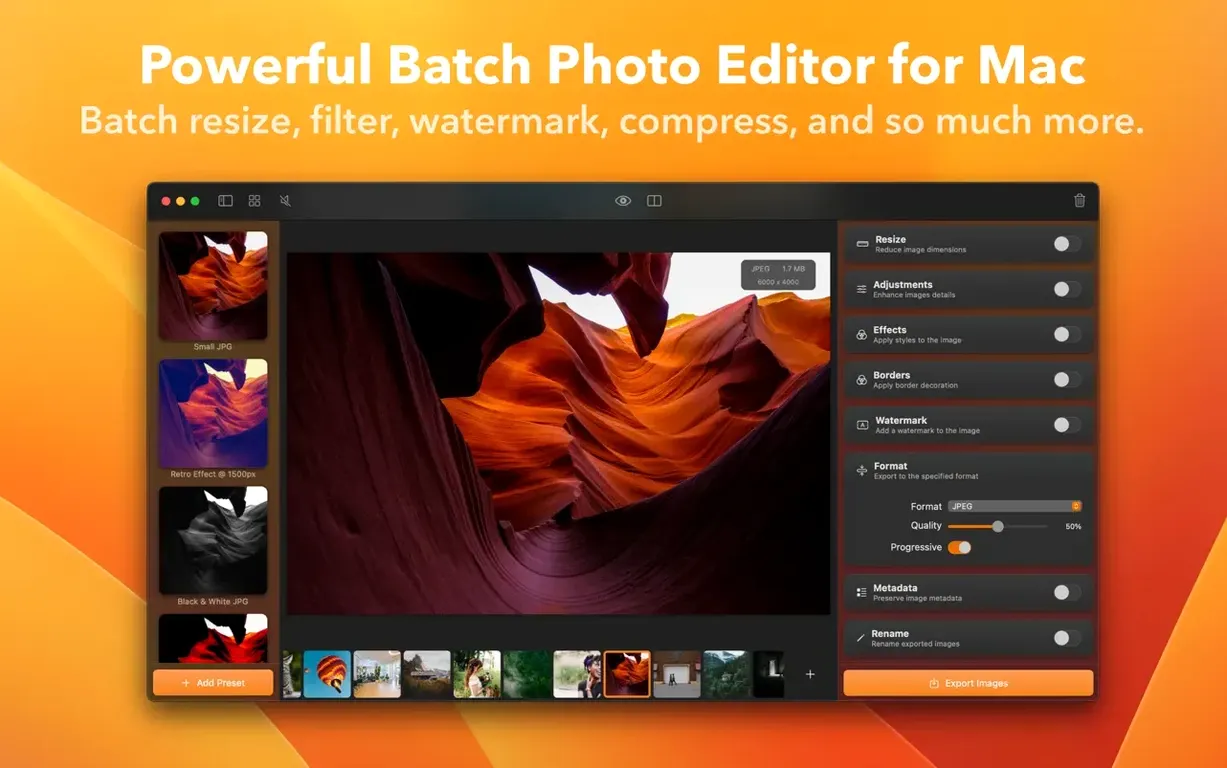
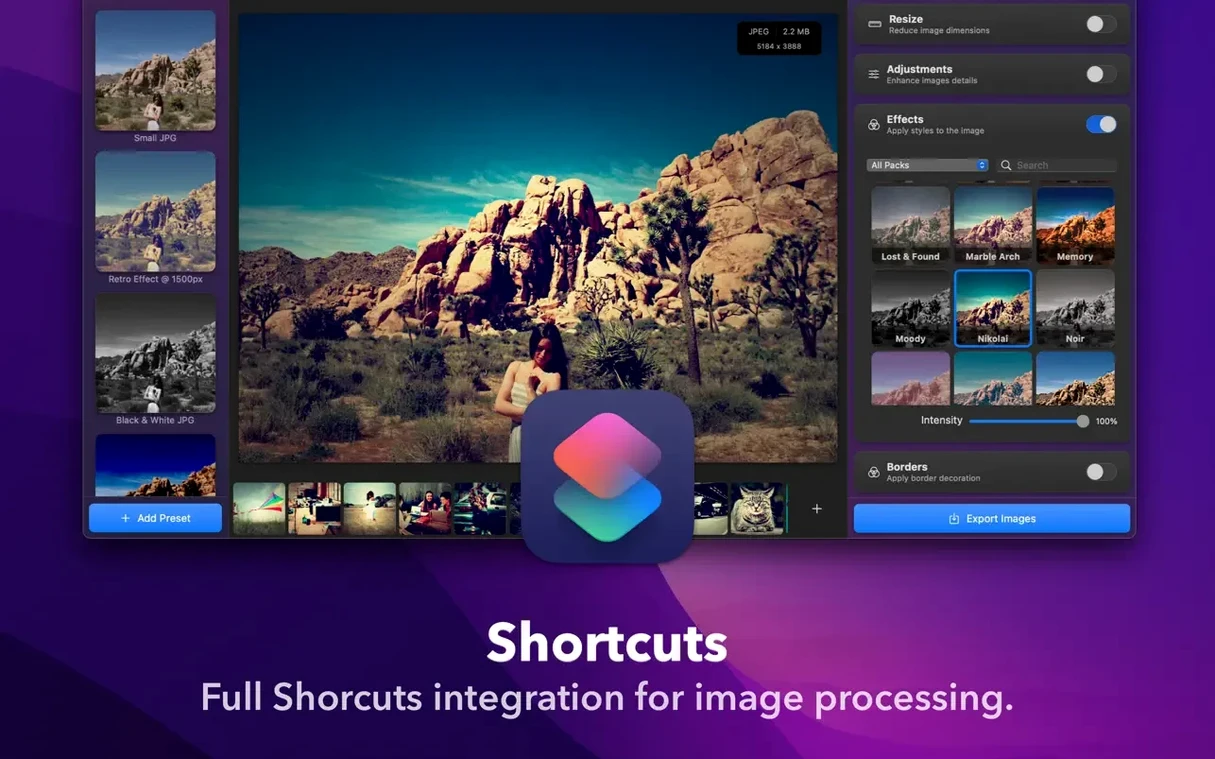
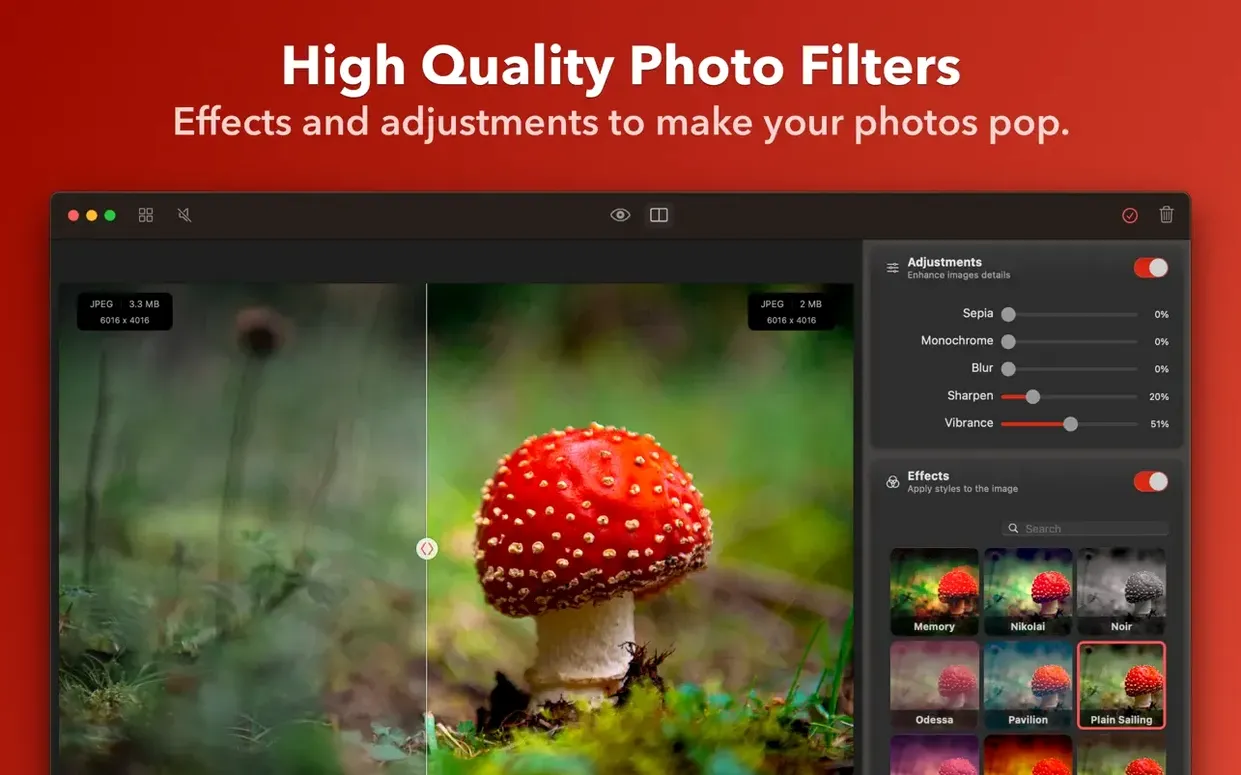
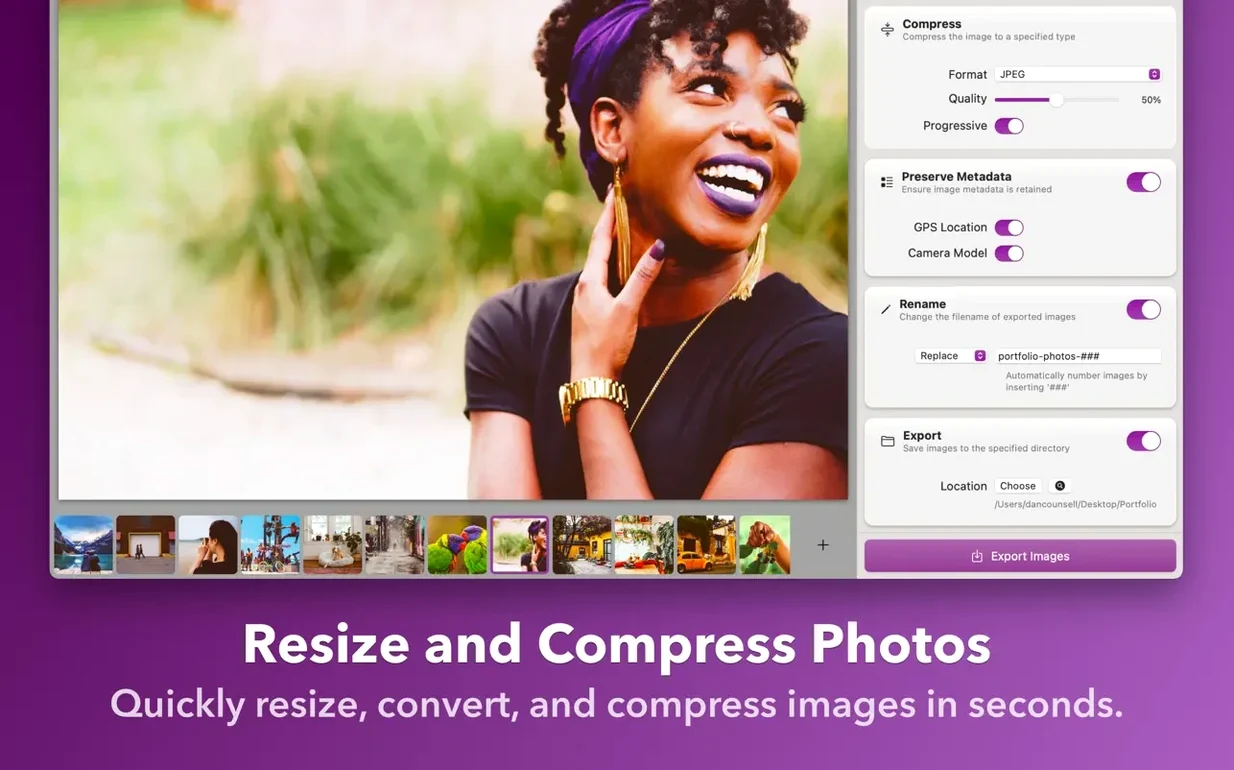
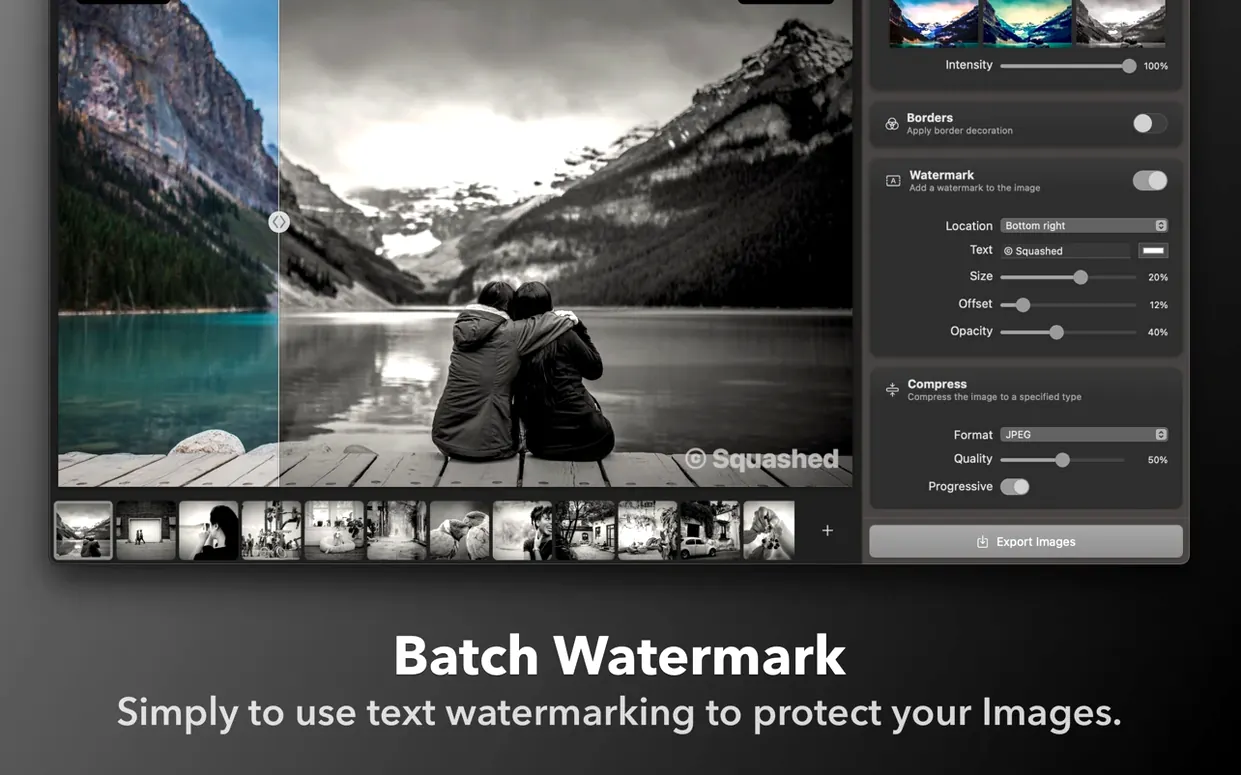
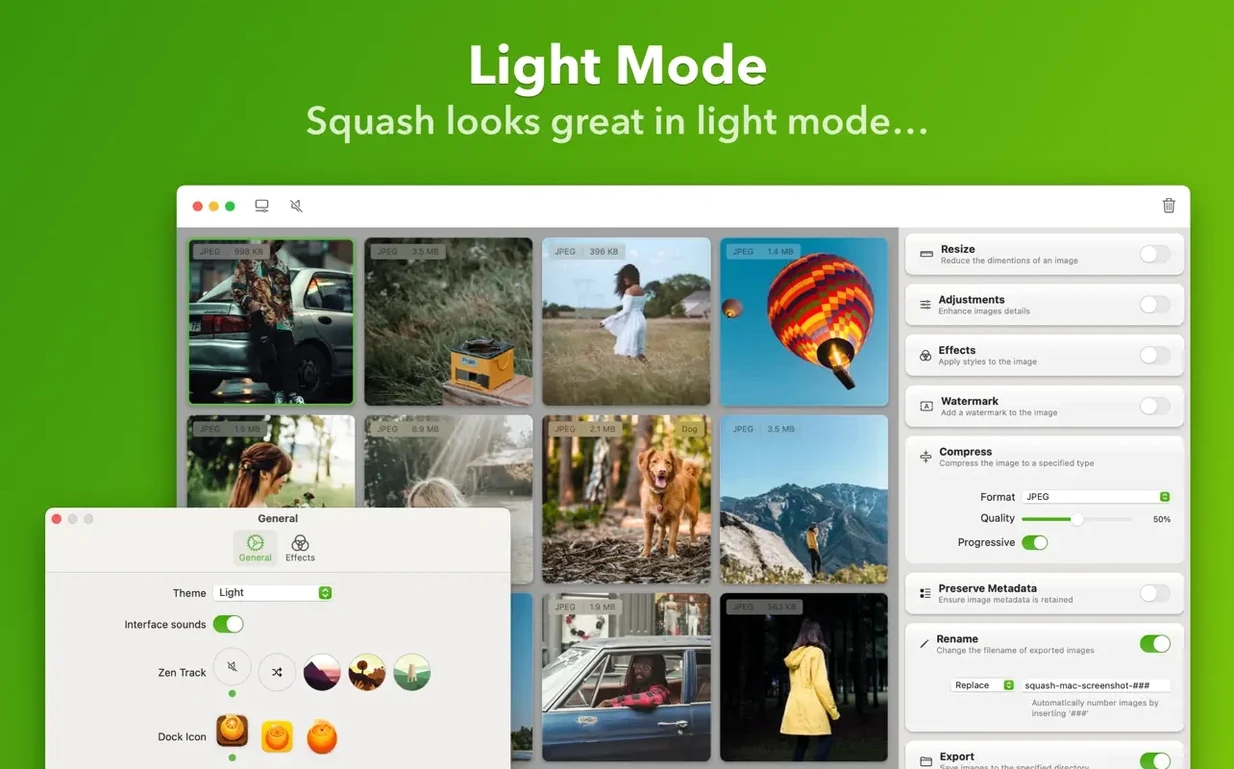
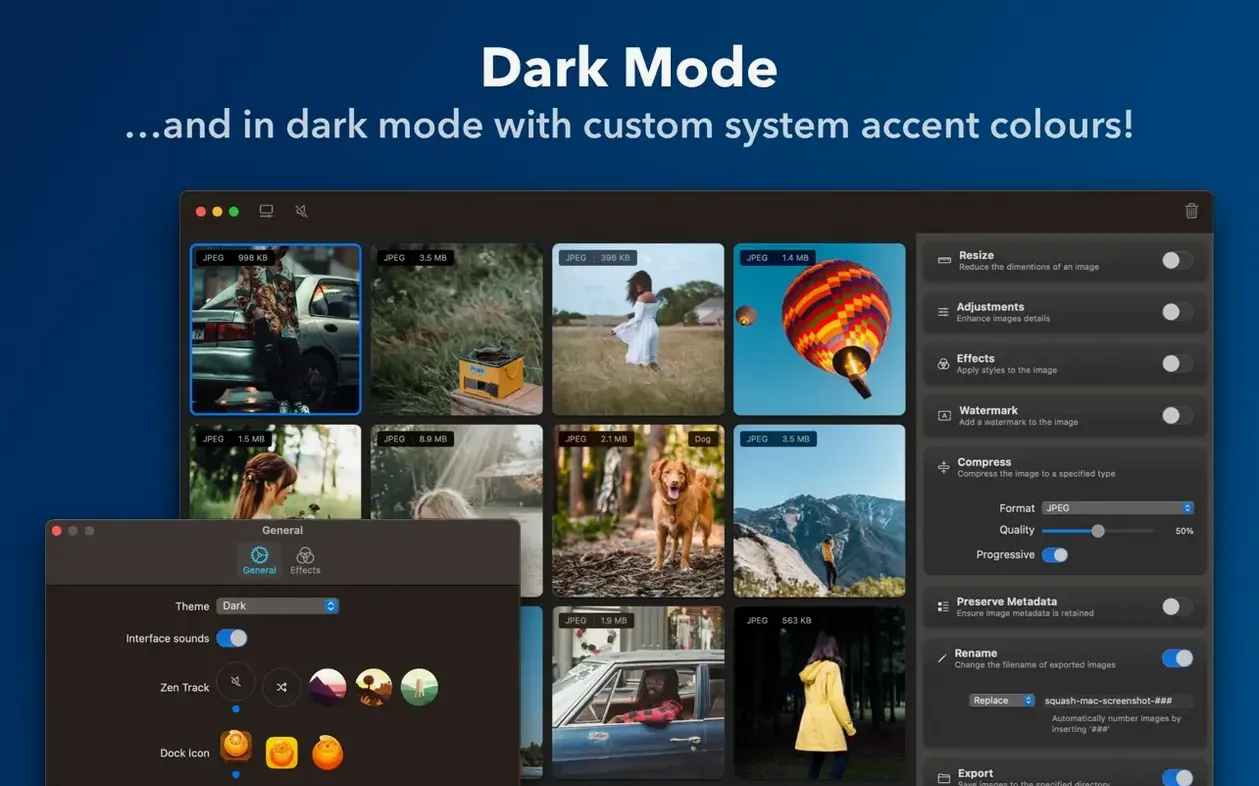
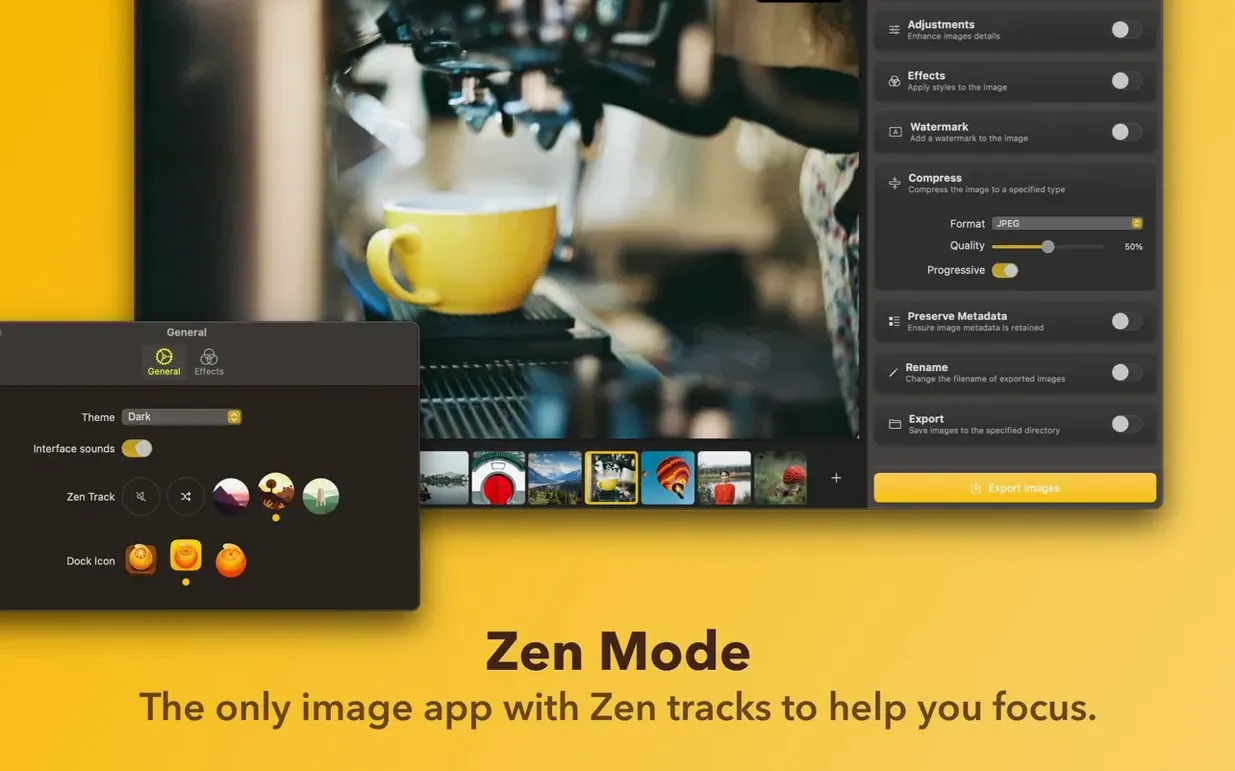
The Shortcuts action is where Squash fits into an existing Mac setup. A folder of screenshots can be resized and converted without opening the app itself, which makes it useful alongside tools like screenshot utilities or file managers that already handle capture and organisation.
- Written in Swift and SwiftUI, with a native feel that stays consistent with macOS 12 and later.
- Runs on both Apple Silicon and Intel 64-bit Macs, so older hardware remains covered.
- Batch processing keeps the workflow direct: select a group of images, set compression and format, and let it run.
- The English-only interface is straightforward, with controls grouped around conversion settings rather than extra features.
- Sequoia compatibility was the main focus of version 3.3.0, with performance improvements and bug fixes included.
Squash does not try to replace a full image editor. It works best when the images already exist and only need to be smaller or in a different format. For Mac users who already have a viewer or editor they like, that is a reasonable division of labour.
How Squash Compares With Similar Apps
Three batch compression tools tend to come up on macOS, and they approach the problem in noticeably different ways.
ImageOptim is the purist’s choice. It strips metadata, runs multiple compression algorithms behind the scenes and produces remarkably small files with no visible quality loss. But it does not convert formats, it does not resize, and the interface gives you almost no control over what happens. You drag in files and it does its work. Squash sits at the opposite end of that spectrum: it shows you exactly what will change, lets you pick the format and quality per batch, and handles sizing. ImageOptim suits a developer who wants PNGs crushed for a production site without thinking. Squash suits someone who needs four different JPEG sizes from a folder of RAW exports and wants to see a preview first.
JPEGmini concentrates on one format and one goal. Its compression keeps perceived quality surprisingly high while shrinking JPEGs aggressively, but it offers no PNG, WebP or HEIC output, no resizing, and no format flexibility. If your entire workflow is JPEG-only and you do not need dimensions changed, it is hard to beat. Squash covers more ground at the cost of slightly less specialised JPEG compression. For a photographer who also ships WebP variants for a portfolio site, the single-format limitation rules JPEGmini out.
Permute handles images alongside video and audio conversion, which makes it a broader utility. Its image compression uses the same underlying frameworks as Squash in some areas, but the interface treats images as one of several media types rather than the main focus. Permute works well when you occasionally need to crunch a folder of photos in between converting video files. Squash feels more deliberate for image work: the preview pane, the size sliders, the format presets are all tuned for a task you repeat often. Someone who does image conversion once a month might prefer Permute’s all-in-one approach. Someone who does it daily will likely find Squash faster to reach for.
Batch-converting 23 TIFF files into web JPEGs and thumbnails
Imagine a Tuesday morning. Twenty-three product photos sit in a folder, all TIFF files from a studio shoot, each around 60 MB. The web team needs JPEGs at 2000 pixels wide and a separate set of thumbnails at 400 pixels wide, both under 200 KB if possible.
You open Squash by dragging the folder onto its icon in the Dock. The app opens to a clean window with all twenty-three files listed. You select the entire batch with Command-A. The right panel shows the current format — TIFF, no compression applied yet — and an estimated output size that matches the originals.
You switch the format dropdown to JPEG. A quality slider appears below it, defaulting to around 85%. You nudge it down to 72% and watch the estimated size per image drop from 60 MB to roughly 180 KB. That is close, but not quite under the 200 KB ceiling for the full set. You tick the resize checkbox and enter 2000 in the width field, keeping the height locked to proportional scaling. The estimate drops to 160 KB per image. Good enough.
You click the output folder button, pick a new folder called “Web-ready”, and hit the Convert button. A progress bar runs through the batch. In under a minute, all twenty-three JPEGs are in the folder. You open two at random to check for artefacts. None visible at normal zoom.
For the thumbnails you do not start over. You select the same starting files in Squash, keep the 72% JPEG quality, change the width to 400 pixels, and point the output to a “Thumbnails” folder. Another minute, done. The originals stay untouched exactly where they were.
Workflow: Preparing Images for a Newsletter
Email newsletters have strict size budgets. A marketing team might need twelve images in three formats — a hero banner and eleven inline photos — all under 1 MB combined, with the hero converted to WebP for supporting clients and JPEG as a fallback.
Start by collecting the twelve source files. They come from different places: some are PNG screenshots, some are high-resolution JPEGs from a camera, one is a HEIC from an iPhone. Place them all in a single folder on the desktop.
Drag the folder into Squash. The list shows a mix of formats. Click the format dropdown and choose WebP. Set quality to 78%. Tick resize and set the hero image (the widest one in the list) to 1200 pixels wide. For the inline images, you work in two passes: first select all but the hero, set width to 600 pixels, and convert to a “WebP-inline” folder. Then select only the hero, set width to 1200 pixels, and convert to the same folder.
For the JPEG fallbacks, keep the same dimensions but switch format to JPEG at 80% quality. Run the batch again to a “JPEG-fallback” folder. Squash does not let you queue multiple format outputs in one go — that is a genuine limitation — so the JPEG pass is a separate step. But because the resize settings stay as you left them, switching formats and hitting Convert again takes seconds.
The whole process, from scattered source files to two organised folders with twelve images each, runs in under three minutes. The originals remain untouched, so if the newsletter team later wants a different set of dimensions you can re-run the batch without hunting for the source files again.
Staying compatible when Sequoia rewired image processing
Version 3.3.0 was not a feature release. The focus was compatibility with macOS Sequoia, which brought under-the-hood changes to how the system handles image processing frameworks. Squash had been stable on Ventura and Sonoma, but early Sequoia betas introduced rendering quirks in the preview pane and occasional stalls during batch conversion. The 3.3.0 update addressed those directly.
In practice, the most noticeable change is that the preview pane now renders consistently on Sequoia machines with Apple Silicon. Before the update, a handful of users reported that certain HEIC files would show a blank preview until the conversion actually ran. That is resolved. The batch progress bar also moves more smoothly; earlier versions sometimes jumped from 30% to 70% in one step when processing mixed-format folders, which was a cosmetic issue but a distracting one during long batches.
The performance improvements mentioned in the release notes are subtle. On an M1 Mac, converting a folder of fifty RAW files to JPEG now finishes about eight seconds faster than it did under 3.2.x, which is not dramatic but adds up across a working week. The bug fixes were mostly edge cases: one involved incorrect file extension capitalisation when converting to JPEG from certain PNG sources, another fixed a rare crash when adding files while a previous batch was still running. Neither was widespread, but for users who hit them the