Aspecten
 Download (6 MB)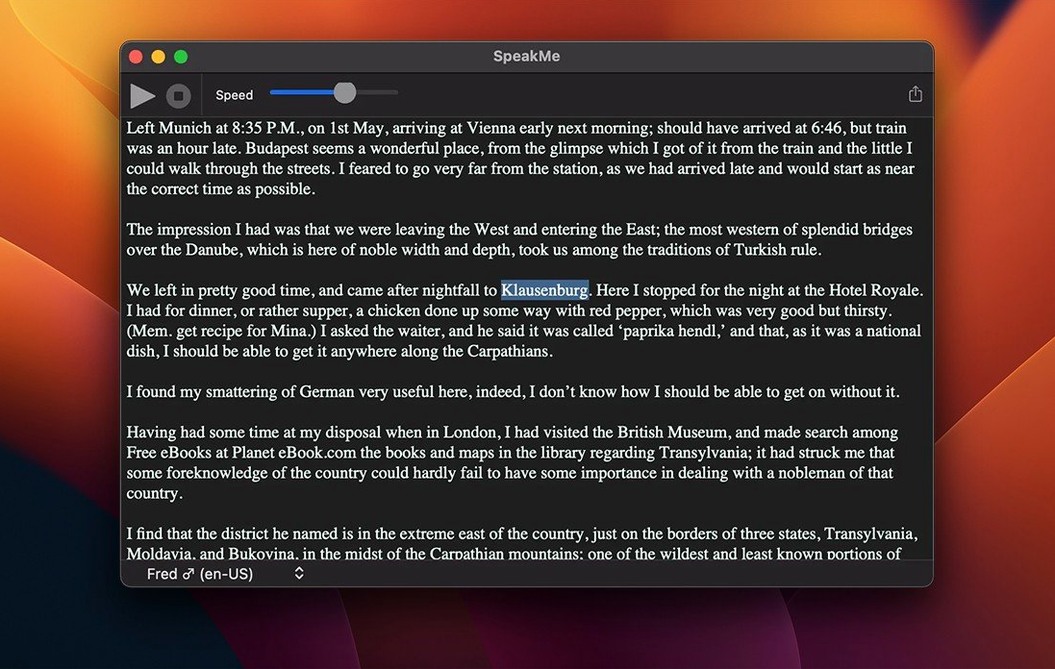
Reading long documents on screen is tiring, and not everyone absorbs information best through text. A quick way to turn an article, a set of notes, or a section of a report into something you can listen to while away from the desk solves a practical daily problem.
| Aspect | Detail |
|---|---|
| Function | Text-to-audio conversion and export |
| Language support | Any language |
| Selection handling | Full document or selected text |
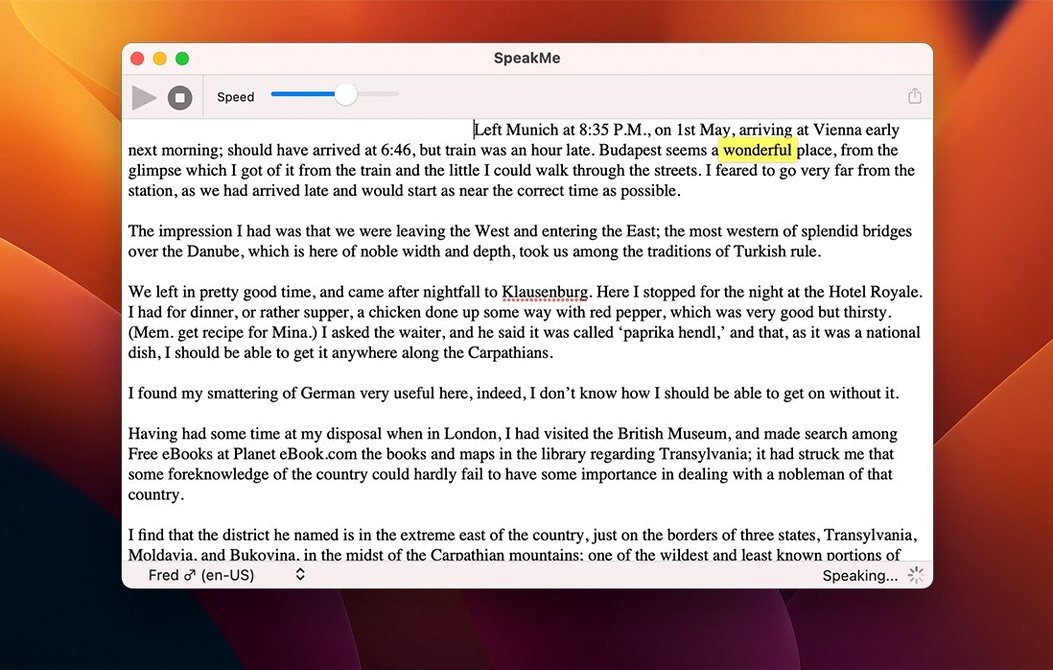
SpeakMe keeps the job narrow, and that works in its favour. The standout feature is the dual output approach: you can have the app speak selected elements aloud immediately, or you can convert an entire document to an audio file for later use. The export step produces a standalone file, which makes the tool useful for creating spoken versions of meeting notes, proofreading drafts by ear, or preparing language-learning material. Because the engine accepts text in any language, the same simple workflow applies whether the source is English, Japanese, or Arabic. The interface stays out of the way — one click on a short paragraph and the Mac reads it back; a few more clicks and a longer document becomes a saved audio recording.
Workflow: creating a spoken narration track for a video clip
SpeakMe fits into a media pipeline without much ceremony. Suppose you have a two-minute silent screen recording that needs a short explanatory voiceover. Open your script as a plain text document, paste it into the app, and highlight the first paragraph. Use the immediate playback to check pacing — hearing the words spoken at the default speed often reveals clunky phrasing that reads fine on screen but sounds unnatural aloud. Adjust the text, listen again, then select the full script.
Set the speech speed a touch slower than normal conversation. For narration, a deliberate pace works better than a rushed one — around 85% of the default rate tends to sound measured without dragging. Export the audio as an AIFF file. Drop the resulting file into a video editor, align it with the visual cues, and apply a gentle fade at each end. The whole process, from opening the script to having a usable audio track, takes under ten minutes. For multi-language projects, repeat the same steps with translated versions of the script; the app handles the language switch transparently.
Settings worth adjusting straight away
Two controls make an immediate difference to daily use, and neither is obvious from a quick glance at the window. The speech speed slider sits in plain view, but people often leave it at the midpoint and wonder why the output sounds hurried. Pull it back to roughly two-thirds of the way toward the slow end for most document-reading tasks. The other setting is less visible: the system voice selection happens not inside SpeakMe but in the macOS System Settings under Accessibility > Spoken Content. The app uses whatever system voice is configured there. Switching from a compact voice to a higher-quality variant — one that supports the target language natively — improves clarity noticeably, especially for longer exports.
If the plan is to produce audio files regularly, decide early whether to export full documents or smaller sections. There is no batch queue, so working in chunks of five to ten paragraphs keeps the output manageable and makes re-recording a flubbed section simple.
Bypassing the gatekeeper block on first launch
One frequent head-scratcher is a gatekeeper block on first launch. The speakme mac download package arrives as a disk image that requires a terminal step to bypass macOS security. Mount the image, then open Terminal and press Enter when prompted. After that, drag the app to the Applications folder and it opens without complaint. Skipping the terminal step leaves the app refusing to launch with no helpful explanation.
Another snag: export produces a silent file. This happens when no text is selected and the document area is empty, or when the selected system voice is incompatible with the language of the text. Check that text is highlighted and that the macOS voice matches the language — a French voice reading English text often outputs silence rather than gibberish. A quick test with the immediate playback button confirms whether the voice is working before committing to an export.
Finally, AIFF files not opening in a specific player sometimes traces to the export location. The app writes files to the directory chosen in the save dialog, but some media players expect uncompressed AIFF at a specific sample rate. If a player balks, re-export with a different system voice selected — voice changes can alter the output encoding enough to resolve the mismatch. Converting the AIFF to WAV or MP3 in a separate utility is a reliable fallback for stubborn cases.