Aspecten
 Download (124 MB)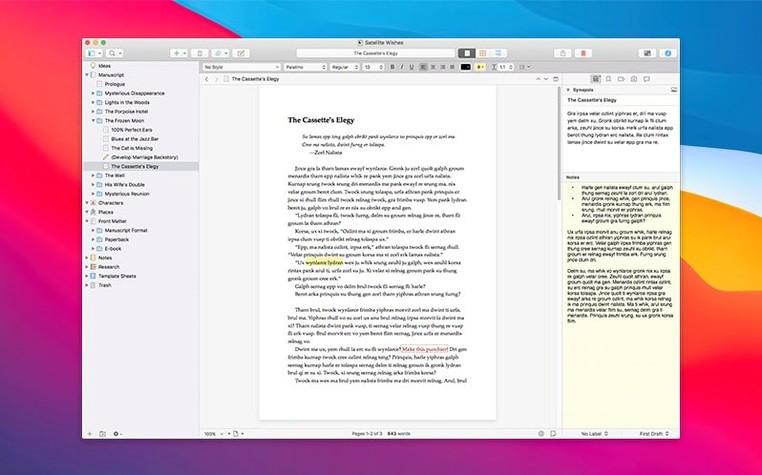
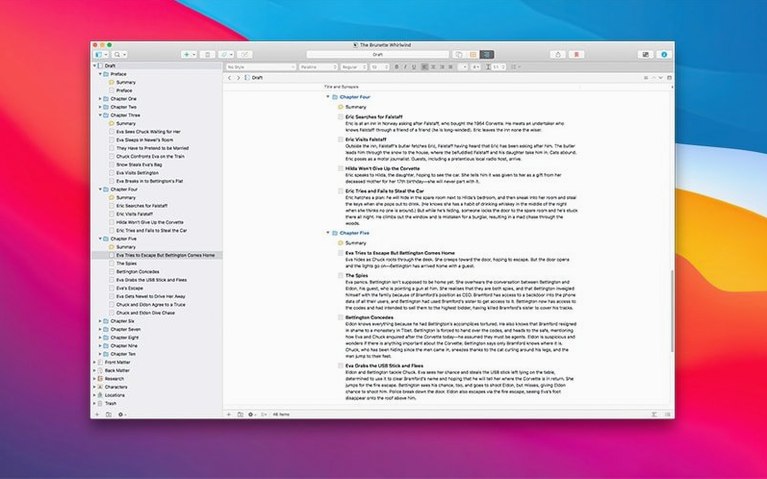
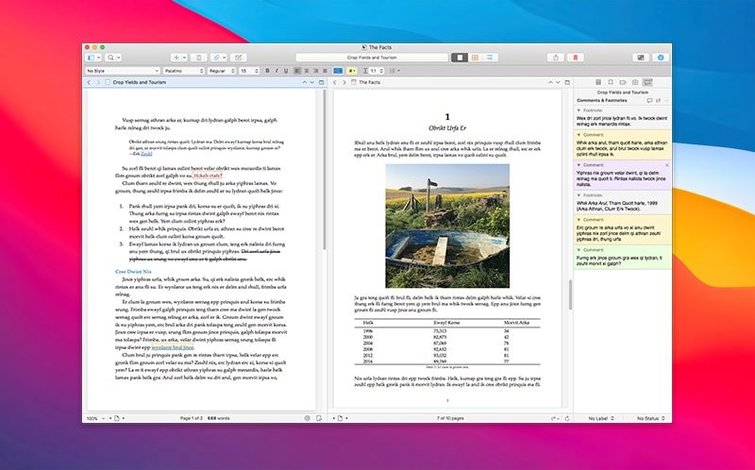
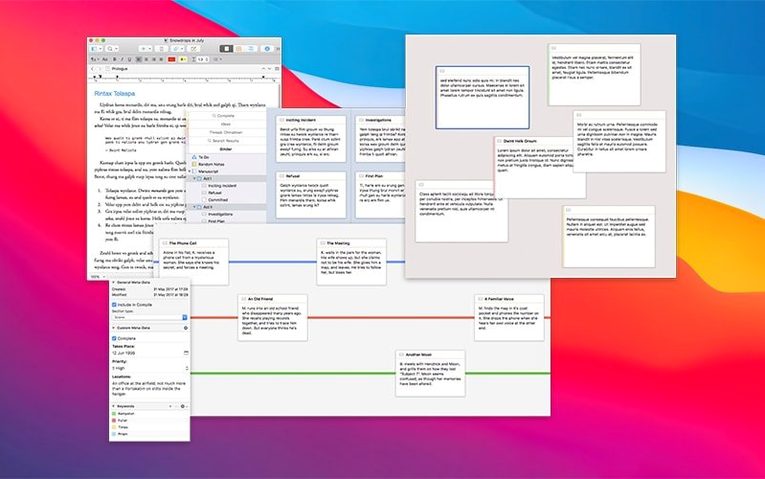
Think of Word, but built for a book rather than a letter. While a standard word processor deals with one flat document at a time, Scrivener treats your entire project — chapters, character sketches, research PDFs, notes — as a single manageable whole. It binds a capable text editor to a structural organiser and a set of project management tools.
A clean editor that saves in the background
Within each section of your project, you get a clean text editor. It saves automatically in the background, so you do not lose a sentence. A snapshot feature lets you keep multiple versions of a document, making it straightforward to explore a structural edit or revisit an earlier draft without duplicating files by hand.
What makes the organiser different from a folder tree?
The binder on the left holds more than just text. A new project includes a dedicated Research folder where you can import notes, photos, web links, audio clips and PDF documents directly alongside your manuscript. You can see a character sketch and the scene you are writing in the same workspace, which reduces the need to switch between separate apps.
Is it suited to heavy, long-form material?
The tool is designed specifically for large volumes of text. Breaking a book into small, reorderable pieces makes navigating a 100,000-word draft feel lighter than scrolling through a single endless file. The combination of a text processor and a project manager shows its real value as the word count grows.
Common mistakes in the first weeks
Most beginners treat Scrivener as a more complicated Word. They open it, create one long document, type continuously, and wonder what the point was. The real shift is structural: a project is meant to be broken into sections early, before the draft has a chance to become unwieldy.
Another mistake is ignoring the Research folder. New users often keep supporting material in Finder windows, browser tabs, or a notes app, then hunt for it mid-sentence. Importing a PDF, an image or a web link into the project takes seconds and places it next to the relevant chapter, not somewhere else on the machine.
Snapshots are also underused at first. Because Scrivener saves automatically, people assume their work is protected and never create manual snapshots before a big revision. Automatic saving prevents loss from crashes; snapshots prevent loss from your own editing decisions. Taking one before deleting half a scene costs nothing and gives you a way back.
Finally, beginners over-format too soon. Spending the first hour choosing fonts, indents and heading styles before any real text exists is a delay, not progress. Scrivener supports formatted output, but the drafting stage works better when you write plainly and attend to layout later.
One scenario: a researcher assembling a long report
A policy researcher working on a 60-page evaluation report starts by creating a project with three top-level folders: Report sections, Interviews, and Background. Into Interviews go the transcripts, one document per interview. Into Background go three PDFs, a spreadsheet, and two web links. The manuscript itself lives in Report sections, split into eight files.
During the writing, the researcher keeps the most recent transcript open in a split view beside the recommendation section. When a quote is needed, it is copied without leaving the project. A week later, after cutting a section on procurement, the researcher takes a snapshot of the whole folder before the deletion. Two days after that, the supervisory committee asks to see the earlier draft. The snapshot is there, intact.
This kind of user benefits from the single workspace. The project does not hold only the final report; it holds the path to the final report.
Long-form projects with twenty‑plus fragments
Writers working on books, dissertations, serialised fiction, long-form journalism or screenplays get the clearest return. The larger and more fragmented the material, the more the binder, folders and snapshots justify themselves. Anyone juggling more than twenty pieces of text — or text plus substantial research — is likely to find it a better fit than a traditional word processor.
Students writing theses benefit from the Research folder and the ability to keep field notes, references and chapter drafts in one place. Screenwriters value the structural view and the ability to reorder scenes without copying and pasting. Journalists assembling long features from interviews, press releases and documents can keep their raw material beside the article, not in a separate folder hierarchy.
Casual users who write short letters, memos or two-page essays will not see the point. For them, the project overhead is unnecessary. But once a piece of writing passes a certain size — roughly the length where scrolling through a single document becomes slow — the tool starts to pay for itself.
Opening the unfinished scene from last night
The day begins with the project already open from the previous evening. The manuscript folder shows twelve scene files. The writer opens the one left unfinished — a conversation between two secondary characters — and starts typing in the main editor. The text is plain, nothing styled.
Mid-scene, a detail about the town’s railway station is needed. The writer opens the Research folder, double-clicks a PDF scanned from a local history book, and reads the relevant page in the editor’s document view. A short note is typed into the project notepad: check platform length, east side.
After finishing the scene, the writer takes a snapshot and names it first full draft. Then the binder is used to drag the scene three positions earlier in the chapter, where the conversation reads better. A second snapshot is taken of the chapter folder after the move.
The session ends with a review of the outline. The writer opens the corkboard view, scans the index cards for the next three scenes, and makes a small adjustment to one title. Nothing is saved manually. The project closes, and everything — the new text, the note, the snapshots, the change in order — is already in place.