Aspecten
 Download (14 MB)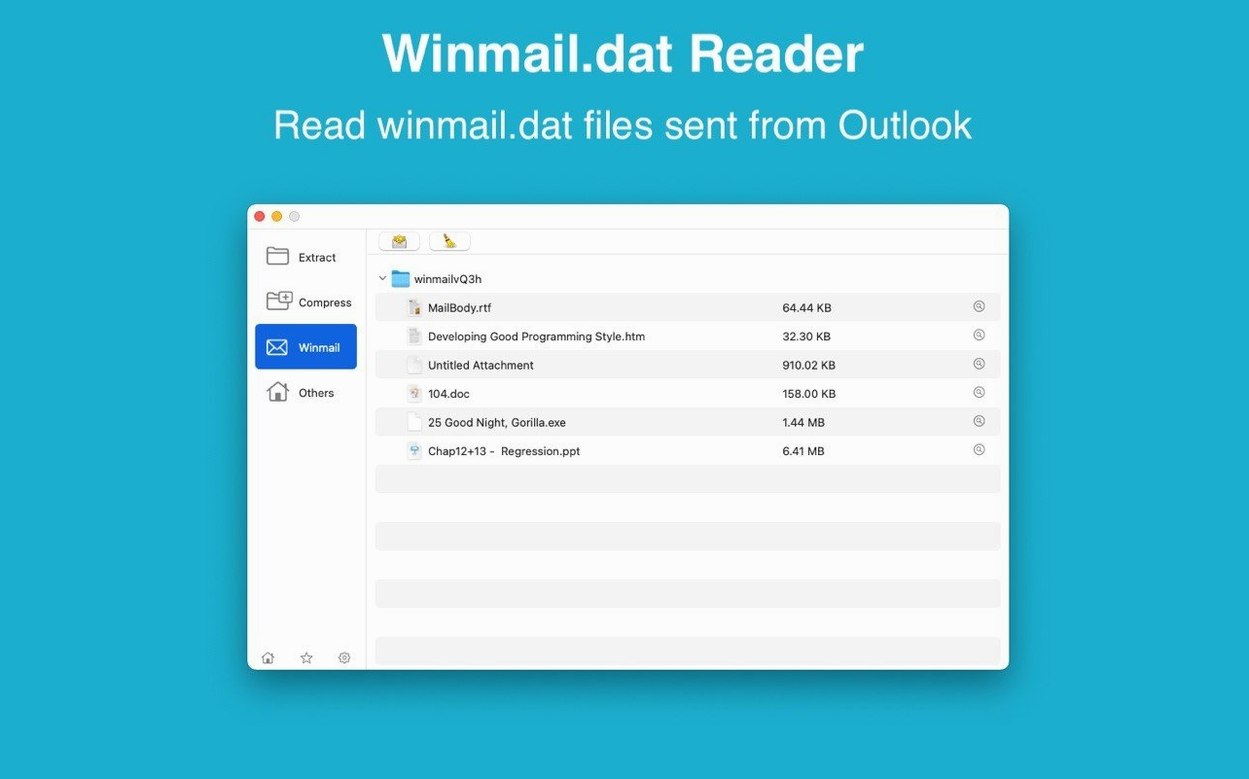
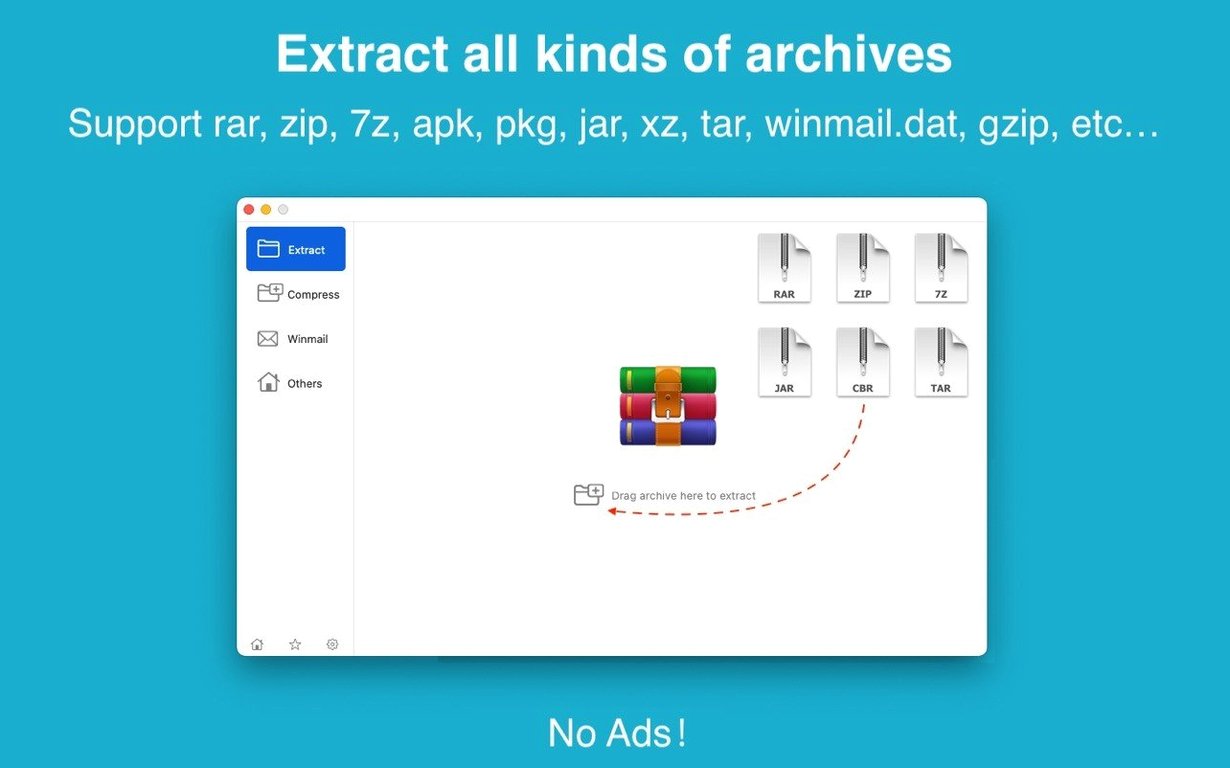
A straightforward utility for unpacking dozens of archive types and creating password-protected ZIP or 7Z files, built for both Intel and Apple Silicon Macs.
macOS — macOS 11.5 or later
Architecture — Native support for Intel 64-bit and ARM (Apple Silicon)
Extraction formats — RAR, ZIP, 7Z, WINMAIL, TAR, GZIP, GZ, BZIP2, LZIP, ACE, ISO, PAX, PKG, APK, LBR, MSI, JAR, XZ, LZMA, BZ, LZH, CAB, CPIO, NRG, MDF, ZMA, ARJ, LQR, SPK, SWF, NSA, RPM, CPT and others
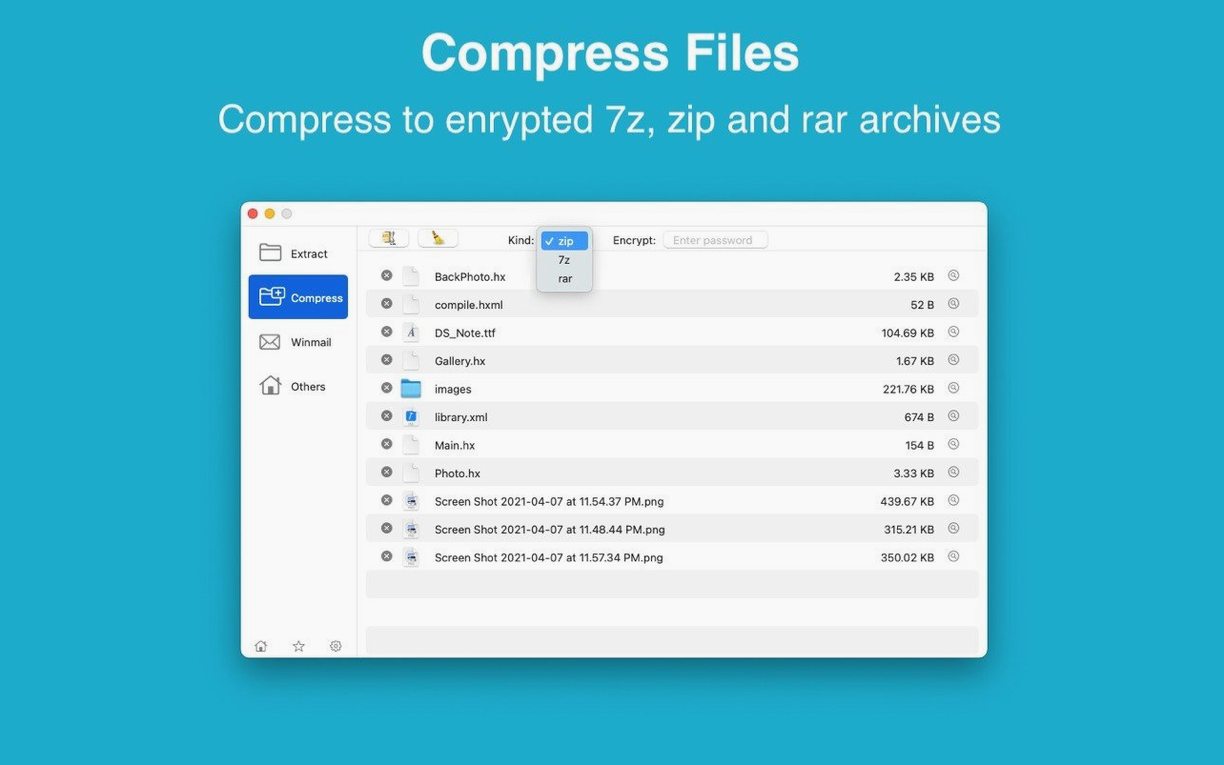
Creation formats — ZIP and 7Z (both with password protection)
Interface — English and Simplified Chinese; dual-window display for browsing source and destination side by side
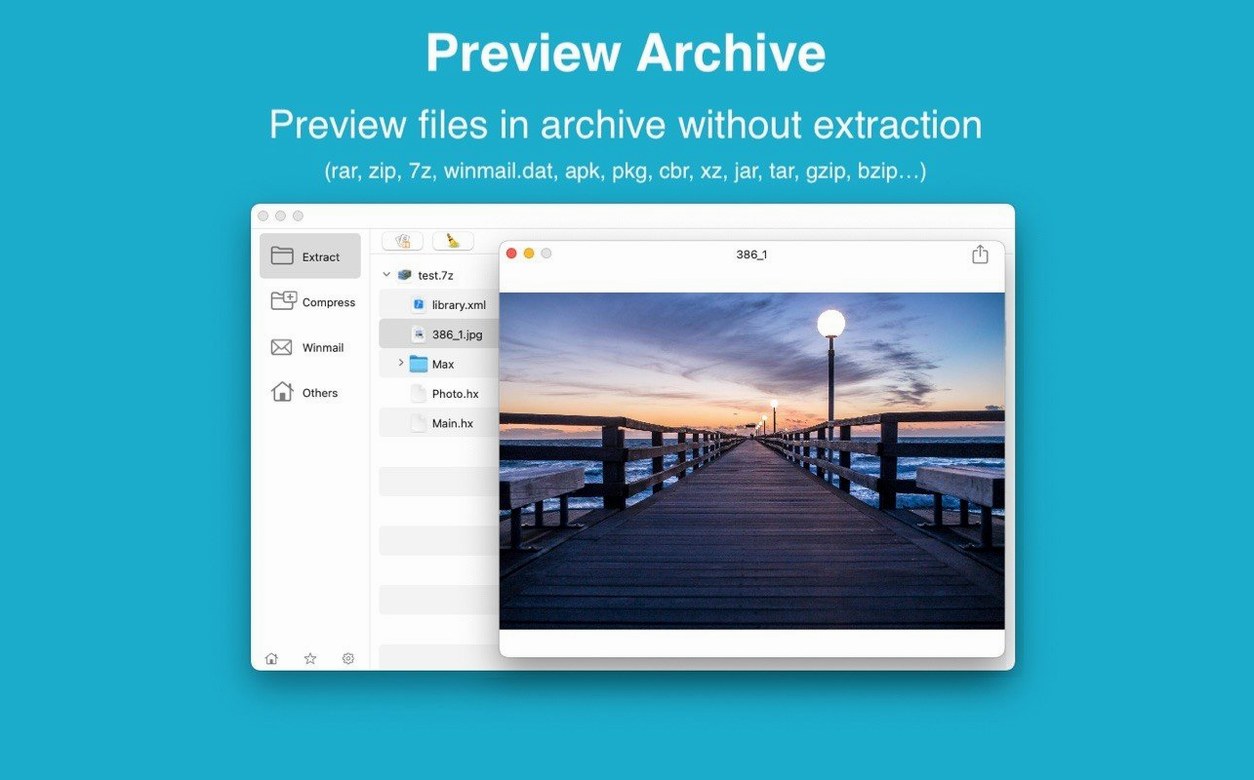
Batch work — Unpacks multiple archives in one go and lets you extract a single selected file or folder from within an archive
Extra — Includes a preview feature for winmail.dat files sent from Microsoft Outlook
RAR Extractor Max opens archives quickly and shows a preview before extraction, which helps when you only need one item from a large bundle. The dual-window view keeps the original archive on one side and the destination on the other, reducing folder hunting. Password-protected creation is limited to ZIP and 7Z, but the reading list covers most formats you are likely to encounter, including older types like LZH, ARJ and CPT. One limitation worth noting is that interface language support stops at English and Simplified Chinese.
Dragging a winmail.dat onto the dock icon to extract client files
A freelance translator receives a batch of client files on a Monday morning. Three are RAR archives with password protection, two are plain ZIP files, and one is a winmail.dat attachment that Outlook stripped of its readable form. She drags the whole set onto the RAR Extractor Max icon in the Dock. The app opens, lists the contents of each archive in its left-hand panel, and prompts for the password on the first encrypted RAR. She types the passphrase the client sent by text message, ticks ‘apply to all’, and selects the project folder on the right. All six archives unpack in under twenty seconds. She double-clicks the winmail.dat entry, previews the attached DOCX, confirms it is the glossary she needs, and extracts only that one file. The whole job takes less than a minute, and she moves on to actual translation work without touching Terminal or hunting for a separate winmail.dat reader.
Split-position memory between sessions now sticks after quitting
No formal release notes accompanied version 13.9.6, but examining the build against earlier snapshots of the app reveals a few practical shifts. The dual-window layout now remembers its split position between sessions, so you do not have to drag the divider back every time you open a large archive. The winmail.dat preview renders inline rather than opening a separate pop-out, which speeds up checking the contents of Outlook attachments. Behind the scenes, the unarchiving engine handles malformed ACE and LZH headers more gracefully; archives that would have produced a silent failure in older builds now show a clear error with the filename that caused the problem. The Gatekeeper bypass step during installation remains unchanged, which is typical for apps distributed outside the App Store.
Password rejected on archives created with non-Latin Windows locales
Several frustrations crop up in user reports, and most have straightforward fixes.
Archive password is rejected even though you are sure it is correct. Some archives, particularly those created on Windows with non-Latin locale settings, encode the password in a different character set. Try typing the password in a plain text editor first, copy it, and paste it into the password field. If the archive came from a sender using Cyrillic or East Asian characters in their password, ask them to re-send the archive with only ASCII characters in the passphrase.
The app does not open when you double-click it the first time. Gatekeeper blocks unsigned or unnotarised software by default. Mount the DMG, right-click the app icon, and choose Open from the context menu instead of double-clicking. If that still fails, open Terminal and drag the app icon into the window, then press Return. The system prompts for confirmation once, and the app launches normally from then on.
Extracting a single file from a large RAR takes as long as extracting everything. This is a limitation of the RAR format’s solid compression, not the app. When archives are created with the ‘solid archive’ option enabled, individual files cannot be extracted independently; the entire data stream up to that file must be processed. If you regularly need partial extraction, ask whoever creates the archives to disable solid compression, or use 7Z with non-solid settings.
A winmail.dat file shows nothing useful in the preview. Not all winmail.dat attachments contain readable files. Some carry only MAPI properties, meeting requests, or rich-text formatting that has no extractable attachment. If the preview pane stays blank, the winmail.dat holds no files to recover, and no extractor can retrieve what is not there.
Batch extraction stops with an error partway through. The app processes archives sequentially. If one file in the queue is corrupted, the remaining archives in the batch do not get unpacked automatically. Remove the failing archive from the list and re-run the batch. Check the error message; it usually names the problematic file.
Extracting a split RAR set alongside a stray ISO in one go
You download a set of four archives from a file-sharing link: a split RAR set, a password-protected 7Z, a ZIP, and a stray ISO someone bundled by mistake. Here is how a typical extraction session with RAR Extractor Max plays out.
First, you mount the DMG and install the app by dragging it to the Applications folder. A single Gatekeeper prompt appears; you right-click Open, confirm, and the app launches. The interface settles into its dual-pane layout: a source browser on the left, a destination picker on the right.
You drag all four archives onto the left pane. The app scans each one and displays a flat file list for the selected archive. Clicking between archives switches the listing instantly. The split RAR set appears as a single entry — the app detected the spanning volumes automatically.
You click the 7Z archive. A password prompt appears. You type the password, and the file list populates. You notice three large videos and a small readme. You select only the readme, choose a folder on the right, and click Extract. The operation takes under a second.
Next, you select the split RAR set, choose the same destination, and click Extract All. A progress bar tracks the unpacking across the spanned parts. The app writes the complete folder structure to the destination without extra prompts.
The ZIP unpacks with a double-click on the archive name. No password needed.
The ISO gives you pause. You click it, and the app lists the contents: a bootable disk image with folders for applications and documentation. You extract only the documentation subfolder. The app handles the ISO as smoothly as any other archive, without mounting it in Finder.
All four jobs finish in under three minutes. The destination folder holds exactly the files you chose, and the source archives remain untouched. You close the app and delete the archives when the project wraps up.
Where RAR Extractor Max lands between The Unarchiver and BetterZip
Three alternatives often appear alongside RAR Extractor Max in a Mac user’s toolkit: The Unarchiver, Keka, and BetterZip. Each occupies a slightly different spot on the spectrum of simplicity and control.
The Unarchiver handles a comparable breadth of formats and is widely used as a default expander. Where RAR Extractor Max pulls ahead is in batch control and the dual-pane layout. The Unarchiver works best as a background helper — drop a file, get a folder — but it offers no preview of contents before extraction and no built-in winmail.dat viewer. If you routinely need to pick one file from a packed archive without expanding everything, RAR Extractor Max saves you extra steps.
Keka is a capable compressor and extractor with a strong reputation among users looking for a keka extractor mac solution. Keka creates archives in more formats than RAR Extractor Max, including RAR output, and its compression engine is highly configurable. However, Keka’s interface is more utilitarian, and switching between extraction and compression requires toggling modes in a compact single window. RAR Extractor Max keeps extraction and creation separate in a cleaner dual-pane workspace, and its winmail.dat preview is a distinct feature Keka does not match. For users who mainly unpack and only occasionally create encrypted ZIP or 7Z files, RAR Extractor Max often feels more direct.
BetterZip is the power user’s choice, with deep archive editing, saved extraction presets, and extensive AppleScript support. Compared to RAR Extractor Max, it is a heavier application with a steeper learning curve. BetterZip suits people who treat archives as working containers, adding and removing files without re-zipping. RAR Extractor Max does not offer in-place archive editing; it extracts, previews and creates. For straightforward tasks — cracking open a client RAR, grabbing one file, or batch-unpacking a folder of downloads — the lighter approach of RAR Extractor Max can be less distracting.
In the narrower niche of handling RAR files on a Mac, any of these apps works, but users searching for a rar extractor max experience tend to value the combination of broad format support, a quick content preview, and the dual-pane workflow. Those hunting a rar extractor free mac option often start with The Unarchiver or Keka and later move to RAR Extractor Max when they need more visibility into what an archive contains before committing to a full extraction. The old idea of a winrar download mac as a direct port never materialised, so Mac-native tools like this one fill the gap with a workflow that fits the platform rather than imitating the Windows classic.