Aspecten
 Download (42 MB)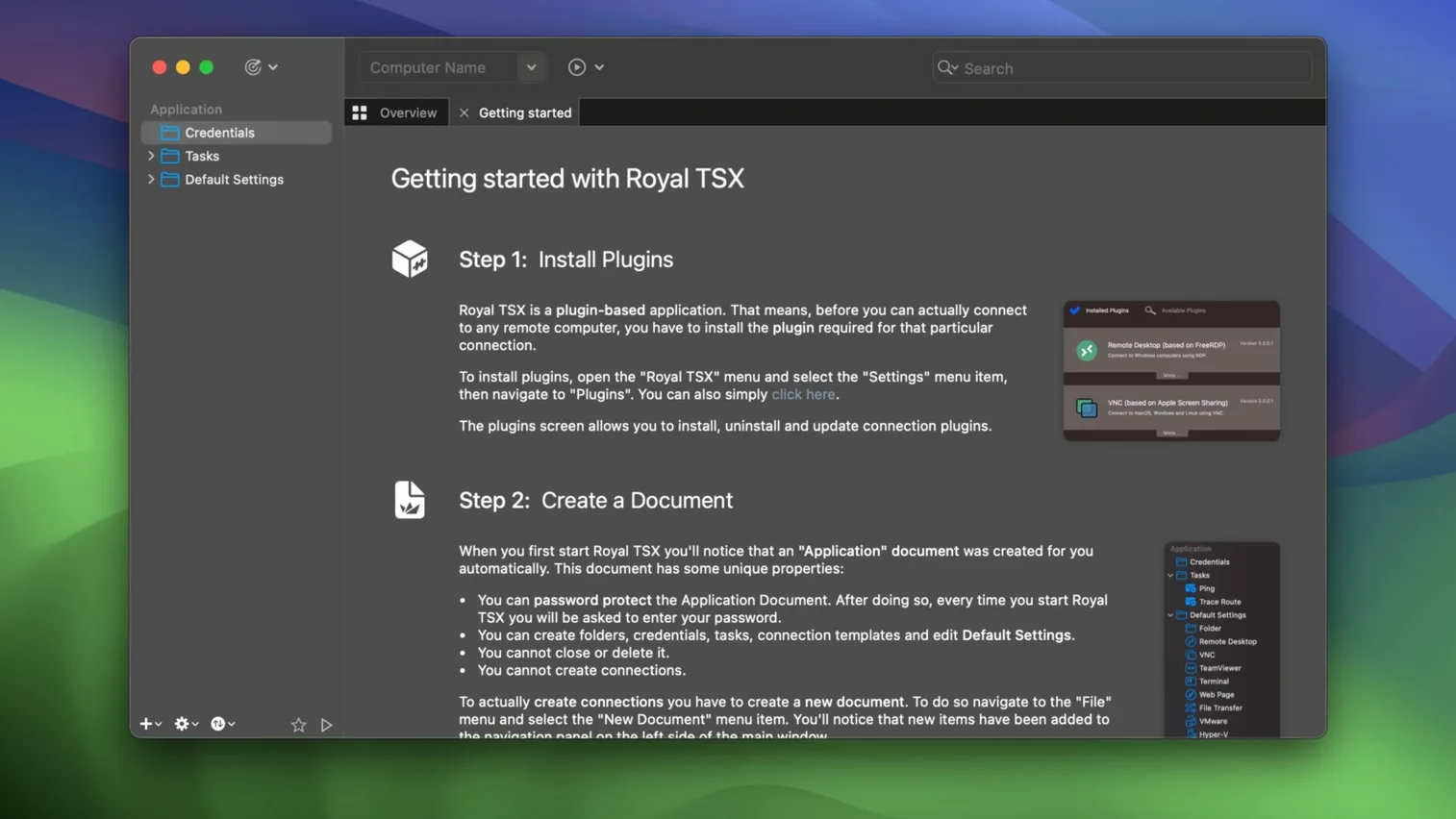
Royal TSX is a remote management client that brings multiple connection protocols into a single macOS application.
Connecting to remote systems
You work with RDP, VNC, SSH, Telnet and web-based interfaces inside one window, switching between sessions without juggling separate apps. Credential management ties into the same structure so you store access details once.
Running tasks across servers
Batch operations let you push the same action to several machines at once, and built-in scripting support means repetitive jobs can be automated from within the application. File transfer between your Mac and remote hosts sits directly in the workflow rather than as a separate tool.
Keeping setups portable
Documents created in Royal TSX remain compatible with Royal TS on Windows, Royal TSi on iOS and Royal TSD on Android, so a connection configuration built on one platform opens on the others without conversion.
Disable the save prompt that fires on every close
Right after installing, open the application preferences and switch the Document Auto-Save behaviour to save changes immediately. The default prompts to save on every close, which grows tiresome when you adjust dozens of connections in a session. Under General > Confirmation, consider disabling the disconnect warning if you move quickly between sessions — the dialog interrupts a fast-paced workflow.
Next, visit the Credentials pane. By default Royal TSX stores credentials in the document itself. If you share connection files across the Royal TS family, point the credential store to an external location or a shared Royal Server instance so passwords stay synchronised and you avoid duplicate entries. For anyone who downloaded Royal TSX for Mac and uses it alongside a Windows machine, this single change prevents credential drift between platforms.
In the Appearance tab, reduce the toolbar to icon-only mode if screen space is tight on a laptop. The compact layout frees roughly 40 pixels of vertical room per tab, which adds up when you keep four or five RDP sessions open side by side.
Build one template per protocol to inherit your defaults
Spend the first session building one template connection for each protocol you use regularly. A template stores your preferred screen resolution, colour depth, keyboard mapping and gateway settings. After that, every new connection inherits sensible defaults instead of starting from scratch. Folders can hold multiple templates, so you might keep a "Client RDP" template separate from a "Server SSH" one.
During the first week, resist dropping every connection into a flat list. Royal TSX handles nested folders well, and a structure that mirrors how you think — by client, by datacentre, by function — makes the left-hand tree navigable by muscle memory. Drag connections between folders freely; no reconfiguration is lost when you reorganise.
If you manage Windows hosts, test the Royal Server integration early. Pointing Royal TSX at a Royal Server instance offloads tasks like PowerShell execution and secure tunnel setup, and the server-side gateway keeps RDP traffic off the local network. Even in a small lab, the performance difference on low-bandwidth connections is noticeable.
Option-click a folder to collapse the whole tree at once
Several shortcuts sit just below the surface. In any connection tree, hold Option while clicking a folder to collapse or expand every nested item in one go — a quick way to tidy the sidebar after a long session. The Quick Connect bar (Cmd+K) accepts protocol shorthand: typing rdp://hostname or ssh://user@host opens a session without creating a permanent connection object, ideal for one-off tasks.
Within an RDP session, the Cmd+Shift+D shortcut detaches the current tab into a separate window, which is useful for dragging a remote desktop onto a second monitor. Right-click any tab and select Duplicate to clone a session with its credentials intact — less friction than opening a new connection when you need a second view of the same server.
For those who download Royal TSX for Mac and work in mixed-language environments, the Keyboard Mapping editor under connection properties lets you remap keys per session. A German Mac layout connecting to an English Windows host no longer sends the wrong characters; set the mapping once and attach it to a template.
The credential picker supports drag and drop. Instead of opening a connection's properties to assign credentials, simply drag an entry from the credential store onto any connection in the tree. The assignment updates silently, and the connection icon changes to indicate a linked credential is active.