Aspecten
 Download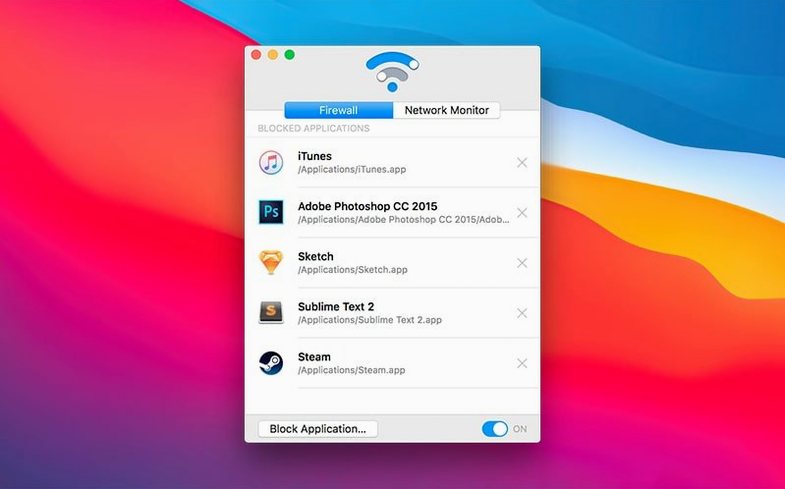
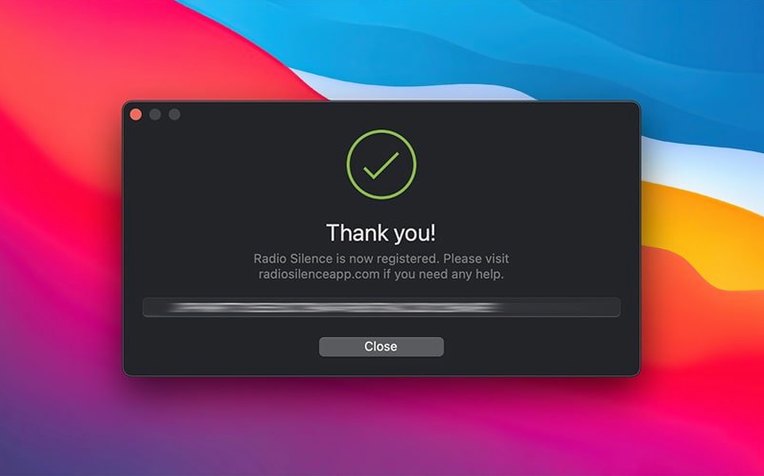
People who want to stop particular applications from phoning home or using bandwidth in the background often end up with Radio Silence. It operates as a straightforward outbound firewall, giving you a list of what has attempted a connection and a simple way to cut it off. Version 3.4 carries forward that same deliberate narrowness, tidying up the installation experience rather than adding interface clutter.
- The Firewall tab holds the block list. Removing an app from it restores its network access immediately.
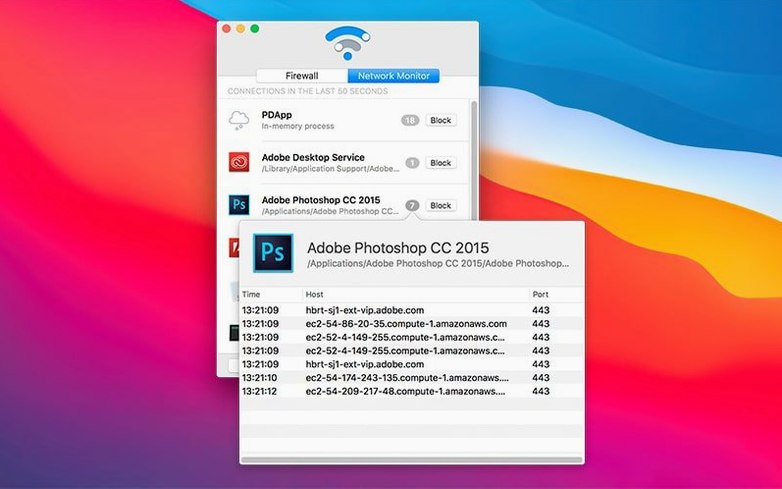
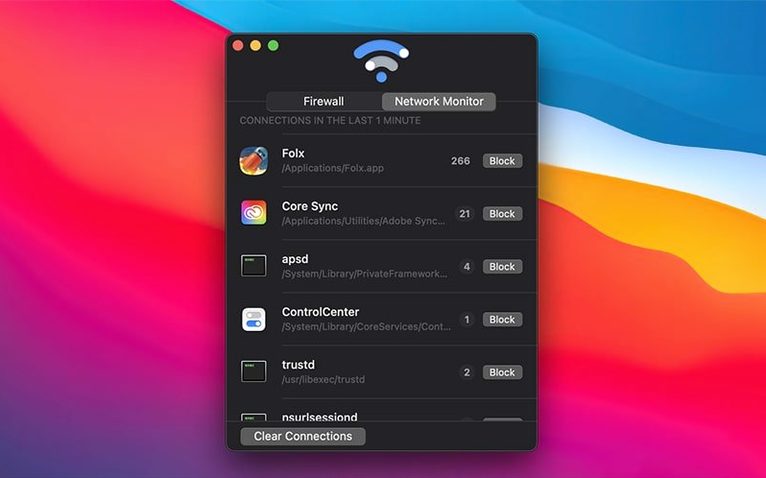
- Traffic monitoring happens in real time, covering both outgoing attempts and incoming connections initiated by an app.
- There is no menu bar icon. The app stays out of sight once you have set your rules.
- The firewall can be paused temporarily when you need to let a blocked app through for a moment without altering your permanent rules.
- Blocking works per application — if a piece of software tries to reach its servers, you can stop it with a single addition to the list.
What is absent matters almost as much as what is present. Radio Silence does not attempt to profile traffic, filter content, or show live throughput graphs. It answers one question — "which apps can talk to the network?" — and then gets out of the way. For a machine running macOS 10.15 or later, that focus keeps the tool predictable.
Sort by traffic to spot the noisiest apps instantly
Radio Silence ships with sensible defaults, but a few adjustments make the first hours of use smoother. The most practical one sits in the Network Monitor tab: the list refreshes automatically, yet the default sorting by application name may hide the busiest offenders. Dragging the column header to sort by connection count or last activity timestamp gives a quicker picture of what is actually chattering in the background.
Another early change concerns app additions. The Block Application button opens a file browser to select an application directly from the Applications folder or elsewhere. If you prefer drag-and-drop, the Firewall tab accepts items pulled straight from Finder without any extra steps. Switching to that method early on saves the small friction of navigating folder trees every time.
People who install Radio Silence on a machine with several user accounts should also verify the permissions dialogue that appears during setup. Version 3.4 improved how missing permissions are handled, but dismissing the prompt without reading it can leave the network extension half-configured. A quick check under System Settings → Privacy & Security → Network Extensions prevents a silent failure where the firewall appears active but never actually intercepts traffic.
Works beside the macOS firewall, not against it
A recurring concern is whether Radio Silence interferes with macOS built-in firewalls. It does not. The system firewall, accessible through System Settings, handles incoming connections at the system level. Radio Silence works alongside it, managing outbound traffic per application. The two layers coexist without conflict because they address different directions of network activity. Pausing one does not affect the other.
Another common question involves updates and reinstalls. When a blocked application receives an update — either through its own mechanism or via a manual download — the block rule remains in place. The firewall identifies apps by their bundle identifier, not by a file path that might change. That said, some applications change their bundle identifier between major versions, in which case the new version appears as a separate entry and needs its own block rule. The monitor tab surfaces this quickly: if a freshly updated app starts connecting again, it shows up in the activity list right away.
Some people ask whether the tool itself phones home. Radio Silence generates no telemetry and runs no background reporting. The developer has no server to receive such data, and the app contains no analytics frameworks. The only network activity it ever shows is that of other applications — never its own.
Privacy-focused users often wonder about the network extension model. Starting with macOS Catalina, Apple required firewall-style tools to use the Network Extension framework rather than older kernel extensions. Radio Silence adopted this architecture early, which means it benefits from tighter sandboxing and does not require a kernel extension approval in Recovery Mode. Uninstalling is equally clean: dragging the app to the Trash removes the extension alongside it, leaving no lingering configuration files outside the standard user preferences folder.
Little Snitch wraps firewalling in a whole network monitor
Radio Silence sits in a small category alongside tools like Little Snitch and LuLu. The differences are not subtle, and they shape who gravitates toward which tool.
Little Snitch shares the same outbound-firewall purpose but surrounds it with an elaborate interface. It presents connection alerts in real time as pop-up dialogues, builds detailed traffic graphs, and supports rule sets that can differentiate by domain, port and protocol. That granularity appeals to people who want to micro-manage every packet, but it also generates constant decision-making. Radio Silence takes the opposite approach: no pop-ups, no per-connection alerts, just a binary allow-or-deny per application. The trade-off is clear — you lose the fine control in exchange for near-total quiet after setup.
LuLu is an open-source alternative developed by Objective-See. It also alerts on new connections and maintains a rule list, but its alerting style is simpler than Little Snitch and closer in spirit to a lightweight monitor. Compared to Radio Silence, LuLu offers more visibility into what is being blocked at any given moment, including a status bar icon with a running count of denied connections. The downside is that it requires more ongoing attention. Radio Silence avoids the status icon entirely and stays in the background; LuLu prefers to keep you informed. Which approach works better depends entirely on whether you want a quiet sentry or an active lookout.
What sets Radio Silence apart from both is its deliberate minimalism around installation and permissions. Version 3.4 added explicit guidance for macOS Tahoe and improved the handling of installation errors, which addresses a real-world friction point that some alternatives have not tackled head-on. The troubleshooting help view, new in this version, is a small but practical safety net for moments when the network extension does not load correctly. None of the three tools is universally better; they suit different temperaments and different tolerances for ongoing firewall interaction.
Watch the monitor for an hour before setting any blocks
Start by watching the Network Monitor for an hour without blocking anything. Let your machine run its usual routines — email clients checking for new messages, cloud sync tools uploading local changes, media players fetching album art. The monitor builds a candid portrait of which apps reach out and how often. This passive observation phase helps separate genuinely unwanted connections from background noise that serves a purpose you may later miss.
When you begin blocking, apply rules one app at a time. Blocking a cloud-sync client immediately stops file synchronisation, which may be what you intend, but discovering that a day later when a colleague asks about an unsent document can be disorienting. A gradual approach — block one app, use the machine normally for a few hours, then assess — prevents the kind of connectivity puzzle where you forget which rule caused the breakage.
The pause feature is the most useful diagnostic tool during this period. If something stops working unexpectedly, opening the Firewall tab and pausing the entire firewall for a moment instantly confirms whether a block rule is responsible. The toggle is quick and does not alter your rule list. Once you have identified the culprit, you can refine the rule or exclude the app from the block list permanently.
A tip specific to software that uses helper processes: some applications spawn small background workers that handle network tasks independently of the main binary. Audio plug-in managers, updater daemons and licence checkers are common examples. Blocking only the main application name may miss these helpers. The Network Monitor tab shows the process name accurately, so if you block an app and still see related network activity, check the monitor for sibling processes running under the same developer name and add them individually.
Offline-first creative tools leak the most background chatter
People who use offline-first creative tools benefit from Radio Silence more than most. Applications like audio workstations, video editors and photo libraries often bundle background services that check for updates, validate licences or sync metadata without asking. A single block rule on the main application stops that chatter entirely, freeing the machine to focus on real-time processing tasks where every CPU cycle counts. Musicians running a DAW during a recording session and editors rendering a timeline are two groups who routinely notice the difference.
Privacy-conscious users who already disable analytics in individual apps still find gaps. Some applications do not offer an opt-out switch, or they bury it deep in a preference pane that resets after an update. Radio Silence acts as a universal off switch for those cases. It requires no per-app configuration and leaves no trail of preference-file changes. For someone who wants a guarantee rather than a hope that an app will stay silent, the binary block model is more reassuring than trusting each developer's settings dialogue.
Users on metered or tethered connections also gravitate toward the tool. When bandwidth costs money or comes from a limited mobile hotspot, a single unmonitored background sync can consume a meaningful chunk of a monthly allowance. Blocking media uploaders, automatic cloud backup daemons and software update fetchers turns a Mac into a much more frugal network citizen. The temporary pause feature is especially useful here: you can queue syncs for a moment when Wi-Fi is available, let them complete, then re-engage the block without rebuilding any rules.
Developers testing how their own software behaves without network access form a smaller but consistent user group. Removing connectivity at the application level, rather than by pulling a cable or toggling Wi-Fi, allows realistic simulation of offline conditions without disrupting other running tools. A developer can keep a browser, a terminal and a documentation viewer connected while isolating a single test build — a workflow that system-wide disconnection cannot replicate.