Aspecten
 Download (7 MB)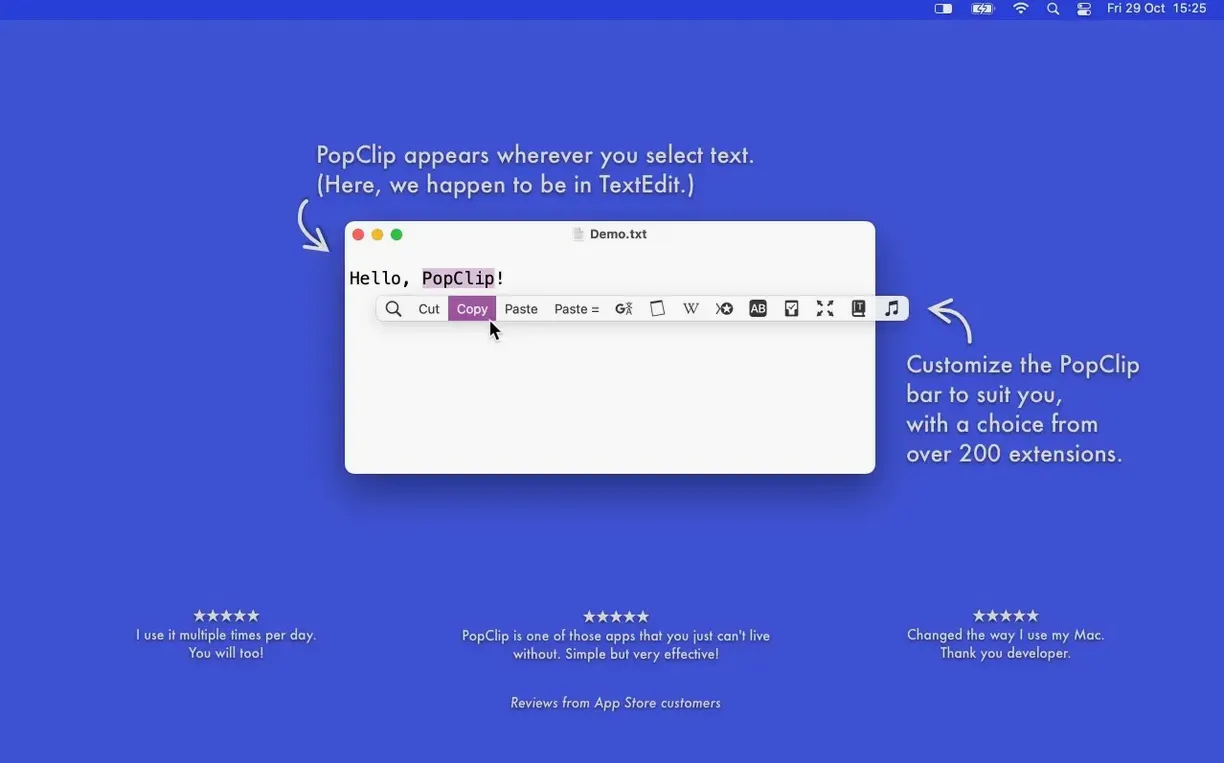
Selecting text on a Mac usually means a trip to a menu or a keyboard shortcut for the next step. PopClip places that next step right beside your selection.
PopClip — a floating action bar that appears automatically when you highlight text with the mouse on macOS.
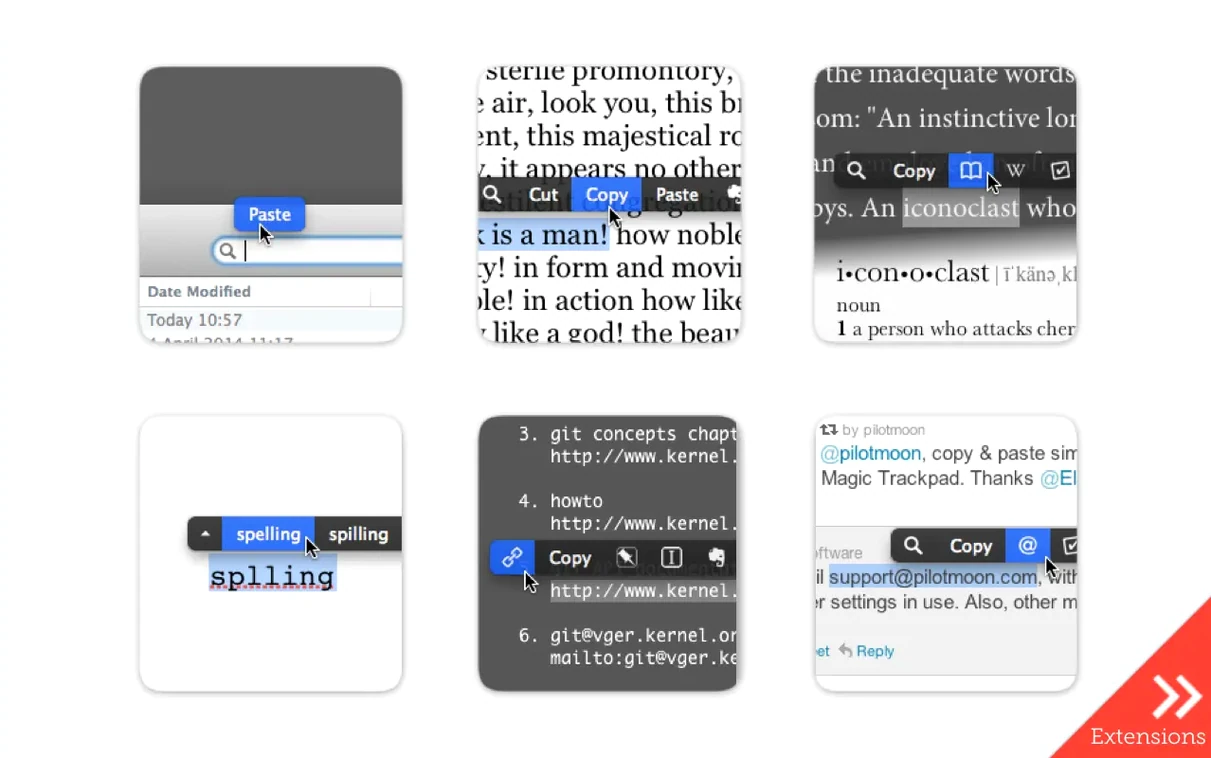
Context-aware actions — the buttons change depending on what you select. A URL shows an ‘open link’ button. An email address offers a new message. A misspelled word presents spelling corrections.
Built-in tools — look up a single word in the dictionary, perform a web search, or open a file path directly from the selection.
Extensions — the app includes actions for word count, case conversion, translation, paste-and-match-style, and sending text to Evernote. Extensions, their layout, and settings sync between Macs via iCloud.
PopClip waits quietly in the background and only appears when you make a mouse selection. It stays out of sight the rest of the time. The idea is simple: shorten the distance between noticing text and acting on it.
When the popover stays hidden after selecting text
PopClip not appearing after a selection is the most frequent issue. Check that the app is running — its menu bar icon should be visible. If the icon is there but the popover stays hidden, open PopClip's preferences and confirm the checkbox for the app you are using is ticked under Excluded Apps. Some applications — virtual machines, certain remote desktop clients, and full-screen games — deliberately block the accessibility hooks PopClip relies on, and the exclusion list is the first place to look.
When the popover shows but specific extensions are greyed out or missing, the cause is usually iCloud sync stalling. Open System Settings, tap your Apple ID, and check iCloud Drive is toggled on. PopClip stores extension data in its iCloud container; a sync delay after a fresh macOS install or signing out of iCloud can leave the extension list incomplete. A restart of the app — quit from the menu bar and relaunch — forces a re-read of the container and typically restores the missing actions.
Another snag: PopClip appears where you do not want it, such as inside password fields or code editors where automatic popovers break focus. Rather than quitting the app entirely, add the troublesome application to the exclusions list. PopClip respects per-app settings and will skip selections there until you remove the exclusion.
Occasionally the popover's position overlaps the selected text, making it hard to read what you highlighted. Hold the Option key while the popover is visible and drag it to a new default offset. The preference sticks for future selections across all apps.
Tighter text‑field detection under the hood
The jump to version 2026.8.1 is a maintenance and cleanup release following PopClip 2026.7. No new extensions or UI redesigns landed. What did change is under the hood: the developer tightened how the app handles text field detection in newer macOS versions, particularly inside apps built with SwiftUI. Users who noticed the popover occasionally failing to recognise text selections in Notes or Reminders after the Ventura 13.5 update should see fewer missed triggers.
Everyday behaviour shifted subtly. The popover feels slightly faster to appear — a reduction in the delay before the action bar draws, noticeable after repeated selections in a long document. The cleanup also addressed a memory leak that crept in when the popover was dismissed repeatedly without selecting an action, which matters if PopClip stays running for days across sleep-wake cycles.
Extension syncing reliability improved. Previously, toggling many extensions on one Mac and then opening a second Mac a few hours later occasionally resulted in duplicate action entries. The 2026.8.1 release tidied the merge logic so the layout you set on one machine lands intact on the other.
Selecting with the keyboard instead of the mouse
Treating PopClip as a keyboard-driven tool is the most common misstep. The popover reacts to mouse selections; selecting text with the keyboard — Shift plus arrow keys — does not trigger it. New users who switch from keyboard-heavy workflows sometimes assume the app is broken when it simply does not respond to cursor-based highlighting.
Another early mistake is installing too many extensions at once. The action bar can hold seven or eight buttons before it becomes overwhelming. Beginners often enable all the free extensions they find interesting, then find the popover crowded and slow to scan. A better approach: start with the five actions you reach for daily — copy, paste-and-match-style, search, open link, dictionary lookup — and add one new extension per week.
Ignoring the per-app exclusion list leads to frustration in text editors that have their own selection menus. Apps like BBEdit or Terminal already provide contextual actions; layering PopClip on top creates visual clutter and occasional conflicts. Adding those apps to the exclusions list keeps the experience clean.
Finally, a handful of new users hunt for a popclip crack or a popclip download from unofficial sources, and the zip from the developer's site is the only package that includes the full extension library and proper code signing. To get extensions loading and the popover working smoothly under macOS Gatekeeper, check that the downloaded package retains its original code signature and that all extension files are present.
Turning one‑per‑line URLs into titled Markdown links
Suppose you have a plain-text document with a dozen URLs, one per line, collected from research tabs. You need them formatted as clickable Markdown links with the page titles, ready for a references section. With PopClip and its extensions, the task moves from manual copy-paste to a few clicks per link.
Open the text file. Select the first URL. PopClip appears with an Open Link button. Click it; the page loads in your browser. Highlight the page title text in the browser tab. PopClip offers Copy. Copy the title, switch back to the editor, and select the URL again. This time, from the extensions strip, choose the Markdown Link action (part of the bundled formatting extensions). A small panel asks for the link text. Paste the title, press Return, and the raw URL becomes a clean Markdown link with the page title inserted as the anchor text.
On the second URL, the process tightens: select the URL, open the link, copy the title from the browser, select the URL in the editor, and invoke Markdown Link — the clipboard already holds the title, so the panel pre-fills it. A quick Return confirms. Each subsequent citation takes under ten seconds. The popover's memory of the last-used action keeps Markdown Link one click away, and the spatial habit of moving from selection to action bar becomes automatic after the third link.
For URLs that share a domain and you already know the title, skip the browser trip. Select the URL, invoke Markdown Link, type a short description, and move on. The popover fades as soon as you click elsewhere, letting you stay in flow without dismissing anything manually.