Aspecten
 Download (250 MB)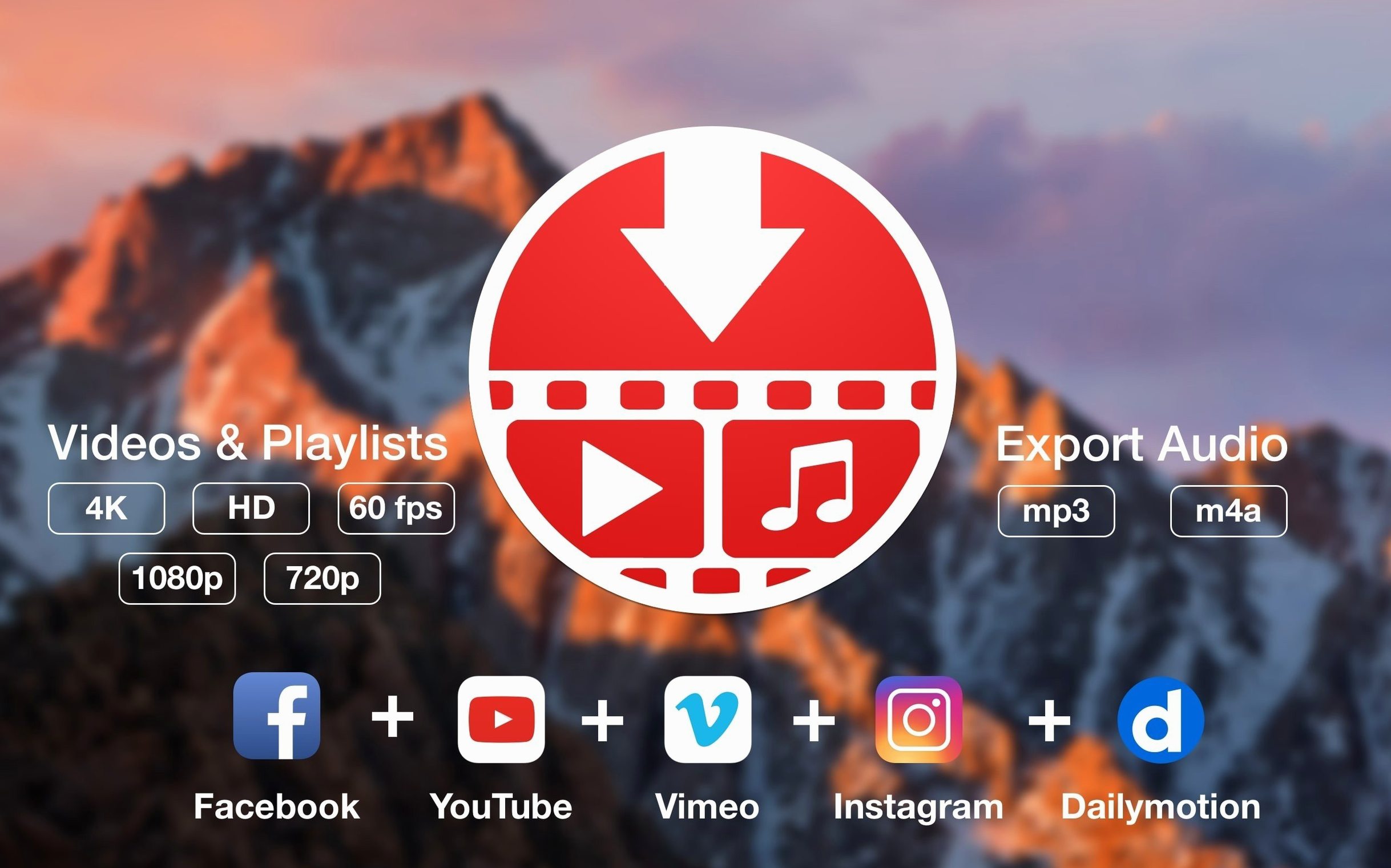
What quality options does it offer?
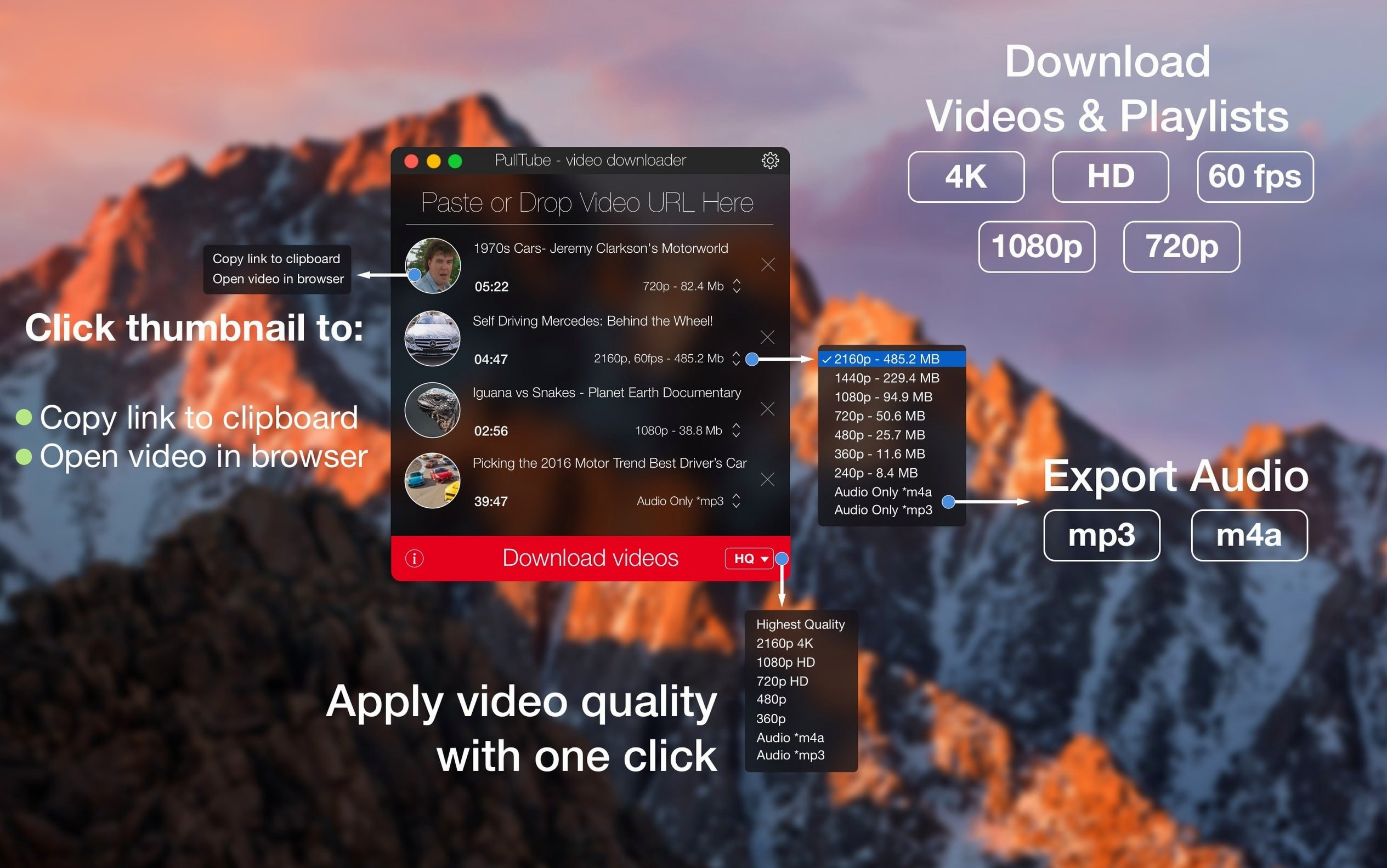
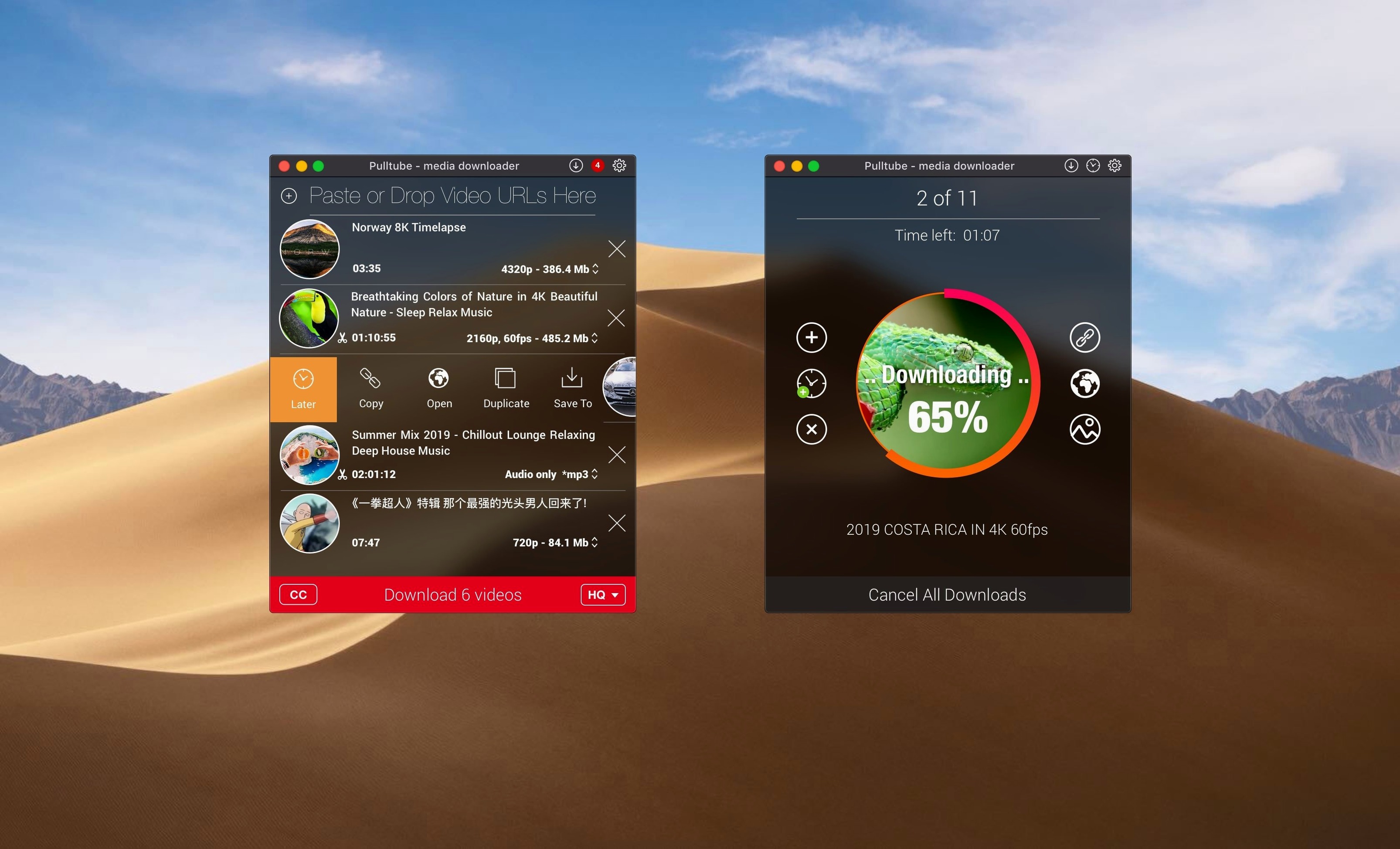
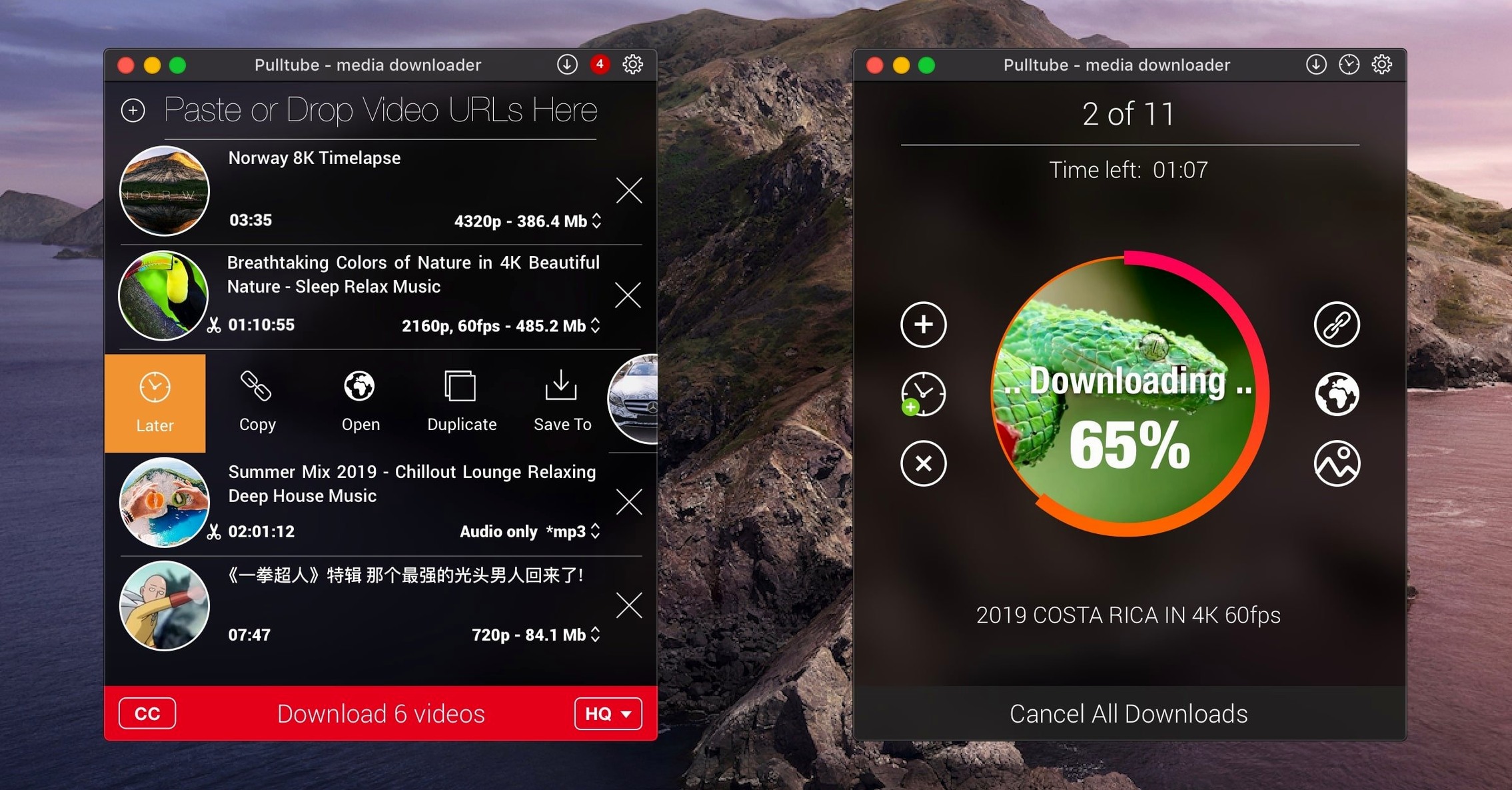
Before downloading, PullTube shows a list of available qualities for the detected video. You can pick from the highest available resolution, 4K, HD or a smaller normal quality, which gives you direct control over file size and sharpness.
Strip video to MP3 or M4A when you only need the sound
When you only need the sound, the app can strip the audio and save it as an MP3 or M4A file. It's a straightforward way to grab a podcast or a talk without keeping the video track you will never watch.
Can it deal with a whole playlist at once?
Pasting a link from a supported site detects the playlist automatically. You can then queue every item in the list, and each video title, duration and thumbnail appears in the window so you can verify what you are about to fetch before the download starts.
1080p downloads in under a minute on decent broadband
A single video download feels quick rather than rushed. On a decent broadband connection, a typical 1080p file completes in under a minute, and 4K material only stretches that wait by a modest amount. The app does not throttle the connection artificially, so the speed you get mirrors what your line can deliver. Playlist processing is where you notice the engine working harder: it resolves each link in sequence, and with a queue of thirty or forty items, the initial metadata scan takes a few seconds before the first transfer begins.
Stability is one of PullTube’s quieter strengths. During a week of mixed use — grabbing single clips, pulling audio from hour-long mixes, feeding it a batch of sixty short Instagram reels — the app did not beachball or throw a single unexpected error. When a link genuinely fails because the source video is private or has been removed, it marks the item with a clear status rather than stalling the whole queue or vanishing the task.
Resource use stays modest. With five concurrent downloads running, the app hovers around 180–220 MB of RAM and barely registers on the CPU unless it is simultaneously converting a video to audio. The M4A and MP3 extraction step adds a short spike during the transcode, then drops back. On an Apple Silicon Mac the fan never spun up; on an older Intel machine it only became audible after a large playlist kept the encoder busy for more than ten minutes straight.
One practical detail: the app writes data in a temporary location while a download is in progress and only moves the finished file to your chosen folder once the transfer completes. That means a cancelled download does not leave half-written fragments behind, and the destination folder stays clean.
Hide the dock icon and keep PullTube in the menu bar
PullTube places itself in the menu bar by default, and a click on the icon opens the main window. The dock icon is optional, so if you prefer to keep it out of the way, disable it in preferences straight away. The menu bar mode is handy because you can drop a link onto the icon without bringing the full window forward.
Set your default output folder before the first download. The app defaults to your Movies folder, but if you prefer a dedicated directory — perhaps inside Downloads or on an external drive — do that early. The setting applies to all future saves until you change it per download.
For users who extract audio often, switch the default audio format to MP3 or M4A in the preferences. That saves you from adjusting the toggle on every single link. You can still override it per item, so the preference acts as a sensible starting point rather than a trap.
If you work with playlists, let the app finish resolving the full list before you start cherry-picking items. Rushing to click Download while the list is still populating occasionally skips the last few entries. The scan is fast, so waiting an extra five seconds avoids a second pass.
Finally, the "quit when finished" checkbox at the bottom of the window is easy to miss on a first look. When you queue a large playlist before stepping away, tick it. The app will close itself after the last file lands, which is tidier than leaving it sitting open overnight.
Behind-the-scenes fixes for sites that shift delivery methods
Version 1.8.6.40 refined the way PullTube handles sites that frequently shift their delivery methods. The developer does not publish a detailed public changelog with every build, but the steady cadence of updates points to behind-the-scenes adjustments that keep the extractor matching the current state of platforms like YouTube and TikTok. In practice, this means fewer moments where you paste a link and see a vague “unsupported” notice for a video that worked fine the week before.
Playlist detection grew more reliable across the last few releases. Earlier versions sometimes failed to recognise a YouTube playlist if the link contained extra tracking parameters; the current build strips those cleanly and presents the full list without manual editing. Subtitles, where available, are also handled with less fuss — the option to include them appears alongside quality selection rather than buried in a secondary menu.
The interface saw small but useful refinements. The thumbnail area now loads images faster on slower connections, and the quality drop-down menu groups 4K, HD and standard options in a logical order instead of listing every variant in a flat scramble. The preference pane also stopped resetting the audio format choice after an update, a minor annoyance that lingered in earlier builds.
Under the hood, the app’s compatibility with Apple Silicon matured. The early native builds from 2022 worked, but the current universal binary runs cooler and wakes faster from the menu bar, suggesting the developer optimised the idle state. Users who run PullTube on a mix of Intel and ARM Macs in a household or workplace will find consistent behaviour regardless of the machine.
Region-restricted videos need your own VPN or proxy
Does it work with region-restricted videos? PullTube fetches whatever the link points to; if a video is blocked in your country, the app cannot see it either. It does not include a VPN or proxy feature, so you need to handle that separately if you want to reach geo-locked content.
Will I get the same quality as watching in a browser? Yes, up to the source’s maximum. If a video is available in 4K, PullTube offers 4K. It does not re-encode the video stream unless you ask it to extract audio, so the file you save is the same stream your browser would receive.
Can it download from sites that require a login? The app does not handle authenticated sessions. For a public YouTube video or a SoundCloud track, no credentials are needed. For members-only content or private videos shared via a direct link, the download will typically fail because the app cannot present the necessary cookies.
Is there a queue limit? In everyday use, no. You can drop a playlist with over a hundred items and the app will process them all. The practical ceiling is your disk space and patience, not an artificial cap.
Does PullTube for Mac keep a history of downloaded links? The main window shows the current session’s items, but closing the app clears the list. There is no permanent log, which some users prefer for privacy, though it means you cannot revisit a week-old queue without keeping the app open.
What happens when a site changes its layout? The developer issues updates that patch the extractor. If a site breaks, the gap is usually a few days at most. The app’s ability to handle over a thousand sites depends on that maintenance rhythm, and from the update frequency, it is clearly a priority.