Aspecten
 Download (11 MB)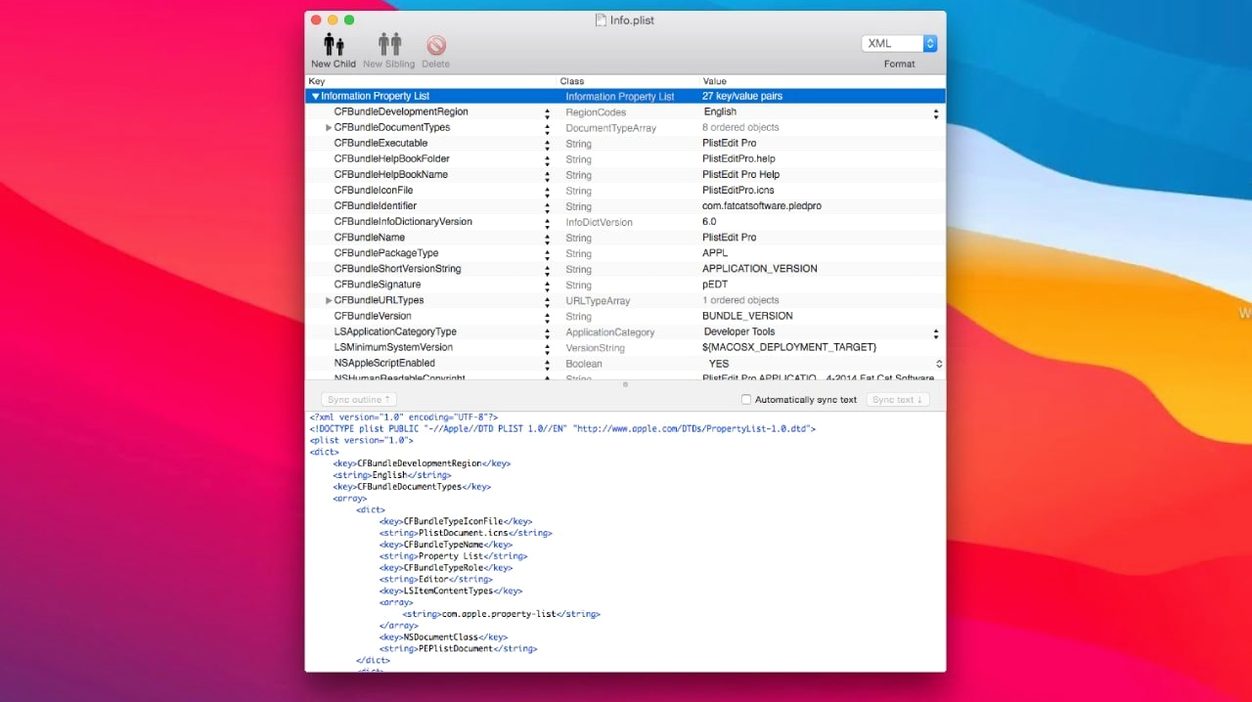
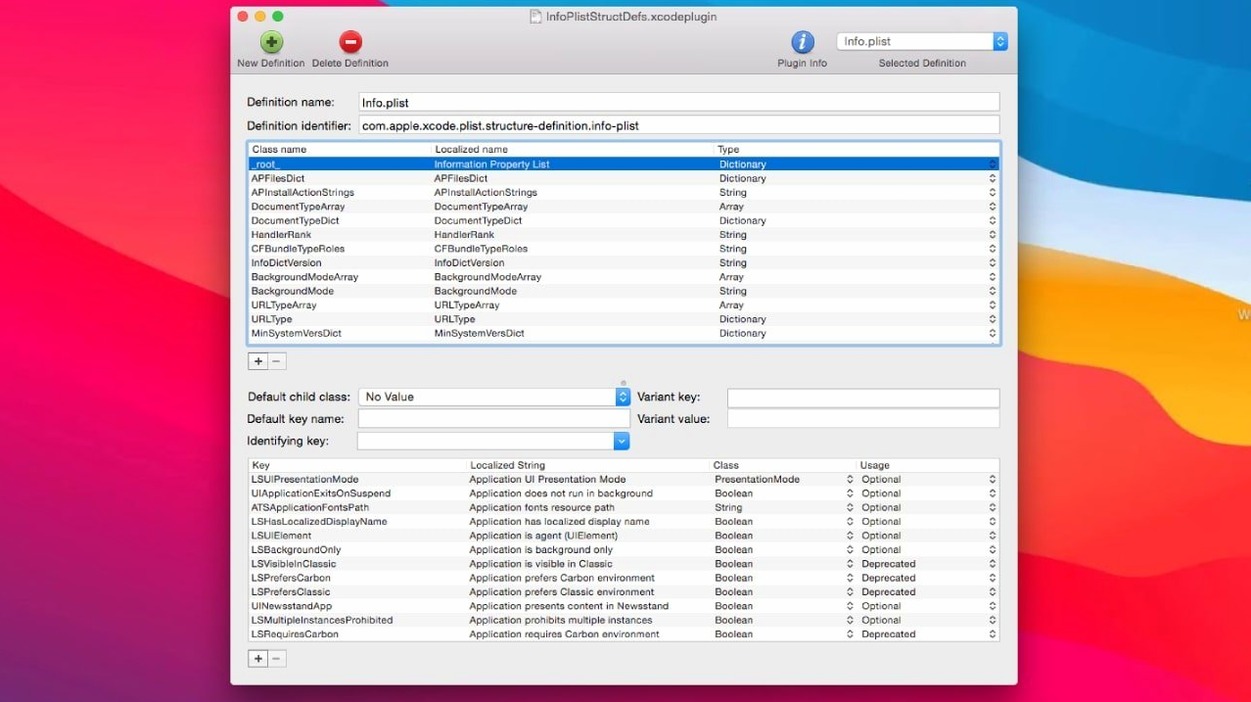
PlistEdit Pro requires macOS 14 or later and runs natively on both Intel and Apple Silicon Macs. If your work involves editing preference files, inspecting application bundles, or adjusting a JSON configuration, the app provides a focused set of tools for the task. Take a common chore: a developer needs to find every plist inside a folder that sets a particular key, then adjust the value cleanly without disturbing the surrounding structure. Here is how that works.
Searching and editing a value across files
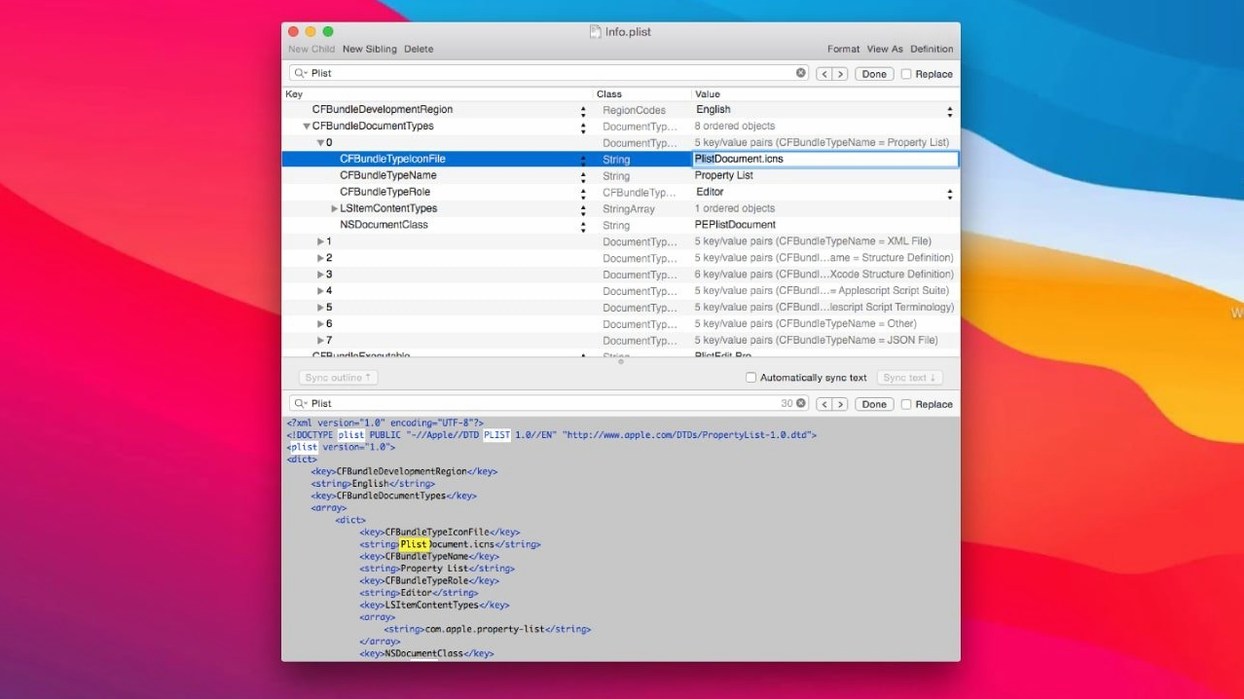
Open the folder in PlistEdit Pro and use the Find in Files command. Type the key name, set the search to look inside files, and the results pane lists every match with its path and current value. Clicking a result opens that file in the outline view, where the key is already selected. The outline shows the full hierarchy — dictionaries, arrays, booleans — and you can change the value inline. Switch to the text view if you prefer to edit the raw plist or JSON directly. The same find-and-replace panel lets you update a value across every file at once, which saves time when a bundle identifier or a default flag changes.
Checking the result in the prefs browser
After editing, the preferences browser lets you verify how macOS sees the change. It lists the system’s own preference plists in a sidebar, drillable by domain. You can open a domain, confirm the key now holds the intended value, and close it without leaving the app. Keyboard navigation keeps the flow quick: arrow keys expand and collapse rows, Tab moves between fields, and the standard macOS text shortcuts work in both outline and text modes. For repeated edits, AppleScript support means you can write a short script to open a set of files, apply changes, and save them, all without manual clicking.
A real-world scenario: packaging a launch daemon
Consider a Mac admin preparing a launch daemon for deployment across a lab of machines. The plist needs a specific Label, a ProgramArguments array pointing to a script, and a RunAtLoad boolean set to true. Dragging a fresh plist template into PlistEdit Pro gives you an empty root dictionary. You add the three keys by pressing Return in the outline and typing their names. The app recognises Label and ProgramArguments from its built-in structure definitions and pre-selects the correct type — string for the first, array for the second. You drag the script path string into the array as a child, then add the boolean with a checkbox click. The outline view keeps the hierarchy visually clear, so you spot immediately if the string ended up outside the array by mistake. Before saving, you open the text view to confirm the XML indentation matches your team’s convention. The whole task takes under a minute, and the resulting file is valid enough to load with launchctl on the first try.
Hand-editing plist or JSON in text view without knowing the structure
A common stumble is using the text view to hand-type a plist or JSON file without understanding the structure. A missing <dict> tag or an unquoted JSON key produces a file the outline view cannot parse, and the error message points to a line number but not the exact mistake. Beginners sometimes then switch back to the outline, add the missing element, and save over the broken text, which compounds the problem. The safer habit is to build the structure in the outline first, where the app prevents type mismatches, and use the text view only for spot checks or copy-pasting blocks from another editor.
Another mistake involves the preferences browser: opening a system plist directly from the Finder instead of through the browser’s domain list. Editing a preference file that a running process owns can cause macOS to overwrite the change on the next flush. The browser route shows which domain the plist belongs to and often prompts to close the file if it is in use, but nothing stops you from opening the raw file manually and editing it unsafely. New users also overlook the multi-level undo. A deleted array of ten items looks permanent in the outline, but the Undo command walks back each action individually, which is far more granular than the single undo step some editors offer.
JSON support with the same dual-mode interface and find tools
Does PlistEdit Pro handle JSON as well as plist files? Yes. The app opens .json files and displays them in the same dual-mode interface — outline and plain text. The find and replace tools work identically across both formats, and you can copy a dictionary from a plist and paste it into a JSON file without converting it by hand. The outline view labels JSON types explicitly, so a number, a string, and a boolean are visually distinct. Keep in mind that JSON does not support Apple’s plist-specific types like data or date; pasting those into a JSON document will convert them to a string representation or fail depending on context.
What does the command-line tool do? The included pledit tool lets you query and modify plist files from a shell script. You can read a key’s value, set it, or delete it, all without launching the graphical app. This is useful in build phases where a script needs to bump a version number inside an Info.plist before code signing. The tool supports the same find operations as the app’s Find in Files, so a Makefile can locate every plist containing a deprecated key and flag them.
Can I edit binary plists directly? PlistEdit Pro reads and writes both XML and binary property lists transparently. When you open a binary plist, the outline view shows the parsed structure immediately; saving writes back in the original format unless you explicitly export as XML. There is no separate conversion step required.
Find in Files across folders, preferences browser, and AppleScript vs. Xcode
Compared to Xcode’s built-in plist editor: Xcode opens property lists with a basic outline editor that understands standard types and lets you edit values inline. PlistEdit Pro adds a persistent Find in Files across folders, the preferences browser, and AppleScript support — none of which Xcode’s editor provides. Xcode also lacks a plain-text view that shows the raw XML or JSON without toggling editor modes. For developers who already use Xcode daily, the built-in editor suffices for quick single-file edits. PlistEdit Pro becomes more useful when you need to search many files, automate changes, or work with plists outside an Xcode project.
Compared to BBEdit: BBEdit handles plist and JSON files as text, its syntax highlighting is reliable, and its multi-file search is powerful. What BBEdit does not offer is an outline view that enforces property list structure. In PlistEdit Pro, you cannot accidentally create an invalid type for a key because the outline constrains the options. BBEdit’s grep-based find-and-replace works on raw text, which is flexible but can break plist syntax if a replacement string contains unescaped XML characters. PlistEdit Pro’s find operates on the parsed data model, so replacements stay structurally valid. The prefs browser and pledit tool also have no equivalent in BBEdit.
Compared to PrefEdit by Thomas Tempelmann: PrefEdit focuses exclusively on macOS preference files and shows them in an outline similar to PlistEdit Pro’s prefs browser. It does not open generic plist files from outside the preferences system, and it has no JSON support. PlistEdit Pro covers the same preference-editing ground but adds the ability to edit arbitrary plist files anywhere on disk, the Find in Files across folders, and the command-line tool. A user who only ever touches system preferences will find PrefEdit’s narrower scope simpler. PlistEdit Pro suits someone whose plist work extends beyond the preferences domains — for instance, editing launch daemons, iOS Info.plist files, or JSON configs.